
1. Įvadas ir pabaigaview
This manual provides comprehensive instructions for the installation, operation, and maintenance of the Matrox Millennium G200 Graphics Adapter, model G2+/DUALP-PL. This PCI-based graphics card is designed to provide multi-monitor dual analog output, making it suitable for professional workstations and systems requiring reliable display capabilities. The Matrox G200 series is known for its robust performance and stability in various computing environments.
2. Kas yra dėžutėje
Atsargiai išpakuokite visus komponentus ir patikrinkite, ar gavote šiuos daiktus:
- Matrox Millennium G200 Graphics Adapter (G2+/DUALP-PL)
- DMS-59 to Dual VGA Y-cable
- DMS-59 to DVI and S-Video/Composite Y-cable (may vary by package)
- Driver CD (if included, otherwise drivers can be downloaded from the Matrox websvetainė)
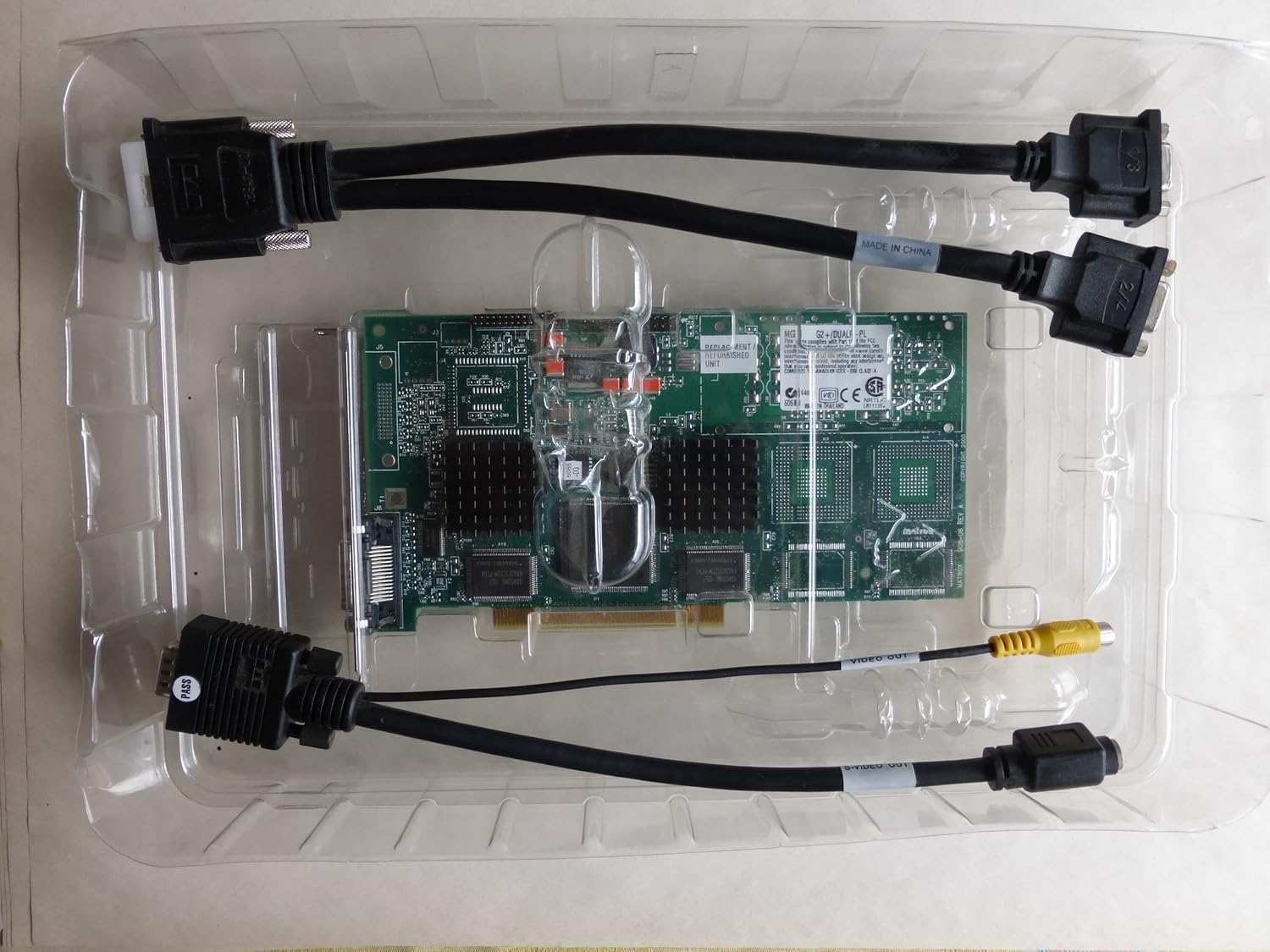
Image: The Matrox Millennium G200 graphics adapter shown within its clear plastic packaging, accompanied by its connecting cables.
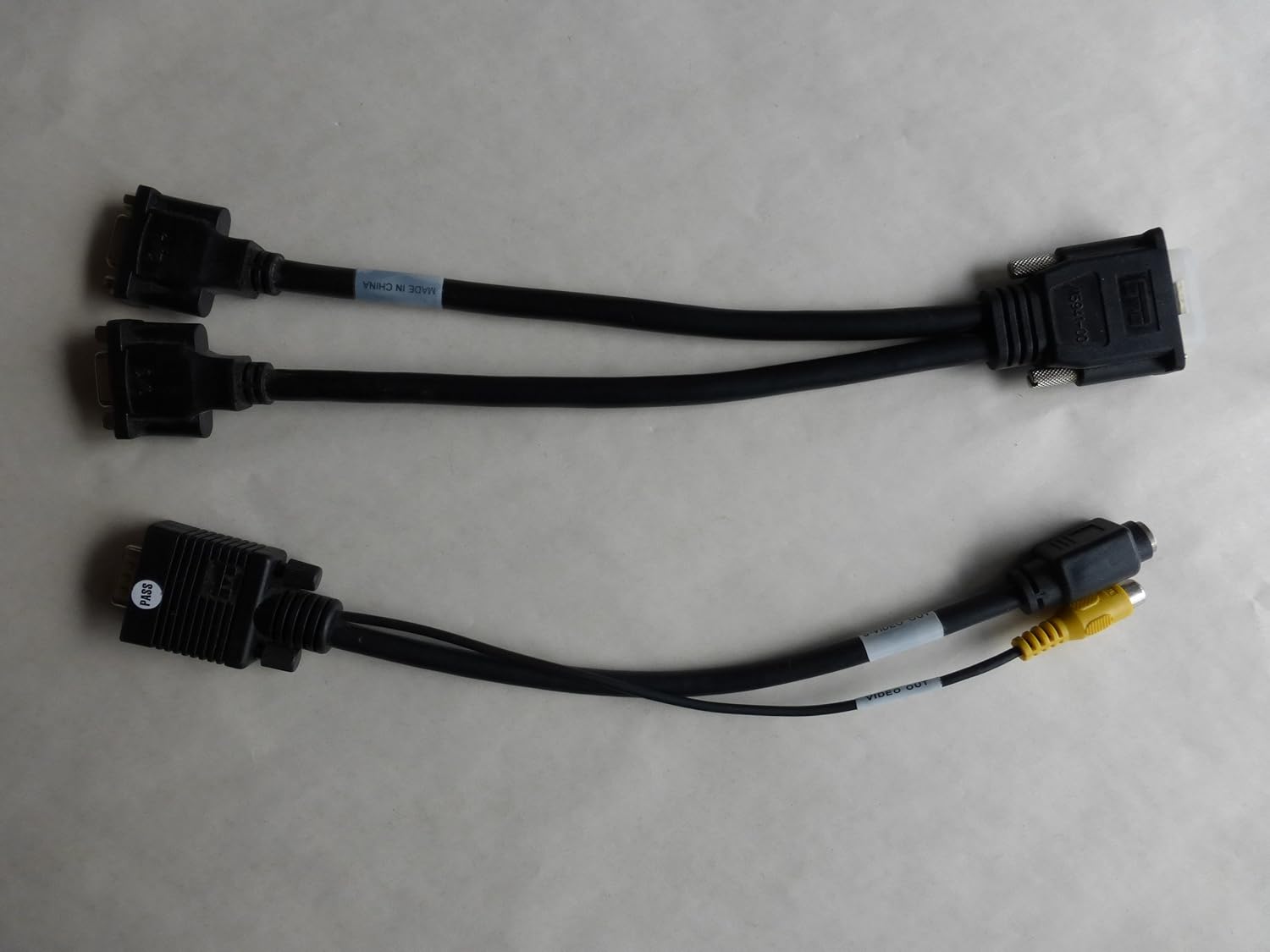
Image: Two types of Y-cables: one for dual VGA output and another for DVI and S-Video/Composite output, used with the graphics adapter.
3. Sąranka ir diegimas
3.1 Saugos priemonės
- Always power off your computer and unplug it from the wall outlet before opening the case.
- Discharge any static electricity by touching a grounded metal object (e.g., the computer chassis) before handling internal components.
- Avoid touching the gold connector pins on the graphics card.
3.2 Aparatinės įrangos diegimas
- Atidarykite kompiuterio korpusą: Nuimkite kompiuterio korpuso šoninį skydelį, kad pasiektumėte pagrindinę plokštę.
- Raskite laisvą PCI lizdą: Identify an empty PCI expansion slot on your motherboard. The Matrox Millennium G200 is a PCI card.
- Nuimkite lizdo dangtelį: Atsargiai nuimkite metalinį lizdo dangtelį, atitinkantį pasirinktą PCI lizdą, nuo kompiuterio korpuso galo.
- Įdėkite vaizdo plokštę: Align the graphics card with the PCI slot and press down firmly and evenly until the card is fully seated. Ensure the metal bracket on the card aligns with the opening in the case.
- Apsaugokite kortelę: Use a screw or the case's retention mechanism to secure the graphics card's bracket to the computer case.
- Uždarykite kompiuterio dėklą: Pakeiskite kompiuterio korpuso šoninį skydelį.
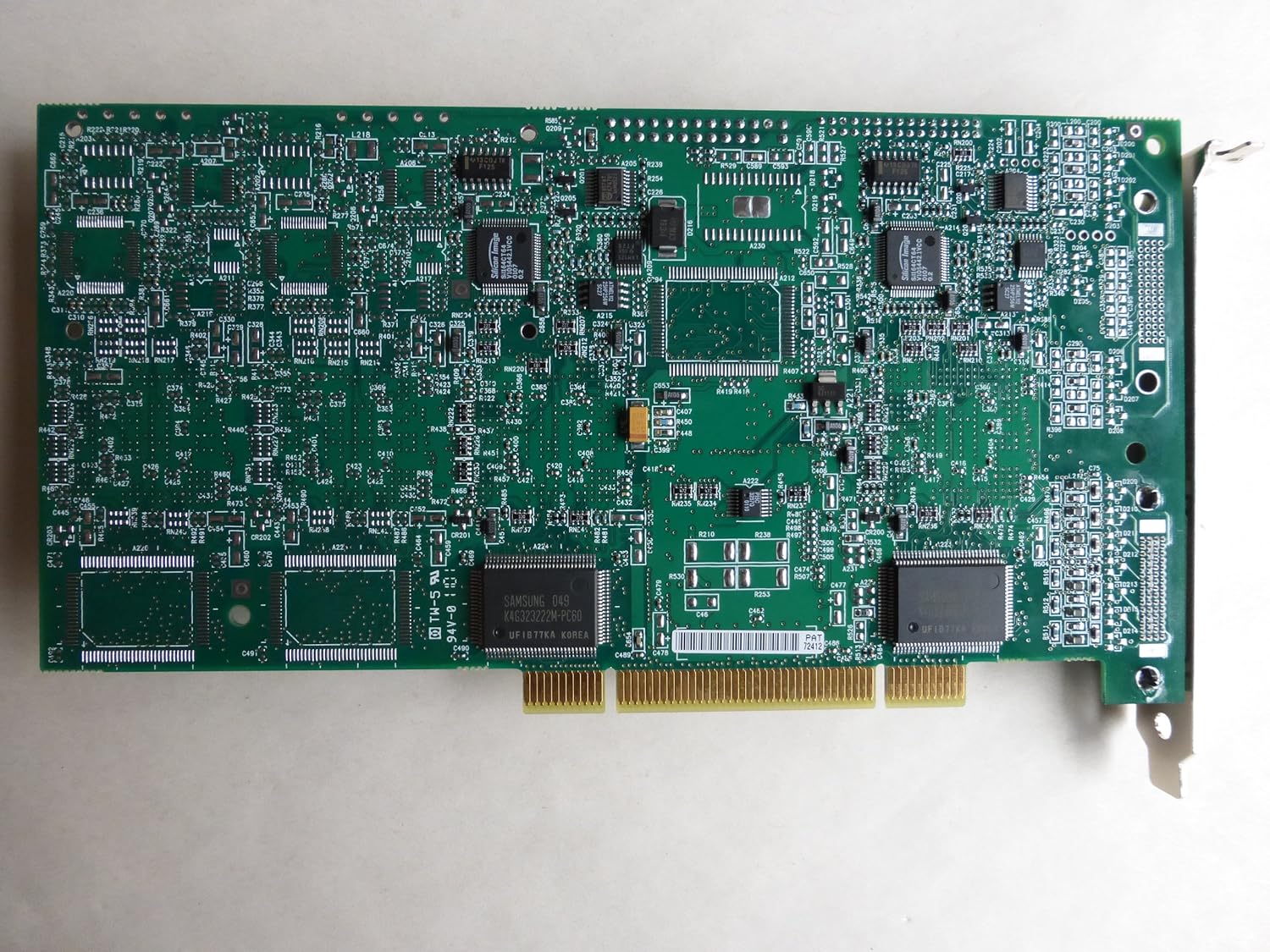
Paveikslėlis: Iš viršaus į apačią view of the Matrox Millennium G200 graphics adapter, showcasing its green circuit board with various chips and components.

Paveikslėlis: kampuotas view of the Matrox Millennium G200 graphics adapter, highlighting the DMS-59 output port and the passive heatsinks on the main chips.
3.3 Tvarkyklės diegimas
- Prijungti monitorių(-ius): Connect your monitor(s) to the DMS-59 port on the graphics card using the appropriate Y-cable (DMS-59 to Dual VGA or DMS-59 to DVI/S-Video).
- Kompiuterio įjungimas: Plug in your computer and power it on. The operating system may detect new hardware and attempt to install generic drivers.
- Install Matrox Drivers:
- If a driver CD was included, insert it into your optical drive and follow the on-screen instructions.
- Alternatively, download the latest drivers for the Matrox Millennium G200 (G2+/DUALP-PL) from the official Matrox website. Run the installer and follow the prompts.
- Iš naujo paleiskite kompiuterį: After the driver installation is complete, restart your computer to apply the changes.

Paveikslėlis: detalus view of the DMS-59 connector along with S-Video and Composite video output jacks on one of the adapter cables.
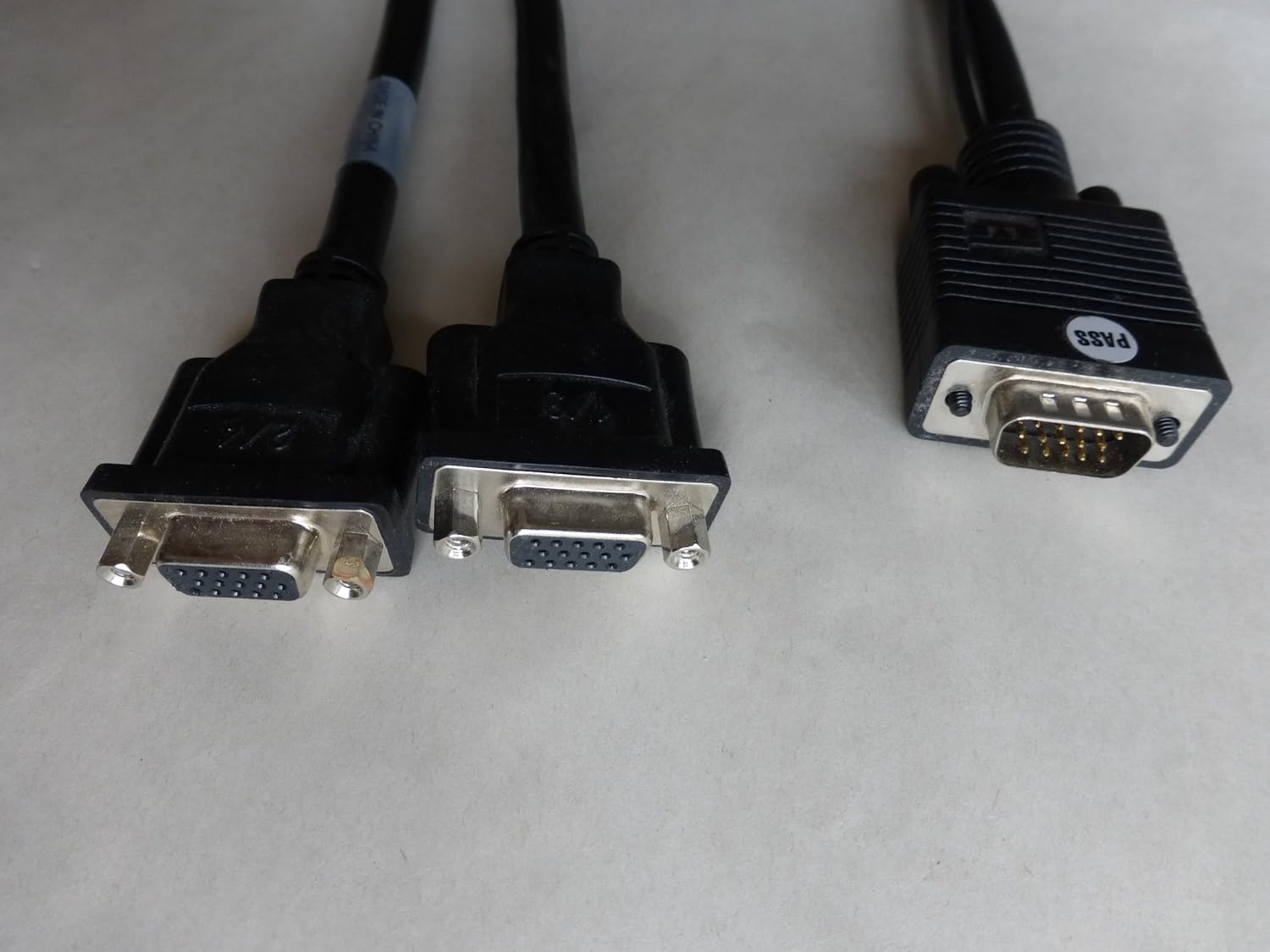
Image: A close-up of the dual VGA connectors and the DMS-59 input connector on the Y-cable, used for connecting two VGA monitors.
4. Naudojimo instrukcijos
4.1 Connecting Monitors
The Matrox Millennium G200 (G2+/DUALP-PL) uses a DMS-59 connector to support dual analog displays. Use the provided Y-cable to connect your monitors:
- For two VGA monitors, use the DMS-59 to Dual VGA Y-cable.
- For one DVI monitor and one S-Video/Composite display, use the DMS-59 to DVI and S-Video/Composite Y-cable.
4.2 Configuring Display Settings
Once drivers are installed, you can configure your display settings through your operating system's display control panel. Matrox also provides its own display utility for advanced settings.
- Raiška ir atnaujinimo dažnis: Adjust these settings to match your monitor's native resolution and preferred refresh rate for optimal display quality.
- Kelių monitorių sąranka:
- Išplėstinis darbalaukis: Extend your desktop across two monitors to increase your workspace.
- Cloned/Mirrored Displays: Duplicate the same image on both monitors.
- Ekrano orientacija: Rotate your display if using a pivot-capable monitor.
5. Priežiūra
Proper maintenance ensures the longevity and optimal performance of your graphics adapter.
- Dulkių šalinimas: Periodically open your computer case and gently clean any dust accumulation on the graphics card and its heatsinks using compressed air. Ensure the computer is powered off and unplugged before cleaning.
- Oro srautas: Ensure your computer case has adequate airflow to prevent overheating, which can affect the performance and lifespan of the graphics card.
- Tvarkyklės atnaujinimai: Check the Matrox website periodically for updated drivers. Keeping your drivers current can improve performance, add new features, and resolve compatibility issues.
6. Problemų sprendimas
If you encounter issues with your Matrox Millennium G200 graphics adapter, refer to the following common troubleshooting steps:
- Nėra ekrano ekrane:
- Ensure the monitor is powered on and correctly connected to the graphics card using the appropriate Y-cable.
- Verify the graphics card is fully seated in its PCI slot. Power off the computer, unplug it, open the case, and reseat the card.
- Check if your monitor input is set to the correct source (VGA, DVI).
- Jei įmanoma, išbandykite su kitu monitoriumi arba kabeliu.
- Incorrect Resolution or Colors:
- Ensure the latest Matrox drivers are installed.
- Adjust display settings in your operating system's control panel to the monitor's native resolution and desired color depth.
- Sistemos nestabilumas arba gedimai:
- Verify that the graphics card is properly installed and secured.
- Ensure your system's power supply unit (PSU) meets the minimum requirements for all installed components.
- Check for driver conflicts with other hardware. Try reinstalling the Matrox drivers.
- Monitor system temperatures to ensure the card is not overheating.
7. Specifikacijos
| Funkcija | Detalė |
|---|---|
| Modelio numeris | G2+/DUALP-PL |
| Prekės ženklas | Matrox |
| Grafikos koprocesorius | MGA G200 |
| Vaizdo įrašų atmintis | 16 MB |
| Grafikos RAM tipas | SRAM |
| Vaizdo išvesties sąsaja | DMS-59 (supporting DVI, VGA via adapter) |
| Sąsajos tipas | PCI |
| Prekės svoris | 2 svaro (apytiksliai) |
| Pasiekiama pirmoji data | 28 m. sausio 2005 d |
8. Garantija ir palaikymas
For detailed warranty information, technical support, and driver downloads, please refer to the official Matrox websvetainėje arba susisiekite su klientų aptarnavimo skyriumi.
Matrox Official Websvetainė: https://www.matrox.com/graphics/en/support/
When contacting support, please have your product model number (G2+/DUALP-PL) and any relevant system information ready.