
Įvadas
The IOGEAR GCS72U 2-Port USB VGA KVM Switch allows users to control two computers from a single console, sharing a VGA monitor, a USB mouse, a USB keyboard, a set of powered speakers, and a microphone. This device is designed for simple plug-and-play operation, requiring no additional software or power adapter. Switching between connected computers is achieved via a convenient remote push-button switch.
Pagrindinės savybės
- Two-Computer Control: Manage two computers using one USB keyboard, USB mouse, and VGA monitor.
- Aukštos raiškos palaikymas: Supports video resolutions up to 2048 x 1536 with DDC2B.
- Audio and Microphone Support: Includes 2.1 stereo audio and microphone connections.
- „Plug-n-Play“: No software drivers or external power adapter required for operation.
- Integruoti kabeliai: Features 3-foot long molded-in KVM (USB and VGA) cables for simplified setup.
- Nuotolinis perjungimas: Convenient one-touch push-button switch for easy computer selection.
- Platus suderinamumas: Compatible with PC, Mac, and Sun operating platforms, including Windows XP or higher, Mac OS 9.0 or higher, and Sun Solaris 9 or higher.
- Mac Keyboard Support: Provides full Mac keyboard support.
- Programmable Mice Support: Supports programmable mice.
Pakuotės turinys
- 1 x IOGEAR GCS72U 2-Port USB VGA KVM Switch
- 1 x Greitos pradžios vadovas
- 1x garantinis talonas
Sąrankos instrukcijos
Follow these steps to set up your IOGEAR GCS72U KVM Switch:
- Prijunkite konsolės periferinius įrenginius: Connect your VGA monitor, USB keyboard, USB mouse, powered speakers, and microphone to the designated ports on the KVM switch.
- Connect to Computers: Connect the integrated KVM cables (VGA, USB, Audio, Mic) from the KVM switch to the corresponding ports on each of your two computers. Ensure all connections are secure.
- Position Remote Switch: Place the remote push-button switch in a convenient location on your desk for easy access.
- Maitinimas: Power on your computers. The KVM switch draws power from the USB connections, so no external power adapter is needed.
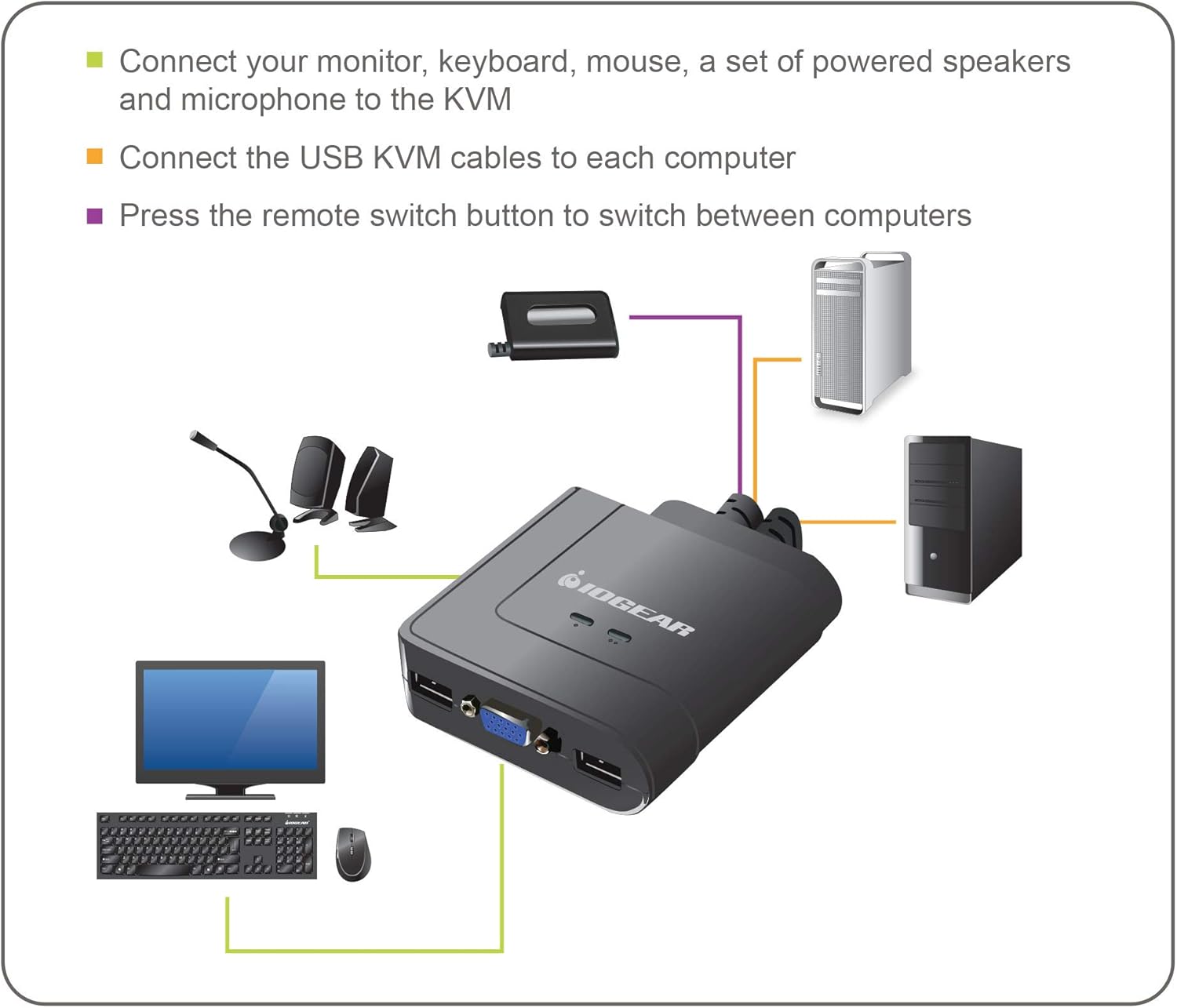
Figure 1: Connection Diagram for IOGEAR GCS72U KVM Switch. This image illustrates connecting a monitor, keyboard, mouse, speakers, and microphone to the KVM switch, which then connects to two computers.

Figure 2: Built-in KVM Cables. The image displays the integrated VGA, USB, and audio/microphone cables extending from the KVM unit.
Naudojimo instrukcijos
To switch between the two connected computers:
- Nuotolinio valdymo mygtukas: Press the button on the remote switch to toggle between Computer 1 and Computer 2. An LED indicator on the KVM switch will illuminate green to show which computer is currently selected.

Figure 3: IOGEAR GCS72U KVM Switch with Remote. This image shows the main KVM unit and the separate remote button used for switching between computers.
Specifikacijos
| Funkcija | Detalė |
|---|---|
| Prekės ženklas | IOGEAR |
| Modelis | GCS72U |
| Prievadų skaičius | 2 |
| Vaizdo raiška | Up to 2048 x 1536, DDC2B |
| Garso palaikymas | 2.1 Stereo Audio and Microphone |
| Jungiklio tipas | Push Button (Remote) |
| Ryšio protokolas | Laidinis |
| Veiklos ttage | 5 voltai (maitinama per USB) |
| Prekės matmenys (I x P x A) | 8.9 x 6.2 x 2.2 colio |
| Prekės svoris | 13.12 uncijos |
Sistemos suderinamumas
The IOGEAR GCS72U KVM Switch is compatible with a wide range of operating systems:
- Windows XP / Vista (32-bit / 64-bit), Windows 7 (32-bit / 64-bit) or higher
- „Mac OS X v10.3.9“ arba naujesnė versija
- Sun Solaris 9 or higher
- Linux and other USB supported systems (additional drivers and support may be needed for some systems)

Figure 4: Multi-OS Support. This graphic confirms compatibility with Mac, PC, and Linux operating systems.
Trikčių šalinimas
- Video Resolution Issues: If a computer is booted without the KVM switch actively connected to it, the display resolution might revert to a lower setting (e.g., 800x600). To resolve this, switch to the affected computer, access its display settings, and re-select the desired resolution. It is recommended to switch to a computer before it completes its boot sequence if a specific resolution is required from startup.
- Mikrofonas neveikia: The microphone port on the KVM switch is not powered. If your microphone requires phantom power or a powered input, it may not function correctly. Ensure your microphone is compatible with unpowered inputs or use an external powered microphone adapter.
- USB Device Power: For high-draw USB devices like certain keyboards or mice, consider connecting them through a powered USB hub to ensure stable operation, especially if experiencing intermittent connectivity.
- Bent VGA Pins: When connecting VGA cables, ensure proper alignment and apply gentle, even pressure. Bent pins can occur if forced incorrectly.
- Perjungimo delsa: A brief delay of a couple of seconds may occur when switching between computers. This is normal operation.
Garantija ir palaikymas
The IOGEAR GCS72U KVM Switch is backed by a 3 metų garantija. For technical assistance, IOGEAR provides free lifetime technical support. Please refer to the included Warranty Card for detailed terms and conditions, or visit the official IOGEAR webpalaikymo išteklių svetainė.
Produktų vaizdo įrašai
IOGEAR USB KVM Switch Overview
Šis vaizdo įrašas suteikia pabaigąview of the IOGEAR USB KVM Switch, demonstrating its features and functionality.