
1. Baigėsiview
The Microsoft LifeCam Cinema is a high-definition webcam designed for clear and smooth video communication. It features 720p HD video chat capabilities, a high-precision glass element lens for sharp image quality, and is certified for Skype. The webcam offers 360° rotation and incorporates TrueColor Technology with face tracking for bright and colorful video output.
Pagrindinės funkcijos:
- 720p HD video chat
- High precision glass element lens for sharp image quality
- Certified for Skype
- 360° sukimasis
- TrueColor Technology with face tracking for bright and colorful video
2. Kas yra dėžutėje
Atidarius pakuotę, įsitikinkite, kad yra visi šie komponentai:
- „Microsoft LifeCam Cinema“. Webkumštelis
- USB laidas (integruotas)
- Vartotojo vadovas (šis dokumentas)
- Lenktas lipnus laikiklis
- Tvirtinimo sagtis
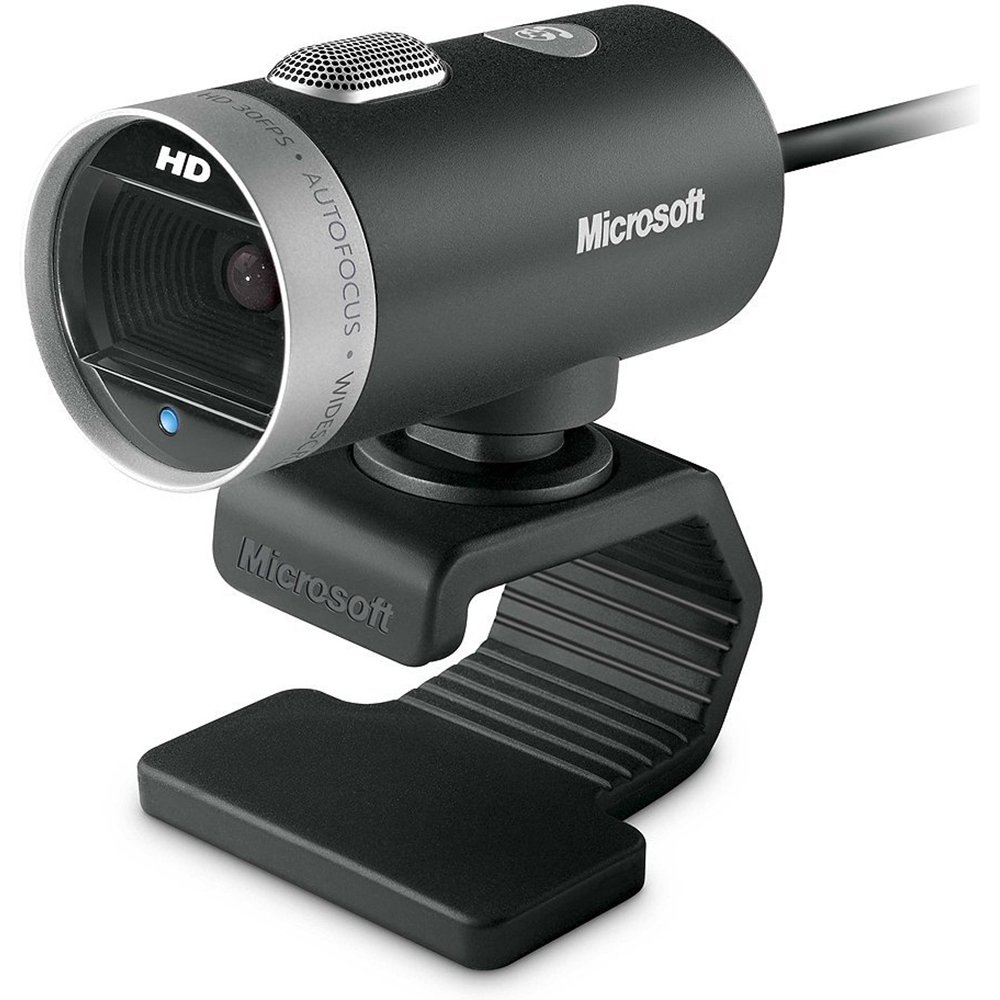
Image: The Microsoft LifeCam Cinema webcam, showing its main body, lens, microphone, and flexible stand with integrated USB cable.
3. Sąranka
- Padėties nustatymas Webkumštelis: Place the LifeCam Cinema on top of your monitor or a flat surface. The flexible stand allows for stable placement.
- Prijungimas prie kompiuterio: Prijunkite integruotą USB laidą prie laisvo kompiuterio USB prievado.
- Tvarkyklės diegimas: Your operating system (Windows is supported) should automatically detect the device and install the necessary drivers. If prompted, follow the on-screen instructions. You may need to download the latest drivers from the official Microsoft support websvetainė optimaliam veikimui.
- Programinės įrangos diegimas: Install any accompanying LifeCam software if desired, which may offer additional features or settings.

Image: The Microsoft LifeCam Cinema webcam securely positioned on top of a computer monitor, demonstrating its stable mounting design.
Video: An official product video demonstrating the features and usage of the Microsoft LifeCam Cinema webcam, including its 720p HD widescreen video, auto focus, high-precision glass element lens, ClearFrame Technology, and digital microphone.
4. Naudojimo instrukcijos
- Starting a Video Call: Open your preferred video conferencing application (e.g., Skype, Zoom, Microsoft Teams). The LifeCam Cinema should be automatically recognized as your primary camera and microphone.
- Reguliavimo padėtis: The webcam features 360° rotation, allowing you to easily adjust the camera angle without moving the base.
- Automatinis fokusavimas: The camera automatically adjusts focus to keep you sharp and clear during video calls.
- TrueColor Technology: This feature automatically adjusts exposure for bright and colorful video, even in varying lighting conditions.
- Digital Microphone: The built-in digital microphone provides clear audio capture. Ensure it is selected as the input device in your application settings if you experience audio issues.
5. Priežiūra
- Objektyvo valymas: Use a soft, lint-free cloth specifically designed for optics to gently wipe the camera lens. Avoid abrasive materials or harsh chemicals.
- Kūno valymas: Nuvalykite webkumštelio kūnas su minkštu, damp cloth. Do not immerse the device in water or use excessive moisture.
- Saugykla: Kai nenaudojate, laikykite webkamerą švarioje, sausoje vietoje, toliau nuo ekstremalių temperatūrų ir tiesioginių saulės spindulių.
- Kabelio priežiūra: Kad nepažeistumėte USB kabelio viduje, per daug nelenkite ir nesukite jo.
6. Problemų sprendimas
- No Video/Camera Not Detected:
- Įsitikinkite, kad USB laidas tvirtai prijungtas prie abiejų webkamera ir kompiuteris.
- Pabandykite prijungti webkamerą į kitą USB prievadą.
- Iš naujo paleiskite kompiuterį.
- Check your computer's Device Manager (Windows) to see if the webkamera yra sąraše ir ar yra kokių nors tvarkyklių problemų. Jei reikia, iš naujo įdiekite tvarkykles.
- Verify that your video conferencing software is configured to use the LifeCam Cinema as the video input device.
- Nėra garso / mikrofono, kuris neveikia:
- Check your computer's sound settings to ensure the LifeCam Cinema microphone is selected as the default recording device.
- Verify that your video conferencing software is configured to use the LifeCam Cinema as the audio input device.
- Ensure the microphone is not muted in your system settings or within the application.
- Prasta vaizdo kokybė:
- Įsitikinkite, kad fotoaparato objektyvas yra švarus.
- Check your internet connection speed; a slow connection can affect video quality.
- Ensure adequate lighting in your environment. TrueColor Technology helps, but sufficient ambient light is always best.
- Uždarykite kitas programas, kurios gali eikvoti sistemos išteklius.
7. Specifikacijos
| Funkcija | Detalė |
|---|---|
| Prekės ženklas | Microsoft |
| Modelio numeris | H5D-00001 |
| Vaizdo įrašymo raiška | 720p |
| Nuotraukų jutiklių technologija | CMOS |
| Ryšio technologija | USB |
| Spalva | Juoda |
| Savybės | Low Light, Auto Focus, TrueColor Technology, Digital Microphone |
| Elemento matmenys (D x P x A) | 0.71 "D x 2.19" P x 1.81" A |
| Prekės svoris | 0.87 svaro |
| Operacinė sistema | Windows |
| Viewing kampas | 360 Degrees (rotation) |
| Vaizdo fiksavimo greitis | 30 kadrų per sekundę |
| Suderinami įrenginiai | PCs with specified system requirements; Skype |
8. Garantija ir palaikymas
The Microsoft LifeCam Cinema (Model H5D-00001) comes with a 3 Years Limited garantija from the manufacturer, Microsoft.
For technical support, driver downloads, or further assistance, please visit the official Microsoft support websvetainėje arba žr. kontaktinę informaciją, pateiktą ant produkto pakuotės.
You can also find additional resources and FAQs on the Microsoft support pages for LifeCam products.