
1. Įvadas
Thank you for choosing the LiteOn eSAU108-97 External Recording DVD Drive. This portable optical drive offers reliable DVD and CD reading and writing capabilities, powered conveniently via a single USB connection. It is designed for use with laptops and other compatible devices, providing a compact and efficient solution for your optical media needs.
Please read this manual thoroughly before using the device to ensure proper operation and to maximize its lifespan.
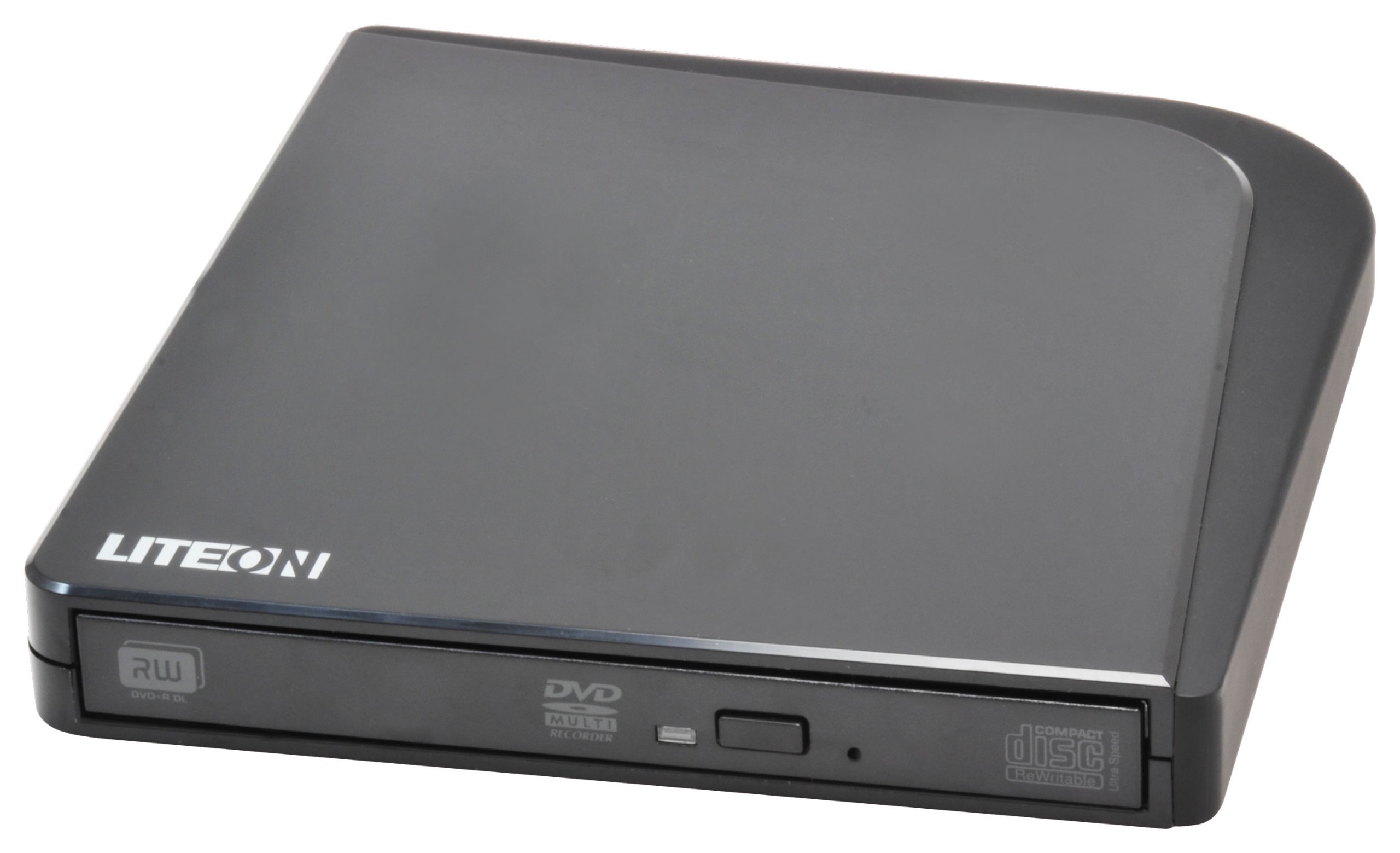
1 paveikslas: LiteOn eSAU108-97 External Recording DVD Drive. This image displays the compact, black external DVD drive, highlighting its sleek design and the USB port for connectivity.
2. Pakuotės turinys
Atidžiai patikrinkite pakuotės turinį. Jei trūksta kokių nors daiktų arba jie pažeisti, nedelsdami susisiekite su pardavėju.
- LiteOn eSAU108-97 External Recording DVD Drive
- USB duomenų / maitinimo laidas
- Greitos pradžios vadovas (šis vadovas)
3. Sąranka
3.1 Sistemos reikalavimai
- Operating System: Windows XP/Vista/7/8/10/11, macOS 10.x or later, Linux (kernel 2.6 or later)
- Galimas USB 2.0 arba 3.0 prievadas
- Mažiausiai 512 MB RAM
- Minimum 10GB free hard disk space (for disc burning software and temporary files)
3.2 Pavaros prijungimas
- Locate an available USB port on your laptop or computer.
- Connect the smaller end of the provided USB cable to the USB port on the LiteOn eSAU108-97 drive.
- Prijunkite didesnį USB kabelio galą prie kompiuterio USB prievado.
- The drive is bus-powered, meaning it draws power directly from the USB port. No external power adapter is required.
- Jūsų operacinė sistema turėtų automatiškai aptikti ir įdiegti reikiamas tvarkykles. Šis procesas gali užtrukti kelias akimirkas.
3.3 Tvarkyklės diegimas
The LiteOn eSAU108-97 is a plug-and-play device. Most modern operating systems will automatically install the required drivers upon connection. No manual driver installation is typically needed. If the drive is not recognized, try connecting it to a different USB port or restarting your computer.
4. Pavaros valdymas
4.1 Disko įdėjimas
- Norėdami atidaryti disko dėklą, paspauskite disko priekyje esantį išstūmimo mygtuką.
- Carefully place a CD or DVD onto the tray with the label side facing up. Ensure the disc is centered on the spindle.
- Švelniai stumkite disko dėklą atgal į įrenginį, kol jis spragtelėdamas užsidarys. Nespauskite dėklo per jėgą.
4.2 Playing/Reading Discs
Once a disc is loaded, your operating system may automatically prompt you to choose an action (e.g., play a movie, open files). If not, navigate to 'My Computer' or 'This PC' (Windows) or 'Finder' (macOS), locate the optical drive icon, and double-click it to access the disc's contents.
4.3 Recording/Burning Discs
To record data, music, or video onto a blank CD-R/RW or DVD-R/RW disc, you will need compatible disc burning software (e.g., Windows Media Player, Nero, Roxio, or built-in macOS utilities). Follow the instructions provided with your chosen software to perform burning operations.
4.4 Disko išstūmimas
- Programinės įrangos išstūmimas: Right-click on the drive icon in 'My Computer'/'This PC' or 'Finder' and select 'Eject'.
- Rankinis išstūmimas: Paspauskite išstūmimo mygtuką, esantį disko priekyje.
- Avarinis išmetimas: In case of power failure or if the eject button does not work, locate the small pinhole on the front of the drive. Insert a straightened paperclip into the pinhole and push gently until the tray partially opens. Then, pull the tray out manually.
5. Priežiūra
5.1 Pavarų dėžės valymas
Keep the drive clean and free from dust. Use a soft, dry, lint-free cloth to wipe the exterior. Do not use liquid cleaners or abrasive materials. Avoid opening the drive casing, as this can damage internal components and void your warranty.
5.2 Diskų valymas
Always handle discs by their edges. If a disc is dirty, gently wipe it from the center outwards with a soft, lint-free cloth. Do not use circular motions, as this can cause scratches. For stubborn smudges, use a specialized disc cleaning solution.
5.3 Saugykla
When not in use, store the drive in a cool, dry place, away from direct sunlight, extreme temperatures, and high humidity. Keep it protected from dust and physical impact.
6. Problemų sprendimas
| Problema | Galima priežastis | Sprendimas |
|---|---|---|
| Kompiuteris neatpažįsta disko | Loose USB connection, insufficient power, driver issue, faulty USB port. | Ensure USB cable is securely connected. Try a different USB port. Restart your computer. Check Device Manager (Windows) or System Information (macOS) for the drive. |
| Disc not reading/writing | Dirty or scratched disc, incorrect disc type, faulty disc, drive lens dirty, incompatible software. | Clean the disc. Try a different disc. Ensure the disc type is compatible (CD-R/RW, DVD-R/RW). Use appropriate burning software. |
| Diskų dėklas neatsidaro / neužsidaro | Obstruction, mechanical issue, power issue. | Check for obstructions. Ensure the drive is powered (connected via USB). Use the emergency eject hole if necessary. |
| Lėtas veikimas | USB 1.1 port, background processes, fragmented hard drive. | Connect to a USB 2.0 or 3.0 port. Close unnecessary applications. Ensure your computer meets system requirements. |
7. Specifikacijos
- Modelis: eSAU108-97
- Sąsaja: USB 2.0 (suderinamas su USB 3.0)
- Tipas: External Portable DVD Drive
- Techninės įrangos platforma: Nešiojamasis kompiuteris
- Prekės svoris: Maždaug 1.2 svarų (0.54 kg)
- Pakuotės matmenys: 8.27 x 7.72 x 2.87 colio (21 x 19.6 x 7.3 cm)
- Spalva: Juoda
- Talpyklos dydis: 2 MB
- Galia: Maitinamas USB magistrale
- Palaikomi disko formatai: DVD-ROM, DVD-R, DVD-RW, DVD+R, DVD+RW, CD-ROM, CD-R, CD-RW
8. Garantija ir palaikymas
LiteOn products are designed and manufactured to the highest quality standards. This product is covered by a limited warranty from the date of purchase. Please refer to the warranty card included in your package or visit the official LiteOn websvetainėje, kurioje pateikiamos išsamios garantijos sąlygos.
For technical support, troubleshooting assistance, or service inquiries, please visit the LiteOn support website or contact their customer service department. Contact information can typically be found on the official LiteOn websvetainėje arba savo produkto pakuotėje.