
1. Įvadas ir pabaigaview
The Avision AV 320D2+ is a high-performance A3 document scanner designed for efficient and reliable document digitization. Featuring a 600 dpi optical resolution and USB connectivity, it is capable of handling a wide range of document sizes up to A3, making it suitable for various professional environments. This manual provides essential information for setting up, operating, maintaining, and troubleshooting your scanner.
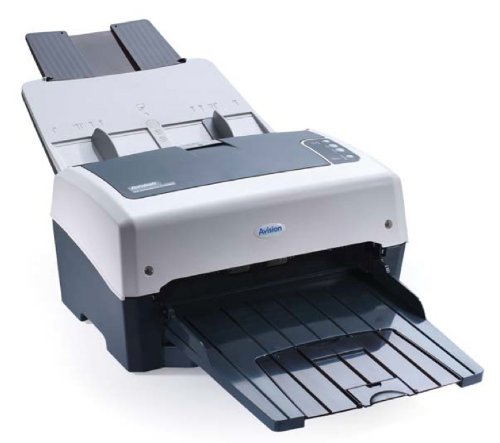
Figure 1: Avision AV 320D2+ A3 Document Scanner. This image displays the Avision AV 320D2+ A3 Document Scanner from a front-right perspective. The scanner is light grey and dark grey, featuring an automatic document feeder (ADF) at the top with paper guides visible, and an extended output tray at the front. The Avision logo is visible on the front panel.
2. Sąranka
2.1 Išpakavimas
- Atsargiai išimkite skaitytuvą ir visus priedus iš pakuotės.
- Patikrinkite, ar yra visi pakavimo sąraše išvardyti komponentai.
- Remove all protective tapes and packing materials from the scanner, including any inside the document feeder and output tray.
2.2 Skaitytuvo prijungimas
- Padėkite skaitytuvą ant stabilaus, lygaus paviršiaus šalia kompiuterio.
- Prijunkite maitinimo adapterį prie skaitytuvo maitinimo įvesties, tada įjunkite jį į elektros lizdą.
- Connect one end of the supplied USB cable to the USB port on the scanner and the other end to an available USB port on your computer.
- Power on the scanner using the power button, typically located on the side or rear panel.
2.3 Programinės įrangos diegimas
Before using the scanner, you must install the necessary drivers and scanning software. Refer to the included software CD or visit the official Avision websvetainė, kurioje rasite naujausias tvarkykles ir pagalbines programas.
- Insert the software installation CD into your computer's CD/DVD drive, or download the software package from the Avision support websvetainę.
- Follow the on-screen instructions to install the scanner drivers and bundled scanning applications. It is recommended to install all provided software for full functionality.
- Jei būsite paraginti baigus diegti, paleiskite kompiuterį iš naujo.
3. Skenerio valdymas
3.1 Dokumentų įkėlimas
- Automatinis dokumentų tiektuvas (ADF): Open the ADF input tray. Adjust the paper guides to fit the width of your documents. Place the documents face-down with the top edge first into the ADF. The standard sheet capacity is 50 sheets.
- Ensure documents are free of staples, paper clips, or any foreign objects that could damage the scanner.
- For mixed-size documents, ensure they are aligned properly to prevent skewing.
3.2 Pagrindinės skenavimo procedūros
- Load your documents into the ADF as described above.
- Open your preferred scanning application (e.g., Avision Button Manager, TWAIN/ISIS compatible software).
- Select the Avision AV 320D2+ as your scanner.
- Choose your desired scanning settings (e.g., color mode, resolution, destination folder).
- Initiate the scan from the software interface. The scanner will automatically feed and scan the documents.
- Review nuskaitytus vaizdus ir išsaugokite juos norimoje vietoje.
3.3 Nuskaitymo nustatymai
The scanner supports various settings to optimize scan quality and file dydis:
- Rezoliucija: Adjustable up to 600 dpi. Higher resolution provides better image quality but results in larger file dydžiai.
- Spalvų režimas: Options typically include Color, Grayscale, and Black & White (Binary).
- Dvipusis nuskaitymas: The AV 320D2+ supports duplex (two-sided) scanning, allowing you to capture both sides of a document in a single pass.
- Išvesties formatas: Common output formats include PDF, JPEG, TIFF, and searchable PDF.
4. Priežiūra
4.1 Skaitytuvo valymas
Regular cleaning ensures optimal performance and extends the life of your scanner.
- Išorė: Išorinius paviršius nuvalykite minkšta, damp, nepūkuota šluoste. Nenaudokite abrazyvinių valiklių ar tirpiklių.
- Stiklo paviršiai: Naudokite minkštą skudurėlį dampened with a non-abrasive glass cleaner to clean the scanner's glass surfaces (if applicable).
- Volai: Reguliariai valykite padavimo volelius lengvai nepūkuota šluoste.ampišvalytas izopropilo alkoholiu, kad pašalintumėte popieriaus dulkes ir likučius.
- Prieš valydami visada išjunkite skaitytuvą ir atjunkite jį nuo elektros tinklo.
5. Problemų sprendimas
This section addresses common issues you might encounter with your Avision AV 320D2+ scanner.
| Problema | Galima priežastis | Sprendimas |
|---|---|---|
| Kompiuteris neaptiko skaitytuvo | Atsilaisvinęs USB laidas, išjungtas maitinimas, tvarkyklės problema | Patikrinkite USB jungtį, įsitikinkite, kad skaitytuvas įjungtas, iš naujo įdiekite tvarkykles. |
| Popieriaus strigtys | Misaligned documents, worn rollers, foreign objects | Remove jammed paper carefully, align documents properly, clean rollers. |
| Prasta nuskaitymo kokybė (dryžiai, neryškūs vaizdai) | Dirty glass, incorrect settings, worn rollers | Clean scanner glass and rollers, adjust resolution/color settings. |
| Dokumentai netiekiami | Incorrectly loaded, worn feed rollers | Ensure documents are loaded correctly, clean or replace feed rollers if worn. |
6. Specifikacijos
Key technical specifications for the Avision AV 320D2+ scanner:
- Produkto tipas: Dokumentų skaitytuvas
- Popieriaus formatas: A3
- Rezoliucija: 600 dpi (optinė)
- Ryšys: USB
- Spalva: Juoda/Balta
- Svoris: Maždaug 26.46 svarų (12 kg)
- Energijos suvartojimas: 38.4 vatų
- Standard Sheet Capacity (ADF): 50 XNUMX lapų
- Optinio jutiklio technologija: CMOS
- Modelio pavadinimas: AV320D2+
- Prekės modelio numeris: FT-0807H
7. Garantija ir palaikymas
7.1 Gamintojo garantija
The Avision AV 320D2+ scanner typically comes with a 2 metų gamintojo garantija. This warranty covers defects in materials and workmanship under normal use. Please retain your proof of purchase for warranty claims. For specific terms and conditions, refer to the warranty card included with your product or visit the official Avision websvetainę.
7.2 Techninė pagalba
For technical assistance, driver updates, or further troubleshooting not covered in this manual, please contact Avision customer support. Support contact information can usually be found on the Avision official websvetainėje arba skaitytuvo dokumentacijoje.
Note: Availability of spare parts and software updates may vary. Please check the manufacturer's official channels for the most current information.