
Įvadas
The ADATA S102PRO is a high-performance USB 3.0 flash drive designed for fast and reliable data storage and transfer. Its durable design and high-speed interface make it ideal for everyday use, allowing you to carry important files, documents, photos, and videos with ease.
Sąranka
Follow these steps to begin using your ADATA S102PRO USB Flash Drive:
- Nurodykite USB prievadą: Locate an available USB port on your computer. For optimal performance, use a USB 3.0 port (often colored blue internally). The ADATA S102PRO is backward compatible with USB 2.0 ports, but data transfer speeds will be limited to USB 2.0 rates.
- Nuimkite dangtelį: Carefully remove the protective cap from the USB flash drive to expose the USB connector.
- Įdėkite diską: Insert the USB connector firmly into the USB port on your computer. Ensure it is inserted correctly; do not force it.
- Sistemos atpažinimas: Your operating system (Windows, macOS, Linux) should automatically detect and install the necessary drivers. A notification may appear indicating that the device is ready for use. The drive will typically appear as a removable disk or volume in your file tyrinėtojas.
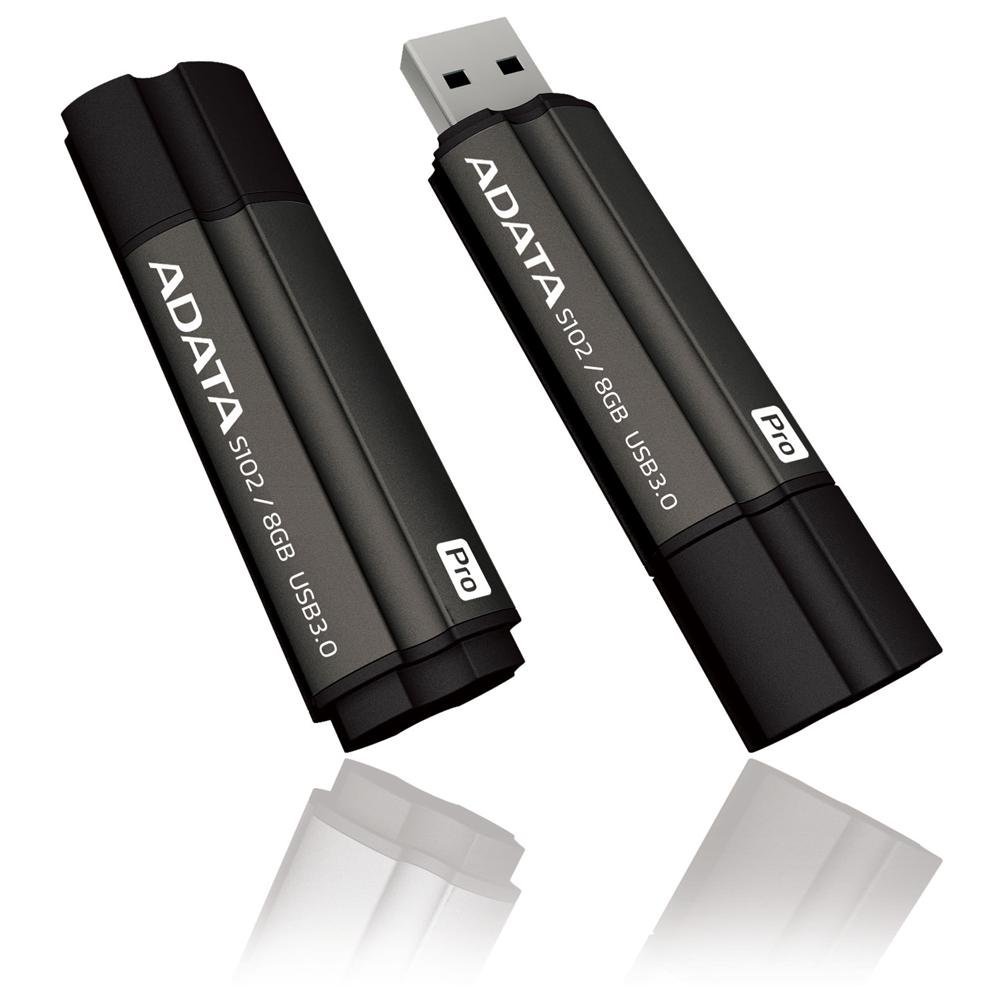
Image: The ADATA S102PRO USB Flash Drive shown with its protective cap on and with the cap removed, revealing the USB 3.0 connector. This illustrates the physical appearance and how to prepare the drive for insertion.
Veikiantis
Once the ADATA S102PRO is recognized by your computer, you can begin transferring files:
- Prieiga prie disko:
- „Windows“: Open "This PC" or "My Computer" and locate the drive listed under "Devices and drives" (e.g., "Removable Disk" or a drive letter like E:).
- macOS: The drive icon will appear on your desktop or in the Finder sidebar under "Locations."
- Perkeliama Files:
- Norėdami nukopijuoti files į the flash drive, drag and drop them from your computer's folders into the flash drive's window.
- Norėdami nukopijuoti files iš the flash drive, drag and drop them from the flash drive's window to a folder on your computer.
- You can also use the standard copy (Ctrl+C / Command+C) and paste (Ctrl+V / Command+V) functions.
- Saugus disko išėmimas: It is crucial to safely eject the flash drive before physically removing it to prevent data corruption.
- „Windows“: Click the "Safely Remove Hardware and Eject Media" icon in the system tray (bottom-right corner), then select your flash drive and click "Eject." Wait for the "Safe to Remove Hardware" message.
- macOS: Drag the drive icon from the desktop to the Trash, or click the Eject button next to the drive name in the Finder sidebar. Wait for the icon to disappear before removing the drive.
Priežiūra
Proper care will help ensure the longevity and reliability of your ADATA S102PRO USB Flash Drive:
- Apsaugokite jungtį: Kai nenaudojate USB įrenginio, visada laikykite apsauginį dangtelį ant jo, kad apsaugotumėte jį nuo dulkių, nešvarumų ir fizinių pažeidimų.
- Venkite ekstremalių sąlygų: Do not expose the drive to extreme temperatures, direct sunlight, high humidity, or strong magnetic fields.
- Elkitės atsargiai: Venkite disko numetimo ir stiprių smūgių.
- Do Not Remove During Transfer: Never unplug the drive while data is being read from or written to it. Always follow the safe removal procedure.
- Įprastos atsarginės kopijos: While flash drives are reliable, it is always recommended to back up critical data to another storage device or cloud service.
Trikčių šalinimas
If you encounter issues with your ADATA S102PRO, try the following solutions:
- Diskas neatpažintas:
- Įsitikinkite, kad diskas yra visiškai įdėtas į USB prievadą.
- Išbandykite kitą kompiuterio USB prievadą.
- Išbandykite diską kitame kompiuteryje, kad atmestumėte su kompiuteriu susijusią problemą.
- Check your computer's Device Manager (Windows) or System Information (macOS) to see if the drive is listed, even if it doesn't appear in File Explorer/Ieškiklis.
- Mažas perdavimo greitis:
- Ensure you are connected to a USB 3.0 port for optimal performance. USB 2.0 ports will limit speeds.
- Perkeliant daug smulkių filegali būti lėtesnis nei kelių didelių duomenų perkėlimas files.
- Close other applications that might be using system resources or performing disk operations.
- Negaliu rašyti Files vairuoti:
- Patikrinkite, ar diskas pilnas. Ištrinkite nereikalingus failus. files or transfer them to another location.
- Užtikrinti, file system (e.g., FAT32, NTFS, exFAT) is compatible with your operating system and allows writing. If formatted as NTFS on macOS, you may only have read access without third-party software.
- Check for any software-based write protection or permissions issues on your computer.
Specifikacijos
| Prekės ženklas | DUOMENYS |
| Modelio pavadinimas | S102PRO |
| Modelio numeris | AT806-4G-CPK |
| Atminties talpa | 4 GB |
| Techninės įrangos sąsaja | USB 3.0 (suderinama su USB 2.0) |
| Gamintojas | A-DATA TECHNOLOGY (USA) CO. L |
| UPC | 842243005080 |
| ASIN | B004AVOGW8 |
Garantija ir palaikymas
For detailed warranty information, product registration, and technical support, please visit the official ADATA website. You can typically find support resources, FAQs, and contact information for customer service there.
ADATA Official Websvetainė: www.adata.com