
1. Įvadas
The D-Link Wireless N300 Dual Band PCI Express Desktop Adapter (DWA-566) provides high-speed wireless connectivity for your desktop computer. Utilizing Wireless N technology, it maximizes the speed and range of your wireless signal, offering superior performance compared to Wireless G devices. The dual-band capability supports both 2.4GHz and 5GHz wireless signals, allowing for flexible network usage, such as browsing on 2.4GHz and HD streaming or gaming on the clearer 5GHz band.
This adapter is designed to fit into any standard PCI Express slot, offering a higher performance interface than legacy PCI. It supports secure wireless networks with WPA or WPA2 encryption.

Figure 1.1: D-Link DWA-566 Wireless N300 Dual Band PCI Express Desktop Adapter with antennas.
2. Savybės
The DWA-566 adapter includes the following key features:
- IEEE 802.11n, 802.11g, and 802.11a Compliant
- Dual Band Technology for Superior Wireless Performance (2.4GHz or 5GHz)
- Access secure wireless networks using advanced WPA or WPA2 encryption
- Fits into any standard PCI Express slot
- PCI Express Interface provides higher performance than a legacy PCI interface
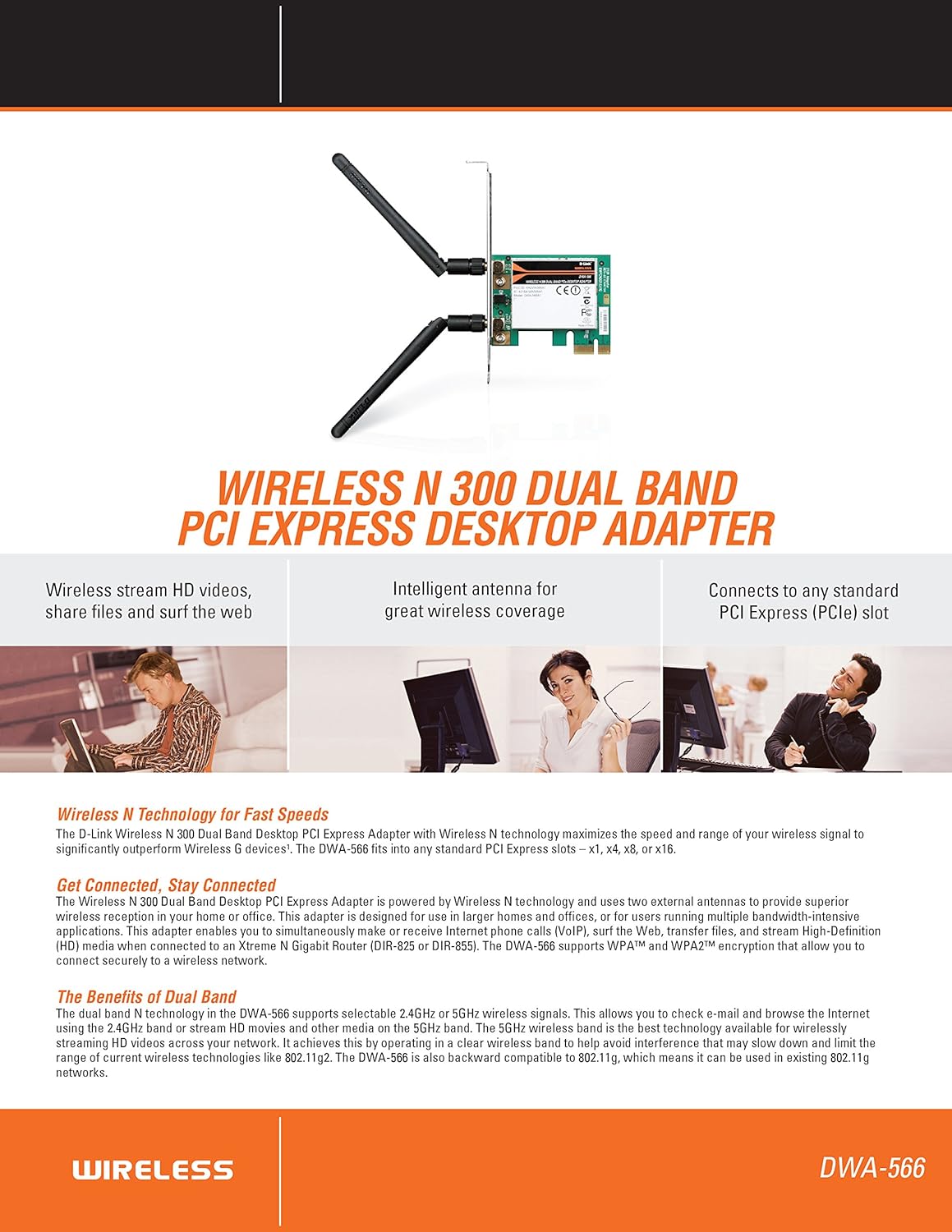
2.1 pav. Baigtaview of DWA-566 features and benefits.
3. Pakuotės turinys
Patikrinkite, ar jūsų pakuotėje yra šie elementai:
- Wireless N 300 Dual Band PCI Express Adapter (DWA-566)
- Dvi nuimamos antenos
- Žemas profasfile tvirtinimo kronšteinas
- Greito diegimo vadovas
- CD-ROM with:
- D-Link belaidžio ryšio tvarkyklė
- Vairuotojai
- Produkto dokumentacija
4. Sistemos reikalavimai
Before installing the DWA-566, ensure your system meets the following minimum requirements:
- Computer with an available PCI Express slot
- Windows operating system (Windows XP, Vista, 7, 8, 10)
- CD-ROM drive (for driver installation from included CD)
- Internet Explorer 7 or Firefox 3.0 and above (for viewing documentation)
- Prenumerata su interneto paslaugų teikėju (IPT)
For optimal performance, a D-Link Wireless N router (DIR-655 or DIR-825) is recommended.

Figure 4.1: Detailed technical specifications, minimum requirements, and network diagram.
5. Sąranka ir diegimas
5.1 Aparatinės įrangos diegimas
- Power Off Computer: Išjunkite kompiuterį ir atjunkite maitinimo laidą.
- Atidaryti kompiuterio korpusą: Remove the computer case cover.
- Raskite PCI Express lizdą: Find an available PCI Express slot on your motherboard.
- Įdėkite adapterį: Carefully insert the DWA-566 adapter into the PCI Express slot, ensuring it is seated firmly.
- Saugus adapteris: Secure the adapter with a screw to the computer chassis.
- Pritvirtinkite antenas: Screw the two included antennas onto the connectors on the adapter.
- Uždarykite dėklą ir įjunkite: Replace the computer case cover, plug in the power cord, and power on your computer.

Figure 5.1: DWA-566 adapter with antennas attached, ready for installation.
5.2 Programinės įrangos diegimas
After hardware installation, proceed with driver and utility installation:
- Įdėkite diegimo kompaktinį diską: Insert the DWA-566 installation CD into your computer's CD-ROM drive. The setup wizard should launch automatically. If not, navigate to the CD drive and run the 'Setup.exe' file.
- Vykdykite ekrane pateikiamus nurodymus: Follow the prompts of the D-Link setup wizard to install the drivers and the D-Link Wireless Connection Manager utility.
- Iš naujo paleiskite kompiuterį: Baigę diegti, paleiskite kompiuterį iš naujo, kai būsite paraginti.
Pastaba: For Windows 7/8 64-bit systems, ensure you are using the latest drivers available from the official D-Link support website to avoid potential compatibility issues.
6. Naudojimo instrukcijos
Once the drivers are installed, you can connect to a wireless network:
- Launch Connection Manager: Open the D-Link Wireless Connection Manager utility or use the built-in Windows wireless network utility.
- Tinklų paieška: The utility will scan for available wireless networks in your area.
- Pasirinkite tinklą: Iš sąrašo pasirinkite norimą belaidį tinklą (SSID).
- Įveskite saugos raktą: If the network is secured, enter the correct WPA/WPA2 security key or passphrase.
- Prisijunkite: Norėdami užmegzti belaidį ryšį, spustelėkite „Prisijungti“.
A successful connection will be indicated by a strong signal strength and internet access.
7. Priežiūra
To ensure optimal performance and longevity of your DWA-566 adapter:
- Atnaujinkite tvarkykles: Reguliariai tikrinkite „D-Link“ palaikymo tarnybą websvetainė, kurioje rasite naujausius tvarkyklių ir programinės įrangos atnaujinimus.
- Užtikrinkite tinkamą vėdinimą: Make sure your computer case has adequate airflow to prevent overheating of internal components, including the wireless adapter.
- Antenos padėtis: Adjust the antennas for the best possible signal reception.
- Aplinkos veiksniai: Avoid placing your computer near large metal objects or other devices that may cause wireless interference.
8. Problemų sprendimas
If you encounter issues with your DWA-566 adapter, consider the following:
8.1 Nėra belaidžio ryšio
- Verify Hardware Installation: Ensure the adapter is correctly seated in the PCI Express slot and antennas are securely attached.
- Patikrinkite tvarkykles: Confirm that the drivers are installed correctly. Check Device Manager for any error symbols next to the network adapter. Reinstall drivers if necessary.
- Maršrutizatoriaus būsena: Ensure your wireless router is powered on and broadcasting a signal.
- Saugos raktas: Double-check that the correct wireless security key (WPA/WPA2 passphrase) is entered.
- Ugniasienės nustatymai: Temporarily disable your computer's firewall to see if it is blocking the connection. If it resolves the issue, configure your firewall to allow the D-Link utility.
8.2 Slow Connection Speed or Frequent Disconnections
- Antenos reguliavimas: Try repositioning the antennas for better signal reception.
- Trikdžiai: Move the computer away from potential sources of interference (e.g., cordless phones, microwaves, Bluetooth devices).
- Maršrutizatoriaus artumas: Ensure the computer is within the effective range of your wireless router.
- Dual Band Usage: If your router supports it, try connecting to the 5GHz band for less interference and potentially higher speeds, especially for streaming or gaming.
- Tvarkyklės naujinimas: Update the adapter drivers to the latest version from the D-Link websvetainę.
9. Specifikacijos
| Funkcija | Specifikacija |
|---|---|
| Prekės ženklas | D-Link |
| Modelio numeris | DWA-566 |
| Techninės įrangos sąsaja | PCI Express |
| Duomenų nuorodos protokolas | IEEE 802.11n, 802.11g, 802.11a |
| Duomenų perdavimo sparta | Iki 300 megabitų per sekundę |
| Dažnių juosta | 2.4 GHz / 5 GHz (dviejų dažnių juosta) |
| Saugumas | WPA, WPA2 |
| Suderinami įrenginiai | Staliniai kompiuteriai |
| Prekės svoris | 0.4 svaro (maždaug 181 gramai) |
| Išorinio testavimo sertifikavimas | FCC B, IC B, CE, C-Tick |
10. Garantija ir palaikymas
The D-Link Wireless N300 Dual Band PCI Express Desktop Adapter (DWA-566) comes with a 1 metų ribota garantija. For specific terms and conditions, please refer to the warranty documentation included with your product or visit the official D-Link websvetainę.
D-Link provides 24/7 Basic Installation Support to assist with initial setup and configuration. For technical assistance, driver downloads, and further product information, please visit the D-Link support websvetainėje arba susisiekite su jų klientų aptarnavimo tarnyba.
D-Link palaikymas Websvetainė: https://support.dlink.com/