
1. Įvadas
The SteelSeries Kana Optical Gaming Mouse is engineered for precision and versatility, designed to accommodate all three primary grip styles: palm, claw, and fingertip. This ambidextrous mouse features an ergonomic button layout and size, developed in collaboration with professional gaming teams to ensure consistent performance and accuracy in competitive environments. This manual provides comprehensive instructions for setup, operation, maintenance, and troubleshooting to help you maximize your gaming experience.
2. Pakuotės turinys
- SteelSeries Kana Optical Gaming Mouse (White)
- Quick Start Guide (integrated into this manual)
3. Produktas baigtasview
Familiarize yourself with the key components of your SteelSeries Kana mouse:
- Kairysis paspaudimo mygtukas: Pagrindinis veiksmo mygtukas.
- Dešinysis pelės mygtuko paspaudimas: Antrinio veiksmo mygtukas.
- Slinkties ratukas: For scrolling and a clickable middle button. The scroll wheel is illuminated.
- CPI Toggle Button: Located centrally, allows quick switching between sensitivity settings.
- Side Buttons (x2): One on each side, large and easily accessible for rapid-fire actions. These can be customized or disabled via software.
- Optinis jutiklis: Located on the underside, provides precise tracking.
- USB jungtis: Skirta pelei prijungti prie kompiuterio.
- Pintas kabelis: Durable, tangle-free nylon cord.
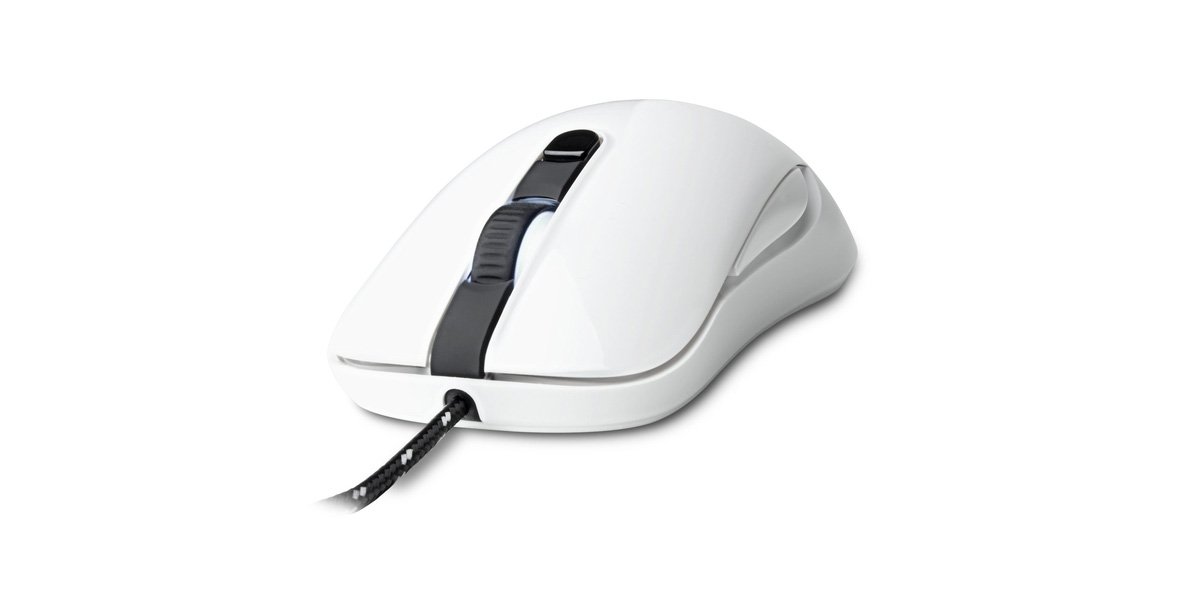
Image of the SteelSeries Kana Optical Gaming Mouse in white, showcasing its ambidextrous design, illuminated scroll wheel, and side buttons.
4. Sąranka
4.1 Techninės įrangos prijungimas
- Kompiuteryje raskite laisvą USB prievadą.
- Plug the USB connector of the SteelSeries Kana mouse into the USB port.
- Your operating system should automatically detect and install basic drivers for the mouse.
4.2 Programinės įrangos diegimas („SteelSeries“ variklis)
To unlock the full customization potential of your SteelSeries Kana mouse, including CPI settings, button programming, macros, and LED intensity, install the SteelSeries Engine software.
- Apsilankykite oficialioje „SteelSeries“ svetainėje websvetainė: steelseries.com/variklis
- Download the SteelSeries Engine software compatible with your operating system (Windows or macOS).
- Vykdykite ekrane pateikiamus nurodymus, kad užbaigtumėte diegimą.
- Once installed, launch the SteelSeries Engine to configure your mouse settings.
Pastaba „Mac“ naudotojams: Compatibility with macOS versions 10.9 and later for SteelSeries Engine 2.0 (required for Kana) has historically been inconsistent. Please check the official SteelSeries website for the latest software updates and compatibility information before installation.
5. Naudojimo instrukcijos
5.1 Pagrindinės funkcijos
- Judėjimas: Norėdami valdyti žymeklį ekrane, perkelkite pelę per paviršių.
- Paspaudus: Pagrindiniams ir antriniams veiksmams atlikti naudokite kairįjį ir dešinįjį mygtukus.
- Slinkimas: Rotate the scroll wheel to navigate documents and web pages. Press the scroll wheel for its assigned middle-click function.
5.2 Adjusting CPI (Counts Per Inch)
The centrally located CPI toggle button allows you to switch between two pre-defined sensitivity settings instantly. The default CPI settings are optimized for gaming, but can be customized using the SteelSeries Engine software. The maximum CPI supported is 3200.
- Press the CPI toggle button once to switch to the alternate CPI setting.
- Press it again to revert to the previous setting.
5.3 Customizing with SteelSeries Engine
The SteelSeries Engine software provides extensive customization options:
- VKI nustatymai: Fine-tune or set custom CPI values beyond the pre-defined options.
- Mygtukų programavimas: Assign custom functions, keyboard shortcuts, or macros to any of the 6 programmable buttons (including side buttons and scroll wheel click).
- Makrokomandos: Create and assign complex sequences of commands with precise timing control.
- LED Intensity: Adjust the brightness of the illuminated scroll wheel.
- Profiles: Sukurkite ir išsaugokite kelis profesionalusfiles for different games or applications, with automatic switching based on game triggers.
6. Priežiūra
6.1 Cleaning Your Mouse
To ensure optimal performance and longevity, keep your mouse clean.
- Išorė: Šiek tiek naudokite minkštą, be pūkelių šluostę dampPelės paviršių nuvalykite vandeniu arba švelniu valymo tirpalu. Venkite stiprių cheminių medžiagų ar abrazyvinių medžiagų.
- Optinis jutiklis: Gently clean the optical sensor lens on the underside of the mouse with a dry cotton swab or compressed air to remove dust or debris.
- Pelės pėdos: Ensure the mouse feet are clean and free of obstructions for smooth gliding.
Atsargiai: Do not immerse the mouse in water or any cleaning solution. Avoid spraying liquids directly onto the mouse.
7. Problemų sprendimas
| Problema | Galimas sprendimas |
|---|---|
| Mouse not detected / Not responding |
|
| Inaccurate or erratic tracking |
|
| Mygtukai nereaguoja arba veikia netinkamai |
|
| SteelSeries Engine software not recognizing mouse (Mac OS) |
|
8. Specifikacijos
| Prekės ženklas | SteelSeries |
| Modelio numeris | 62029 |
| Spalva | Baltas |
| Judesio aptikimo technologija | Optinis |
| Mygtukų skaičius | 6 (programuojamas) |
| Rankų orientacija | Ambidextrous (Left, Right) |
| Aparatinės įrangos platforma | PC |
| Kabelio tipas | Pintas nailonas |
| Prekės svoris | 0.16 kilogramo |
| Ypatinga funkcija | Ergonomic Design, Illuminated Scroll Wheel |
9. Garantija ir palaikymas
9.1 Informacija apie garantiją
The SteelSeries Kana Optical Gaming Mouse comes with a 1 metų ribota garantija nuo įsigijimo datos. Ši garantija taikoma gamybos defektams ir gedimams įprasto naudojimo sąlygomis. Ji netaikoma žalai, atsiradusiai dėl netinkamo naudojimo, nelaimingų atsitikimų, neleistinų modifikacijų ar įprasto nusidėvėjimo. Išsaugokite pirkimo įrodymą, jei galėtumėte pateikti pretenzijas dėl garantijos.
9.2 Pagalba klientams
For technical assistance, warranty claims, or further information, please visit the official SteelSeries support websvetainė:
You can find FAQs, driver downloads, and contact information for customer service on their websvetainę.