
1. Įvadas
This manual provides instructions for the D-Link Wireless-N USB Network Starter Kit (DKT-408). This kit includes a Wireless-N Router (DIR-615) and a Wireless-N USB Adapter (DWA-130), designed to facilitate the establishment of a wireless network in home or office environments.
Pagrindinės savybės
- Share Internet Access with PCs, Game Consoles & Media Players
- Firewall Protection for your Network
- Parental Controls to Supervise Internet Activity
- Powerful Wireless N 300 technology for superior wireless performance, clarity, and coverage
- Single-band Wireless N connectivity
- Intelligent QoS technology prioritizes both wired and wireless Internet traffic
- Wi-Fi Protected Setup (WPS) for secure, simple 1-button setup
- 4 High Speed Ethernet ports for fast wired connectivity
2. Pakuotės turinys
Verify that your DKT-408 kit contains the following items:
- D-Link Wireless N 300 Router (DIR-615)
- D-Link Wireless N USB Adapter (DWA-130)
- Power Adapter for Router
- Ethernet kabelis
- Sąrankos kompaktinis diskas
- Greito montavimo vadovas
Jei trūksta kokių nors prekių arba jos pažeistos, susisiekite su pardavėju.
3. Sąrankos instrukcijos
3.1. D-Link Wireless N 300 Router (DIR-615) Setup
The D-Link Quick Router Setup Wizard simplifies the configuration process. Follow these steps to set up your router:
- Unpack the router and place it in a central location for optimal wireless coverage.
- Prijunkite modemą prie INTERNETAS port (yellow) on the back of the DIR-615 router using an Ethernet cable.
- Prijunkite maitinimo adapterį prie maršrutizatoriaus maitinimo įvesties ir įjunkite jį į elektros lizdą.
- Wait for the power LED on the router to become solid.
- Insert the Setup CD-ROM into your computer's CD/DVD drive and follow the on-screen instructions provided by the D-Link Quick Router Setup Wizard. This wizard will guide you through configuring your Internet connection, wireless network settings, and security.
- Alternatively, you can connect a computer directly to one of the LAN ports (blue) on the router using an Ethernet cable and access the router's web-based interface by typing
http://dlinkrouterorhttp://192.168.0.1į tavo web naršyklė.


3.2. D-Link Wireless N USB Adapter (DWA-130) Setup
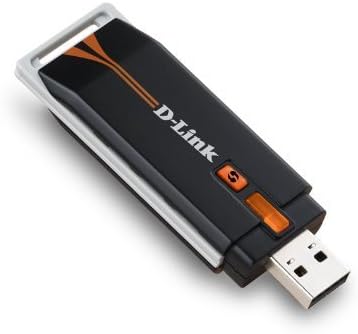
The D-Link Quick Adapter Setup Wizard will guide you through the installation of the DWA-130 USB Adapter. This adapter provides Wireless N connectivity for your computer.
- Įdėkite sąrankos kompaktinį diską į kompiuterio kompaktinių diskų / DVD įrenginį.
- Follow the on-screen instructions to install the necessary drivers and the Wireless Connection Manager software.
- Once prompted, plug the DWA-130 USB Adapter into an available USB 2.0 port on your desktop or notebook computer.
- For desktop users, a desktop cradle is included to position the adapter for optimal signal reception.
- Use the Wireless Connection Manager to scan for available wireless networks and connect to your newly configured D-Link network.
4. Operating Your Network
4.1. Prietaisų prijungimas
Once your router is set up, you can connect devices wirelessly or via Ethernet cables. For wireless connections, use the network name (SSID) and password configured during setup. For wired connections, plug an Ethernet cable from your device into any of the blue LAN ports on the router.
4.2. Network Security (WPS)
The DIR-615 router supports Wi-Fi Protected Setup (WPS) for easy and secure wireless connections. Press the WPS button on the router and then activate WPS on your wireless device (e.g., the DWA-130 adapter) within two minutes to establish a secure connection without manually entering a password.
4.3. Paslaugos kokybė (QoS)
The router features QoS prioritization technology. This function analyzes and separates multiple data streams based on their sensitivity to delay, ensuring smoother performance for applications like online gaming and Voice over IP (VoIP) calls across your network.
4.4. Tėvų kontrolė
The DIR-615 router includes parental control features, allowing you to supervise and manage Internet activity on your network. Refer to the router's web-based interface for configuration options to restrict access to certain websites or set time limits for Internet usage.
5. Priežiūra
To ensure optimal performance and longevity of your D-Link Wireless-N USB Network Starter Kit, consider the following maintenance tips:
- Firmware atnaujinimai: Reguliariai tikrinkite „D-Link“ palaikymo tarnybą website for firmware updates for your DIR-615 router. Firmware updates can improve performance, add new features, and address security vulnerabilities.
- Fizinis išdėstymas: Place the router in an open area, away from obstructions, large metal objects, and devices that emit radio frequency interference (e.g., microwaves, cordless phones).
- Valymas: Keep the devices clean and free from dust. Use a soft, dry cloth to wipe the exterior. Do not use liquid cleaners.
- Paleidimas iš naujo: Jei kyla tinklo problemų, pabandykite iš naujo paleisti maršrutizatorių atjungdami maitinimo adapterį 10 sekundžių ir vėl jį prijungdami.
6. Problemų sprendimas
This section addresses common issues you might encounter with your D-Link Wireless-N USB Network Starter Kit.
- Nėra interneto ryšio:
- Įsitikinkite, kad visi laidai yra tvirtai prijungti prie maršrutizatoriaus ir modemo.
- Patikrinkite, ar jūsų modemas veikia tinkamai.
- Iš naujo paleiskite ir modemą, ir maršrutizatorių.
- Check the Internet LED on the router; it should be solid or blinking.
- Weak Wireless Signal or Disconnections:
- Perkelkite maršrutizatorių į labiau centrinę vietą.
- Ensure the router's antennas are positioned vertically.
- Sumažinkite kitų elektroninių prietaisų keliamus trukdžius.
- Update the drivers for your DWA-130 USB adapter.
- Cannot Access Router Setup Page:
- Įsitikinkite, kad jūsų kompiuteris prijungtas prie maršrutizatoriaus per Ethernet arba „Wi-Fi“.
- Pabandykite pasiekti
http://dlinkrouterorhttp://192.168.0.1. - Išvalykite naršyklės talpyklą ir slapukus.
- Forgotten Wireless Password:
- Pasiekite maršrutizatoriaus web-based interface to retrieve or change the password.
- If you cannot access the interface, you may need to perform a factory reset (this will erase all custom settings).
7. Techninės specifikacijos
| Funkcija | Specifikacija |
|---|---|
| Modelio pavadinimas | DKT-408 (Kit), DIR-615 (Router), DWA-130 (USB Adapter) |
| Prekės ženklas | D-Link |
| Ryšio technologija | Belaidis, USB |
| Belaidžio ryšio standartas | 802.11g/n |
| Dažnių juostos klasė | Vienos juostos |
| Ypatingos savybės | QoS, WPS |
| Gaminio matmenys | 10.25 x 2.75 x 8.25 colių (rinkinio pakuotė) |
| Prekės svoris | 1.62 svaro (rinkinys) |
| Suderinami įrenginiai | Desktop, Notebooks |
| Rekomenduojami naudojimo būdai | Verslas, Namai |
| Operacinė sistema | D-Link OS (for router management) |
8. Garantija ir techninė pagalba
„D-Link“ gaminiams taikoma ribota garantija. Norėdami sužinoti konkrečias jūsų regione taikomas garantijos sąlygas, žr. prie gaminio pridėtą garantijos kortelę arba apsilankykite oficialioje „D-Link“ svetainėje. websvetainę.
For technical assistance, product registration, or to download the latest drivers and firmware, please visit the D-Link support portal. Support resources typically include FAQs, troubleshooting guides, and contact information for technical support representatives.
D-Link oficialus Websvetainė: www.dlink.com