
1. Įvadas
This manual provides detailed instructions for the installation, operation, maintenance, and troubleshooting of the APC G50NETB20A2 Network Manageable 20 Ampere G-Type Rack Power Filter. This device is designed to protect sensitive electronic equipment from power surges and line noise, while offering advanced network-based management capabilities for individual outlets and power monitoring.
Please read this manual thoroughly before operating the unit to ensure proper functionality and safety.
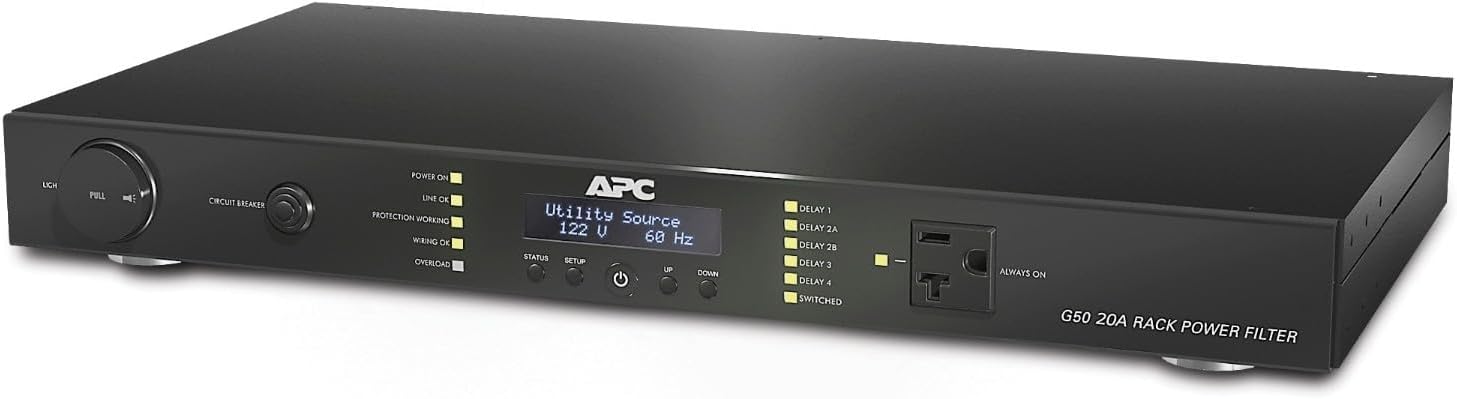
1.1 pav.: priekis view of the APC G50NETB20A2 Rack Power Filter, showing the display, control buttons, and front outlet.
2. Pagrindinės savybės
The APC G50NETB20A2 offers a robust set of features for comprehensive power management:
- Apsauga nuo viršįtampių: Advanced surge suppression to protect connected equipment from damaging power transients.
- Power Filtering: G-Type power filtering to reduce line noise and improve power quality for sensitive electronics.
- Network Manageable: Remote management capabilities via network interface, allowing for monitoring and control of the unit.
- Individual Outlet Control: Ability to remotely switch individual outlets (outlets 3-8) on or off, enabling remote rebooting of connected devices.
- Energijos stebėjimas: Provides real-time energy consumption data for connected loads.
- Host Ping Feature: Can ping a connected host to determine its operational status, useful for automated reboots.
- Ant stovo montuojamas dizainas: Designed for easy integration into standard IT racks.
- 20 Ampere Capacity: Supports high-power equipment with a 20 Ampdar reitingą.
3. Sąranka ir diegimas
3.1 Išpakavimas ir patikrinimas
Carefully unpack the power filter and inspect it for any shipping damage. Report any damage to your carrier and dealer immediately. The package should contain the APC G50NETB20A2 Power Filter and any included mounting hardware.
3.2 Įrenginio montavimas
The G50NETB20A2 is designed for rack installation. Secure the unit into a standard 19-inch equipment rack using the provided mounting brackets and screws. Ensure adequate ventilation around the unit.
Figure 3.1: The APC G50NETB20A2 installed in a rack, demonstrating its rack-mountable design.
3.3 Maitinimo prijungimas
Connect the power filter's input cord to a dedicated 20 Ampere electrical circuit. Ensure the circuit is properly grounded and can support the total load of all connected equipment.
3.4 Įrangos prijungimas
Plug your electronic equipment into the outlets on the rear of the power filter. Note that outlets 3-8 are individually controllable via the network interface, while outlets 1 and 2 (and the front outlet) are typically 'always on' or master-controlled.

3.2 pav.: galinis view of the APC G50NETB20A2, illustrating the various power outlets and network connectivity options.
3.5 Tinklo jungtis
Connect an Ethernet cable from your network switch or router to the network port on the power filter. This connection is essential for accessing the network management features.
4. Naudojimo instrukcijos
4.1 Pradinis įjungimas
Once all connections are secure, press the power button on the front panel. The display will illuminate, and the unit will perform a self-test. Observe the status indicators for normal operation.
4.2 Accessing the Network Interface
The power filter can be managed via a web browser or command-line interface (CLI) over the network. Refer to the unit's display or network configuration settings to obtain its IP address. Enter the IP address into your web naršyklę, kad pasiektumėte web GUI.
4.3 Išleidimo angos valdymas
Iš web interface or CLI, you can individually control outlets 3-8. This allows for remote power cycling of connected devices. Ensure you understand which device is connected to which outlet before performing any power operations.
4.4 Stebėjimas
The network interface provides real-time monitoring of input voltage, current draw, and power consumption. This data is crucial for managing power loads and identifying potential issues.
4.5 konfigūracija
The network interface allows for configuration of various settings, including network parameters (IP address, subnet mask), user accounts, outlet naming, and alert thresholds. It is recommended to change default login credentials immediately after initial setup.
5. Priežiūra
5.1 Valymas
Periodically clean the exterior of the unit with a soft, dry cloth. Do not use liquid or aerosol cleaners. Ensure the unit is powered off and disconnected from the power source before cleaning.
5.2 Firmware atnaujinimai
Check the APC support website periodically for firmware updates. Keeping the firmware up-to-date ensures optimal performance, security, and access to new features. Follow the instructions provided with the firmware update package carefully.
5.3 automatinis jungiklis
The unit is equipped with a resettable circuit breaker. If an overload occurs, the breaker will trip to protect the unit and connected equipment. Reduce the load, then press the circuit breaker button to reset it.
6. Problemų sprendimas
This section addresses common issues you may encounter with the APC G50NETB20A2.
| Problema | Galima priežastis | Sprendimas |
|---|---|---|
| Įrenginys neįsijungia. | No input power; tripped circuit breaker. | Verify power cord is securely plugged in. Check building circuit breaker. Reset unit's circuit breaker. |
| Cannot access network interface. | Incorrect IP address; network cable disconnected; network configuration error. | Verify IP address. Check network cable connection. Ensure network settings (subnet mask, gateway) are correct. Try pinging the unit's IP address. |
| Lizdai nereaguoja į komandas. | Incorrect outlet selected; communication error; outlet already in desired state. | Verify the correct outlet number/name. Check network connection. Some commands may return an error if the outlet is already in the requested state (e.g., trying to turn on an outlet that is already on). |
| CLI login issues (e.g., "No supported authentication methods available"). | Non-standard SSH client behavior; incorrect password handling. | Ensure correct username and password. If using a CLI client like PuTTY or TeraTerm, try a different client or ensure your client is up-to-date. Sometimes a second attempt may succeed. The web GUI login typically behaves as expected. |
| "Parameter Error" in CLI. | Incorrect command syntax; system confusion. | Double-check command syntax. Log out and log back in, then re-enter the command. This can sometimes resolve transient issues. |
If problems persist after attempting these solutions, please contact APC technical support for further assistance.
7. Specifikacijos
| Atributas | Vertė |
|---|---|
| Modelio numeris | G50NETB20A2 |
| Gaminio matmenys | 10 x 12 x 5 colio |
| Prekės svoris | 8 svaro |
| Gamintojas | APC |
| ASIN | B005SQI6F2 |
| Pasiekiama pirmoji data | 20 m. balandžio 2012 d |
| Kas yra dėžutėje | Galios filtras |
8. Garantija ir palaikymas
Išsamesnės informacijos apie garantiją ieškokite prie gaminio pridėtoje garantijos kortelėje arba apsilankykite oficialioje APC svetainėje. website. APC provides technical support for its products. For assistance, please visit the support section of the APC website or contact their customer service directly. Have your product model number (G50NETB20A2) and serial number ready when contacting support.
Internetiniai ištekliai:
- APC pareigūnas Websvetainė: www.apc.com
- Product Support Page: Refer to the support section on the APC website for drivers, firmware, and additional documentation specific to the G50NETB20A2.