
1. Įvadas
The D-Link GO-SW-5G is a 5-Port Unmanaged Gigabit Desktop Switch designed for home and small office environments. This device provides a simple and cost-effective solution to expand your network connectivity, offering high-speed Gigabit Ethernet ports for reliable data transfer. It incorporates D-Link's Green Technology for energy efficiency, reduced heat generation, and extended product lifespan.
This switch is a plug-and-play device, requiring no complex configuration or software installation, making it easy to integrate into an existing network.
2. Pakuotės turinys
Patikrinkite, ar jūsų siuntinyje yra visi toliau išvardyti daiktai:
- D-Link GO-SW-5G 5-Port Gigabit Desktop Switch
- Maitinimo adapteris
- Greito diegimo vadovas
Jei trūksta kokių nors daiktų arba jie pažeisti, kreipkitės pagalbos į pardavėją.
3. Sąrankos instrukcijos
The D-Link GO-SW-5G switch is designed for easy plug-and-play installation. Follow these steps to set up your device:
3.1. Prijunkite maitinimo adapterį
- Locate the power input port on the side of the D-Link GO-SW-5G switch.
- Connect the provided power adapter to this port.
- Kitą maitinimo adapterio galą prijunkite prie standartinio elektros lizdo.
- The power LED on the front of the switch will illuminate, indicating that the device is receiving power.

1 paveikslas: Šoninė view of the D-Link GO-SW-5G switch with the power input port.
3.2. Prisijunkite prie tinklo
- Using a standard Ethernet cable (RJ45), connect one end to an available LAN port on your router (not your modem).
- Connect the other end of this Ethernet cable to any of the five available ports on the back of the D-Link GO-SW-5G switch.
- The corresponding LED on the front of the switch will light up, indicating an active connection.
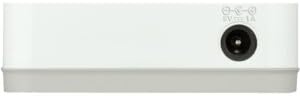
2 paveikslas: Galinis view of the D-Link GO-SW-5G switch with five Ethernet ports.
3.3. Connect Network Devices
- Connect your network devices (e.g., computers, gaming consoles, network printers, smart TVs) to the remaining available Ethernet ports on the D-Link GO-SW-5G switch using Ethernet cables.
- Each connected device will have its corresponding LED on the front of the switch illuminate, confirming a successful connection.

3 paveikslas: Priekyje view of the D-Link GO-SW-5G switch showing active port LEDs.
4. Naudojimo instrukcijos
The D-Link GO-SW-5G is an unmanaged switch, meaning it operates automatically without requiring user configuration. Once connected as described in the Setup section, it will begin forwarding network traffic between connected devices.
- Automatinės derybos: The switch automatically detects the network speed (10/100/1000 Mbps) and duplex mode (half/full) of connected devices and adjusts accordingly.
- Automatinis MDI/MDIX: All ports support automatic MDI/MDIX crossover, eliminating the need for crossover cables when connecting to other switches or hubs.
- LED indikatoriai: Each port has an LED indicator on the front panel. A lit LED indicates an active link, and blinking indicates network activity.
5. Priežiūra
To ensure optimal performance and longevity of your D-Link GO-SW-5G switch, consider the following maintenance guidelines:
- Vieta: Jungiklį padėkite vėsioje, sausoje vietoje, toliau nuo tiesioginių saulės spindulių, šilumos šaltinių ir per didelės drėgmės. Užtikrinkite tinkamą įrenginio vėdinimą.
- Valymas: Use a soft, dry cloth to clean the exterior of the switch. Avoid using liquid or aerosol cleaners, as they may damage the device.
- Kabelių valdymas: Eterneto laidus laikykite tvarkingai sutvarkytus, kad nesusipainiotų ir netyčia neatsijungtų.
- Maitinimo ciklas: If you experience network issues, a simple power cycle (unplugging the power adapter for 10 seconds and then plugging it back in) can often resolve minor problems.
6. Problemų sprendimas
If you encounter issues with your D-Link GO-SW-5G switch, refer to the following common troubleshooting steps:
- Nėra maitinimo šviesos diodo:
- Įsitikinkite, kad maitinimo adapteris yra tvirtai prijungtas tiek prie jungiklio, tiek prie veikiančio elektros lizdo.
- Patikrinkite, ar elektros lizdas veikia, prijungdami prie jo kitą įrenginį.
- No Link/Activity LED for a Connected Device:
- Patikrinkite, ar Ethernet kabelis yra tvirtai prijungtas prie komutatoriaus prievado ir tinklo įrenginio.
- Išbandykite kitą Ethernet kabelį, kad atmestumėte gedimo galimybę.
- Įsitikinkite, kad prijungtas įrenginys įjungtas ir jo tinklo adapteris veikia tinkamai.
- Pabandykite prijungti įrenginį prie kito jungiklio prievado.
- Mažas tinklo greitis:
- Verify that all connected devices and cables support Gigabit Ethernet (1000 Mbps) for optimal performance. The switch will operate at the lowest common speed.
- Ensure your router and internet service provider (ISP) plan support the desired speeds.
- Perform a power cycle on the switch and your router.
- Pertraukiamas ryšys:
- Patikrinkite, ar nėra laisvų kabelių jungčių.
- Ensure the switch is not overheating; provide adequate ventilation.
- Išbandykite su skirtingais Ethernet kabeliais.
7. Specifikacijos
| Prekės ženklas | D-Link |
| Modelio numeris | GO-SW-5G/B |
| Prievadų skaičius | 5 |
| Jungiklio tipas | Nevaldoma |
| Duomenų perdavimo sparta | 1 Gigabits Per Second (10/100/1000 Mbps) |
| Sąsaja | RJ45 |
| Spalva | Baltas |
| Prekės svoris | 0.22 svaro |
| ttage | 100-240 voltų |
| Suderinami įrenginiai | PC, Mac, and other Ethernet-enabled devices |
| Perjungimo audinys | 10 Gbps |
| UPC | 790069365669 |
8. Garantija ir palaikymas
Ribota garantija: The D-Link GO-SW-5G switch comes with a 3-year limited warranty. For detailed terms and conditions, please refer to the warranty information included in your package or visit the official D-Link websvetainę.
Techninė pagalba: For technical assistance, product registration, or to download the latest firmware and documentation, please visit the D-Link palaikymas Websvetainę arba susisiekite su „D-Link“ klientų aptarnavimo tarnyba.