
1. Įvadas
The D-Link DIR-610 Wireless N150 Router is designed to provide a high-speed wireless network connection for your home or small office. This manual will guide you through the installation, configuration, and operation of your new router, ensuring a secure and efficient internet experience.
The DIR-610 supports the latest wireless security features to prevent unauthorized access to both the wireless network and the internet. It also includes Quality of Service (QoS) functionality, which, when enabled, allows for a better online experience by prioritizing network traffic.
2. Pakuotės turinys
Patikrinkite, ar jūsų pakuotėje yra šie elementai:
- 1 x D-Link DIR-610 Wireless N150 Router
- 1x maitinimo adapteris
- 1 x Ethernet kabelis
- 1 x montavimo vadovas
- 1 x Naudotojo vadovas (šis dokumentas)
Jei trūksta kokių nors daiktų arba jie pažeisti, kreipkitės į vietinį „D-Link“ platintoją.
3. Sąranka
Follow these steps to set up your D-Link DIR-610 Router:
- Išpakuokite maršrutizatorių: Atsargiai išimkite maršrutizatorių ir visus priedus iš pakuotės.
- Maršrutizatoriaus padėtis: Place the router in a central location in your home or office, away from obstructions and devices that may cause interference (e.g., cordless phones, microwave ovens).
- Prijunkite prie maitinimo: Connect the power adapter to the router's power port and then plug the adapter into a wall outlet. Ensure the power LED on the router illuminates.
- Prisijungimas prie interneto (WAN): Connect one end of the provided Ethernet cable to your modem's Ethernet port and the other end to the Internet (WAN) port on the DIR-610 router.
- Connect to Computer (LAN - Optional): For initial setup or wired connections, connect one end of another Ethernet cable (not included, or use the provided one if not connecting to modem yet) to one of the LAN ports on the router and the other end to your computer's Ethernet port. Alternatively, you can connect wirelessly using the default Wi-Fi name and password found on the router's label.
- Run D-Link Assistant: The D-Link Assistant allows users without technical knowledge to install the router and establish an internet connection in minutes by simply running the product CD. Insert the product CD into your computer and follow the on-screen instructions.
- Prieiga Web-based Setup: If not using the CD, open a web browser (e.g., Chrome, Firefox) on a connected computer and type
http://dlinkrouter.localorhttp://192.168.0.1into the address bar. Log in using the default username (usually admin) ir slaptažodį (dažnai tuščią arba admin). Refer to the router's label for default login credentials. - Vykdykite sąrankos vedlio veiksmus: Once logged in, the setup wizard will guide you through configuring your internet connection, wireless network name (SSID), and password.
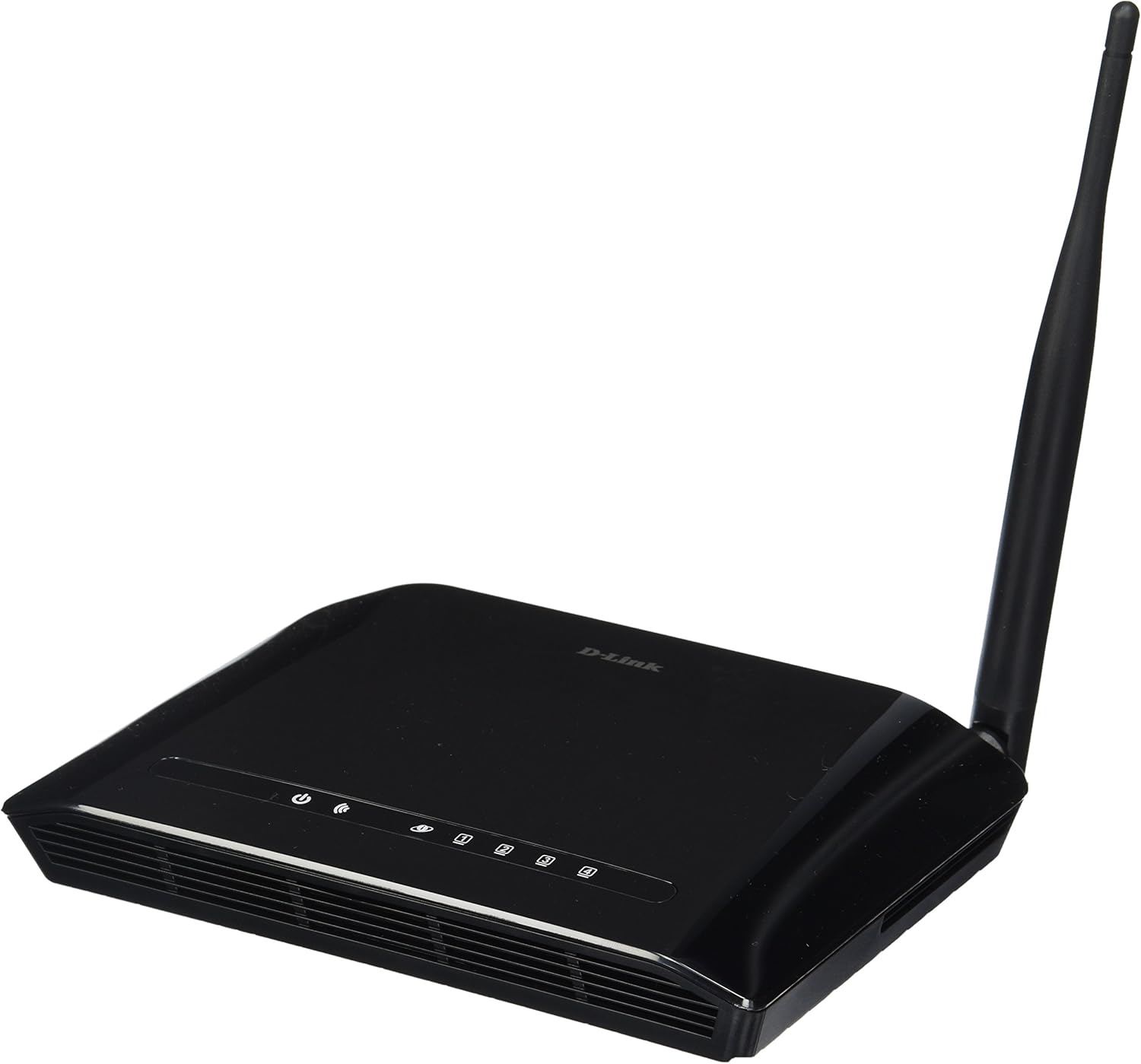
3.1 paveikslas: Priekyje view of the D-Link DIR-610 Wireless N150 Router. This image shows the compact black router with its single external antenna and LED indicators on the front panel for power, internet, and wireless status.
4. Maršrutizatoriaus valdymas
Once your D-Link DIR-610 router is set up, you can manage its various functions through the web- pagrįsta sąsaja.
4.1 Belaidis ryšys
The DIR-610 provides Wireless N150 connectivity, offering reliable wireless access for devices such as laptops, smartphones, and tablets. To connect a device:
- Įgalinkite „Wi-Fi“ savo įrenginyje.
- Ieškokite galimų belaidžių tinklų.
- Select your configured network name (SSID).
- Enter your wireless password (WPA/WPA2 key).
4.2 Saugos funkcijos
The DIR-610 incorporates advanced wireless security protocols to protect your network from unauthorized access. It supports WPA/WPA2 encryption. It is highly recommended to use WPA2-PSK (AES) encryption with a strong, unique password for your wireless network.
4.3 Paslaugos kokybė (QoS)
The DIR-610 Router includes Quality of Service (QoS) functionality. QoS allows you to prioritize certain types of network traffic, such as online gaming or video streaming, over less time-sensitive activities like file downloads. This helps ensure a smoother and more responsive experience for critical applications. You can configure QoS settings through the router's web sąsaja.
5. Priežiūra
Regular maintenance helps ensure optimal performance and longevity of your D-Link DIR-610 router.
- Firmware atnaujinimai: Reguliariai tikrinkite „D-Link“ palaikymo tarnybą website for firmware updates. Updating the firmware can improve performance, add new features, and fix security vulnerabilities.
- Saugūs slaptažodžiai: Regularly change your router's administrator password and your Wi-Fi password to strong, unique combinations.
- Fizinė aplinka: Keep the router in a well-ventilated area, free from dust and direct sunlight. Avoid placing heavy objects on top of the router.
- Perkrovimas: If you experience network issues, a simple reboot of the router (unplugging the power for 10 seconds and plugging it back in) can often resolve minor problems.
6. Problemų sprendimas
Šiame skyriuje aptariamos dažniausiai pasitaikančios problemos, su kuriomis galite susidurti naudodami „D-Link DIR-610“ maršrutizatorių.
6.1 Nėra interneto prieigos
- Check all cable connections: Ensure the Ethernet cable from your modem is securely connected to the router's Internet (WAN) port.
- Verify modem status: Ensure your modem is working correctly and has an active internet connection.
- Reboot devices: Power cycle your modem, then your router, and finally your computer/device.
- Check router settings: Access the router's web interface and verify your internet connection settings (e.g., PPPoE, DHCP, Static IP) are correct as provided by your Internet Service Provider (ISP).
6.2 Mažas belaidis greitis
- Trikdžiai: Perkelkite maršrutizatorių toliau nuo kitų elektroninių prietaisų, kurie gali sukelti trikdžius.
- Kanalo pasirinkimas: In the router's wireless settings, try changing the wireless channel to a less congested one (e.g., 1, 6, or 11).
- Atstumas ir kliūtys: Ensure your device is within a reasonable range of the router and that there are no major physical obstructions (thick walls, metal objects) blocking the signal.
- QoS nustatymai: If QoS is enabled, ensure it is configured correctly and not inadvertently prioritizing less important traffic.
6.3 Forgotten Administrator Password
If you forget your router's administrator password, you will need to perform a factory reset. Locate the reset button (usually a small pinhole button) on the router. With the router powered on, use a paperclip to press and hold the reset button for about 10 seconds. The router will reboot with factory default settings, and you can then log in using the default credentials (e.g., username admin, password blank or admin).
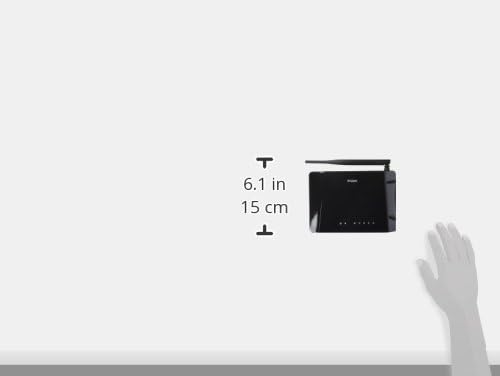
6.1 paveikslas: Diagram illustrating the approximate dimensions of the D-Link DIR-610 Router. The image shows the router's height of approximately 6.1 inches (15 cm).
7. Specifikacijos
| Funkcija | Specifikacija |
|---|---|
| Prekės ženklas | D-Link |
| Gamintojas | D-Link |
| Serija | 97200GL |
| Spalva | Juoda |
| Produkto aukštis | 14.75 centimetro |
| Gaminio plotis | 3.15 centimetro |
| Rezoliucija | pixels Pixels |
| Baterijos įtrauktos | Nr |
| Gaminio matmenys | 11.32 x 3.15 x 14.75 cm; 200 g |
| Produkto modelio numeris | DIR 610 |
| ASIN | B00CLMOR4U |
| Pirmoji laisva data | 15 m. lapkričio 2012 d |
| Įtraukti komponentai | 1 DIR-610 Router, Power Adapter, Ethernet Cable, Installation Guide, User Manual |
| Ryšio technologija | Bevielis |
| Produkto svoris | 200 gramų |
| Kontrolės metodas | Application (referring to web sąsaja) |
| LAN prievado pralaidumas | 10/100 megabitų per sekundę |
| UPC | 790069377822, 790069377808, 790069377891 |
| Pasaulinis prekybos prekės numeris (GTIN) | 00790069377891 |
8. Saugos informacija
Kad išvengtumėte sužalojimų ar įrenginio pažeidimo, perskaitykite ir laikykitės visų saugos nurodymų:
- Neatidarykite įrenginio c.asing.
- Saugokite įrenginį nuo vandens, drėgmės ar ekstremalių temperatūrų.
- Naudokite tik su prietaisu pateiktą maitinimo adapterį.
- Saugokite prietaisą nuo šilumos šaltinių ir tiesioginių saulės spindulių.
- Užtikrinkite tinkamą vėdinimą aplink įrenginį.
9. Garantija ir palaikymas
Informacijos apie garantiją ieškokite prie gaminio pridėtoje garantijos kortelėje arba apsilankykite oficialioje „D-Link“ svetainėje. website for your region. D-Link provides technical support for its products. For assistance, please visit your local D-Link support websvetainėje arba susisiekite su jų klientų aptarnavimo tarnyba.
D-Link Websvetainė: www.dlink.com