
Hewlett-Packard KUS0133
HP KUS0133 SmartCard USB Keyboard User Manual
Model: KUS0133 / 434822-161 | Brand: Hewlett-Packard
1. Įvadas ir pabaigaview
This manual provides comprehensive instructions for the setup, operation, and maintenance of your HP KUS0133 SmartCard USB Keyboard. Designed for efficiency and security, this keyboard integrates a SmartCard reader, making it suitable for environments requiring secure authentication and data access.
The HP KUS0133 is a wired USB keyboard featuring a standard 104-key layout, including a numeric keypad and dedicated function keys. Its robust design ensures reliable performance for daily computing tasks.
2. Sąranka
Follow these steps to connect and prepare your HP KUS0133 SmartCard USB Keyboard for use.
2.1. Klaviatūros prijungimas
- Raskite laisvą USB prievadą savo kompiuteryje (asmeniniame kompiuteryje arba nešiojamajame kompiuteryje).
- Insert the USB-A connector of the keyboard cable firmly into the USB port.
- Your operating system should automatically detect the new hardware and install the necessary generic drivers.
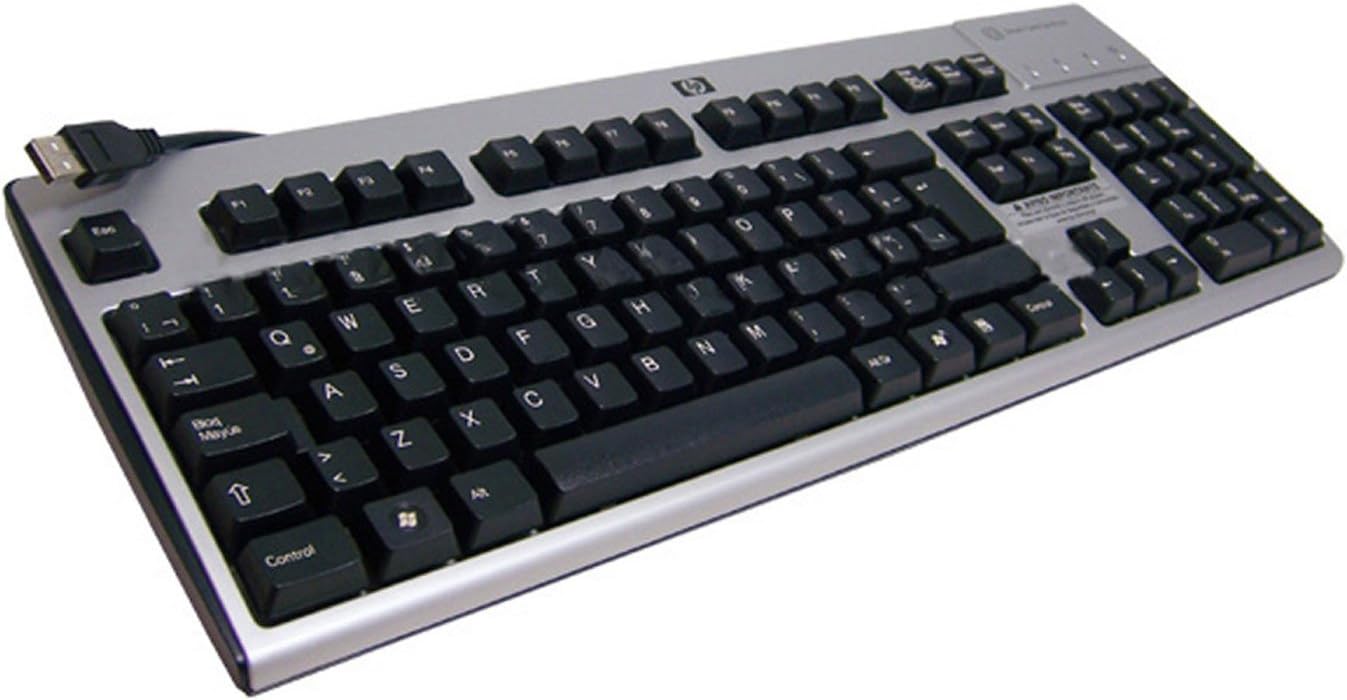
Pridėtinė view of the HP KUS0133 SmartCard USB Keyboard, showing its full layout, including the numeric keypad and the integrated SmartCard reader slot on the top right, with the USB cable extending from the top left.
2.2. Driver Installation (for SmartCard Functionality)
While the basic keyboard functions are plug-and-play, specific drivers or software may be required for the SmartCard reader to function correctly with certain applications or security systems. Consult your system administrator or the software provider for SmartCard reader driver requirements.
- For most modern operating systems, the SmartCard reader drivers are often included or automatically downloaded via Windows Update/macOS updates.
- If prompted, allow the operating system to search for and install the appropriate drivers.
- Restart your computer if instructed to complete the driver installation.
3. Klaviatūros valdymas
3.1. Pagrindinės klaviatūros funkcijos
The HP KUS0133 keyboard operates like any standard 104-key keyboard. All alphanumeric keys, function keys (F1-F12), navigation keys, and the numeric keypad function as expected for typing, data entry, and system navigation.
- Rašant: Teksto įvedimui naudokite raidinius ir skaitmeninius klavišus.
- Skaitmeninė klaviatūra: For efficient number entry, ensure Num Lock is active.
- Funkciniai klavišai: F1-F12 perform various tasks depending on the active application or operating system.
- Multimedijos klavišai: If present, these keys control media playback (e.g., volume, play/pause).
3.2. SmartCard Reader Usage
The integrated SmartCard reader allows for secure login, digital signatures, and access to protected data. Ensure the necessary SmartCard middleware and applications are installed on your computer.
- Identify the SmartCard slot, typically located on the top right side of the keyboard.
- Insert your SmartCard into the slot with the chip facing upwards and towards the keyboard, until it clicks into place.
- Follow the prompts from your operating system or application to enter your PIN or perform the required authentication.
- To remove the SmartCard, gently pull it out from the slot.
4. Priežiūra
Tinkama ir tvarkinga klaviatūra prailgins jos tarnavimo laiką.
- Valymas: Disconnect the keyboard from the computer before cleaning. Use a soft, lint-free cloth slightly dampnuplaukite vandeniu arba švelniu valymo tirpalu. Venkite stiprių cheminių medžiagų ar abrazyvinių medžiagų.
- Dulkių šalinimas: Norėdami pašalinti dulkes ir šiukšles iš tarpų tarp klavišų, naudokite suslėgtą orą.
- Išsiliejęs skystis: In case of a liquid spill, immediately disconnect the keyboard and allow it to dry completely before reconnecting. Do not attempt to use the keyboard while wet.
5. Problemų sprendimas
If you encounter issues with your HP KUS0133 SmartCard USB Keyboard, refer to the following common troubleshooting steps.
| Problema | Galima priežastis | Sprendimas |
|---|---|---|
| Klaviatūra nereaguoja. | Atsilaisvinęs USB ryšys, sugedęs USB prievadas, tvarkyklės problema. |
|
| SmartCard is not detected. | Incorrect card insertion, missing/outdated SmartCard drivers, software conflict. |
|
| Klavišai yra lipnūs arba nereaguoja. | Šiukšlės po raktais, skysčio padaryta žala. |
|
6. Specifikacijos
Key technical specifications for the HP KUS0133 SmartCard USB Keyboard:
| Funkcija | Detalė |
|---|---|
| Prekės ženklas | „Hewlett-Packard“. |
| Modelio numeris | KUS0133 / 434822-161 |
| Ryšio technologija | USB, USB-A |
| Klaviatūros aprašymas | Multimedia, SmartCard Reader Integrated |
| Raktų skaičius | 104 |
| Spalva | Juoda-sidabrinė |
| Medžiaga | Plastikiniai |
| Maitinimo šaltinis | USB veikia |
| Prekės svoris | 4 svaro |
| Suderinami įrenginiai | Kompiuteris, nešiojamas kompiuteris, žaidimų konsolė |
7. Garantija ir palaikymas
For warranty information and technical support, please refer to the documentation included with your purchase or visit the official Hewlett-Packard (HP) support websvetainę. Paprastai ten galite rasti pagalbos išteklių, tvarkyklių atsisiuntimų ir klientų aptarnavimo kontaktinės informacijos.
Ask a question about this manual
Ask about setup, troubleshooting, compatibility, parts, safety, or missing instructions. Manuals+ will review the question and use this page’s manual context to help answer it.