
Įvadas
This manual provides essential information for setting up, operating, maintaining, and troubleshooting your CyberpowerPC Gamer Ultra GUA950A Desktop. Please read these instructions carefully before using your new computer to ensure proper functionality and longevity.

Image: The CyberpowerPC Gamer Ultra GUA950A desktop computer shown with its accessories and original packaging.
Sąranka
- Išpakavimas: Carefully remove the desktop computer and all accessories from the packaging. Retain the packaging for future transport or service.
- Išorinių įrenginių prijungimas: Connect your monitor, keyboard, and mouse to the appropriate ports on the back of the desktop. Ensure all connections are secure. The desktop supports various connectivity options including USB, HDMI, and Wi-Fi.
- Maitinimo jungtis: Connect the power cable to the desktop's power supply unit and then to a grounded electrical outlet.
- Pradinis įjungimas: Press the power button located on the front of the desktop. The system will begin the boot process. Follow any on-screen instructions for initial operating system setup.
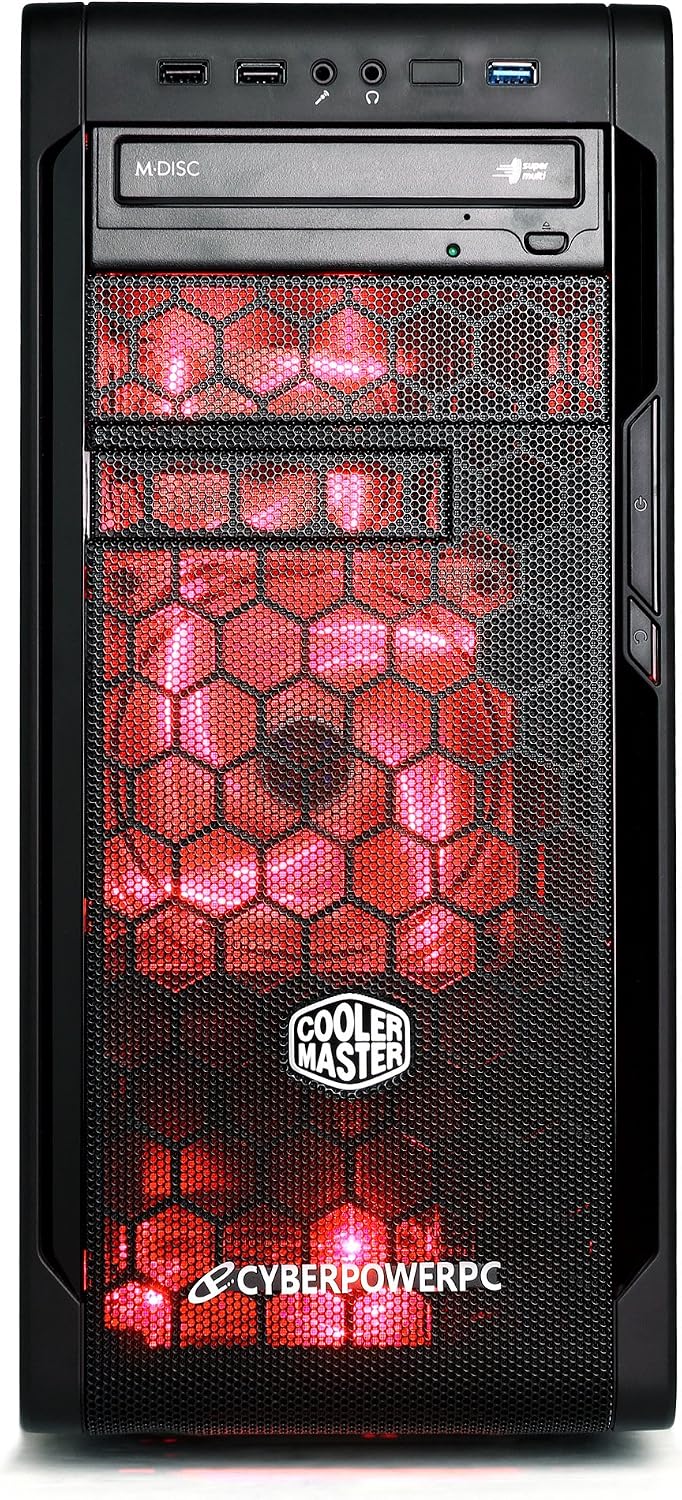
Vaizdas: priekis view of the desktop, highlighting accessible ports.

Vaizdas: kampuotas view of the desktop, showing front and side details.
Veikiantis
Your CyberpowerPC Gamer Ultra GUA950A Desktop comes pre-installed with either Windows 7 Home Premium or Windows 8. Familiarize yourself with the operating system interface and its basic functions.
- Maitinimo įjungimas/išjungimas: To power on, press the power button. To shut down, always use the operating system's shutdown function (Start Menu > Power > Shut down) to prevent data corruption. Avoid powering off directly by holding the power button unless absolutely necessary.
- Ryšys: Utilize the available USB ports for connecting external devices. HDMI is available for display output. Integrated Wi-Fi and Bluetooth provide wireless connectivity.
- Optinis įrenginys: The system includes a 24X DVD+-RW drive for reading and writing optical media.
Priežiūra
Tinkama priežiūra užtikrina jūsų stacionaraus kompiuterio ilgaamžiškumą ir optimalų veikimą.
- Valymas: Regularly clean the exterior of the desktop with a soft, dry cloth. Use compressed air to clear dust from vents and fans to ensure proper airflow and prevent overheating. Do not use liquid cleaners directly on components.
- Programinės įrangos atnaujinimai: Keep your operating system and drivers updated to ensure optimal performance, security, and compatibility. Check for updates regularly through the operating system settings.
- Duomenų atsarginė kopija: Regularly back up important data to an external drive or cloud storage to prevent data loss in case of hardware failure or other unforeseen issues.

Vaizdas: Šoninė view of the desktop, illustrating internal components that may require dust cleaning.
Trikčių šalinimas
If you encounter issues with your desktop, refer to the following common troubleshooting steps:
- Nėra galios: Ensure the power cable is securely connected to both the desktop's power supply unit and a functional electrical outlet. Verify the power outlet is working by plugging in another device.
- Nėra ekrano: Check that the monitor is properly connected to the graphics card port (usually at the back, lower section of the desktop) and that the monitor itself is powered on. Try a different display cable or monitor if available.
- Sistemos sulėtėjimas: Close unnecessary applications running in the background. Check for malware or viruses using reputable antivirus software. Ensure there is sufficient free space on your hard drive. Consider updating drivers for your components.
- Periferinės problemos: If a keyboard, mouse, or other USB device is not working, try connecting it to a different USB port. Ensure drivers for the peripheral are installed if required.
If these steps do not resolve the issue, please contact CyberpowerPC technical support for further assistance.
Specifikacijos
| Funkcija | Detalė |
|---|---|
| Modelio numeris | GUA950A |
| Procesorius | AMD FX-6300 (6-Core) |
| Operacinė sistema | Windows 7 Home Premium, Windows 8 |
| RAM atmintis | 8 GB DDR3 SDRAM |
| Sandėliavimas | 1000 GB HDD |
| Vaizdo plokštė | AMD R7 250 2GB |
| Optinis diskas | 24X DVD+-RW |
| Ryšys | „Bluetooth“, HDMI, USB, „Wi-Fi“ |
| Gaminio matmenys | 49.02 x 19.05 x 42.42 cm; 13.18 kg |
| Spalva | Juoda/raudona |
| UPC | 811842022897 |
Garantija ir palaikymas
Your CyberpowerPC Gamer Ultra GUA950A Desktop is covered by a 1 Year Limited Warranty. Additionally, Lifetime Toll Free Technical Support Services are available.
- Techninės pagalbos karštoji linija: (888) 937-5582
- Techninės pagalbos el. paštas: techteamatcyberpowerpc.com
- Gamintojo kontaktinė informacija: CITY OF INDUSTRY, CA, 91746 US
Please have your model number (GUA950A) and proof of purchase ready when contacting support.