
1. Įvadas
The D-Link DSL-G225 Wireless N300 ADSL2+/VDSL2 Modem Router is designed to provide a reliable and secure internet connection for home and office environments. This device supports various internet connection types, including ADSL2+, VDSL2, NBN (Australia), and UFB (New Zealand), ensuring broad compatibility with different service providers.
Equipped with N300 Wi-Fi technology and four Ethernet LAN ports, the DSL-G225 allows for seamless sharing of your internet connection across multiple devices such as desktop computers, laptops, tablets, smartphones, gaming consoles, and smart TVs.
Pagrindinės funkcijos:
- Integrated ADSL2+/VDSL2 Modem for direct line connection.
- Wireless N300 technology for fast Wi-Fi speeds.
- Four 10/100 Ethernet LAN ports for wired connections.
- Support for NBN (Australia) and UFB (New Zealand) connection options.
- Easy setup wizard for quick installation.
2. Aparatūra baigtaview
2.1 Priekinis skydelis
The front panel of the DSL-G225 features a series of LED indicators that provide real-time status information about the device's operation.
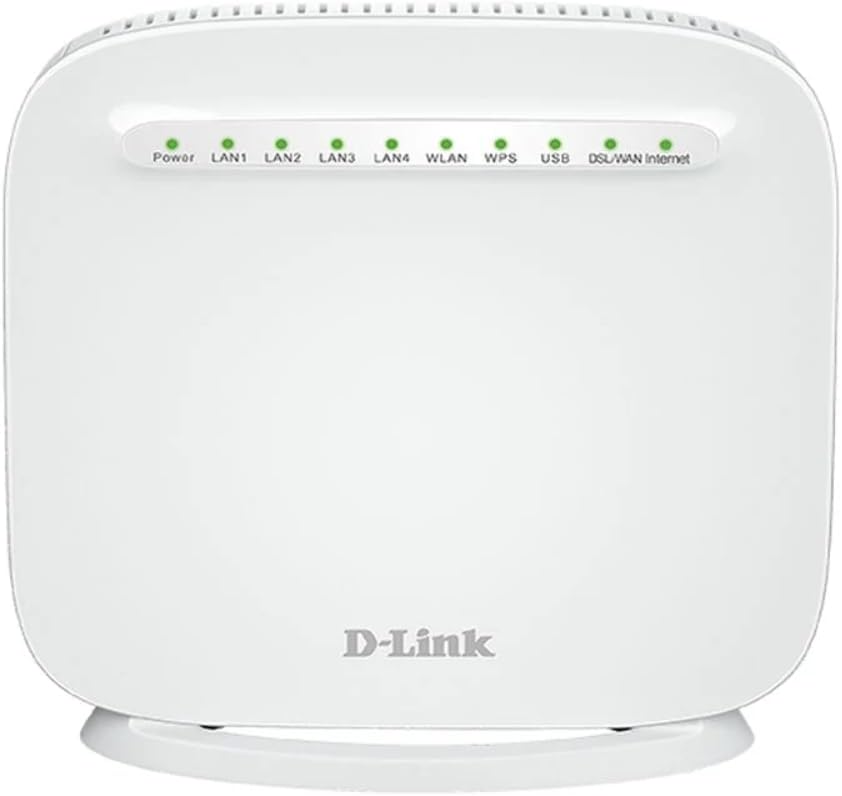
1 paveikslas: Priekyje view of the D-Link DSL-G225 Modem Router, showing the Power, LAN, WLAN, WPS, USB, DSL/WAN, and Internet LED indicators.
| LED indikatorius | Būsena | Aprašymas |
|---|---|---|
| Galia | Tvirta žalia | Įrenginys įjungtas. |
| LAN 1-4 | Tvirta žalia | Įrenginys prijungtas prie atitinkamo LAN prievado. |
| Mirksi žaliai | Duomenys perduodami arba gaunami per atitinkamą LAN prievadą. | |
| WLAN | Tvirta žalia | Wireless functionality is enabled. |
| Mirksi žaliai | Wireless data is being transmitted or received. | |
| WPS | Mirksi žaliai | WPS connection attempt in progress. |
| USB | Tvirta žalia | USB įrenginys prijungtas ir atpažintas. |
| DSL/WAN | Tvirta žalia | DSL line is connected and synchronized, or WAN port is active. |
| Mirksi žaliai | Attempting to establish DSL synchronization or WAN connection. | |
| Internetas | Tvirta žalia | Successfully connected to the internet. |
| Mirksi žaliai | Duomenys perduodami arba gaunami internetu. |
2.2 Galinis skydelis
The rear panel contains all the physical ports for connecting the modem router to your internet service and local network devices.
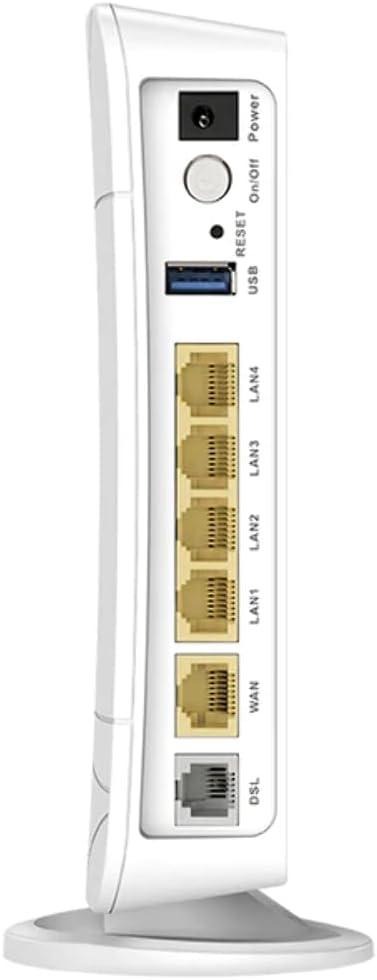
2 paveikslas: Galinis view of the D-Link DSL-G225 Modem Router, displaying the Power input, On/Off button, Reset button, USB port, LAN ports, WAN port, and DSL port.
| Prievadas/mygtukas | Aprašymas |
|---|---|
| Maitinimo įvestis | Jungiamas prie pridedamo maitinimo adapterio. |
| Įjungimo/išjungimo mygtukas | Įjungia arba išjungia įrenginį. |
| Atkūrimo mygtukas | Paspauskite ir palaikykite 10 sekundžių, kad atkurtumėte gamyklinius numatytuosius nustatymus. |
| USB prievadas | Connects USB devices such as storage drives for network sharing. |
| LAN 1-4 prievadai | Connects wired devices (e.g., computers, gaming consoles) using Ethernet cables. |
| WAN prievadas | Connects to an external modem or NBN/UFB Network Termination Device (NTD) for internet access. |
| DSL prievadas | Connects to the telephone line for ADSL2+/VDSL2 internet service. |
3. Sąranka
3.1 Fizinis ryšys
- Maitinimo jungtis: Connect the provided power adapter to the Power Input port on the rear panel of the modem router and then plug it into a power outlet. Press the On/Off button. The Power LED on the front panel should illuminate green.
- Interneto ryšys:
- For ADSL2+/VDSL2: Connect a telephone cable from your wall socket to the DSL modemo maršrutizatoriaus prievadas.
- For NBN/UFB (FTTP/FTTC/HFC/Fixed Wireless): Connect an Ethernet cable from your NBN/UFB Network Termination Device (NTD) or wall socket to the WAN modemo maršrutizatoriaus prievadas.
- Local Network Connection (Optional): Prijunkite eterneto kabelį prie vieno iš LAN 1-4 ports on the modem router to your computer's Ethernet port. For wireless devices, proceed to the Wi-Fi connection steps.
3.2 Pradinė konfigūracija
After physical connections are made, you can configure the modem router using its web- pagrįsta sąsaja.
- Ensure your computer is connected to the modem router via Ethernet or Wi-Fi.
- Atidarykite a web naršyklėje (pvz., „Chrome“, „Firefox“, „Edge“).
- Adreso juostoje įveskite
http://192.168.1.1(numatytasis IP adresas) ir paspauskite „Enter“. - Įveskite numatytąjį vartotojo vardą ir slaptažodį (paprastai
adminfor both, or as printed on a label on the device). - Follow the on-screen Setup Wizard to configure your internet connection settings (ISP username/password, connection type) and Wi-Fi network name (SSID) and password.
4. Operacinis
4.1 Įrenginių prijungimas per „Wi-Fi“
- Belaidžiame įrenginyje (išmaniajame telefone, planšetiniame kompiuteryje, nešiojamajame kompiuteryje) atidarykite „Wi-Fi“ nustatymus.
- Ieškokite galimų tinklų.
- Select your Wi-Fi network name (SSID) as configured during the setup process.
- Enter your Wi-Fi password (network key) when prompted.
- Your device should now be connected to the internet via Wi-Fi.
4.2 Įrenginių prijungimas per Ethernet
For devices requiring a stable wired connection, use an Ethernet cable.
- Connect one end of an Ethernet cable to an available LAN port (1-4) on the rear of the modem router.
- Kitą Ethernet kabelio galą prijunkite prie savo įrenginio (pvz., kompiuterio, išmaniojo televizoriaus, žaidimų konsolės) Ethernet prievado.
- The corresponding LAN LED on the front panel should illuminate green, indicating a successful connection.
4.3 USB prievado funkcionalumas
The USB port on the DSL-G225 can be used to connect a USB storage device (e.g., a USB flash drive or external hard drive) to share files across your network. Refer to the modem router's web interface for specific settings related to USB storage sharing.
5. Priežiūra
5.1 Firmware atnaujinimai
Periodically check the D-Link Australia support website for firmware updates. Firmware updates can improve performance, add new features, and address security vulnerabilities. Follow the instructions provided on the D-Link webAtlikdami programinės įrangos atnaujinimą, atidžiai stebėkite svetainę.
5.2 Gamyklinių parametrų atkūrimas
Jei nuolat kyla problemų arba pamiršote prisijungimo duomenis, galite atlikti gamyklinių parametrų atkūrimą. Tai grąžins visus nustatymus į numatytąsias reikšmes.
- With the modem router powered on, locate the Nustatyti iš naujo mygtukas galiniame skydelyje.
- Sąvaržėle ar panašiu smailiu daiktu paspauskite ir maždaug 10 sekundes palaikykite nuspaudę mygtuką „Reset“.
- Release the button. The modem router will restart with factory default settings. You will need to reconfigure your internet and Wi-Fi settings.
6. Problemų sprendimas
6.1 Nėra interneto ryšio
- Patikrinkite kabelius: Ensure all cables (power, DSL/WAN, Ethernet) are securely connected.
- LED būsena: Patikrinkite Galia, DSL/WAN, ir Internetas LEDs are solid green. If the DSL/WAN LED is flashing, there might be an issue with your internet line or connection type. If the Internet LED is off, check your ISP settings in the router's web sąsaja.
- IPT kredencialai: Confirm that your internet service provider (ISP) username and password are correctly entered in the modem router's configuration.
- Iš naujo paleiskite įrenginius: Power cycle the modem router and any connected devices (computer, NBN/UFB NTD) by unplugging them for 30 seconds and then plugging them back in.
6.2 „Wi-Fi“ ryšio problemos
- WLAN šviesos diodas: Užtikrinti, WLAN LED on the front panel is solid green. If it's off, Wi-Fi might be disabled. Check settings in the web sąsaja.
- Teisingas slaptažodis: Verify you are entering the correct Wi-Fi password (network key).
- Signalo stiprumas: Move closer to the modem router to check if signal strength is an issue. Obstacles like walls and large appliances can interfere with Wi-Fi signals.
- Kanalų trukdžiai: In congested areas, changing the Wi-Fi channel in the router's settings may improve performance.
6.3 Lėtas interneto greitis
- Įrenginių skaičius: Too many devices actively using the network can reduce speeds.
- Trikdžiai: Other wireless devices (cordless phones, microwaves) can cause interference.
- Firmware: Ensure your modem router has the latest firmware installed.
- Interneto paslaugų teikėjo problema: Contact your internet service provider to check for any network issues in your area or with your service plan.
7. Specifikacijos
| Funkcija | Detalė |
|---|---|
| Modelio numeris | DSL-G225-AU |
| Prekės ženklas | D-Link |
| Serija | Belaidis N300 |
| Belaidis tipas | 802.11n |
| Dažnių juostos klasė | Vienos juostos |
| Ethernet prievadai | 4 x 10/100 LAN ports, 1 x WAN port |
| USB prievadai | 1 x USB 2.0 prievadas |
| Modemo tipas | ADSL2+/VDSL2 |
| Operacinė sistema | RouterOS (D-Link Firmware) |
| Ypatinga funkcija | Prieigos taško režimas |
| Matmenys (I x P x A) | 15.5 x 15 x 6 cm |
| Prekės svoris | 590 g |
| Gamintojas | D-Link Australia |
8. Garantija ir palaikymas
For warranty information and technical support, please refer to the official D-Link Australia website or contact D-Link customer service. Warranty terms and conditions may vary by region and purchase date.
It is recommended to register your product on the D-Link website to receive updates and access support resources.