
1. Įvadas
This manual provides comprehensive instructions for the D-Link DWR-910 4G LTE Wireless USB Router. This device is designed to provide high-speed 4G LTE mobile internet access, allowing you to share a cellular data connection via Wi-Fi with multiple devices. It features a compact design, built-in drivers for easy installation, and support for various cellular bands.
2. Pakuotės turinys
Patikrinkite, ar jūsų pakuotėje yra šie elementai:
- D-Link DWR-910 4G LTE Wireless USB Router
3. Produktas baigtasview
3.1 Įrenginio funkcijos
- USB 2.0 interface for power and data connection
- Super-fast 4G LTE connectivity with download speeds up to 150 Mbps
- Integrated 6-pin SIM card slot
- MicroSD card slot (supports up to 32 GB, card not included)
- Internal antennas for LTE and Wi-Fi
- Built-in drivers and software for plug-and-play installation (no CD-ROM required)
- Connection Manager with features like phonebook, SMS messaging, and APN management
3.2 Fiziniai komponentai
The DWR-910 features a compact design with essential indicators and ports.
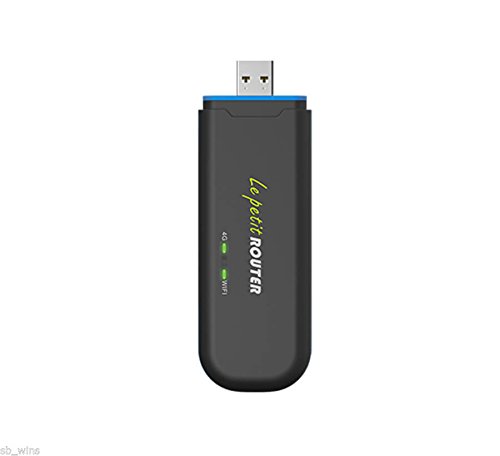
Priekyje view of the D-Link DWR-910, showing the USB connector and LED indicators.
- USB jungtis: Used for connecting to a computer or USB power adapter.
- LTE LED Indicator: Displays the status of the cellular network connection (2G/3G/4G).
- „Wi-Fi“ LED indikatorius: Rodo „Wi-Fi“ interneto prieigos taško būseną.
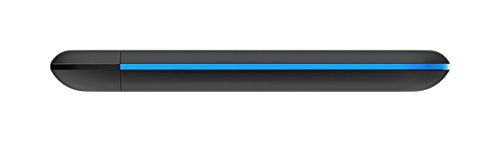
Šoninė view of the D-Link DWR-910, highlighting the SIM and MicroSD card slots.
- SIM kortelės lizdas: Insert your 6-pin SIM card here.
- MicroSD kortelės lizdas: Insert a MicroSD card for storage (up to 32 GB).
4. Sąranka
4.1 SIM kortelės įdėjimas
- Locate the SIM card slot on the side of the DWR-910.
- Carefully insert your 6-pin SIM card into the slot. Ensure the correct orientation as indicated on the device. Push until it clicks into place.
4.2 Prijungimas prie maitinimo šaltinio
- Plug the DWR-910 into an available USB 2.0 port on a computer or a compatible USB power adapter (a 5V, 1A adapter is recommended for stable operation).
- The device will power on automatically, and the LED indicators will illuminate.
4.3 Driver Installation (Plug and Play)
The DWR-910 features built-in drivers and connection software. Upon first connection to a computer, the necessary drivers and software will install automatically. No external CD-ROM or manual driver installation is typically required.
5. Naudojimo instrukcijos
5.1 Connecting to the Wi-Fi Hotspot
- Once the DWR-910 is powered on and has established a connection to a cellular network (indicated by the LTE LED), it will broadcast a Wi-Fi network.
- On your Wi-Fi enabled device (e.g., laptop, smartphone, tablet), search for available Wi-Fi networks.
- Select the network name (SSID) corresponding to your DWR-910. The default SSID and Wi-Fi password are typically printed on a label on the device or its packaging.
- Norėdami prisijungti, įveskite „Wi-Fi“ slaptažodį.
5.2 Prieiga prie Web Sąsaja
To manage advanced settings, send SMS messages, view the phonebook, or configure APN settings, access the device's webpagrįsta grafine vartotojo sąsaja (GUI).
- Ensure your device is connected to the DWR-910's Wi-Fi network or via USB.
- Atidarykite a web naršyklę ir įveskite numatytąjį IP adresą (pvz.
192.168.0.1or192.168.1.1). Refer to the device label or documentation for the exact address. - Įveskite numatytąjį vartotojo vardą ir slaptažodį (pvz.,
admin/admin).
5.3 LED indikatoriai
The LED indicators provide visual feedback on the device's status:
- LTE šviesos diodas:
- Žalia (mirksi): prisijungta prie LTE tinklo
- Mėlyna (mirksi): prisijungta prie 3G tinklo
- Purple (blinking): Connected to 2G network
- Red (blinking): No service or device error
- „Wi-Fi“ šviesos diodas:
- Green (solid): Wi-Fi is active and broadcasting
6. Priežiūra
To ensure optimal performance and longevity of your DWR-910, follow these maintenance guidelines:
- Laikykite įrenginį švarų ir be dulkių. Valymui naudokite minkštą, sausą šluostę.
- Saugokite, kad prietaisas nepatektų į ekstremalias temperatūras, tiesioginius saulės spindulius ar didelę drėgmę.
- Do not attempt to open, disassemble, or repair the device yourself. Refer to qualified service personnel for any repairs.
- Ensure proper ventilation when the device is in use to prevent overheating.
- Regularly check for firmware updates on the D-Link support website to enhance performance and security.
7. Problemų sprendimas
This section addresses common issues you might encounter with your DWR-910.
7.1 Nėra interneto ryšio
- SIM kortelė: Įsitikinkite, kad SIM kortelė tinkamai įdėta ir aktyvuota su duomenų planu.
- LTE šviesos diodas: Check the LTE LED status. If it is red, there might be no cellular service in your area or a device error.
- APN nustatymai: Verify that the Access Point Name (APN) settings are correct via the device's web interface. These are usually auto-detected but may require manual configuration for some carriers.
- Paleisti iš naujo: Try restarting the device by unplugging it from the USB port and plugging it back in.
7.2 Nepavyksta prisijungti prie „Wi-Fi“
- „Wi-Fi“ šviesos diodas: Ensure the Wi-Fi LED is green, indicating the Wi-Fi hotspot is active.
- Slaptažodis: Verify that you are entering the correct Wi-Fi password (WPA2-PSK key).
- Diapazonas: Ensure your client device is within the Wi-Fi range of the DWR-910. The Wi-Fi range is typically limited, suitable for a single room (approx. 10-12 feet). Walls and obstructions can significantly reduce range.
- Paleisti iš naujo: Restart both the DWR-910 and your Wi-Fi client device.
7.3 Įrenginio perkaitimas
- Vėdinimas: Ensure adequate airflow around the device. Avoid placing it in enclosed spaces or covering it.
- Maitinimo šaltinis: Use a stable 5V, 1A USB power adapter. Using underpowered USB ports can sometimes lead to instability or heat.
- Aplinka: Avoid prolonged use in direct sunlight or high ambient temperatures.
8. Techninės specifikacijos
| Funkcija | Detalė |
|---|---|
| Modelis | DWR-910 |
| Sąsaja | USB 2.0 |
| SIM lizdas | 6 kontaktų |
| „MicroSD“ kortelių lizdas | Up to 32 GB (card not included) |
| Mobilioji prieiga | LTE-FDD Cat.4 (Downlink: 150 Mbps, Uplink: 50 Mbps) DC-HSPA+ (Downlink: 42 Mbps, Uplink: 11 Mbps) |
| LTE grupės | B1 / B3 / B5 / B40 (2100/1900/850/2300 MHz) |
| UMTS/HSPA+ juostos | B1 / B8 (900 / 2100 MHz) |
| GSM/GPRS/EDGE Bands | 850 / 900 / 1800 / 1900 MHz |
| Standartinis belaidis internetas | 802.11n/g/b |
| Wi-Fi greitis | Iki 75 Mbps (802.11n) |
| Belaidis saugumas | WPA2-PSK, WPA-PSK, WEP, MAC filter |
| Max Connected Clients | Iki 10 |
| Matmenys (I x P x G) | 113 mm x 37 mm x 11.5 mm (4.45 x 1.46 x 0.45 colio) |
| Svoris | 40.5 gramų (1.43 uncijos) |
| Darbinė temperatūra | 0–45 °C (32–113 °F) |
| Operacinės sistemos palaikymas | Windows 8 / 7 / Vista / XP, Mac OS X 10.5 or higher, Ubuntu Linux 10.04 or higher |
9. Informacija apie garantiją
The D-Link DWR-910 4G LTE Wireless USB Router typically comes with a 1-year limited warranty from the date of purchase. This warranty covers manufacturing defects under normal use. Please retain your proof of purchase for any warranty claims. The warranty does not cover damage resulting from misuse, accidents, unauthorized modifications, or external factors such as power surges.
10. Pagalba klientams
For technical assistance, product registration, or further information regarding your D-Link DWR-910, please visit the official D-Link support websvetainėje arba susisiekite su „D-Link“ klientų aptarnavimo tarnyba.
D-Link oficialus Websvetainė: www.dlink.com