
1. Įvadas
This manual provides detailed instructions for installing, configuring, and maintaining your GIGABYTE GA-B150M-D3H Micro ATX motherboard. The GA-B150M-D3H is designed to support 6th Generation Intel Core Processors and features Dual Channel DDR4 memory, PCIe Gen3 x4 M.2 connector, SATA Express, and 8-channel HD audio with Audio Noise Guard.
Please read this manual thoroughly before beginning installation to ensure proper setup and operation.
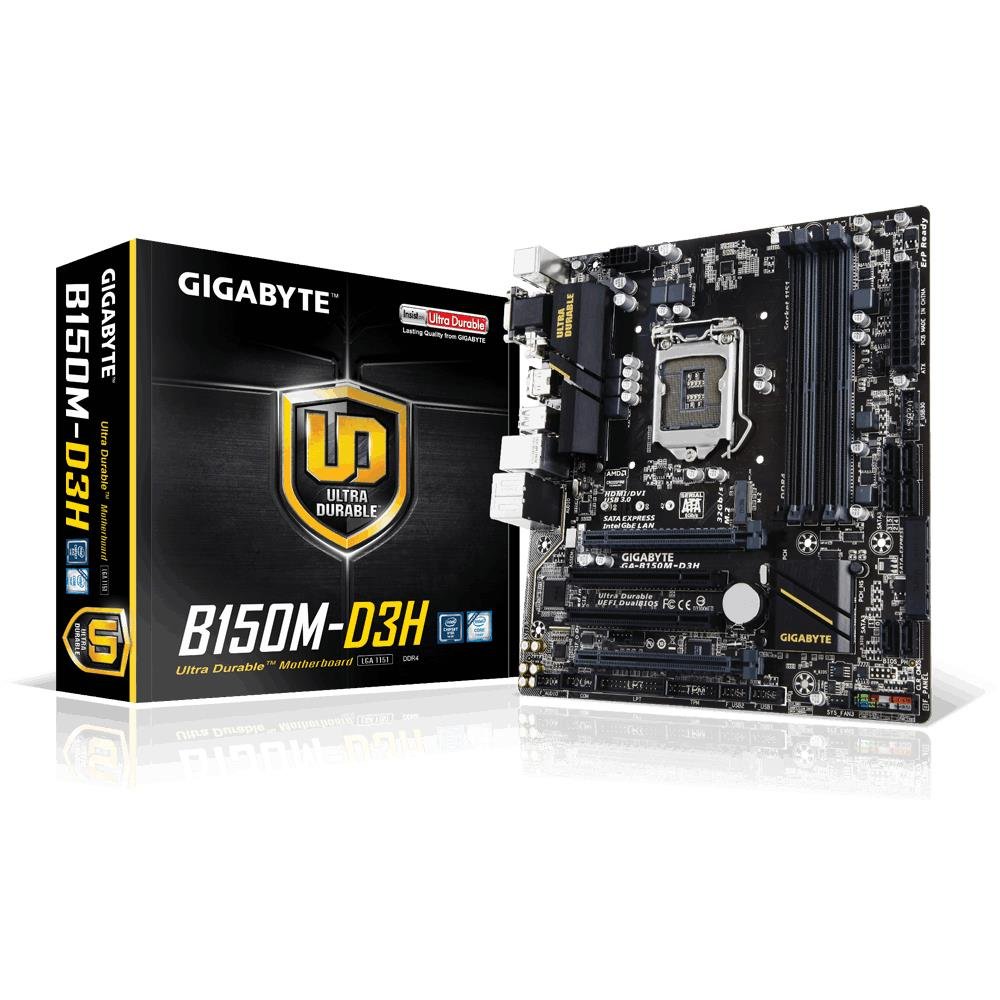
Image 1.1: GIGABYTE GA-B150M-D3H Micro ATX Motherboard. This image displays the overall layout of the motherboard, highlighting its compact Micro ATX form factor and various component slots.
2. Saugos informacija
Kad nepažeistumėte pagrindinės plokštės ir nesusižalotumėte, laikykitės šių saugos priemonių:
- Prieš liesdami bet kokius komponentus, visada atjunkite maitinimo laidą nuo sieninio lizdo.
- Dėvėkite antistatinį riešo dirželį arba dažnai lieskite įžemintą metalinį objektą, kad iškrautumėte statinę elektrą.
- Pagrindinę plokštę imkite už kraštų, kad neliestumėte jautrių komponentų.
- Saugokite pagrindinę plokštę nuo drėgmės ir ekstremalių temperatūrų.
- Užtikrinkite tinkamą ventiliaciją kompiuterio korpuse, kad išvengtumėte perkaitimo.
3. Pakuotės turinys
Patikrinkite, ar pagrindinės plokštės pakuotėje yra visi šie elementai:
- GIGABYTE GA-B150M-D3H Motherboard
- Vartotojo vadovas
- I / O skydas
- SATA kabeliai
- Driver CD/DVD
Note: Contents may vary slightly depending on region or revision.
4. Pagrindinės plokštės išdėstymas
Familiarize yourself with the various components and connectors on the GA-B150M-D3H motherboard.
Image 4.1: GIGABYTE GA-B150M-D3H Motherboard Layout. This image provides a visual reference for the location of key components such as the CPU socket, DIMM slots, PCIe slots, SATA ports, and M.2 connector.
Pagrindiniai komponentai:
- LGA 1151 procesoriaus lizdas: For 6th Generation Intel Core Processors.
- DDR4 DIMM lizdai (4): Supports Dual Channel DDR4 memory up to 2133 MHz.
- PCIe lizdai: Includes PCIe Gen3 x16 for graphics cards and PCIe x1 slots for expansion.
- M.2 Connector: Supports PCIe NVMe & SATA SSDs with up to 32Gb/s data transfer.
- SATA Express Connector: For up to 16Gb/s data transfer.
- SATA 6 Gb/s prievadai: For connecting traditional SATA storage devices.
- 24-Pin ATX Power Connector: Pagrindinis maitinimo įėjimas.
- 8-Pin ATX 12V Power Connector: CPU power input.
- Priekinio skydelio antraštės: For power button, reset button, LED indicators, and USB ports.
- Garso jungtys: 8-channel HD Audio with high quality capacitors and Audio Noise Guard.
5. Sąranka ir diegimas
Norėdami tinkamai įdiegti pagrindinę plokštę ir jos komponentus, atlikite šiuos veiksmus.
5.1. CPU diegimas
- Locate the LGA 1151 CPU socket.
- Atidarykite procesoriaus lizdo svirtį ir pakelkite apkrovos plokštę.
- Atsargiai sulygiuokite procesorių su lizdu, užtikrindami, kad auksinis trikampis ant procesoriaus sutaptų su trikampiu ant lizdo. Nespauskite procesoriaus į lizdą jėga.
- Nuleiskite krovinio plokštę ir pritvirtinkite ją svirtimi.
5.2. CPU aušintuvo montavimas
Refer to your CPU cooler's instruction manual for specific installation steps. Ensure thermal paste is applied correctly between the CPU and cooler base.
5.3. Atminties (RAM) diegimas
- Atidarykite spaustukus abiejuose DDR4 DIMM lizdų galuose.
- Sulygiuokite atminties modulį su lizdu, užtikrindami, kad modulio įpjova sutaptų su lizdo rakteliu.
- Tvirtai spauskite abu atminties modulio galus, kol spaustukai užsifiksuos vietoje.
- For dual-channel performance, install memory modules in matching colored slots (e.g., DIMM1 and DIMM2).
5.4. Installing Expansion Cards
- Remove the metal bracket from the desired PCIe slot on your computer case.
- Align the expansion card with the PCIe slot and press down firmly until it is seated correctly.
- Secure the card with a screw to the computer case.
5.5. Connecting Storage Devices
- SATA įrenginiai: Connect one end of the SATA data cable to a SATA 6Gb/s port on the motherboard and the other end to your hard drive or SSD. Connect the SATA power cable from your power supply to the device.
- M.2 SSD: Įstatykite M.2 SSD į M.2 lizdą kampu, tada švelniai paspauskite jį žemyn ir pritvirtinkite pateiktu varžtu.
- SATA Express: If using a SATA Express device, connect it to the designated SATA Express connector.
5.6. Priekinio skydelio jungčių prijungimas
Connect the cables from your computer case's front panel (power button, reset button, HDD LED, power LED, front USB, front audio) to the corresponding headers on the motherboard. Refer to the motherboard layout diagram for exact locations and pin assignments.
5.7. Maitinimo šaltinio prijungimas
- Prijunkite 24 kontaktų ATX pagrindinį maitinimo jungtį iš maitinimo šaltinio į 24 kontaktų maitinimo lizdą pagrindinėje plokštėje.
- Connect the 8-pin ATX 12V CPU power connector to the 8-pin socket near the CPU.
- Įsitikinkite, kad visos maitinimo jungtys yra tvirtos.
6. Naudojimo instrukcijos
6.1. Pirmas įkrovimas
After assembling all components, connect your monitor, keyboard, and mouse. Power on the system. The system should display the GIGABYTE splash screen and then enter the BIOS/UEFI setup or attempt to boot from a connected storage device.
6.2. BIOS / UEFI sąranka
To enter the BIOS/UEFI setup, press the DEL key repeatedly during the boot process when the GIGABYTE logo appears. Here you can configure system settings, boot order, and monitor hardware status. The GA-B150M-D3H features GIGABYTE UEFI Dual BIOS for enhanced reliability.
6.3. Tvarkyklės diegimas
After installing your operating system, install the necessary drivers for the motherboard components. These can be found on the included driver CD/DVD or downloaded from the official GIGABYTE website. Key drivers include chipset, audio (Realtek ALC892 codec), LAN, and any integrated graphics drivers.
6.4. Operacinės sistemos diegimas
Insert your operating system installation media (USB drive or DVD) and configure the boot order in the BIOS/UEFI to boot from it. Follow the on-screen instructions to install your preferred operating system (e.g., Windows 8.1, Windows 10).
7. Priežiūra
7.1. Valymas
Regularly clean the interior of your computer case to prevent dust buildup, which can lead to overheating. Use compressed air to remove dust from fans, heatsinks, and motherboard components. Ensure the system is powered off and unplugged before cleaning.
7.2. BIOS atnaujinimai
GIGABYTE periodically releases BIOS updates to improve system stability, compatibility, and performance. Visit the official GIGABYTE website for your motherboard model (GA-B150M-D3H) to check for the latest BIOS version and follow the provided instructions for updating. Exercise caution during BIOS updates, as an interruption can render the motherboard inoperable.
8. Problemų sprendimas
Šiame skyriuje aptariamos dažniausiai pasitaikančios problemos, su kuriomis galite susidurti.
8.1. Nėra maitinimo / Sistema neįsijungia
- Check if the power supply is connected correctly to the motherboard (24-pin and 8-pin connectors).
- Įsitikinkite, kad maitinimo jungiklis yra ĮJUNGTOJE padėtyje.
- Patikrinkite, ar priekinio skydelio maitinimo mygtuko kabelis tinkamai prijungtas prie pagrindinės plokštės lizdo.
- Patikrinkite maitinimo šaltinį naudodami kitą sistemą arba maitinimo šaltinio testerį.
8.2. Nėra vaizdo išvesties
- Ensure the monitor is connected to the correct graphics output (either integrated graphics on the motherboard or a dedicated graphics card).
- Iš naujo įstatykite grafikos plokštę ir atminties modulius.
- Pabandykite paleisti sistemą tik su vienu įdiegtu atminties moduliu.
- Patikrinkite, ar monitorius įjungtas ir ar nustatytas tinkamas įvesties šaltinis.
8.3. Sistemos nestabilumas / gedimai
- Patikrinkite procesoriaus ir grafikos plokštės temperatūras, kad įsitikintumėte, jog jos neviršija saugių veikimo ribų.
- Verify that all drivers are installed and up to date.
- Paleiskite atminties diagnostikos įrankius, kad patikrintumėte, ar nėra sugedusios RAM.
- Ensure the power supply provides sufficient and stable power to all components.
9. Specifikacijos
Detailed technical specifications for the GIGABYTE GA-B150M-D3H motherboard:
| Funkcija | Specifikacija |
|---|---|
| Modelio pavadinimas | GA-B150M-D3H |
| Formos faktorius | Mikro ATX (24.4 cm x 22.5 cm) |
| CPU lizdas | LGA 1151 |
| Suderinami procesoriai | 6-osios kartos „Intel Core“ procesoriai |
| Lustų rinkinys | Intel B150 Express Chipset |
| Atminties technologija | DDR4 |
| aTMINTINĖS JUNGTYS | 4 x DDR4 DIMM sockets (Dual Channel) |
| Maksimali atminties talpa | 16 GB |
| Atminties laikrodžio greitis | 2133 MHz |
| PCIe lizdai | 1 x PCI Express x16, 1 x Total PCIe Ports |
| Saugojimo sąsajos | PCIe Gen3 x4 M.2, SATA Express, SATA 6Gb/s |
| Garso kodekas | Realtek ALC892 codec, 8-channel HD Audio |
| USB prievadai | Total 8 USB Ports (including USB 2.0) |
| Pagrindinė maitinimo jungtis | 24-Pin ATX |
| CPU maitinimo jungtis | 8-Pin ATX 12V |
| Unikalios savybės | GIGABYTE UEFI Dual BIOS, Audio Noise Guard with LED Trace Path Lighting, App Center (Easy Tune, Cloud Station) |
10. Garantija ir palaikymas
For warranty information, please refer to the warranty card included in your product package or visit the official GIGABYTE websvetainėje. Garantijos sąlygos ir nuostatos gali skirtis priklausomai nuo regiono.
For technical support, driver downloads, BIOS updates, and further product information, please visit the GIGABYTE official support websvetainė:
https://www.gigabyte.com/Support
When contacting support, please have your motherboard model (GA-B150M-D3H) and serial number ready.