Zalman ZM-VE350 USB 3.0 External 2.5" Hard Drive Enclosure User Manual
Model: ZM-VE350 (SILVER)
1. Produktas baigtasview
The Zalman ZM-VE350 is a versatile external enclosure designed for 2.5-inch SATA I/II/III HDDs and SSDs. It features a USB 3.0 interface for high-speed data transfer and includes a built-in virtual CD emulator, allowing it to function as a virtual optical drive for convenient booting from ISO files. Its aluminum body provides durability and efficient heat dissipation, while the intuitive menu system ensures ease of use for all users. The device also incorporates a one-touch backup function and a safe removal feature to protect your data.

Figure 1.1: The Zalman ZM-VE350 external hard drive enclosure.
2. Sąranka ir diegimas
2.1 Pakuotės turinys
Prieš pradėdami montavimą, patikrinkite, ar pakuotėje yra visi komponentai:
- Zalman ZM-VE350 Enclosure
- Apsauginis maišelis
- Screws (2 pcs) & Screwdriver
- USB 3.0 kabelis
- Trumpas vadovas

Figure 2.1: Included components of the ZM-VE350 package.
2.2 Hardware Installation (HDD/SSD)
- Carefully open the ZM-VE350 enclosure.
- Connect your 2.5-inch SATA I/II/III HDD or SSD to the internal SATA connector within the enclosure. Ensure a firm connection.
- Secure the drive inside the enclosure using the provided screws and screwdriver.
- Saugiai uždarykite korpusą.
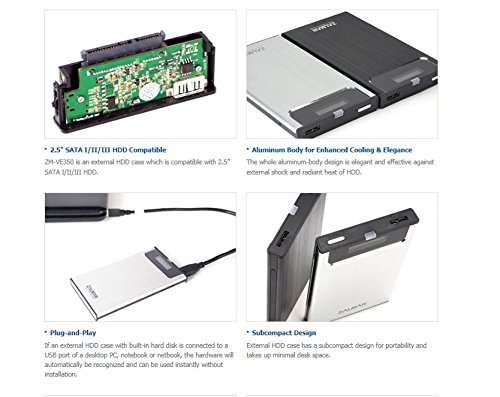
Figure 2.2: Illustration of 2.5" SATA HDD compatibility and internal connection.
2.3 Prijungimas prie kompiuterio
The ZM-VE350 is designed for plug-and-play operation. Once a hard drive is installed:
- Connect the ZM-VE350 to your computer using the supplied USB 3.0 cable.
- The hardware will be automatically recognized by your operating system (Windows 2000, XP, Vista, 7, 8, 8.1 / Mac OS / Linux) without requiring additional driver installation.
3. Naudojimo instrukcijos
3.1 Duomenų perdavimas
The ZM-VE350 utilizes a USB 3.0 interface, providing high-speed data transfer rates up to 5Gbps. For optimal performance, connect the enclosure to a USB 3.0 port on your computer. It is also backward compatible with USB 2.0 and USB 1.1 ports, though at reduced speeds.
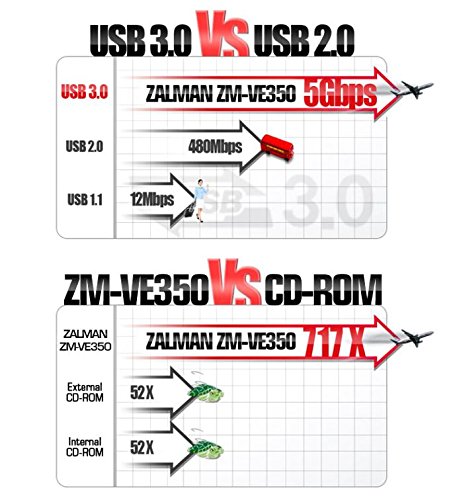
Figure 3.1: USB 3.0 vs. USB 2.0 speed comparison.
3.2 Virtual ODD Function
The ZM-VE350 can emulate an optical disc drive (CD-ROM, DVD, Blu-ray) using ISO image files. This feature is particularly useful for convenient system booting or software installation without a physical disc drive.
- Store your ISO files in a designated folder on the installed hard drive.
- Navigate through the enclosure's intuitive menu system (displayed on the built-in screen) to select the desired ISO file.
- Once selected, the enclosure will present itself to the computer as a virtual optical drive containing the chosen ISO.
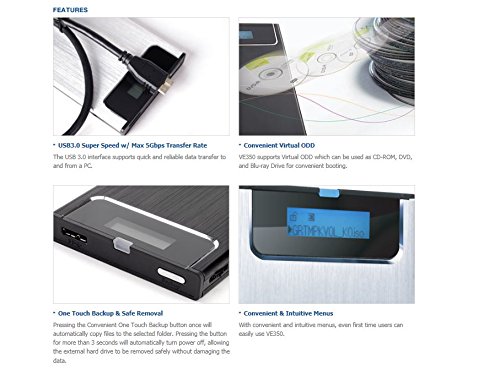
Figure 3.2: Virtual ODD display and menu navigation.
3.3 One-Touch Backup and Safe Removal
The ZM-VE350 features a convenient button for both one-touch backup and safe power off:
- One-Touch Backup: Pressing the button once will automatically copy files to a pre-selected folder on the internal drive. Refer to the quick guide for initial setup of the backup folder.
- Saugus pašalinimas: Pressing and holding the button for more than 3 seconds will automatically power off the enclosure. This allows for safe removal of the external hard drive without risking data corruption.
4. Priežiūra
4.1 Priežiūra ir tvarkymas
To ensure the longevity and optimal performance of your ZM-VE350 enclosure:
- Keep the device clean by wiping it with a soft, dry cloth. Avoid liquid cleaners.
- The aluminum alloy body is designed to be robust and dissipate heat, but avoid exposing it to extreme temperatures or direct sunlight.
- Utilize the provided leather pouch for additional protection during travel or storage to prevent scratches and minor impacts.
- Avoid dropping the device or subjecting it to strong vibrations, as this can damage the internal hard drive.
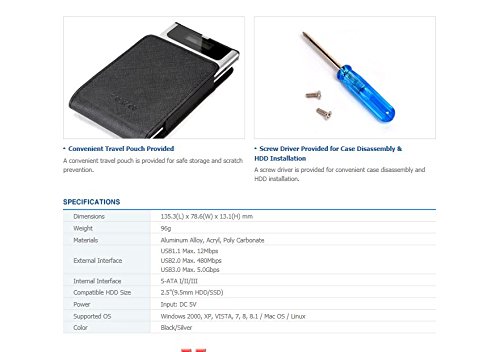
Figure 4.1: Convenient travel pouch for protection.
5. Problemų sprendimas
5.1 Bendrosios problemos ir sprendimai
- Kompiuteris neatpažįsta įrenginio:
- Ensure the USB cable is securely connected to both the enclosure and the computer's USB port.
- Pabandykite prijungti prie kito kompiuterio USB prievado.
- Verify that the internal 2.5" HDD/SSD is properly seated and connected within the enclosure.
- Test the enclosure with a different USB cable if available.
- Mažas duomenų perdavimo greitis:
- Ensure you are connected to a USB 3.0 port on your computer for maximum speed. USB 2.0 or 1.1 ports will result in slower transfers.
- Check if the USB 3.0 cable is functioning correctly.
- Verify the health and speed of the internal HDD/SSD.
- Virtual ODD function not working:
- Ensure the ISO file is not corrupted and is stored in the correct directory on the internal drive as per the quick guide instructions.
- Confirm that the correct ISO file is selected via the enclosure's menu.
- Restart the enclosure and reconnect it to the computer.
- Enclosure does not power off with safe removal button:
- Ensure no active data transfers or file operations are occurring.
- Hold the button for the specified duration (more than 3 seconds).
6. Specifikacijos
| Matmenys | 135.3 (ilgis) x 78.6 (plotis) x 13.1 (aukštis) mm |
| Svoris | 96g |
| Medžiagos | Aliuminio lydinys, akrilas, polikarbonatas |
| Išorinė sąsaja | USB 3.0, USB 2.0, USB 1.1 |
| Vidinė sąsaja | S-ATA I/II/III |
| Compatible HDD Size | 2.5" HDD/SSD |
| Maitinimo įvestis | DC 5V |
| Palaikoma OS | Windows 2000, XP, Vista, 7, 8, 8.1 / Mac OS / Linux |
| Spalva | Juoda/Sidabrinė |
7. Garantija ir palaikymas
7.1 Informacija apie garantiją
This product comes with a 0-year warranty. Please retain your proof of purchase for any warranty claims.
7.2 Pagalba klientams
For further assistance, technical support, or inquiries not covered in this manual, please refer to the official Zalman websvetainėje arba susisiekite su jų klientų aptarnavimo skyriumi. Kontaktinę informaciją paprastai galite rasti gamintojo websvetainėje arba produkto pakuotėje.