
Nexxt Solutions ARL02754U1
„Nexxt Solutions Acrux“ dviejų dažnių gigabito maršrutizatorius – AC 750, naudotojo vadovas
Model: ARL02754U1 | Brand: Nexxt Solutions
1. Įvadas ir pabaigaview
The Nexxt Solutions Acrux 750-AC is a dual-band media gigabit wireless AC router designed for homes and small businesses requiring high-speed network connectivity. It supports transmission speeds up to 750Mbps, utilizing both the 5.0GHz band (433Mbps) and the 2.4GHz band (300Mbps) simultaneously. This router is equipped with a USB port for file sharing, making it suitable for media-connected environments. Key features include Wi-Fi Multimedia (WMM) technology for prioritizing bandwidth-intensive applications like HD streaming, and two detachable 5dBi omnidirectional antennas for extended coverage and reduced dead spots. The device also supports Wi-Fi Protected Setup (WPS) for easy and secure wireless connections.
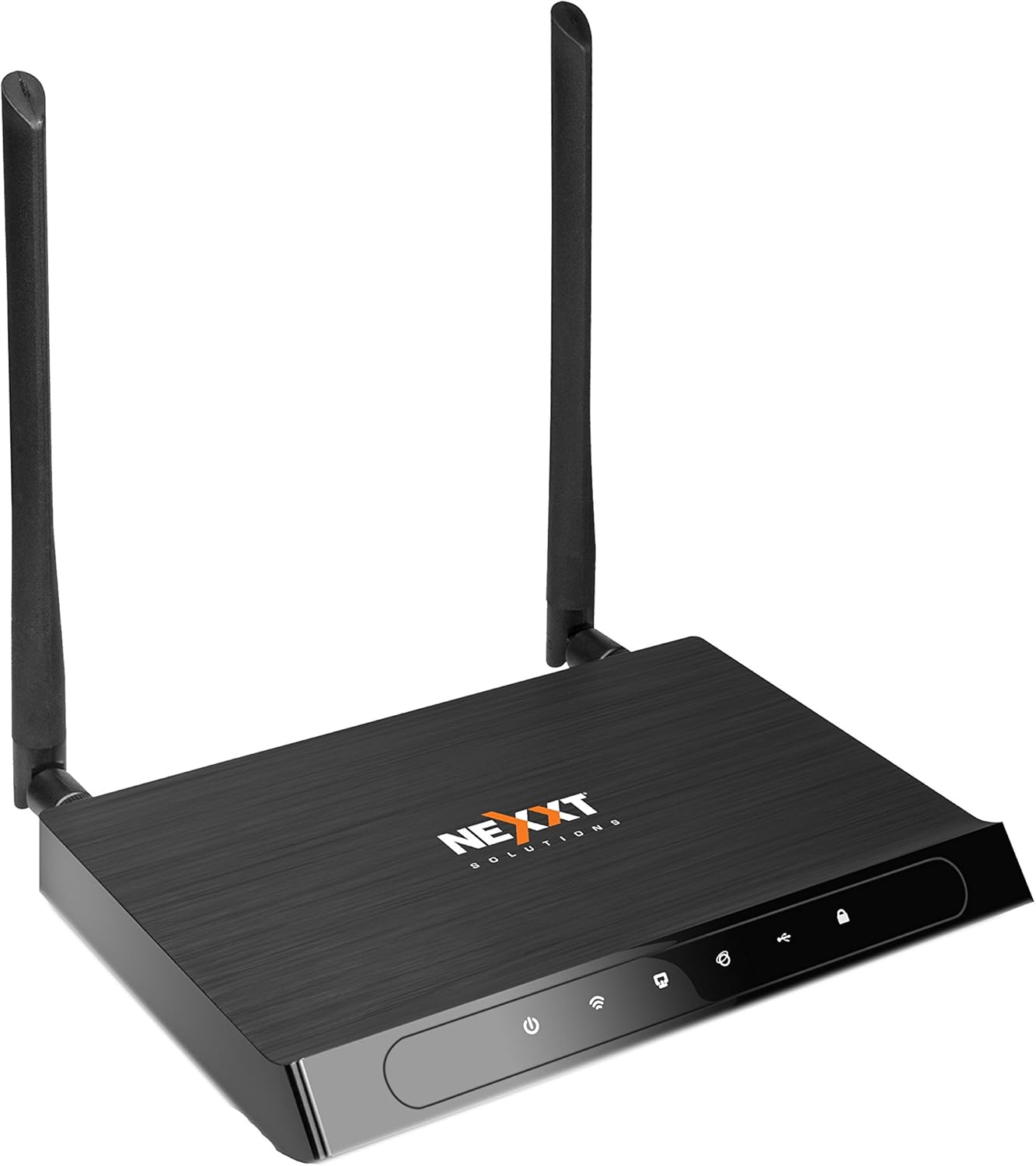
1 pav.: priekis view of the Acrux 750-AC router, showcasing its sleek design and two external antennas.
2. Produkto ypatybės
- Wireless AC Router: Supports the latest 802.11ac standard for faster wireless speeds.
- Simultaneous Dual-Band: Operates on both 2.4GHz (300Mbps) and 5.0GHz (433Mbps) bands concurrently for a combined throughput of 750Mbps.
- Gigabit Ethernet prievadai: Features four 10/100/1000Mbps LAN ports for high-speed wired connections.
- USB prievadas: Includes a USB 2.0 port for file and print sharing across the network.
- Išplėstinė aprėptis: Equipped with two detachable 5dBi omnidirectional antennas for improved signal reach and coverage.
- Spindulio formavimo technologija: Creates a direct link for data transmission, enhancing wireless efficiency and range.
- WMM Technology: Wi-Fi Multimedia prioritizes traffic for bandwidth-intensive applications such as HD video streaming and online gaming.
- WPS („Wi-Fi“ apsaugota sąranka): Allows for easy and secure connection of WPS-supported wireless adapters with the push of a button.
- Pažangus belaidis saugumas: Supports 64/128-bit WEP and WPA/WPA2-PSK encryption protocols.
- WDS Capability: Wireless Distribution System allows for network expansion by linking multiple devices.

Figure 2: Illustration of the router's dual-band wireless coverage, showing both 2.4GHz (max range) and 5.0GHz (performance) signals within a typical home setup.
3. Aparatūra baigtaview
Familiarize yourself with the ports and buttons on your Acrux 750-AC router.

Figure 3: Rear panel of the Acrux 750-AC router, detailing the various ports and controls.
- 1. WPS/Reset Button: Press briefly to activate WPS for easy wireless connection. Press and hold for 10 seconds to reset the router to factory default settings.
- 2. Wi-Fi On/Off Button: Įjungia arba išjungia belaidį signalą.
- 3. WAN Port (Blue): Connects to your DSL/Cable modem or Ethernet line for internet access.
- 4. LAN Ports (Yellow, LAN1-LAN4): Keturi gigabito Ethernet prievadai, skirti prijungti laidinius įrenginius, tokius kaip kompiuteriai, žaidimų konsolės ar išmanieji televizoriai.
- 5. USB 2.0 Port: For connecting USB storage devices for file sharing or USB printers for network printing.
- 6. Įjungimo / išjungimo mygtukas: Įjungia arba išjungia maršrutizatorių.
- 7. A/C maitinimo įvestis: Jungiamas prie pridedamo maitinimo adapterio.
4. Sąrankos vadovas
4.1 Pradinis aparatinės įrangos prijungimas
- Padėties nustatymas: Place the router in a central location to maximize wireless coverage, away from obstructions and interference sources.
- Prijunkite antenas: Screw the two detachable antennas firmly onto the connectors at the rear of the router.
- Prisijungimas prie modemo: Connect one end of an Ethernet cable to the WAN port (blue) on the router and the other end to the Ethernet port on your DSL/Cable modem.
- Prijunkite maitinimą: Plug the power adapter into the A/C Power Input port on the router and then into a power outlet. Press the On/Off button to power on the router.
- Patikrinkite rodiklius: Wait for the power, WAN, and Wi-Fi indicators on the router's front panel to stabilize, indicating a successful connection.
4.2 Prieiga prie Web Valdymo sąsaja
- Prijunkite įrenginį: Connect a computer to one of the LAN ports (yellow) on the router using an Ethernet cable, or connect wirelessly using the default Wi-Fi name (SSID) and password found on the router's label.
- Atidaryti Web Naršyklė: Paleisti a web naršyklėje (pvz., „Chrome“, „Firefox“, „Edge“).
- Įveskite IP adresą: Adreso juostoje įveskite numatytąjį maršrutizatoriaus IP adresą (dažniausiai
192.168.0.1or192.168.1.1, refer to the label on your router for the exact address) and press Enter. - Prisijungimas: Įveskite numatytąjį vartotojo vardą ir slaptažodį (paprastai
adminabiem arba kaip nurodyta maršrutizatoriaus etiketėje). - Paleiskite sąrankos vedlį: Follow the on-screen setup wizard to configure your internet connection, wireless network names (SSIDs) for both 2.4GHz and 5GHz bands, and set strong passwords.
5. Naudojimo instrukcijos
5.1 Įrenginių prijungimas
- Laidiniai įrenginiai: Connect devices like desktop computers, smart TVs, or gaming consoles to the yellow Gigabit LAN ports using Ethernet cables.
- Belaidžiai įrenginiai: On your wireless device (smartphone, tablet, laptop), search for available Wi-Fi networks. Select your router's 2.4GHz or 5GHz SSID and enter the Wi-Fi password you configured during setup.
- Naudojant WPS: For WPS-compatible devices, press the WPS button on the router, then activate WPS on your device within two minutes to establish a secure connection without entering a password.
5.2 USB File Dalijimasis
USB 2.0 prievadas leidžia bendrinti files from a connected USB storage device (e.g., USB flash drive, external hard drive) across your network.
- Prijunkite USB įrenginį: Insert your USB storage device into the USB 2.0 port on the router.
- Configure Sharing: Pasiekite maršrutizatoriaus web management interface. Navigate to the USB Sharing or Storage section to enable and configure file sharing settings, including user access permissions.
- Prieiga Files: On network-connected devices, you can typically access the shared USB drive through network locations (e.g., "Network" in Windows File Explorer, "Connect to Server" in macOS Finder).
5.3 Išplėstinės funkcijos
- WMM (Wi-Fi Multimedia): This feature is enabled by default and automatically prioritizes network traffic for applications requiring high bandwidth, such as video streaming and online gaming, to ensure a smoother experience.
- Spindulio formavimas: This technology focuses the Wi-Fi signal directly towards connected devices, improving signal strength and range for those devices. It operates automatically with compatible devices.
- WDS (belaidžio paskirstymo sistema): Allows the router to connect wirelessly to other access points or routers to extend the wireless network coverage. Configuration for WDS is available in the router's web interface under wireless settings.
6. Priežiūra
- Firmware atnaujinimai: Periodically check the Nexxt Solutions official website for firmware updates. Updating the firmware can improve performance, add new features, and fix security vulnerabilities. Follow the instructions provided with the firmware update carefully.
- Įprastas perkrovimas: Rebooting your router every few weeks can help clear its memory and resolve minor performance issues. Simply unplug the power adapter for 10-15 seconds, then plug it back in.
- Fizinis valymas: Maršrutizatorių laikykite švarų ir be dulkių. Išorę nuvalykite minkšta, sausa šluoste. Įsitikinkite, kad ventiliacijos angos nėra užblokuotos, kad neperkaistų.
- Saugūs slaptažodžiai: Regularly change your Wi-Fi and router login passwords to strong, unique combinations to maintain network security.
7. Problemų sprendimas
Dažnos problemos ir sprendimai:
- Nėra interneto prieigos:
- Check if the WAN indicator on the router is lit. If not, ensure the Ethernet cable from your modem is securely connected to the router's blue WAN port.
- Reboot your modem first, then the router. Wait for both devices to fully power on and establish connections.
- Patikrinkite interneto ryšio nustatymus maršrutizatoriaus web interface. Ensure they match the settings provided by your Internet Service Provider (ISP).
- Slow Wireless Speed or Frequent Disconnections:
- Ensure the router is placed centrally and away from potential interference sources (e.g., cordless phones, microwaves, thick walls).
- Try changing the wireless channel in the router's settings to a less congested one. Use a Wi-Fi analyzer app to find optimal channels.
- Confirm your devices are connecting to the appropriate band (5GHz for closer, faster connections; 2.4GHz for longer range).
- Atnaujinkite belaidžio ryšio tvarkykles prijungtuose įrenginiuose.
- Nepavyksta pasiekti maršrutizatoriaus Web Sąsaja:
- Ensure your device is connected to the router (either via Ethernet or Wi-Fi).
- Verify you are typing the correct IP address (e.g.,
192.168.0.1) into the browser's address bar. - Išvalykite naršyklės talpyklą ir slapukus arba išbandykite kitą naršyklę.
- Laikinai išjunkite bet kokią ugniasienę ar antivirusinę programinę įrangą savo kompiuteryje.
- Pamiršote maršrutizatoriaus prisijungimo slaptažodį?
- If you cannot recall your router's login password, you will need to perform a factory reset. Locate the WPS/Reset button on the back of the router. With the router powered on, press and hold this button for approximately 10 seconds until the lights flash. The router will then revert to its factory default settings, including the default login credentials (usually
admin/admin). Pastaba: A factory reset will erase all your custom settings, requiring you to reconfigure the router.
- If you cannot recall your router's login password, you will need to perform a factory reset. Locate the WPS/Reset button on the back of the router. With the router powered on, press and hold this button for approximately 10 seconds until the lights flash. The router will then revert to its factory default settings, including the default login credentials (usually
8. Specifikacijos
| Funkcija | Detalė |
|---|---|
| Modelio numeris | ARL02754U1 |
| bevielio ryšio standartas | IEEE 802.11ac/n/b/g |
| Belaidžiai dažniai | 2.4 GHz and 5 GHz (Simultaneous Dual-Band) |
| Maksimalus belaidis greitis | Iki 750 Mbps (300 Mbps esant 2.4 GHz dažniui, 433 Mbps esant 5.0 GHz dažniui) |
| Ethernet prievadai | 4 x 10/100/1000 Mbps Gigabit LAN Ports, 1 x 10/100/1000 Mbps WAN Port |
| USB prievadas | 1 x USB 2.0 prievadas |
| Antenos | 2 x Detachable 5dBi Omni-directional Antennas |
| Saugumas | 64/128-bit WEP, WPA/WPA2-PSK encryption |
| Matmenys | 27.94 x 22.86 x 6.35 cm (apytiksliai pakuotės matmenys) |
| Prekės svoris | 726 g (1.6 svaro) |
| Gamintojas | Kiti sprendimai |
9. Garantija ir palaikymas
The Nexxt Solutions Acrux 750-AC router comes with a 5 metų garantija, demonstrating the manufacturer's commitment to quality and reliability. For technical assistance, troubleshooting, or warranty claims, please contact Nexxt Solutions customer support. US-based technical support is available to assist you with installation and operational queries.
For the most up-to-date support information, FAQs, and contact details, please visit the official Nexxt Solutions website. You may also find additional resources by searching for "Nexxt Solutions" online or referring to the contact information provided with your product packaging.
Ask a question about this manual
Ask about setup, troubleshooting, compatibility, parts, safety, or missing instructions. Manuals+ will review the question and use this page’s manual context to help answer it.