
Įvadas
This manual provides essential instructions for the setup, operation, and maintenance of your Canon Pixma G4000 Wireless All-in-One Color Inkjet Printer. The G4000 is designed for high-volume printing with its refillable ink tank system, offering print, scan, copy, and fax functionalities. Please read this manual thoroughly before using your printer to ensure correct and safe operation.
Sąranka
1. Išpakavimas ir pradinis išdėstymas
Carefully remove the printer from its packaging. Place the printer on a stable, flat surface with adequate space around it for ventilation and operation.
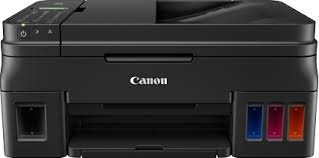
Image: Canon Pixma G4000 printer, illustrating its compact design and visible ink tanks.
2. Ink Filling
The Pixma G4000 utilizes a refillable ink tank system. Open the ink tank covers and carefully fill each tank with the corresponding GI-790 ink bottle (Black, Cyan, Magenta, Yellow). Ensure the ink levels are within the indicated maximum fill lines. Close the covers securely after filling.
3. Maitinimo prijungimas
Prijunkite maitinimo laidą prie spausdintuvo, o tada – prie sieninio lizdo. Paspauskite maitinimo mygtuką, kad įjungtumėte spausdintuvą.
4. Programinės įrangos diegimas
Insert the provided installation CD into your computer's CD-ROM drive, or download the latest drivers and software from the official Canon websvebsaitą. Vykdykite ekrane pateikiamus nurodymus, kad užbaigtumėte diegimą.
5. Wireless (Wi-Fi) Setup
To connect your printer to a Wi-Fi network, navigate to the wireless settings on the printer's control panel. Select your network name (SSID) and enter the password. Refer to the on-screen guide for detailed steps. The printer supports Wi-Fi connectivity for convenient wireless printing.
6. Initial Paper Loading
Open the paper support and load paper into the rear tray. Adjust the paper guides to fit the paper width. The printer supports various paper sizes including A4, A5, B5, LTR, LGL, 4 x 6 inch, 5 x 7 inch, 8 x 10 inch, and envelopes.
Naudojimo instrukcijos
1. Pagrindinis spausdinimas
From your computer or mobile device, open the document or image you wish to print. Select "Print" from the application's menu. Choose the Canon G4000 printer, adjust print settings such as paper size, type, and quality, then click "Print." The printer offers ISO standard print speeds of approximately 8.8 ipm for monochrome and 5.0 ipm for color documents.
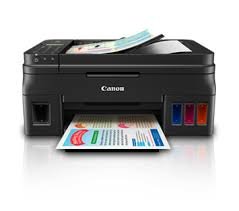
Image: Canon Pixma G4000 in operation, demonstrating paper handling during printing.
2. Borderless Printing
The G4000 supports borderless printing for photos and documents. To enable this feature, select the borderless option in your printer settings before printing. A 4 x 6 inch borderless photo can be printed in approximately 60 seconds.
3. Dokumentų kopijavimas
Place the document face-down on the scanner glass or face-up in the Automatic Document Feeder (ADF). Use the printer's control panel to select "Copy." Adjust settings like number of copies, color/black & white, and paper size, then press the Start button.
4. Dokumentų nuskaitymas
Place the document on the flatbed scanner. From your computer, open the scanning software (e.g., Canon IJ Scan Utility). Select the scan type (document, photo, etc.), adjust settings, and initiate the scan. The scanned image will be saved to your computer.
5. Dokumentų siuntimas faksu
Load the document into the ADF or place it on the scanner glass. Enter the recipient's fax number using the numeric keypad on the printer's control panel. Select "Fax" and press the Start button to send the fax.
6. Mobilusis spausdinimas
The Canon G4000 is compatible with smartphones. Download the Canon PRINT Inkjet/SELPHY app to your mobile device. Connect your device to the same Wi-Fi network as the printer. Open the app to print photos or documents directly from your smartphone or tablet.
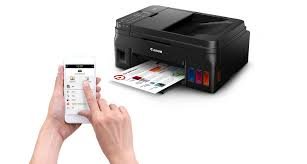
Image: Demonstrating mobile printing functionality with a smartphone connected to the Canon Pixma G4000.
Priežiūra
1. Ink Tank Refilling
When an ink tank level is low, the printer's ink end sensor will indicate the need for a refill. Use genuine Canon GI-790 ink bottles to replenish the tanks. Refer to the "Ink Filling" section under Setup for the correct procedure.
2. Spausdinimo galvutės valymas
If print quality deteriorates (e.g., streaks, faded colors), perform a print head cleaning. This can be initiated from the printer's maintenance menu on the control panel or through the printer driver software on your computer. Regular cleaning helps maintain optimal print quality.
3. Paper Jam Clearing
If a paper jam occurs, the printer will display an error message. Carefully open the printer covers and gently remove any jammed paper, pulling it in the direction of the paper path to avoid tearing. Ensure all paper fragments are removed before closing the covers and resuming operation.
Trikčių šalinimas
This section addresses common issues you might encounter with your Canon Pixma G4000 printer.
1. Spausdintuvas nereaguoja
- Ensure the printer is powered on and properly connected to the computer or network.
- Check for any error messages on the printer's display.
- Patikrinkite, ar kompiuterio spausdinimo dialogo lange pasirinktas teisingas spausdintuvas.
- Iš naujo paleiskite spausdintuvą ir kompiuterį.
2. Prasta spausdinimo kokybė
- Patikrinkite rašalo lygį ir papildykite visas talpyklas, kuriose jų beveik nėra.
- Spausdintuvo priežiūros meniu atlikite spausdinimo galvutės valymą ir purkštukų patikrinimą.
- Įsitikinkite, kad naudojate tinkamą popierių pagal spausdinimo nustatymus.
3. Wireless Connectivity Issues
- Confirm the printer is within range of your Wi-Fi router.
- Patikrinkite, ar įvestas teisingas „Wi-Fi“ slaptažodis.
- Restart your Wi-Fi router and the printer.
- If issues persist, try reconnecting the printer to the Wi-Fi network via the setup wizard.
Specifikacijos
| Funkcija | Detalė |
|---|---|
| Prekės ženklas | Canon |
| Modelio pavadinimas | G4000 |
| Ryšio technologija | Wi-Fi, Ethernet |
| Spausdinimo technologija | Rašalinis |
| Spausdintuvo funkcijos | Spausdinimas, nuskaitymas, kopijavimas, faksavimas (viskas viename) |
| Spausdintuvo išvestis | Colour, Monochrome |
| Maksimalus spausdinimo greitis (spalvotas) | 5 ppm (ISO standard) |
| Maksimalus spausdinimo greitis (vienspalvis) | 8.8 ppm (ISO standard) |
| Maximum Printing Resolution | 4800 x 1200 XNUMX DPI |
| Maksimali kopijavimo raiška | 4800 x 1200 XNUMX DPI |
| Skaitytuvo tipas | Plokščiasis |
| Ypatingos savybės | Spausdinimas be paraščių |
| Rašalo tipas | GI-790 (juoda, žydra, rausvai raudona, geltona) |
| Suderinami įrenginiai | Išmanieji telefonai |
| Prekės svoris | 7 kilogramo |
| Vattage | 11 vatų |
| Maksimalus laikmenos dydis | A4, A5, B5, LTR, LGL, 4x6, 5x7, 8x10, Envelopes, Custom |
| Maksimali lapų talpa | 100 XNUMX lapų |
| Dvipusis spausdinimas | vadovas |
Garantija ir palaikymas
For information regarding your product's warranty, please refer to the warranty card included in the printer's packaging or visit the official Canon support website. For technical assistance, driver downloads, or further troubleshooting, please contact Canon customer support or visit their online resources.
Oficiali „Canon“ palaikymo tarnyba: www.canon.com/support