
1. Įvadas
This manual provides detailed instructions for the installation, operation, and maintenance of your Tiandy TC-NR4008M7-S2 Network Video Recorder (NVR). This NVR is designed for IP surveillance systems, supporting up to 8 channels at 1080P resolution, and features advanced video analysis and smart recording capabilities. It is ONVIF compatible, ensuring broad compatibility with various IP cameras.
Prieš naudodami gaminį, atidžiai perskaitykite šį vadovą, kad užtikrintumėte tinkamą ir saugų veikimą.
2. Saugos informacija
To prevent electrical hazards and ensure safe operation, observe the following precautions:
- Do not disassemble the equipment yourself. Disassembly and maintenance of the equipment must be carried out by qualified professionals.
- Ensure the NVR is connected to a grounded power source to prevent electric shock.
- Avoid exposing the NVR to moisture, rain, or extreme temperatures.
- Neužblokuokite ventiliacijos angų. Užtikrinkite pakankamą oro cirkuliaciją aplink įrenginį.
- Use only the power adapter supplied with the NVR.
2.1 vaizdas: Rear panel of the NVR showing various ports and a caution label. The label warns against self-disassembly due to electrical hazard and states that maintenance should be performed by professionals.
3. Produktas baigtasview
The Tiandy TC-NR4008M7-S2 NVR is a robust solution for managing your IP surveillance cameras. Key features include:
- 8 kanalų įvestis: Supports up to 8 IP camera channels.
- 1080P raiška: Records video at up to 1080P resolution.
- Saugykla: Accommodates two 3.5-inch SATA hard drives, each up to 4TB (hard drives not included).
- Vaizdo išėjimai: HDMI and VGA for local display.
- USB prievadai: Two USB ports for mouse and data backup.
- Išplėstinės funkcijos: Video Analysis and Smart Recording capabilities.
- Ryšys: Ethernet prievadas tinklo ryšiui.
- Audio & Alarm: Supports audio input/output and alarm functions.
- ONVIF suderinamumas: Ensures interoperability with ONVIF-compliant IP cameras.
3.1 Priekinis skydelis

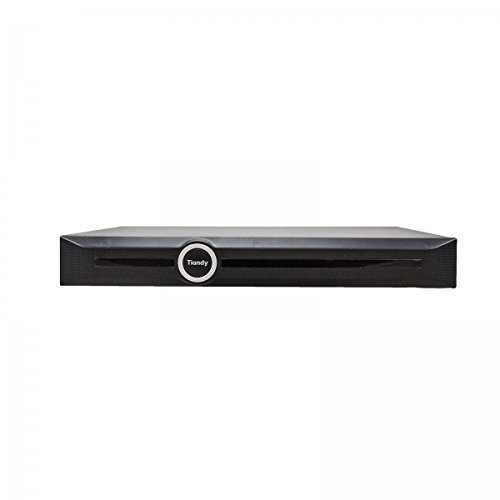
3.1 vaizdas: Priekyje view of the Tiandy TC-NR4008M7-S2 NVR. The front panel typically includes status indicators and the brand logo.
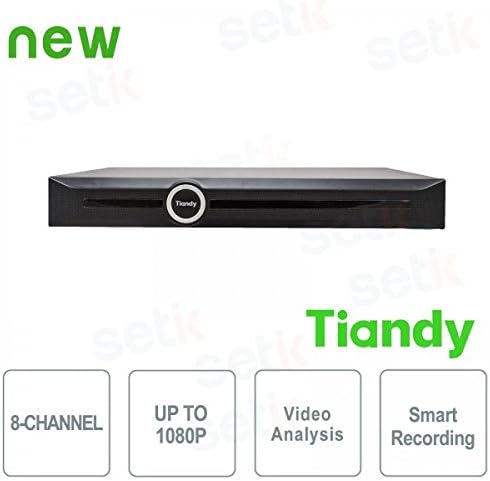
3.2 vaizdas: Priekyje view of the Tiandy NVR with graphical indicators for 8-Channel support, Up to 1080P resolution, Video Analysis, and Smart Recording.
3.2 Galinis skydelis
The rear panel provides all necessary connection ports for the NVR:
- Maitinimo įvestis: Maitinimo adapterio prijungimui.
- Ethernet prievadas: RJ45 port for network connection to IP cameras and the internet.
- HDMI išvestis: For connecting to an HDMI monitor or TV.
- VGA išvestis: For connecting to a VGA monitor.
- USB prievadai: Two USB ports for mouse connection and external storage.
- Garso įvestis / išvestis: Skirtas prijungti išorinius garso įrenginius.
- Signalizacijos įėjimas/išėjimas: For connecting external alarm devices.
3.3 vaizdas: Detailed rear panel of the NVR, illustrating the layout of the power input, Ethernet port, HDMI, VGA, USB ports, audio, and alarm connections.
4. Sąranka
4.1 Kietojo disko įrengimas
The NVR supports two 3.5-inch SATA hard drives (not included). It is recommended to use surveillance-grade hard drives for optimal performance and reliability. To install:
- Išjunkite NVR ir atjunkite visus laidus.
- Remove the NVR's cover by unscrewing the retaining screws.
- Mount the hard drives into the designated bays using the provided screws.
- Connect the SATA data and power cables from the NVR motherboard to the hard drives.
- Uždėkite dangtelį ir pritvirtinkite varžtais.
Pastaba: SSDs may not have dedicated mounting slots and might require alternative securing methods if used.
4.2 Pradiniai ryšiai
- Prijunkite monitorių prie NVR HDMI arba VGA išvesties prievado.
- Connect the included USB mouse to one of the NVR's USB ports.
- Connect the NVR to your network using an Ethernet cable.
- Prijunkite maitinimo adapterį prie NVR, o tada – prie maitinimo lizdo.
- Įjunkite NVR.
4.3 Pirmasis konfigūravimas
Pirmą kartą paleidus, vaizdo įrašymo įrenginys (NVR) jus nuves per pradinės sąrankos vedlį. Paprastai tai apima:
- Administratoriaus slaptažodžio nustatymas.
- Formatting the installed hard drives.
- Network settings configuration (DHCP or static IP).
- Laiko ir datos nustatymai.
- Adding IP cameras (the NVR should be able to recognize and connect to ONVIF-compatible cameras).
5. Operacinis
5.1 Tiesiogiai View
After successful setup, you can access the live view of your connected cameras through the NVR's local interface. The live view is designed to be fluid and responsive.
5.2 Įrašymo konfigūracija
NVR palaiko įvairius įrašymo režimus:
- Nepertraukiamas įrašymas: Įrašai visą parą.
- Judesio aptikimo įrašymas: Records only when motion is detected by the cameras.
- Suplanuotas įrašymas: Įrašai konkrečiais laikotarpiais.
- Aliarmo įrašymas: Įrašo, kai suveikia aliarmo įvykis.
Access the recording settings through the NVR's menu to configure your preferred recording schedule and modes for each channel.
5.3 Video Analysis and Smart Recording
The NVR includes advanced video analysis features. These can be configured to trigger recordings or alarms based on specific events, such as line crossing, intrusion detection, or object removal. Smart Recording optimizes storage by adjusting recording parameters based on event types.
5.4 Remote Access (Mobile App)
NVR palaiko nuotolinį valdymą viewing and management via a mobile application, such as 'Easy Live Plus'. To use the app:
- Download the 'Easy Live Plus' app from your smartphone's app store.
- Užregistruokite paskyrą ir prisijunkite.
- Add your NVR to the app using its serial number or QR code.
Pastaba: While the app provides remote access, some users have reported limitations in its functionality and configuration options compared to the local NVR interface. It is recommended to configure detailed settings directly on the NVR.
6. Priežiūra
6.1 Kietojo disko valdymas
Regularly check the status of your hard drives through the NVR's storage management menu. You may need to:
- Format Hard Drives: If you install new drives or encounter recording issues, formatting can resolve problems. This will erase all data on the drive.
- Replace Hard Drives: If a hard drive fails or reaches its end of life, replace it following the installation steps in Section 4.1.
6.2 Programinės įrangos naujiniai
Periodically check the Tiandy official website for firmware updates. Firmware updates can improve performance, add new features, and fix bugs. Follow the instructions provided with the firmware update package carefully.
6.3 Valymas
Keep the NVR clean and free from dust. Use a soft, dry cloth to wipe the exterior. Ensure ventilation openings are not obstructed by dust buildup. Do not use liquid cleaners directly on the unit.
7. Problemų sprendimas
Šiame skyriuje aptariamos dažniausiai pasitaikančios problemos, su kuriomis galite susidurti naudodami savo NVR.
7.1 Nėra vaizdo išvesties
- Check if the monitor is properly connected to the HDMI or VGA port.
- Įsitikinkite, kad monitorius įjungtas ir nustatytas tinkamas įvesties šaltinis.
- Verify that the NVR is powered on and its status indicators are normal.
7.2 Įrašymo problemos
- Nėra įrašų: Check if hard drives are installed, formatted, and healthy. Verify recording schedules and motion detection settings.
- Nustatymai neišsaugomi: If settings revert to default, especially after using the mobile app, try configuring settings directly on the NVR's local interface. Ensure the NVR's firmware is up to date.
- Prasta įrašymo kokybė: Check camera resolution settings and NVR recording parameters. Ensure sufficient bandwidth for IP cameras.
7.3 Network and Remote Access Problems
- Ensure the Ethernet cable is securely connected to the NVR and your router/switch.
- Verify network settings (IP address, gateway, DNS) on the NVR.
- For remote access, ensure your NVR has internet access and port forwarding (if required by your network setup) is correctly configured on your router.
- If using the mobile app, ensure the app is updated to the latest version.
7.4 NVR Not Powering On
- Check the power cable connection to the NVR and the power outlet.
- Įsitikinkite, kad maitinimo adapteris veikia tinkamai.
- Išbandykite kitą maitinimo lizdą.
8. Specifikacijos
| Funkcija | Specifikacija |
|---|---|
| Modelio numeris | TC-NR4008M7-S2 |
| Prekės ženklas | Tiandy |
| Kanalai | 8 IP kanalai |
| Maksimali skiriamoji geba | 1080p (Full HD) |
| Kietojo disko palaikymas | 2 x 3.5" SATA HDD, up to 4TB each (8TB total) |
| Vaizdo išvestys | 1 x HDMI, 1 x VGA |
| USB prievadai | 2x USB |
| Tinklo sąsaja | 1 x RJ45 Ethernet |
| Garsas | Audio In/Out support |
| Signalizacija | Alarm In/Out support |
| Savybės | Video Analysis, Smart Recording, ONVIF Compatible |
| Prekės svoris | 2.8 kg |
| Suderinami įrenginiai | Smartphone (for remote access) |
9. Garantija ir palaikymas
For warranty information, please refer to the warranty card included with your product or contact your point of purchase. For technical support, please contact Tiandy customer service or your authorized dealer. Ensure you have your product model number (TC-NR4008M7-S2) and purchase details available when seeking support.