
1. Įvadas
This manual provides essential information for the safe and efficient operation of your Xerox AltaLink C8030 Multifunction Printer. Please read these instructions carefully before using the device and retain them for future reference. This device integrates printing, scanning, copying, and faxing capabilities to support various office tasks.
2. Saugos informacija
Always follow basic safety precautions to reduce the risk of fire, electric shock, and injury. Ensure the device is connected to a grounded power outlet. Do not block ventilation openings. Keep the device away from water and excessive humidity. Refer to the safety labels on the product for specific warnings.
3. Produktas baigtasview
The Xerox AltaLink C8030 is a color multifunction printer designed for high-volume office environments. It features a 10-inch touchscreen for intuitive navigation and control. Key capabilities include:
- Print Speed: Up to 30 pages per minute (ppm) for both color and monochrome.
- Copy Resolution: 600 x 600 DPI.
- Memory: 8 GB RAM, 1 GB RAM, 250 GB HDD.
- Connectivity: NFC, Wireless, USB.
- Paper Supply: Multiple trays including 2 x 520-sheet trays, a 2,000-sheet high-capacity tandem tray, and a 100-sheet bypass tray.
- Features: Single Pass DADF, Data Security, Job Accounting, PostScript Kit, Network Scanning, Server Fax, iFax, Standard Output Tray, Office Finisher LX.
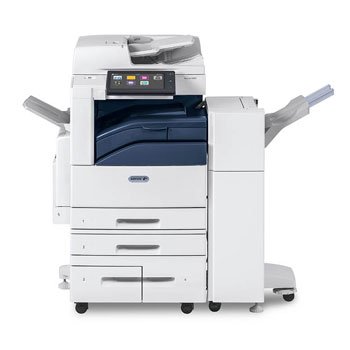
Vaizdas: priekis view of the Xerox AltaLink C8030 multifunction printer, showing its various paper trays and the integrated touchscreen control panel.
4. Sąranka
4.1 Išpakavimas ir įdėjimas
- Atsargiai išimkite spausdintuvą iš pakuotės.
- Pastatykite spausdintuvą ant stabilaus, lygaus paviršiaus, kuriame būtų tinkama ventiliacija.
- Ensure sufficient space around the printer for maintenance and paper loading.
4.2 Maitinimo jungtis
- Prijunkite maitinimo laidą prie spausdintuvo, o tada – prie įžeminto elektros lizdo.
- Norėdami įjungti įrenginį, paspauskite maitinimo mygtuką.
4.3 Popieriaus įdėjimas
- Open the desired paper tray (e.g., Tray 1, Tray 2, or Bypass Tray).
- Sureguliuokite popieriaus kreiptuvus, kad jie atitiktų popieriaus dydį.
- Įdėkite popieriaus krūvą, užtikrindami, kad ji neviršytų maksimalaus užpildymo linijos.
- Saugiai uždarykite popieriaus dėklą.
4.4 Tinklo ir USB jungtis
- Tinklas: Connect an Ethernet cable to the printer's network port and to your network router/switch. Configure network settings via the touchscreen if necessary.
- Belaidis ryšys: Access the network settings on the touchscreen, select your Wi-Fi network, and enter the password.
- USB: Connect a USB cable from your computer to the printer's USB port for direct connection.
5. Naudojimo instrukcijos
5.1 Spausdinimas
- From your computer or mobile device, open the document you wish to print.
- Programos meniu pasirinkite „Spausdinti“.
- Choose the Xerox AltaLink C8030 as your printer.
- Adjust print settings (e.g., number of copies, color/monochrome, paper size) as needed.
- Spustelėkite „Spausdinti“.
5.2 Nuskaitymas
- Padėkite dokumentą skaitytuvo stiklu skenerio puse žemyn arba į automatinį dokumentų tiektuvą (ADT) skenerio puse aukštyn.
- On the printer's touchscreen, select the 'Scan' function.
- Choose your scan destination (e.g., email, network folder, USB drive).
- Configure scan settings (e.g., resolution, file format, color mode).
- Norėdami pradėti nuskaityti, paspauskite „Pradėti“.
5.3 Kopijavimas
- Padėkite dokumentą ant skaitytuvo stiklo arba į ADF.
- On the touchscreen, select the 'Copy' function.
- Enter the desired number of copies.
- Adjust copy settings (e.g., enlargement/reduction, 2-sided, color/monochrome).
- Norėdami pradėti kopijuoti, paspauskite „Pradėti“.
5.4 Faksogramų siuntimas
- Padėkite dokumentą ant skaitytuvo stiklo arba į ADF.
- On the touchscreen, select the 'Fax' function.
- Įveskite gavėjo fakso numerį.
- Configure fax settings (e.g., resolution, delayed send).
- Press 'Start' to send the fax.
6. Priežiūra
6.1 Tonerio kasečių keitimas
- Atidarykite priekinį spausdintuvo dangtį.
- Identify the empty toner cartridge.
- Grasp the handle and pull the cartridge out.
- Išpakuokite naują tonerio kasetę ir švelniai ją pakratykite.
- Įkiškite naują kasetę, kol ji spragtelės į vietą.
- Uždarykite priekinį dangtelį.
6.2 Skaitytuvo stiklo valymas
- Išjunkite spausdintuvą ir atjunkite maitinimo laidą.
- Atidarykite skaitytuvo dangtelį.
- Wipe the scanner glass with a soft, lint-free cloth dampnuvalytas švelniu stiklo valikliu.
- Ensure the glass is dry before closing the cover and restoring power.
7. Problemų sprendimas
7.1 Įstrigęs popierius
- Vykdykite ekrane pateikiamus nurodymus, kad surastumėte ir pašalintumėte įstrigusį popierių.
- Open all accessible covers and trays to check for jammed paper.
- Gently pull the paper in the direction of the paper path.
7.2 Spausdinimo kokybės problemos
- Patikrinkite tonerio lygį ir, jei jo trūksta, pakeiskite kasetes.
- Spausdinimo galvutės valymą arba kalibravimą atlikite spausdintuvo priežiūros meniu.
- Ensure you are using appropriate paper types for your print job.
7.3 Ryšio problemos
- Verify all cables (Ethernet, USB) are securely connected.
- For wireless connections, check Wi-Fi signal strength and network settings.
- Restart the printer, router, and computer/device.
8. Specifikacijos
| Funkcija | Specifikacija |
|---|---|
| Prekės ženklas | Xerox |
| Modelio pavadinimas | AltaLink C8030 |
| Spausdinimo technologija | Lazeris |
| Spausdintuvo išvestis | Spalva |
| Maksimalus spausdinimo greitis (vienspalvis) | 30 ppm |
| Maksimalus kopijavimo greitis (nespalvotas) | 30 ppm |
| Ryšio technologija | NFC, Wireless |
| Prekės svoris | 349 svaro |
| Kontrolės metodas | Nuotolinis, jutiklinis |
| Suderinami įrenginiai | PC |
| GTIN / UPC | 095205880151 |
9. Garantija ir palaikymas
For warranty information, please refer to the documentation included with your product or visit the official Xerox website. For technical support, driver downloads, or service requests, please contact Xerox customer support through their official channels. Keep your product's serial number and purchase date readily available when contacting support.
Internetiniai ištekliai: „Xerox“ oficialus Websvetainę