
Įvadas
This manual provides comprehensive instructions for the setup, operation, and maintenance of your NETUM NT-R3 Mini 1D CCD Bluetooth Barcode Scanner. Please read this guide thoroughly to ensure proper use and to maximize the performance of your device.
Pakuotės turinys
Išpakuodami patikrinkite, ar yra visi toliau išvardyti daiktai ir ar jie yra geros būklės:
- 1 x NETUM Mini Bluetooth Barcode Scanner (NT-R3)
- 1x USB įkrovimo laidas
- 1 x Greitos pradžios vadovas
- 1 x 2.4 GHz Adapter
Produktas baigtasview
The NETUM NT-R3 is a compact and versatile 1D CCD barcode scanner designed for portability and ease of use. Its ring-style design allows for comfortable wear, enhancing productivity in various environments.

Image: The NETUM NT-R3 Mini Barcode Scanner, a small black electronic device with a screen and button, designed to be worn on a finger with an adjustable ring structure.
Pagrindinės funkcijos:
- Ring Design: Magnesium alloy casing and trigger for durability and ease of use.
- 180° sukimasis: Unique rotatable design for scanning from various angles.
- CCD Scanning: Reads 1D barcodes directly from LCD screens of computers or mobile devices, including poorly printed or damaged barcodes.
- Belaidis ryšys: Supports Bluetooth (SPP, HID) and 2.4 GHz wireless connections.
- Platus suderinamumas: Compatible with Windows XP/7/8/8.1/10, Google Android, iOS, and Mac OS X.
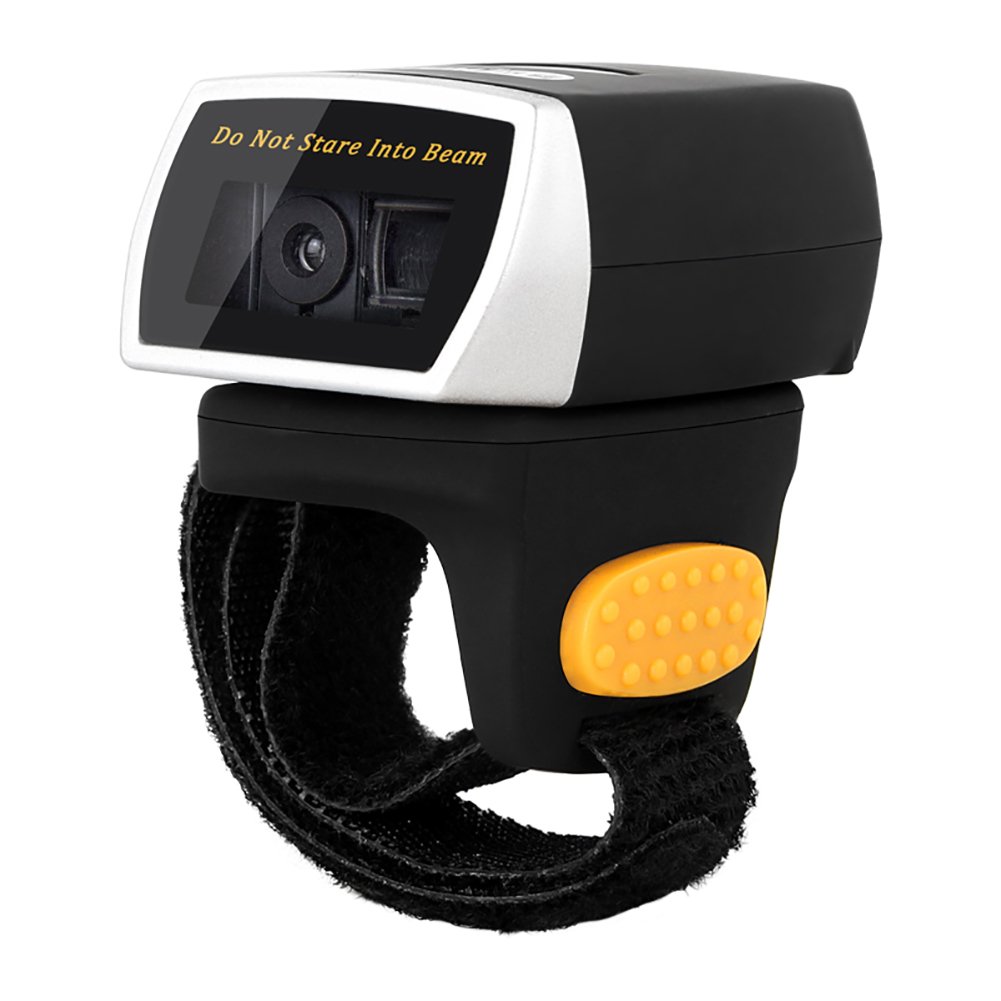
Image: The NETUM NT-R3 Mini Barcode Scanner demonstrating its 180-degree rotation design, allowing for flexible scanning angles.

Image: The NETUM NT-R3 Mini Barcode Scanner held in a hand, illustrating its compact dimensions (50mm x 44mm x 38mm) and light weight (50g), emphasizing its strong compatibility with various devices.
Sąranka ir Ryšys
1. Skaitytuvo įkrovimas
Before initial use, fully charge the scanner using the provided USB charging cable. Connect the small end of the USB cable to the scanner's charging port and the other end to a USB power source (e.g., computer, USB wall adapter). The charging indicator light will show the charging status.
2. Įjungimas/išjungimas
To power on the scanner, press and hold the trigger button for a few seconds until you hear a beep and see the indicator light. To power off, press and hold the trigger button again until the indicator light turns off.
3. Ryšio parinktys
The NT-R3 scanner offers two primary connectivity methods:
Bluetooth Connection (HID Mode - Keyboard Emulation)
- Įsitikinkite, kad skaitytuvas įjungtas.
- Scan the "Bluetooth HID Mode" barcode (refer to the Quick Start Guide for specific barcodes).
- Pagrindiniame įrenginyje (išmaniajame telefone, planšetiniame kompiuteryje, kompiuteryje) įjunkite „Bluetooth“ ir ieškokite galimų įrenginių.
- Select "NETUM Barcode Scanner" or a similar name from the list of devices.
- The scanner will beep to confirm successful pairing.
In HID mode, scanned barcodes are input directly as keyboard entries into any active text field.
Bluetooth Connection (SPP Mode - Serial Port Profile)
SPP mode is typically used for applications that require direct data communication with the scanner. This mode requires specific software on the host device to interpret the data. Refer to your application's documentation for SPP setup.
- Įsitikinkite, kad skaitytuvas įjungtas.
- Scan the "Bluetooth SPP Mode" barcode (refer to the Quick Start Guide).
- Follow the instructions provided by your specific application for connecting to an SPP device.
2.4 GHz belaidis ryšys
- Plug the provided 2.4 GHz adapter into a USB port on your computer.
- Įsitikinkite, kad skaitytuvas įjungtas.
- Scan the "2.4G Wireless Mode" barcode (refer to the Quick Start Guide).
- The scanner will automatically connect to the adapter. A successful connection is indicated by a specific beep or light pattern (refer to the Quick Start Guide for details).
The 2.4 GHz connection offers a wireless range of up to 10 meters (30 feet).
Veikimo režimai
The NETUM NT-R3 scanner supports two data upload modes:
1. Momentinio įkėlimo režimas
In this mode, scanned barcodes are immediately transmitted to your connected device. This is suitable for real-time data entry.
2. Saugojimo režimas
The scanner can store up to 2000 barcodes in its built-in flash memory. This mode is useful when working out of range of your host device. Barcodes can be uploaded later when a connection is established.
Image: A visual representation of the two upload modes. Instant Upload Mode shows barcodes being sent directly to a device. Storage Mode shows barcodes being stored internally and then uploaded later.
To switch between modes, scan the corresponding configuration barcodes found in the Quick Start Guide.
Brūkšninių kodų nuskaitymas
Norėdami nuskaityti brūkšninį kodą:
- Hold the scanner with the scanning window facing the barcode.
- Press the trigger button. A red scanning line will appear.
- Align the red scanning line across the entire barcode.
- Once successfully scanned, the scanner will emit a beep, and the indicator light will flash.
The NT-R3 is capable of reading 1D barcodes from various surfaces, including:
- Spausdintos etiketės
- LCD screens (computers, smartphones, tablets)
- Poorly printed or damaged barcodes
Priežiūra
Akumuliatoriaus priežiūra
- Norėdami pailginti akumuliatoriaus veikimo laiką, venkite dažnai visiškai jį iškrauti.
- Reguliariai kraukite skaitytuvą, net jei jis nenaudojamas nuolat.
- Kai ilgesnį laiką nenaudojate skaitytuvo, laikykite jį vėsioje, sausoje vietoje.
Valymas
- Use a soft, dry, lint-free cloth to clean the scanner's exterior.
- Skenavimo langeliui naudokite objektyvo valymo šluostę arba minkštą šluostę, lengvai nuvalytąampnuplaukite vandeniu arba švelniu, neabrazyviniu valikliu.
- Nenaudokite stiprių cheminių medžiagų, tirpiklių ar abrazyvinių medžiagų, nes jos gali pažeisti įrenginį.
Trikčių šalinimas
| Problema | Galima priežastis | Sprendimas |
|---|---|---|
| Skaitytuvas neįsijungia. | Senka baterija. | Kraukite skaitytuvą bent 2 valandas. |
| Skaitytuvas neprisijungia per „Bluetooth“. | Incorrect mode selected; device not discoverable; out of range. | Ensure "Bluetooth HID Mode" or "SPP Mode" is scanned. Make sure Bluetooth is enabled on the host device and the scanner is within 10 meters. Try re-pairing. |
| Scanner does not connect via 2.4 GHz adapter. | Adapter not properly inserted; incorrect mode selected. | Ensure the 2.4 GHz adapter is securely plugged in. Scan the "2.4G Wireless Mode" barcode. |
| Skaitytuvas neskaito brūkšninių kodų. | Barcode is unreadable; scanner not aligned; scanner in storage mode. | Ensure the barcode is clear and well-lit. Align the red line across the entire barcode. If in storage mode, switch to instant upload mode or upload stored data. |
| Nuskaityti duomenys rodomi neteisingai. | Keyboard layout mismatch (for HID mode). | Scan the appropriate keyboard layout barcode (e.g., US, UK, French) from the Quick Start Guide. |
Techninės specifikacijos
| Funkcija | Detalė |
|---|---|
| Modelio numeris | NT-R3 |
| Skenavimo technologija | 1D CCD |
| Ryšys | Bluetooth (SPP, HID), 2.4 GHz Wireless, USB |
| Suderinamos operacinės sistemos | Windows XP/7/8/8.1/10, Google Android, iOS, Mac OS X |
| Nuskaitymo greitis | 260 sampmažiau per sekundę |
| Sandėliavimo talpa | Iki 100 000 brūkšninių kodų (saugojimo režimu) |
| Baterijos tipas | 1 ličio metalo baterija (pridedama) |
| Maitinimo šaltinis | Maitinamas baterijomis |
| Veiklos ttage | 5 voltų |
| Maksimali laikymo temperatūra | 45 laipsniai Celsijaus |
| Sertifikatai | CE, ISO, RoHS |
| Gamintojas | Guangzhou Netum Electronic Technology Co.,Ltd. |
| Kilmės šalis | Kinija |
Garantija ir palaikymas
Grąžinimo politika
This product is eligible for a refund or replacement within 30 days of purchase, in accordance with the seller's return policy.
Informacija apie gamintoją
Manufacturer: Guangzhou Netum Electronic Technology Co.,Ltd.
For further assistance or technical support, please refer to the contact information provided in your Quick Start Guide or visit the official NETUM websvetainę.
Note: Information regarding spare parts availability and guaranteed software updates is not available at this time.