
1. Baigėsiview
The Aerocool Cylon RGB Midi-Tower PC Case, model ACCM-PV10012.11, is designed to house computer components, offering both functionality and aesthetic appeal. It features a side window panel for showcasing internal hardware and an RGB LED illumination strip on the front panel for customizable lighting effects. This case supports ATX motherboards and provides ample space for various components, including multiple storage drives and cooling solutions.

1 pav.: priekis view of the Aerocool Cylon RGB Midi-Tower PC Case, highlighting its distinctive RGB LED strip.
2. Pakuotės turinys
Prašome patikrinti, ar pakuotėje yra visi reikalingi daiktai:
- Aerocool Cylon RGB Midi-Tower PC Case (ACCM-PV10012.11)
- Priedų dėžutė (kuriame yra varžtai, tarpikliai, kabelių laikikliai ir kt.)
- Vartotojo vadovas (šis dokumentas)
3. Saugos informacija
Read and understand all safety instructions before installing or operating the PC case. Failure to do so may result in injury or damage to the product.
- Prieš atlikdami bet kokius montavimo ar priežiūros darbus, visada atjunkite maitinimo šaltinį nuo sieninio lizdo.
- Atsargiai elkitės su visais komponentais, kad nepažeistumėte jų.
- Avoid touching electronic components directly; use anti-static precautions if possible.
- Laikykite mažas dalis ir priedus vaikams nepasiekiamoje vietoje.
- Užtikrinkite tinkamą vėdinimą aplink korpusą, kad išvengtumėte perkaitimo.
4. Sąranka ir diegimas
4.1 Bylos parengimas
Before installing components, remove the side panels to access the interior of the case.
- Padėkite dėklą ant lygaus, stabilaus paviršiaus.
- Locate the thumbscrews on the rear of the case securing the side panel.
- Unscrew the thumbscrews and carefully slide the side panel backward, then lift it off. Repeat for the other side panel if necessary.
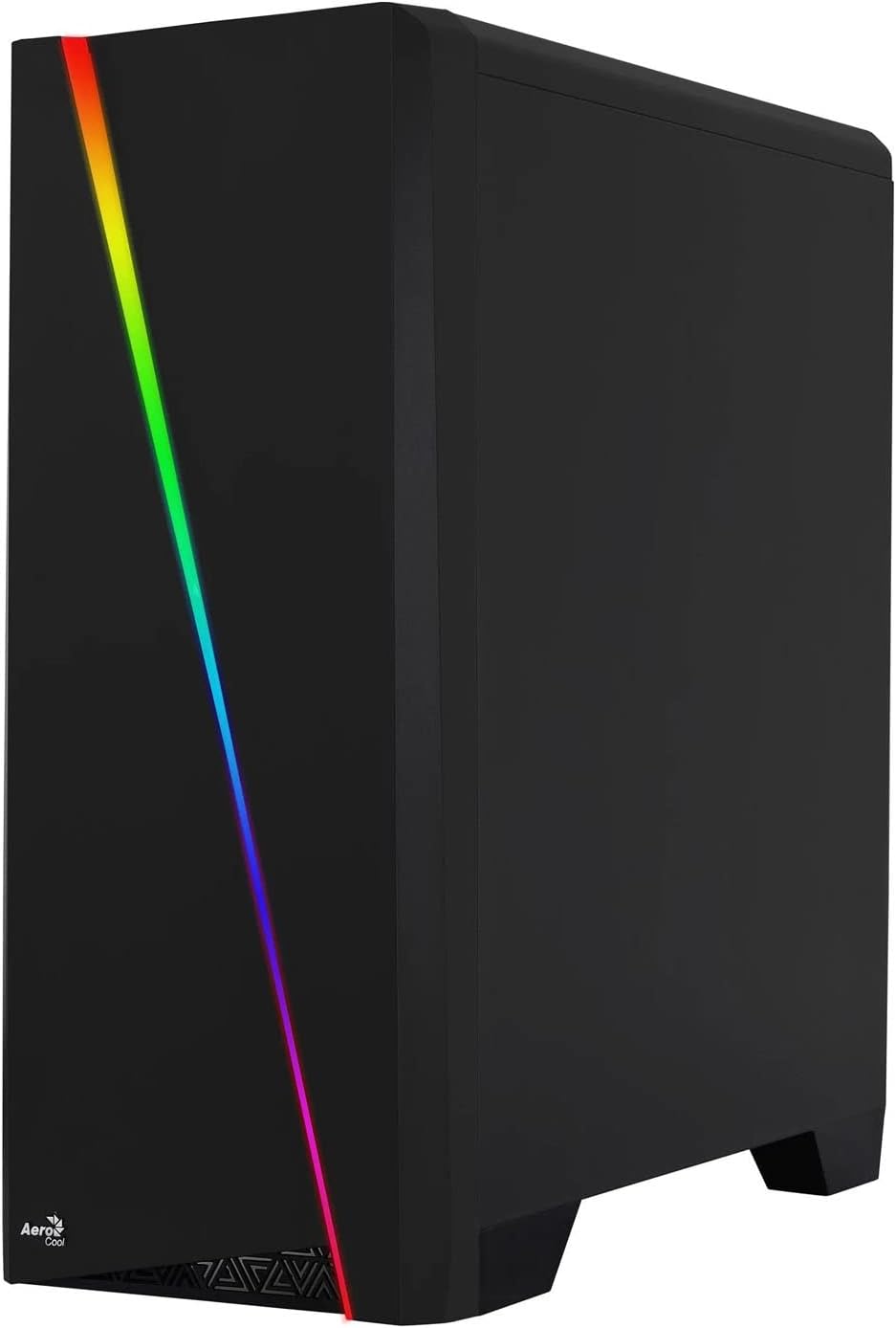

Figure 2: Left image shows the side panel attached, right image shows the side panel removed for access.
4.2 Pagrindinės plokštės montavimas
The Aerocool Cylon case supports ATX motherboards.
- Įdėkite įvesties / išvesties skydą, kuris buvo pridėtas prie pagrindinės plokštės, į angą korpuso gale.
- Ensure motherboard standoffs are correctly aligned with your motherboard's screw holes. Install any missing standoffs from the accessory box.
- Atsargiai uždėkite pagrindinę plokštę ant atramų, sulygiuodami varžtų skyles.
- Pritvirtinkite pagrindinę plokštę atitinkamais varžtais iš priedų dėžutės.
4.3 Drive Installation (2.5" / 3.5")
The case provides bays for 2.5-inch and 3.5-inch drives.
- Locate the drive bays within the case. Refer to the case diagram for specific locations.
- For 3.5-inch HDDs, slide the drive into the designated tray or bay and secure it with screws.
- For 2.5-inch SSDs, mount the drive onto the designated bracket or tray and secure it with screws.
4.4 Maitinimo bloko (PSU) montavimas
The PSU is typically mounted at the bottom rear of the case.
- Slide the PSU into its designated compartment from the rear of the case.
- Align the PSU's screw holes with those on the case.
- Secure the PSU with the provided screws.
4.5 Išplėtimo plokštės (GPU) diegimas
Įdėkite vaizdo plokštę arba kitas išplėtimo korteles į PCIe lizdus.
- Remove the necessary PCI-E slot covers from the rear of the case corresponding to your expansion card's size.
- Carefully insert the expansion card into the appropriate PCI-E slot on the motherboard until it clicks into place.
- Secure the expansion card with screws.

3 pav.: galinis view of the PC case, showing the expansion slots and I/O area.
4.6 Fan / Liquid Cooling Radiator Installation
The Aerocool Cylon case supports various cooling configurations.
- Galinis: 1 x 120mm fan (pre-installed or optional).
- Į viršų: Palaiko 2 x 120 mm ventiliatorius arba 1 x 240 mm radiatorių.
- Apačia: Palaiko 2 x 120 mm ventiliatorius.
- Mount fans or radiators to their respective positions using the appropriate screws.
- Prijunkite ventiliatoriaus maitinimo laidus prie pagrindinės plokštės arba ventiliatoriaus valdiklio.

Figure 4: An interior shot of the case, illustrating potential fan and liquid cooling radiator placements.
4.7 Kabelių valdymas
Effective cable management improves airflow and aesthetics.
- Route cables through the cutouts and behind the motherboard tray.
- Use cable ties (included in the accessory box) to bundle and secure cables.
4.8 Priekinio skydelio įvesties/išvesties prijungimas
Connect the front panel cables to the corresponding headers on your motherboard.
- USB 3.0: Connect the USB 3.0 cable to the motherboard's USB 3.0 header.
- USB 2.0: Connect the USB 2.0 cables (x2) to the motherboard's USB 2.0 headers.
- HD garsas: Connect the HD Audio cable to the motherboard's audio header.
- Power/Reset/LEDs: Connect the small individual cables (Power SW, Reset SW, HDD LED, Power LED) to the motherboard's front panel headers according to your motherboard manual.
5. Kompiuterio korpuso valdymas
Once all components are installed and connected, reattach the side panels and power on your system.
- Maitinimas: Press the power button located on the top I/O panel of the case.
- RGB apšvietimo valdymas: The front panel RGB LED illumination can be controlled via a dedicated button on the top I/O panel or through compatible motherboard software, depending on your setup. Refer to your motherboard manual for software control options.
6. Priežiūra
Reguliarus techninis aptarnavimas padeda užtikrinti optimalų kompiuterio korpuso ir komponentų veikimą bei ilgaamžiškumą.
- Dulkių filtro valymas: The case features dust filters (e.g., on the top and bottom). Regularly remove and clean these filters to prevent dust buildup and maintain good airflow. Use compressed air or a soft brush.
- Bendras valymas: Naudokite minkštą, damp cloth to wipe down the exterior of the case. Avoid abrasive cleaners or solvents. For the transparent side panel, use a microfiber cloth to prevent scratches.
7. Problemų sprendimas
Jei kyla problemų, apsvarstykite šiuos įprastus trikčių šalinimo veiksmus:
- Nėra galios: Ensure the PSU is properly connected to the wall outlet and the power switch on the PSU is in the 'ON' position. Verify all power cables to the motherboard and components are securely seated.
- Nesisukantys ventiliatoriai: Check that all fan cables are correctly connected to the motherboard or fan controller. Ensure the system is receiving power.
- RGB neveikia: Confirm RGB cables are properly connected. If using motherboard software, ensure it is installed and configured correctly.
- Atsipalaidavę jungtys: Recheck all internal connections (power, data, front panel I/O) to ensure they are firmly seated.
8. Specifikacijos
| Funkcija | Specifikacija |
|---|---|
| Modelio pavadinimas | ACCM-PV10012.11 |
| Atvejo tipas | Midi bokštas |
| Pagrindinės plokštės suderinamumas | ATX |
| Matmenys (IxPxH) | 16.26 x 7.8 x 18.07 colio |
| Prekės svoris | 8.36 svaro |
| Medžiaga | Akrilas |
| USB 3.0 prievadai | 1 |
| USB 2.0 prievadai | 2 |
| Aušinimo būdas | Oras |
| Fan Size (Rear) | 120 milimetrų |
| RGB apšvietimas | Front Panel LED Strip |
9. Informacija apie garantiją
The Aerocool Cylon RGB Midi-Tower PC Case is covered by a manufacturer's warranty. Please refer to the warranty card included with your product or visit the official AeroCool websvetainėje rasite išsamias garantijos sąlygas, įskaitant galiojimo laikotarpį ir pretenzijų pateikimo tvarką.
10. Parama
For further assistance, technical support, or to download the latest drivers and software, please visit the official AeroCool websvetainė:
Websvetainė: www.aerocool.io
You may also contact AeroCool customer service through the contact information provided on their websvetainę.