
1. Produktas baigtasview
The Maxwest Nitro 5N is an Android 7.0 smartphone designed for reliable communication and multimedia use. It features a 5-inch display, a Quad Core processor, and dual SIM capability, making it suitable for various global GSM networks.

1.1 paveikslas: Priekis ir galas view of the Maxwest Nitro 5N smartphone, showcasing its sleek black design and display.
2. Kas yra dėžutėje
Upon opening your Maxwest Nitro 5N package, please ensure all the following items are present:
- Maxwest Nitro 5N Smartphone
- Baterija (2000 mAh)
- Įkroviklio adapteris
- USB kabelis
- Protective Case Cover
3. Pradinė sąranka
3.1. SIM kortelės (-ių) ir akumuliatoriaus įdėjimas
- Išjungti: Ensure your Maxwest Nitro 5N is powered off before proceeding.
- Nuimkite galinį dangtelį: Atsargiai nuimkite telefono galinį dangtelį.
- Įdėkite SIM kortelę (-es): Locate the SIM card slots. This device supports dual SIM cards. Insert your GSM SIM card(s) into the designated slots with the gold contacts facing down. Ensure they are securely seated.
- Įdėkite bateriją: Place the 2000 mAh battery into its compartment, aligning the gold contacts on the battery with those in the phone.
- Pakeiskite galinį dangtelį: Carefully reattach the back cover until it clicks into place.
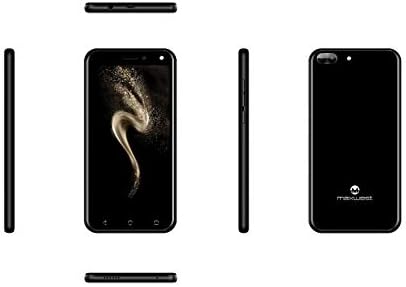
3.1 paveikslėlis: Šonas views of the Maxwest Nitro 5N, illustrating the location of buttons and ports for SIM/battery access.
3.2. Įjungimas ir pradinė konfigūracija
- Maitinimas: Press and hold the Power button (usually on the side) until the Maxwest logo appears.
- Kalbos pasirinkimas: Vykdykite ekrane pateikiamus nurodymus, kad pasirinktumėte pageidaujamą kalbą.
- „Wi-Fi“ ryšys: Connect to a Wi-Fi network to complete the setup process and download necessary updates.
- Google paskyra: Prisijunkite naudodami „Google“ paskyrą arba sukurkite naują. Tai būtina norint pasiekti „Google Play“ parduotuvę ir kitas „Google“ paslaugas.
- Data ir laikas: Nustatykite teisingą datą ir laiką arba leiskite tinklui juos nustatyti automatiškai.
- Saugumas: Configure screen lock options such as PIN, pattern, or password for device security.
Svarbi pastaba: This device is designed to work with GSM carriers such as AT&T, T-Mobile, and Metro PCS. It will NOT work with CDMA carriers like Verizon, Sprint, or Boost Mobile.
4. Operating Your Maxwest Nitro 5N
4.1. Pagrindinė navigacija
- Jutiklinis ekranas: Interact with the device by tapping, swiping, pinching, and spreading on the 5-inch LCD display.
- Pagrindinis ekranas: Centrinis jūsų programėlių ir valdiklių centras. Braukite kairėn arba dešinėn, kad pasiektumėte papildomus ekranus.
- Pranešimų skydelis: Braukite žemyn nuo ekrano viršaus, kad pasiektumėte pranešimus ir greituosius nustatymus.
- Naršymo mygtukai: Use the on-screen navigation buttons (Back, Home, Recent Apps) at the bottom of the display.
4.2. Skambinimas ir žinučių siuntimas
- Telefono programėlė: Palieskite telefono piktogramą, kad pasiektumėte rinkiklį, skambučių žurnalus ir kontaktus.
- Žinučių programėlė: Tap the Messages icon to send and receive SMS/MMS messages.
4.3. Kameros naudojimas
Your Nitro 5N is equipped with 5MP front and rear cameras.
- Atidaryti kamerą: Pradiniame ekrane arba programėlių stalčiuje palieskite fotoaparato piktogramą.
- Perjungti fotoaparatus: Norėdami perjungti priekinę ir galinę kameras, palieskite kameros perjungimo piktogramą.
- Fotografuoti/vaizdo įrašą: Palieskite užrakto mygtuką, kad nufotografuotumėte arba pradėtumėte / sustabdytumėte vaizdo įrašymą.
4.4. Screen Pinning Feature
Screen Pinning allows you to lock your phone to a single application, preventing others from accessing other apps or settings. This is useful when sharing your phone temporarily.
- Enable Screen Pinning: Eikite į Settings > Security > Screen pinning ir įjunkite.
- Pin an App: Open the app you wish to pin. Tap the Recent Apps button (square icon). Swipe up on the app's preview and tap the pin icon.
- Unpin an App: To unpin, simultaneously press and hold the Back and Recent Apps buttons. You may need to enter your PIN/pattern/password if required by your security settings.
5. Priežiūra ir priežiūra
5.1. Akumuliatoriaus priežiūra
- Įkrovimas: Use only the provided charger and USB cable. Avoid overcharging by disconnecting the charger once the battery is full.
- Temperatūra: Avoid exposing the phone to extreme temperatures, as this can degrade battery life.
- Saugykla: If storing the phone for an extended period, ensure the battery is partially charged (around 50%).
5.2. Įrenginio valymas
- Ekranas: Naudokite minkštą, nepūkuotą šluostę, šiek tiek sudrėkintąampened with water or a screen cleaner, to gently wipe the display.
- Korpusas: Use a soft, dry cloth to clean the phone's body. Avoid harsh chemicals or abrasive materials.
5.3. Programinės įrangos atnaujinimai
Reguliariai tikrinkite, ar yra sistemos atnaujinimų, kad užtikrintumėte optimalų našumą ir saugumą. Eikite į Nustatymai > Apie telefoną > Sistemos naujiniai , kad patikrintumėte, ar yra atnaujinimų, ir įdiegtumėte juos.
6. Įprastų problemų šalinimas
| Problema | Galimas sprendimas |
|---|---|
| Telefonas neįsijungia. | Įsitikinkite, kad akumuliatorius tinkamai įdėtas ir įkrautas. Prijunkite įkroviklį ir bandykite dar kartą. |
| Nėra tinklo signalo. | Verify SIM card insertion. Check if you are within network coverage. Ensure your carrier is GSM compatible (e.g., AT&T, T-Mobile). Restart the phone. |
| Programėlės veikia lėtai arba stringa. | Uždarykite fonines programas. Išvalykite programų talpyklą (Nustatymai > Programos > [Programos pavadinimas] > Atmintis > Išvalyti talpyklą). Restart the phone. Ensure sufficient storage space. |
| Baterija greitai išsikrauna. | Reduce screen brightness. Disable Wi-Fi, Bluetooth, and GPS when not in use. Close unnecessary background apps. Check battery usage in settings to identify power-hungry apps. |
| Nepavyksta prisijungti prie „Wi-Fi“. | Įsitikinkite, kad įjungtas „Wi-Fi“. Paleiskite maršrutizatorių ir telefoną iš naujo. Pamirškite tinklą ir prijunkite iš naujo. |
7. Gaminio specifikacijos
| Funkcija | Detalė |
|---|---|
| Modelio pavadinimas | Nitro 5N |
| Operacinė sistema | Android 7.0 |
| Procesorius | Quad Core 1.2 GHz (1.2GHz Cortex A9 Processor) |
| RAM | 1 GB |
| Vidinė saugykla | 8 GB (approximately 5.6 GB user available) |
| Ekranas | 5.0 inch LCD, 480 x 854 pixels, 2.5D TP |
| Galinė kamera | 5 MP |
| Priekinė kamera | 5 MP |
| Baterijos talpa | 2000 mAh ličio jonų |
| Tinklo suderinamumas | 3G H+ 850/1900/2100 MHz, 2G: 850/900/1800/1900 MHz (GSM Carriers only) |
| Ryšys | USB, Cellular, GPS, Wi-Fi, Bluetooth (Wireless) |
| Garso lizdas | 3.5 mm |
| Matmenys (I x P x A) | 5.73 x 2.83 x 0.38 colio |
| Svoris | 5.4 uncijos (153 gramų) |
| Spalva | Juoda |
8. Informacija apie garantiją
The Maxwest Nitro 5N comes with a one-year parts and labor warranty from the date of purchase. This warranty covers manufacturing defects and workmanship under normal use. It does not cover damage caused by misuse, accidents, unauthorized repairs, or normal wear and tear.
Išsaugokite pirkimo įrodymą, kad galėtumėte kreiptis dėl garantijos.
9. Pagalba klientams
For technical assistance, troubleshooting beyond this manual, or warranty inquiries, please contact Maxwest customer support. Refer to the contact information provided with your product packaging or visit the official Maxwest websvetainę, kurioje rasite naujausią pagalbos informaciją.
When contacting support, please have your product model (Nitro 5N) and proof of purchase readily available.