
OWC OWCMEQCTSRT00
OWC Mercury Elite Pro Quad RAID 5 External Storage Enclosure User Manual
Model: OWCMEQCTSRT00 | Brand: OWC
1. Įvadas
The OWC Mercury Elite Pro Quad is a versatile four-bay external storage enclosure designed for professionals requiring high capacity, performance, and data security. It offers broad compatibility with both Mac and Windows PCs through its powerful USB-C interface. This manual provides essential information for setting up, operating, maintaining, and troubleshooting your Mercury Elite Pro Quad.
2. Pagrindinės savybės
- Didelės spartos ryšys: Features a powerful USB-C interface delivering 10Gb/s USB 3.2 Gen 2 bandwidth, compatible with USB-C or Thunderbolt 3 equipped Mac or Windows PCs.
- Išskirtinis našumas: Achieves speeds of up to 947MB/s for rapid data transfer.
- Flexible Drive Bays: Equipped with four universal drive bays that support both 2.5" and 3.5" SATA drives, allowing for up to 48TB of storage capacity.
- Advanced RAID Capabilities: Includes SoftRAID XT software for creating, monitoring, and managing advanced RAID sets, offering options for massive capacity, maximum performance, or data redundancy.
- Tvirtas dizainas: Built with a heat-dissipating aluminum enclosure, a whisper-quiet fan, and vibration-absorbing feet for quiet and reliable operation. Front-facing LEDs provide instant drive-activity status.
- Saugos funkcijos: Features a front panel access lock and a rear-mounted Kensington compatible lock slot to secure your drives and the enclosure.
Produktas baigtasview


3. Sąrankos vadovas
3.1 Pakuotės turinys
Patikrinkite, ar pakuotėje yra visi komponentai:
- OWC Mercury Elite Pro Quad Enclosure
- USB-C į USB-C laidas
- USB-C to USB-A Cable (for backward compatibility)
- Maitinimo adapteris
- Keys for front panel lock
- SoftRAID XT Software License (if included with your model)
3.2 Pavaros įrengimas
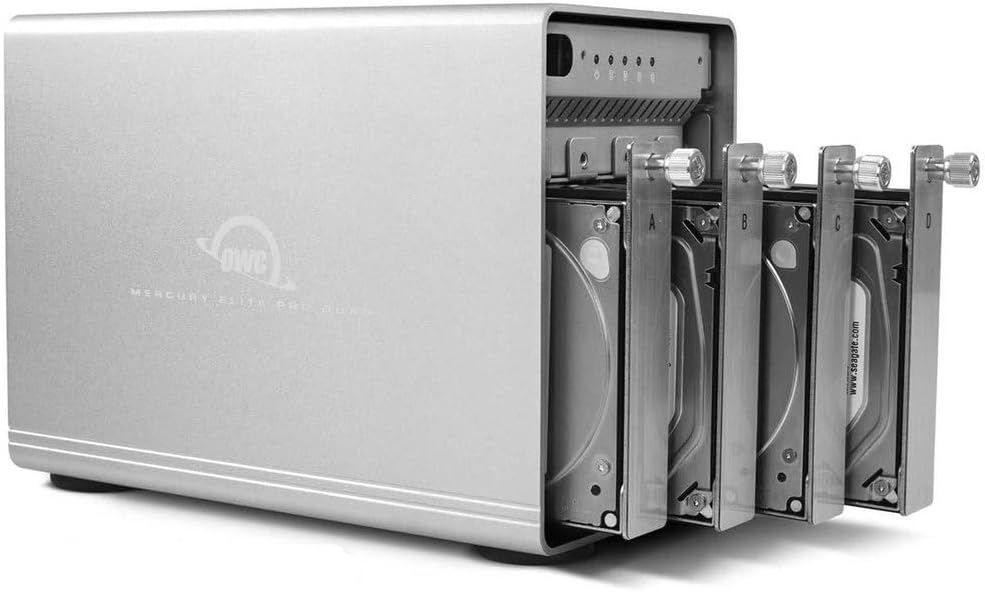
The Mercury Elite Pro Quad supports up to four 2.5-inch or 3.5-inch SATA hard drives or SSDs. Follow these steps to install your drives:
- Unlock the front panel using the provided key and open it.
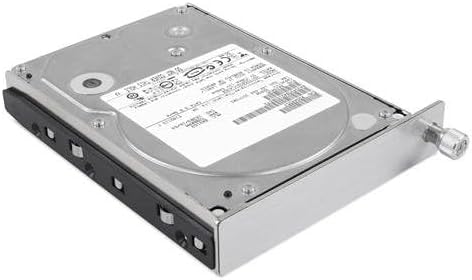
- Pull out an empty drive tray.
- For 3.5-inch drives: Align the drive with the screw holes on the tray and secure it with the provided screws.
- For 2.5-inch drives: Use the included adapter bracket (if necessary) to secure the 2.5-inch drive to the 3.5-inch tray, then secure the tray screws.
- Carefully slide the populated drive tray back into the enclosure until it clicks into place.
- Pakartokite su visais norimais diskais.
- Uždarykite ir užfiksuokite priekinį skydelį.

3.3 Prijungimas prie kompiuterio
- Connect the power adapter to the "AC IN" port on the rear of the enclosure and plug it into a power outlet.
- Connect one end of the USB-C cable to the "USB-C (USB 3.1 Gen 2)" port on the rear of the enclosure.
- Connect the other end of the USB-C cable to an available USB-C or Thunderbolt 3 port on your computer. If your computer only has USB-A ports, use the provided USB-C to USB-A cable.
- Flip the power switch on the rear of the enclosure to the "ON" position. The power indicator LED on the front will illuminate.
3.4 Software Installation (SoftRAID XT)
For optimal performance and advanced RAID configurations, install the SoftRAID XT software. Refer to the SoftRAID documentation or OWC's support website for detailed installation instructions specific to your operating system (Mac or Windows).
- Download the latest SoftRAID XT software from the OWC support websvetainę.
- Vykdykite ekrane pateikiamus nurodymus, kad įdiegtumėte programinę įrangą.
- Register your SoftRAID license if applicable.
- Restart your computer if prompted to ensure proper driver installation.
4. Operating the Mercury Elite Pro Quad
4.1 RAID konfigūracija
The Mercury Elite Pro Quad supports various RAID levels (e.g., RAID 0, RAID 1, RAID 5, RAID 10, JBOD, Span) via SoftRAID XT. The choice of RAID level depends on your needs for speed, capacity, and data redundancy.
- Launch the SoftRAID XT application.
- Select the drives you wish to include in your RAID array.
- Choose your desired RAID level and configure the volume settings.
- Follow the software's instructions to create and initialize your RAID volume.
Note: Incorrect RAID configuration can lead to data loss. Always back up important data before making changes to your RAID setup.
4.2 Duomenų perdavimas
Once your RAID volume is configured and mounted, it will appear as a regular drive on your computer. You can drag and drop files, use it as a scratch disk for creative applications, or for general data storage and backup.
4.3 Safe Ejection and Power Off
Always safely eject the Mercury Elite Pro Quad from your operating system before disconnecting the cable or powering off the unit to prevent data corruption.
- macOS: Nuvilkite disko piktogramą į šiukšliadėžę arba dešiniuoju pelės mygtuku spustelėkite disko piktogramą ir pasirinkite „Išstumti“.
- „Windows“: Click the "Safely Remove Hardware and Eject Media" icon in the system tray and select the Mercury Elite Pro Quad.
- Once ejected, you can safely turn off the power switch on the rear of the enclosure.
5. Priežiūra
5.1 Valymas
To maintain optimal performance and appearance, regularly clean the exterior of the enclosure with a soft, dry, lint-free cloth. Avoid using harsh chemicals or abrasive materials. Ensure the fan vents are clear of dust and debris to allow for proper airflow.
5.2 Programinės įrangos ir programinės įrangos atnaujinimai
Periodically check the OWC support website for any available firmware updates for the Mercury Elite Pro Quad and software updates for SoftRAID XT. Keeping your device and software updated ensures the best performance, compatibility, and security.
6. Problemų sprendimas
If you encounter issues with your OWC Mercury Elite Pro Quad, refer to the following common problems and solutions:
| Problema | Galima priežastis | Sprendimas |
|---|---|---|
| Enclosure does not power on. | Maitinimo laidas netinkamai prijungtas; problema su maitinimo lizdu. | Ensure power cable is firmly connected to both the enclosure and the wall outlet. Try a different power outlet. |
| Kompiuteris neatpažįsta korpuso. | USB cable issue; driver issue; incorrect connection. | Verify USB cable connection. Try a different USB port or cable. Ensure SoftRAID XT drivers are installed and up to date. Restart your computer. |
| SoftRAID XT license or setup issues. | Software not properly installed or activated; compatibility issues. | Ensure you have the correct SoftRAID XT version for your OS. Re-download and reinstall the software. Contact OWC support for license activation issues. |
| Fan noise is excessive or constant. | Normal operation; dust accumulation; fan malfunction. | The fan is designed for continuous cooling. Ensure vents are clear. If noise is unusual or excessive, contact OWC support. |
| Drives not appearing in SoftRAID XT or Disk Utility. | Drives not properly seated; drive failure. | Ensure all drive trays are fully inserted and locked. Test drives individually if possible. |
7. Specifikacijos
| Funkcija | Detalė |
|---|---|
| Modelio numeris | OWCMEQCTSRT00 |
| Prekės ženklas | OWC (Kitų pasaulio kompiuterija) |
| Sąsaja | USB-C (USB 3.2 Gen 2, 10Gb/s), Thunderbolt 3 compatible |
| Drive Bays | 4 (Supports 2.5" and 3.5" SATA HDDs/SSDs) |
| Maksimali talpa | Iki 48 TB (su suderinamais diskais) |
| Duomenų perdavimo sparta | Iki 947 XNUMX MB/s |
| RAID palaikymas | SoftRAID XT (various RAID levels) |
| Suderinami įrenginiai | Desktop computers (Mac and Windows PC) |
| Maitinimo šaltinis | External AC Adapter (12 Volts) |
| Matmenys (IxPxH) | 9.4 colio x 5.3 colio x 7.3 colio (23.9 cm x 13.5 cm x 18.5 cm) |
| Svoris | 8.6 svarai (3.9 kg) |
| UPC | 812437029215 |
8. Garantija ir palaikymas
8.1 Ribota garantija
The OWC Mercury Elite Pro Quad is backed by a 1 metų OWC ribota garantijaŠi garantija taikoma medžiagų ir gamybos defektams, atsiradusiems įprasto naudojimo sąlygomis. Išsaugokite pirkimo įrodymą, jei galėtumėte pateikti pretenzijas dėl garantijos.
8.2 Pagalba klientams
For technical assistance, troubleshooting, or warranty inquiries, please contact OWC Customer Support. OWC offers 24/7 customer support to assist you with any product-related questions.
OWC (Kitų pasaulio kompiuterija)
Visit OWC Support Websvetainę
Ask a question about this manual
Ask about setup, troubleshooting, compatibility, parts, safety, or missing instructions. Manuals+ will review the question and use this page’s manual context to help answer it.