
1. Įvadas
This manual provides essential information for the safe and efficient use of your ZTE Trek 2 HD K88 Tablet. The ZTE Trek 2 HD K88 is an 8-inch tablet featuring an HD display, an Octa-core processor, 2GB RAM, 16GB internal storage (expandable), and a 4600mAh battery. It operates on Android 6.0 Marshmallow and supports Wi-Fi and 4G-LTE connectivity.
Please read this manual thoroughly before operating your device to ensure proper functionality and to understand its features.

1.1 paveikslas: Nugara view of the ZTE Trek 2 HD K88 Tablet, showing the AT&T logo and product labels.
2. Sąranka
2.1. Akumuliatoriaus įkrovimas
Before first use, fully charge the tablet's battery. Connect the included power adapter to the tablet's charging port and then to a power outlet. The battery indicator on the screen will show charging status.
- Use only the power adapter provided with your device.
- A full charge can take several hours.
2.2. Įjungimas/išjungimas
- Norėdami įjungti: Paspauskite ir palaikykite maitinimo mygtuką, kol pasirodys ZTE logotipas.
- Norėdami išjungti: Paspauskite ir palaikykite maitinimo mygtuką, kol pasirodys maitinimo parinkčių meniu, tada pasirinkite „Išjungti“.
2.3. Pradinė sąranka
Upon first power-on, follow the on-screen prompts to configure basic settings:
- Pasirinkite norimą kalbą.
- Prisijunkite prie „Wi-Fi“ tinklo.
- Prisijunkite naudodami „Google“ paskyrą arba sukurkite naują.
- Review ir sutikite su sąlygomis ir nuostatomis.
2.4. „MicroSD“ kortelės įdėjimas (pasirinktinai)
The tablet supports expandable memory up to 128GB via a microSD card. Locate the microSD card slot, typically on the side of the device. Carefully insert the card with the gold contacts facing down until it clicks into place.

2.1 paveikslėlis: Šonas view of the ZTE Trek 2 HD K88 Tablet, illustrating its thin design. The microSD slot is typically located on one of the side edges.
3. Naudojimo instrukcijos
3.1. Pagrindinė navigacija
The ZTE Trek 2 HD K88 features a responsive touchscreen. Use the following gestures:
- Bakstelėkite: Norėdami pasirinkti elementą arba atidaryti programėlę.
- Palieskite ir palaikykite: Norėdami pasiekti kontekstinius meniu arba perkelti elementus.
- Perbraukimas: Norėdami slinkti per ekranus arba sąrašus.
- Žiupsnelis: To zoom in or out on content like photos or web puslapių.
3.2. Home Screen and Apps
The home screen displays your favorite apps, widgets, and notifications. Swipe left or right to access additional home screens. Tap the "Apps" icon to view visos įdiegtos programos.

3.1 vaizdas: priekis view of the ZTE Trek 2 HD K88 Tablet with the display active, showing the Android home screen with various application icons.
3.3. Prisijungimas prie Wi-Fi
- Eikite į Nustatymai > Wi-Fi.
- Perjungti „Wi-Fi“ On.
- Iš sąrašo pasirinkite norimą tinklą.
- Jei būsite paraginti, įveskite slaptažodį, tada palieskite Prisijunkite.
3.4. Fotoaparato naudojimas
The tablet is equipped with 5 MP front and rear cameras. Open the Camera app to capture photos and videos.
- Norėdami nufotografuoti, palieskite užrakto mygtuką.
- Perjunkite priekinę ir galinę kameras naudodami kameros perjungimo piktogramą.
- Explore various modes and settings within the camera app.
3.5. Garso funkcijos
The ZTE Trek 2 HD K88 features Dolby Audio powered dual front-facing speakers for an enhanced audio experience. Adjust volume using the physical volume buttons on the side of the tablet or through the on-screen volume controls.
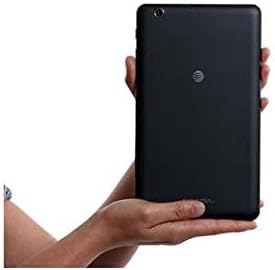
Image 3.2: The ZTE Trek 2 HD K88 Tablet held horizontally in two hands, demonstrating its comfortable and portable 8-inch form factor.
4. Priežiūra
4.1. Prietaiso valymas
Planšetiniam kompiuteriui valyti naudokite minkštą, nepūkuotą šluostę. Įsisenėjusias dėmes šiek tiek nuvalykite.ampNuvalykite šluostę vandeniu. Venkite naudoti stiprias chemines medžiagas, abrazyvinius valiklius ar aerozolinius purškalus, nes jie gali pažeisti ekraną ir apdailą.
4.2. Programinės įrangos atnaujinimai
Periodically check for software updates to ensure your tablet has the latest features and security patches. Go to Nustatymai > Apie planšetę > Sistemos atnaujinimai.
4.3. Sandėliavimo valdymas
Reguliariai tvarkykite planšetinio kompiuterio atmintį, kad palaikytumėte optimalų našumą. Ištrinkite nereikalingus files, pašalinkite nenaudojamas programas ir perkelkite didelius medijos failus files to a microSD card or cloud storage. Go to Nustatymai > Saugykla ir USB į view saugyklos naudojimas.
4.4. Akumuliatoriaus priežiūra
Norėdami pailginti baterijos veikimo laiką:
- Venkite ekstremalių temperatūrų.
- Neleiskite baterijai dažnai visiškai išsikrauti.
- Atjunkite įkroviklį, kai akumuliatorius bus pilnas.
- Adjust screen brightness and disable unused features like Wi-Fi or Bluetooth when not needed.
5. Problemų sprendimas
5.1. Dažnos problemos ir sprendimai
| problema | Sprendimas |
|---|---|
| Planšetinis kompiuteris neįsijungia | Įsitikinkite, kad akumuliatorius įkrautas. Paspauskite ir palaikykite maitinimo mygtuką bent 10–15 sekundžių, kad priverstumėte įrenginį paleisti iš naujo. |
| Wi-Fi ryšio problemos | Iš naujo paleiskite planšetinį kompiuterį ir „Wi-Fi“ maršrutizatorių. Pamirškite tinklą „Wi-Fi“ nustatymuose ir prijunkite iš naujo. |
| Programėlės stringa arba užstringa | Close and reopen the app. Clear the app's cache (Settings > Apps > [App Name] > Storage > Clear cache). Restart the tablet. |
| Lėtas veikimas | Uždarykite nenaudojamas programas. Išvalykite talpyklą. Atlaisvinkite vietos saugykloje. Paleiskite planšetinį kompiuterį iš naujo. |
5.2. Gamyklinių parametrų atkūrimas
If issues persist, a factory reset may resolve them. This will erase all data on your tablet, so back up important information first. Go to Nustatymai > Atsarginė kopija ir nustatymas iš naujo > Atstatyti gamyklinius duomenis.
6. Specifikacijos
| Funkcija | Detalė |
|---|---|
| Prekės ženklas | ZTE |
| Modelio pavadinimas | K88 |
| Operacinė sistema | Android 6.0 Marshmallow |
| Ekrano dydis | 8 colių |
| Ekrano raiška | 1280 x 800 (HD) |
| Procesorius | „Qualcomm Snapdragon 617“ aštuonių branduolių (1.5 GHz) |
| RAM atmintis | 2 GB |
| Sandėliavimo talpa | 16 GB (išplečiama iki 128 GB su „microSD“ kortele) |
| Galinė kamera | 5 MP |
| Priekinė kamera | 5 MP |
| Baterijos talpa | 4600 mAh (up to 10 hours average life) |
| Ryšys | Wi-Fi (802.11n), 4G-LTE (AT&T) |
| Garsas | Dolby Audio, Dual Front-Facing Speakers |
| Svoris | 1.3 svaro |
| Pridedami priedai | Maitinimo adapteris |
7. Garantija ir palaikymas
7.1. Informacija apie garantiją
This ZTE Trek 2 HD K88 Tablet comes with a 90-day limited warranty. Please refer to your purchase documentation for specific terms and conditions regarding warranty claims.
7.2. Pagalba klientams
For further assistance, technical support, or warranty inquiries, please contact the retailer or ZTE customer service. You may also visit the official ZTE support webDUK ir papildomų išteklių svetainė.