
1. Įvadas
This manual provides essential instructions for the proper use and care of your ProCase Leather Protective Stand Folio Case. Designed to offer robust protection and enhanced functionality, this case is compatible with specific Lenovo 10.1-inch tablet models. Please read this manual thoroughly to ensure optimal performance and longevity of your product.
2. Suderinamumas
This ProCase folio case is specifically designed for the following 10.1-inch Lenovo tablet models:
- Lenovo Tab P10: Models TB-X705F, TB-X705L
- Lenovo Tab M10 HD: Models TB-X505F, TB-X505L
- Lenovo Tab M10: Models TB-X605F, TB-X605L
Norėdami patikrinti planšetinio kompiuterio modelio numerį, eikite į Nustatymai > Apie planšetę > Modelio numeris savo įrenginyje.
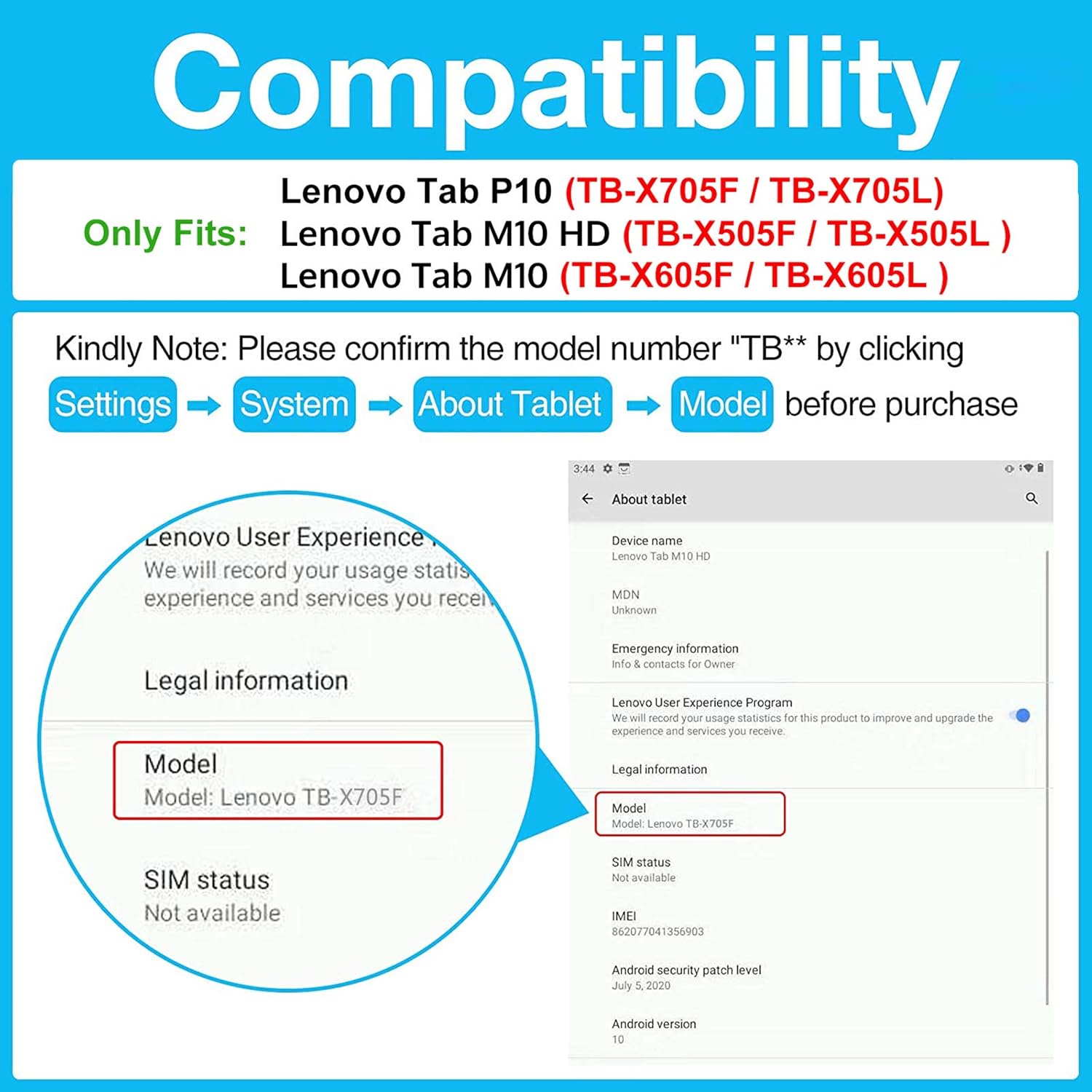
Figure 2.1: Visual guide for checking tablet compatibility and model numbers.
3. Pakuotės turinys
Your ProCase Leather Protective Stand Folio Case package should contain:
- 1 x ProCase Leather Protective Stand Folio Case
- 1 x Installation Guide/Instruction Card
Please inspect all items upon receipt. If any components are missing or damaged, contact customer support.
4. Sąranka ir diegimas
Follow these steps to properly install your tablet into the ProCase folio case:
- Išpakuokite dėklą: Carefully remove the case from its packaging. Remove any internal foam or paper inserts.
- Atidarykite bylą: Lay the case flat on a clean surface and open the front cover. Locate the Velcro flap designed to secure your tablet.
- Įdėkite planšetinį kompiuterį: Gently slide your tablet into the main compartment of the case, ensuring it aligns with the frame. Push the tablet firmly towards the top edge of the case.
- Saugus planšetinis kompiuteris: Fold the Velcro flap under the tablet and firmly press it onto the corresponding Velcro tab (uncut pile) to secure your device in place. Ensure all corners are properly seated within the case's frame.
- Patikrinkite tinkamumą: Verify that all ports, buttons, and cameras are accessible through the precise cutouts.
Video 4.1: General installation guide for ProCase Vintage Stand Folio Cover. While this video features an iPad Pro, the installation steps are similar for your Lenovo tablet.

Figure 4.1: Open case interior, ready for tablet insertion.

Figure 4.2: Precise cutouts ensure full access to all tablet features.
5. Veikimo funkcijos
Your ProCase folio case offers several features to enhance your tablet experience:
5.1 Keli Viewing and Typing Angles
The case features three anti-slip stripes on the interior cover, allowing you to set up your tablet in multiple horizontal stand angles. This is ideal for hands-free viewing of videos, reading, or comfortable typing.

Figure 5.1: Tablet positioned in a stand angle for viewing.
5.2 Automatinio miego / pabudimo funkcija
The integrated magnetic closure supports your tablet's auto sleep/wake function. Closing the cover will put your tablet to sleep, and opening it will wake it up, conserving battery life.
5.3 Built-in Stylus Pen Holder
An elastic loop is built into the side of the case to securely hold your stylus pen, keeping it conveniently at hand when needed.

Figure 5.2: Front pocket and integrated stylus pen holder.
5.4 Front Document Pocket
The front cover features a large document card pocket, providing a convenient space to store small papers, cards, or other personal belongings.
6. Priežiūra
To maintain the appearance and functionality of your ProCase folio case:
- Valymas: Išorę nuvalykite minkšta, damp skudurėliu. Venkite stiprių cheminių medžiagų ar abrazyvinių valiklių.
- Saugykla: Nenaudojamą dėklą laikykite vėsioje, sausoje vietoje, toliau nuo tiesioginių saulės spindulių ir ekstremalių temperatūrų.
- Venkite perpildymo: Do not overfill the document pocket, as this may stretch the material or prevent the case from closing properly.
7. Problemų sprendimas
If you encounter any issues with your case, consider the following:
- Tablet Does Not Fit: Double-check your tablet's model number against the compatibility list in Section 2. Ensure the tablet is inserted correctly and fully seated within the frame.
- Stand Slips: Ensure the tablet is placed firmly into one of the anti-slip grooves. The grooves are designed to provide stability on flat surfaces.
- Automatinis miego / pabudimo režimas neveikia: Confirm your tablet's settings allow for magnetic sleep/wake functionality. Ensure the case is closed completely and the magnetic flap is aligned.
For further assistance, please contact ProCase customer support.
8. Specifikacijos
| Funkcija | Detalė |
|---|---|
| Prekės ženklas | ProCase |
| Modelio numeris | PC 08361488 |
| Suderinami įrenginiai | Lenovo Tab P10/M10/M10 HD 10.1" (TB-X705F, TB-X705L, TB-X505F, TB-X505L, TB-X605F, TB-X605L) |
| Spalva | Juoda |
| Medžiaga | Leather (Composition) |
| Formos faktorius | Folio dėklas |
| Papildomos funkcijos | Anti-Slip Stand, Magnetic Closure (Auto Sleep/Wake), Stylus Holder, Front Document Pocket |
| Prekės matmenys | 6.58 x 9.52 x 0.28 colio |
| Prekės svoris | 3.5 uncijos |
9. Garantija ir palaikymas
ProCase products are designed for quality and durability. For information regarding warranty coverage, returns, or technical support, please refer to the contact information provided with your purchase or visit the official ProCase website. Please have your model number (PC-08361488) and purchase details ready when contacting support.