
1. Įvadas
Thank you for choosing the Gembird MUS-6B-01 Optical USB Mouse. This manual provides essential information for setting up, operating, maintaining, and troubleshooting your new mouse. Please read these instructions carefully to ensure optimal performance and longevity of your device.

Image: The official Gembird brand logo, featuring the company name in a stylized font with a geometric design.
2. Produktas baigtasview
The Gembird MUS-6B-01 is a reliable 6-button optical USB mouse designed for comfortable and precise navigation. Its ambidextrous design makes it suitable for both left and right-handed users.
Pagrindinės funkcijos:
- Optinis sekimas: Provides smooth and accurate cursor control.
- 6 Mygtukai: Includes standard left/right click, scroll wheel, DPI adjustment, and two side buttons for enhanced functionality.
- USB jungtis: Simple plug-and-play connection to your computer.
- Abipusis dizainas: Comfortable for both left and right-handed users.
Komponentai:
- Kairiojo spustelėjimo mygtukas
- Dešiniuoju pelės mygtuku spustelėkite
- Slinkties ratukas (taip pat veikia kaip vidurinis spustelėjimo mygtukas)
- DPI reguliavimo mygtukas
- Pirmyn mygtukas (šonas)
- Atgalinis mygtukas (šonas)
- Optical Sensor (underside)
- USB Connector (at the end of the cable)
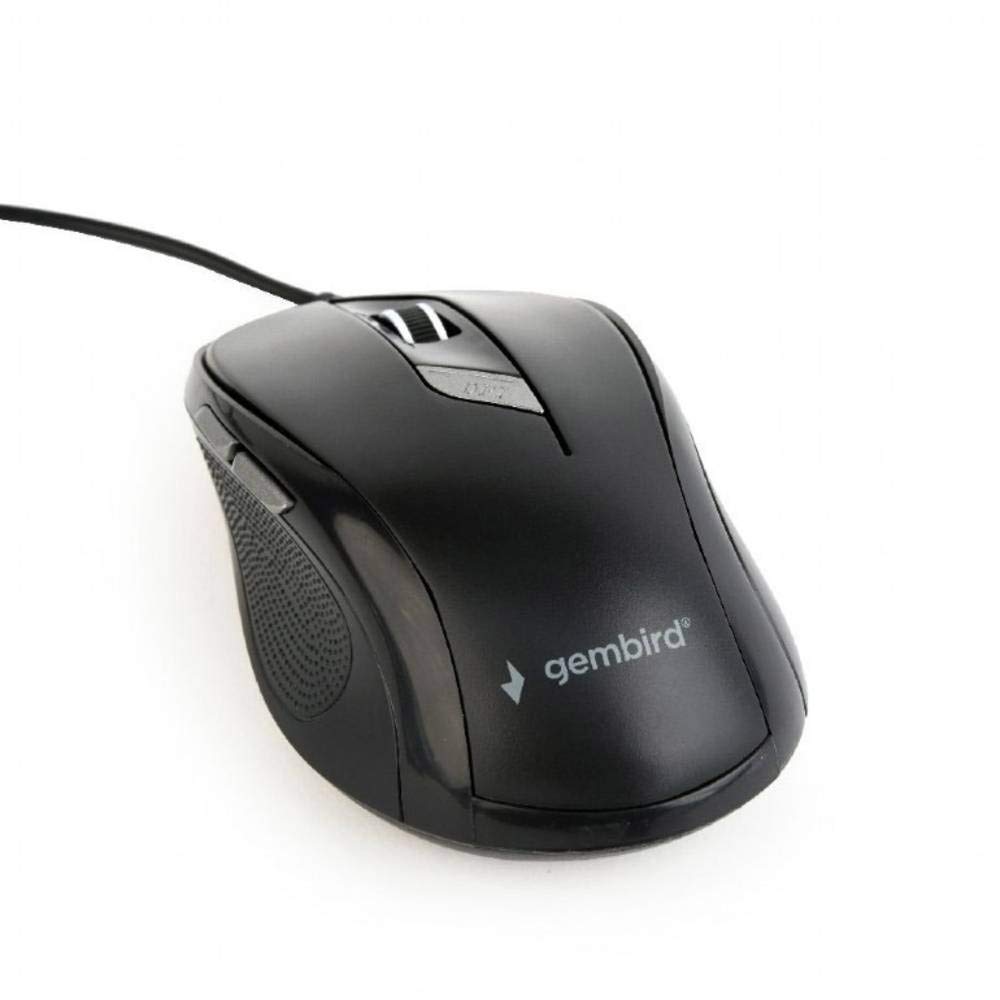
Paveikslėlis: Iš viršaus į apačią view of the Gembird MUS-6B-01 optical USB mouse. The mouse is black with a matte finish, featuring a scroll wheel, left and right click buttons, a DPI button, and two side buttons. A black USB cable extends from the front of the mouse.
3. Sąranka
Setting up your Gembird MUS-6B-01 mouse is a simple plug-and-play process.
Diegimo žingsniai:
- Kompiuteryje raskite laisvą USB prievadą.
- Plug the USB connector of the Gembird MUS-6B-01 mouse firmly into the USB port.
- Your operating system (Windows, Linux) will automatically detect and install the necessary drivers. This process may take a few moments.
- Įdiegus tvarkykles, pelė yra paruošta naudoti.
No additional software installation is typically required for basic functionality.
4. Naudojimo instrukcijos
Familiarize yourself with the functions of each button on your Gembird MUS-6B-01 mouse.
Pagrindinės funkcijos:
- Kairysis spustelėjimas: Primary action, selecting items, opening files.
- Dešiniuoju pelės mygtuku spustelėkite: Opens context menus, provides additional options.
- Slinkties ratukas: Slinkite aukštyn arba žemyn per dokumentus ir web puslapių.
- Vidurinis spustelėjimas (slinkties ratuko paspaudimas): Often used to open links in new tabs or for specific application functions.
Išplėstinės funkcijos:
- DPI reguliavimo mygtukas: Located behind the scroll wheel, this button allows you to cycle through different sensitivity (DPI) settings. Press it to change the cursor speed to suit your preference.
- Pirmyn mygtukas (šonas): Typically navigates forward in web naršyklės arba file tyrinėtojai.
- Atgalinis mygtukas (šonas): Typically navigates backward in web naršyklės arba file tyrinėtojai.
The functionality of the side buttons may vary depending on the application or operating system settings. Some operating systems allow customization of these buttons.
5. Priežiūra
Proper care will help extend the life of your Gembird MUS-6B-01 mouse.
Valymas:
- Prieš valydami atjunkite pelę nuo kompiuterio.
- Naudokite minkštą, šiek tiek damp, lint-free cloth to wipe the surface of the mouse.
- For stubborn dirt, a small amount of mild soap solution can be applied to the cloth (not directly to the mouse).
- Aplink slinkties ratuką ir tarp mygtukų nuvalykite vatos tamponu arba suslėgtu oru.
- Ensure the optical sensor on the underside is clean and free of dust or debris.
- Nenaudokite stiprių cheminių medžiagų, abrazyvinių valiklių ir nemerkite pelės į vandenį.
Saugykla:
When not in use for extended periods, store the mouse in a clean, dry environment away from extreme temperatures and direct sunlight.
6. Problemų sprendimas
If you encounter issues with your Gembird MUS-6B-01 mouse, try the following troubleshooting steps:
| Problema | Galimas sprendimas |
|---|---|
| Pelė nereaguoja |
|
| Erratic or jumpy cursor movement |
|
| Neveikia mygtukai |
|
7. Specifikacijos
Detailed technical specifications for the Gembird MUS-6B-01 Optical USB Mouse:
| Funkcija | Specifikacija |
|---|---|
| Prekės ženklas | Gembird |
| Modelio pavadinimas | MUS-6B-01 |
| Ryšio technologija | Laidinis (USB) |
| Judesio aptikimo technologija | Optinis |
| Mygtukų kiekis | 6 |
| Rankų orientacija | Abipusis |
| Suderinamos operacinės sistemos | „Linux“, „Windows 7“, „Windows XP“ (ir naujesnės versijos) |
| Aparatinės įrangos platforma | Asmeninis kompiuteris |
| Kabelio ilgis | 5.0 metrų |
| Prekės svoris | 74 gramų |
| Medžiaga | Plastikiniai |
| Spalva | Juoda |
| Reikalingos baterijos | Nr |
8. Saugos informacija
Prašome laikytis šių saugos nurodymų:
- Saugokite pelę nuo vandens ar per didelės drėgmės.
- Saugokitės, kad pelė nenumestų arba nepaveiktų stipraus smūgio.
- Nebandykite patys ardyti ar taisyti pelės. Kreipkitės į kvalifikuotus techninės priežiūros darbuotojus.
- Saugokite įrenginį nuo ekstremalių temperatūrų ir tiesioginių saulės spindulių.
- Elektronines atliekas utilizuokite atsakingai, laikydamiesi vietinių taisyklių.
9. Garantija ir palaikymas
Gembird products are designed for reliability and performance. For specific warranty terms and conditions, please refer to the warranty card included with your product or visit the official Gembird website. For technical support or further assistance, please contact your retailer or the Gembird customer service department.