
1. Įvadas
This manual provides essential information for the proper use and maintenance of your Zentality C-710 10-inch Dual SIM Tablet. Please read this guide thoroughly before operating the device to ensure optimal performance and longevity. Keep this manual for future reference.
2. Produktas baigtasview
The Zentality C-710 is a 10-inch Android tablet designed for communication and multimedia. It features dual SIM card support for cellular connectivity, a Quad-Core processor, 1GB RAM, and 16GB of internal storage. The device includes front and rear cameras, Bluetooth, and a vibrant IPS LCD display.
2.1 Įrenginio komponentai
Familiarize yourself with the tablet's physical features and controls.

1 vaizdas: Priekyje ir gale view of the Zentality C-710 Tablet, showing the screen, cameras, and rear casing.
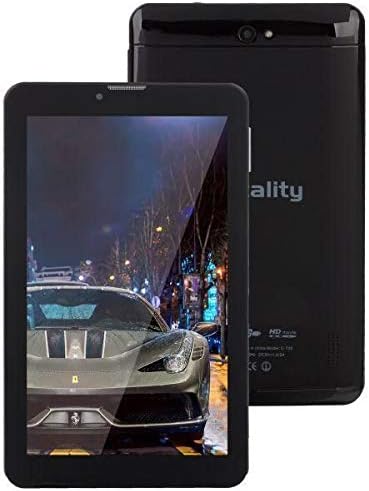
2 vaizdas: Priekyje view of the Zentality C-710 Tablet with the screen displaying an image, highlighting the display area.
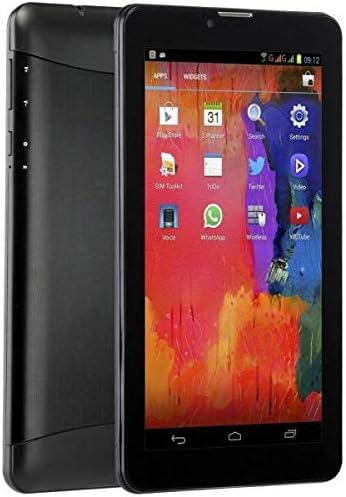
3 vaizdas: Šoninė view of the Zentality C-710 Tablet, illustrating the placement of physical buttons and ports.
3. Sąranka
3.1 Akumuliatoriaus įkrovimas
Before first use, fully charge the tablet's battery. Connect the provided charger to the tablet's charging port and plug it into a power outlet. The battery indicator on the screen will show charging status. A full charge typically takes several hours.
3.2 SIM kortelių įdėjimas
The Zentality C-710 supports dual SIM cards for cellular network access. Locate the SIM card slot(s) on the side or back of the tablet. Carefully insert your standard or micro SIM cards into the designated slots, ensuring they are correctly oriented as indicated by the diagram near the slot. Close the tray securely.
3.3 „MicroSD“ kortelės įdėjimas
To expand storage, insert a microSD card (up to 32GB, not included) into the dedicated slot. Ensure the card is oriented correctly before gently pushing it in until it clicks into place.
3.4 Įjungimas / išjungimas
To power on, press and hold the Power button until the Zentality logo appears. To power off, press and hold the Power button until the power options menu appears, then select 'Power off'.
3.5 Pradinė sąranka
Upon first power-on, follow the on-screen prompts to select your language, connect to a Wi-Fi network, set up your Google account, and configure other basic settings.
4. Operacinis
4.1 Jutiklinio ekrano gestai
Navigate your tablet using standard Android touchscreen gestures:
- Bakstelėkite: Pasirinkite elementą arba atidarykite programą.
- Palieskite ir palaikykite: Pasiekite kontekstinius meniu arba perkelkite piktogramas.
- Perbraukimas: Slinkite per ekranus arba sąrašus.
- Žiupsnelis: Priartinkite arba atitolinkite vaizdus ir web puslapių.
4.2 Prisijungimas prie „Wi-Fi“.
Eikite į Nustatymai > Tinklas ir internetas > „Wi-Fi“. Turn Wi-Fi on, then select your desired network from the list and enter the password if required.
4.3 Prisijungimas prie „Bluetooth“ įrenginių
Eikite į Nustatymai > Prijungti įrenginiai > „Bluetooth“. Turn Bluetooth on, then select 'Pair new device' and choose your device from the list to connect.
4.4 Making Calls (3G)
With an active SIM card, you can make and receive calls. Open the 'Phone' application, dial the number, and press the call button.
4.5 Kameros naudojimas
Open the 'Camera' application. Tap the shutter button to take photos. Switch between front and rear cameras using the camera toggle icon. Adjust settings like flash and mode as needed.
4.6 Programų tvarkymas
Download new applications from the Google Play Store. To uninstall an app, tap and hold its icon on the home screen or app drawer, then drag it to the 'Uninstall' option.
5. Priežiūra
5.1 Planšetinio kompiuterio valymas
Use a soft, lint-free cloth to clean the screen and body of the tablet. Avoid using harsh chemicals or abrasive materials, which can damage the display or finish. For stubborn smudges, slightly dampNuvalykite šluostę vandeniu arba elektronikos ekranams skirtu valikliu.
5.2 Akumuliatoriaus priežiūra
To prolong battery life, avoid extreme temperatures. Do not leave the tablet charging for extended periods after it's full. If storing the tablet for a long time, ensure the battery is charged to about 50%.
5.3 Programinės įrangos naujiniai
Reguliariai tikrinkite, ar yra sistemos naujinimų, ir juos įdiekite, kad planšetiniame kompiuteryje būtų įdiegtos naujausios funkcijos, saugos pataisymai ir našumo patobulinimai. Eikite į Nustatymai > Sistema > Sistemos naujinimas.
6. Problemų sprendimas
6.1 Planšetinis kompiuteris neįsijungia
Ensure the battery is sufficiently charged. Connect the charger and wait a few minutes before attempting to power on again. If the issue persists, try a different charger or contact support.
6.2 „Wi-Fi“ ryšio problemos
Check if Wi-Fi is enabled in settings. Restart your tablet and your Wi-Fi router. Ensure you are entering the correct password. If the problem continues, try forgetting the network and reconnecting.
6.3 Lėtas veikimas
Close unnecessary background applications. Clear cache data from apps in Nustatymai > Programėlės ir pranešimai > [Programėlės pavadinimas] > Atmintis ir talpykla > Išvalyti talpyklą. Consider uninstalling unused apps or performing a factory reset as a last resort (back up your data first).
6.4 App Crashes
Ensure the app is updated to its latest version. Clear the app's cache and data (this will reset the app). If the issue persists, uninstall and reinstall the app.
7. Specifikacijos
| Funkcija | Specifikacija |
|---|---|
| Prekės ženklas | Zentality |
| Modelio pavadinimas | C-710 |
| Ekrano ekrano dydis | 10 colių |
| Ekrano tipas | IPS LCD |
| Operacinė sistema | Android |
| Procesorius | Keturių branduolių |
| Įdiegtos RAM dydis | 1 GB |
| Atminties talpa | 16 GB |
| Cellular Network Technology | 3G |
| Number of SIM Cards | Dvi SIM kortelės |
| Ryšio tipas | Mobilusis ryšys, „Bluetooth“ |
| Galinės kameros skiriamoji geba | 5 megapikselio |
| Priekyje Webkumštelio raiška | 1.3 megapikselio |
| Baterijos talpa | 4000 mAh |
| Spalva | Juoda |
| Prekės svoris | 940 gramų |
| Pakuotės matmenys | 27.4 x 27 x 3.8 cm |
| Pasiekiama pirmoji data | 23 m. liepos 2019 d |
8. Garantija ir palaikymas
For warranty information and technical support, please refer to the documentation included with your purchase or visit the official Zentality websvetainėje. Išsaugokite pirkimo įrodymą garantiniams reikalavimams.