
1. Įvadas
This manual provides detailed instructions for the installation, operation, and maintenance of your Pantum BM2300AW Multifunction Printer. This device is designed to perform printing, scanning, and copying functions efficiently. Please read this manual thoroughly before using the printer to ensure proper operation and to prevent damage.
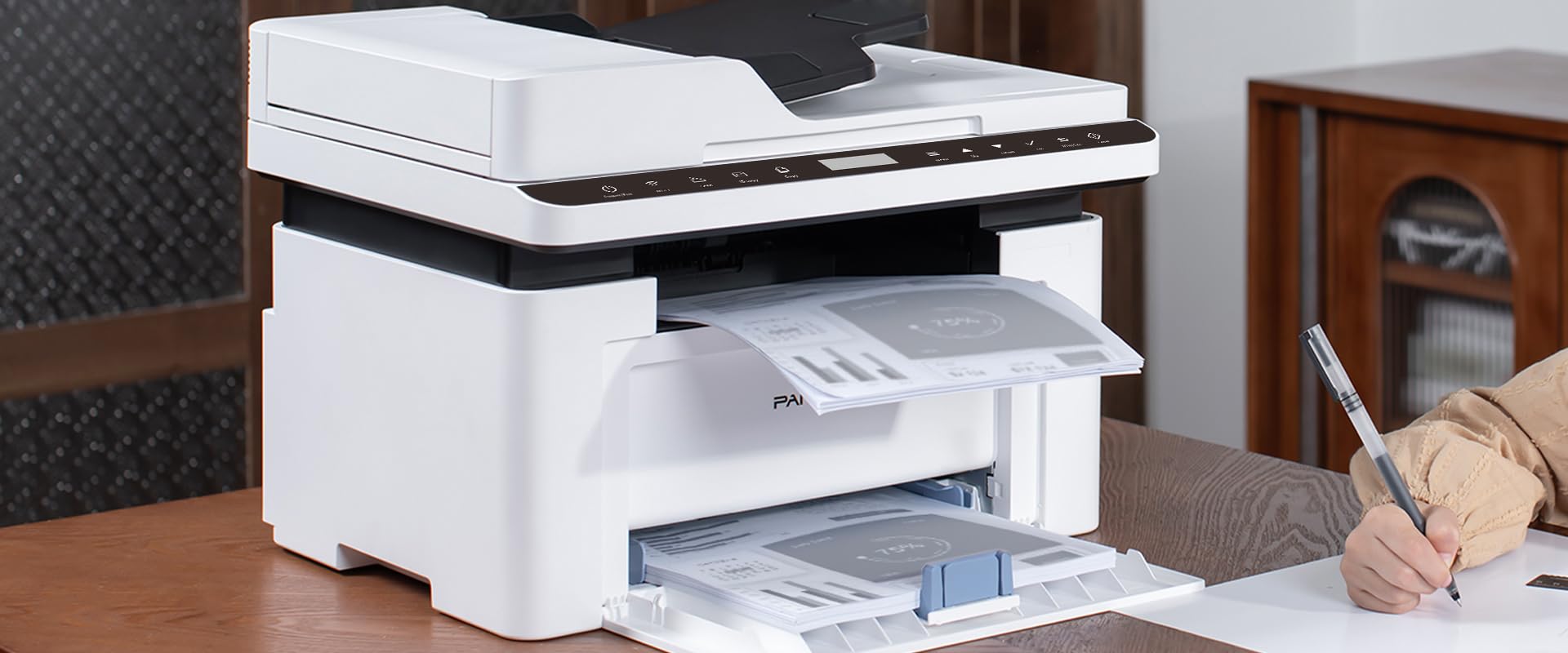
Image 1.1: The Pantum BM2300AW Multifunction Printer in use, showing paper in both the output and input trays. A user is seen writing nearby.
2. Sąranka
2.1 Išpakavimas
- Atsargiai išimkite spausdintuvą iš pakuotės.
- Remove all protective tapes and packing materials from the exterior and interior of the printer. Refer to the quick setup guide for specific locations.
- Pastatykite spausdintuvą ant stabilaus, lygaus paviršiaus, kuriame būtų tinkama ventiliacija.
2.2 Maitinimo prijungimas
- Prijunkite maitinimo laidą prie spausdintuvo maitinimo įvesties.
- Kitą maitinimo laido galą įkiškite į įžemintą elektros lizdą.
- Paspauskite maitinimo mygtuką, kad įjungtumėte spausdintuvą.
2.3 Tonerio kasetės įdėjimas
- Atidarykite priekinį spausdintuvo dangtį.
- Gently shake the toner cartridge horizontally several times to distribute the toner evenly.
- Įkiškite tonerio kasetę į spausdintuvą, kol ji spragtelės ir užsifiksuos vietoje.
- Uždarykite priekinį dangtelį.
2.4 Popieriaus įdėjimas
- Ištraukite popieriaus dėklą.
- Sureguliuokite popieriaus kreipiklius pagal įdedamo popieriaus dydį.
- Įdėkite popieriaus krūvą į dėklą, užtikrindami, kad ji būtų plokščia ir žemiau maksimalaus užpildymo linijos.
- Įstumkite popieriaus dėklą atgal į spausdintuvą.
2.5 Driver Installation and Network Connection
- USB jungtis: Connect a USB cable from your computer to the printer's USB port. The operating system may automatically detect and install drivers. If not, proceed to step 3.
- Ethernet jungtis: Prijunkite eterneto kabelį prie tinklo maršrutizatoriaus arba perjunkite į spausdintuvo eterneto prievadą.
- Visit the official Pantum websvetainė (www.pantum.com) to download the latest drivers and software for your BM2300AW model.
- Vykdykite ekrane pateikiamas instrukcijas, kad užbaigtumėte tvarkyklės diegimą.
3. Naudojimo instrukcijos
3.1 Valdymo skydas baigtasview
The Pantum BM2300AW features a 3-inch display screen and various buttons for navigation and function selection. Familiarize yourself with the layout for easy operation.
- Maitinimo mygtukas: Įjungia arba išjungia spausdintuvą.
- Meniu / Nustatymų mygtukas: Accesses printer settings and configuration options.
- Naršymo mygtukai: Used to scroll through menus on the display.
- Start mygtukas: Initiates print, copy, or scan jobs.
- Atšaukimo mygtukas: Sustabdo esamą operaciją.
3.2 Dokumentų spausdinimas
- Įsitikinkite, kad spausdintuvas įjungtas ir prijungtas prie kompiuterio arba tinklo.
- Atidarykite dokumentą, kurį norite spausdinti, savo kompiuteryje.
- Pasirinkite File > Spausdinti.
- Choose the Pantum BM2300AW from the list of available printers.
- Prireikus pakoreguokite spausdinimo nustatymus (pvz., kopijų skaičių, popieriaus dydį, dvipusį spausdinimą).
- Spustelėkite Spausdinti.
3.3 Dokumentų kopijavimas
- Padėkite dokumentą skenerio stiklu skenerio puse žemyn arba skenerio puse aukštyn į automatinį dokumentų tiektuvą (ADT).
- Spausdintuvo valdymo skydelyje pasirinkite Kopijuoti funkcija.
- Use the navigation buttons to adjust settings such as number of copies, copy quality, or enlargement/reduction.
- Paspauskite Pradėti mygtuką, kad pradėtumėte kopijuoti.
3.4 Dokumentų nuskaitymas
- Padėkite dokumentą ant skaitytuvo stiklo arba į ADF.
- On your computer, open the scanning software provided with your Pantum printer (or use a standard scanning application).
- Select the Pantum BM2300AW as your scanner.
- Pasirinkite nuskaitymo nustatymus, pvz., skiriamąją gebą, spalvų režimą ir paskirties aplanką.
- Spustelėkite Nuskaityti kad pradėtumėte nuskaitymo procesą.
4. Priežiūra
4.1 Tonerio kasetės keitimas
- When the printer indicates a low toner level, order a replacement cartridge.
- Išjunkite spausdintuvą ir atjunkite maitinimo laidą.
- Open the front cover and carefully remove the old toner cartridge.
- Unpack the new toner cartridge and gently shake it.
- Įkiškite naują kasetę į spausdintuvą, kol ji užsifiksuos vietoje.
- Close the front cover, plug in the power cord, and turn on the printer.
4.2 Spausdintuvo valymas
- Reguliariai valykite spausdintuvo išorę minkšta,amp, nepūkuojantis audinys.
- Clean the scanner glass with a glass cleaner applied to a cloth (not directly to the glass).
- Refer to the full user manual on the Pantum website for detailed internal cleaning procedures.
4.3 Įstrigusio popieriaus išėmimas
- If a paper jam occurs, the printer display will show an error message.
- Išjunkite spausdintuvą ir atjunkite jį.
- Open the covers and trays as indicated by the error message or the printer's internal diagrams.
- Carefully pull out any jammed paper in the direction of the paper path. Avoid tearing the paper.
- Close all covers and trays, plug in the printer, and turn it back on.
5. Problemų sprendimas
This section addresses common issues you might encounter. For more complex problems, consult the full user manual or contact Pantum support.
5.1 Spausdintuvas nereaguoja
- Įsitikinkite, kad spausdintuvas įjungtas, o maitinimo laidas tvirtai prijungtas.
- Check the USB or Ethernet cable connection between the printer and your computer/network.
- Patikrinkite, ar jūsų kompiuteryje įdiegta ir pasirinkta tinkama spausdintuvo tvarkyklė.
- Iš naujo paleiskite spausdintuvą ir kompiuterį.
5.2 Prasta spausdinimo kokybė
- Patikrinkite tonerio lygį ir, jei jo mažai, pakeiskite kasetę.
- Įsitikinkite, kad spausdinimo užduočiai naudojate tinkamą popierių.
- Clean the printer's internal components as per the maintenance section or full manual.
- Adjust print quality settings in your computer's print dialogue.
5.3 Paper Jams Occur Frequently
- Ensure paper is loaded correctly and the paper guides are adjusted snugly against the paper stack.
- Neperkraukite popieriaus dėklo.
- Naudokite popierių, kuris atitinka spausdintuvo specifikacijas (svorį, tipą).
- Check for any foreign objects inside the paper path.
6. Specifikacijos
| Funkcija | Detalė |
|---|---|
| Prekės ženklas | PANTUM |
| Modelio numeris | BM2300AW (Item No. S5627949) |
| Gaminio matmenys (D x P x A) | 35 x 35 x 25 centimetro |
| Prekės svoris | 10 kilogramo |
| Ryšio technologija | USB-Ethernet |
| Spausdinimo technologija | Spalvotas lazeris |
| Maksimalus vienspalvio spausdinimo greitis | 30 puslapių per minutę |
| Maksimalus spalvoto spausdinimo greitis | 15 puslapių per minutę |
| Maksimali nespalvoto spausdinimo raiška | 600x600 dpi or higher |
| Maksimali spalvoto spausdinimo raiška | 4800 x 1200 dpi |
| Dvipusis spausdinimas | Taip |
| Maksimalus laikmenos dydis | A3 |
| Max Sheet Feeding Capacity | 100 XNUMX lapų |
| Skaitytuvo tipas | Lapų padavimas |
| Ekrano dydis | 3 colių |
| Energijos suvartojimas | 50 vatų |
| Spalvos gylis | 36 bpp |
7. Informacija apie garantiją
The Pantum BM2300AW Multifunction Printer comes with a limited warranty. For specific terms, conditions, and duration of your warranty, please refer to the warranty card included with your product or visit the official Pantum websvetainėje. Išsaugokite pirkimo įrodymą garantiniams reikalavimams.
8. Pagalba klientams
For further assistance, technical support, driver downloads, or frequently asked questions, please visit the official Pantum support websvetainė:
You may also find contact information for your regional support center on the websvetainę.