
1. Įvadas ir pabaigaview
The Alienware Aurora R10 Gaming Desktop is engineered to deliver exceptional performance for gaming and demanding applications. Featuring an AMD Ryzen 7 3700X processor, AMD Radeon RX 5700 XT graphics, and a robust storage configuration, this system provides a powerful computing experience. Its innovative design prioritizes efficient airflow and ease of access for upgrades.

1 pav.: priekis view of the Alienware Aurora R10 Gaming Desktop, showcasing its distinctive design and front panel ports.
2. Sąrankos vadovas
Follow these steps to set up your Alienware Aurora R10 Gaming Desktop:
- Išpakavimas: Carefully remove the desktop from its packaging. Ensure all accessories, including the keyboard and mouse, are present.
- Vieta: Place the desktop on a stable, flat surface with adequate ventilation around all sides. Avoid placing it in enclosed spaces or near heat sources.
- Prijunkite išorinius įrenginius:
- Connect your monitor(s) to the appropriate display ports on the graphics card (DisplayPort, HDMI).
- Prijunkite pridedamą klaviatūrą ir pelę prie laisvų USB prievadų.
- Prijunkite visus kitus periferinius įrenginius, pvz., garsiakalbius, ausines ar išorinius diskus.
- Maitinimo jungtis: Connect the power cable to the power port on the rear of the desktop and then to a grounded electrical outlet.
- Pradinis įjungimas: Press the power button located on the front of the desktop. The system will boot into Windows 10 Home. Follow the on-screen instructions for initial setup.

2 pav.: galinis view of the Alienware Aurora R10, illustrating the various connectivity ports for peripherals and power.
3. Naudojimo instrukcijos
Your Alienware Aurora R10 comes pre-installed with Windows 10 Home, providing a familiar and intuitive operating environment. For optimal performance, ensure your system drivers and Windows updates are kept current.
3.1 Energijos valdymas
- Maitinimas: Press the Alienware head icon on the front panel.
- Išjungti: „Windows“ sistemoje spustelėkite mygtuką „Pradėti“, tada – „Maitinimas“ > „Išjungti“.
- Paleisti iš naujo: Click the Start button in Windows, then Power > Restart.
- Miegojimo rezimas: Click the Start button in Windows, then Power > Sleep.
3.2 AlienFX Lighting Control
The Alienware Aurora R10 features customizable AlienFX lighting. You can personalize the lighting zones on the front panel using the Alienware Command Center software, which is pre-installed on your system. This software allows you to choose from a wide range of colors and effects to match your setup or mood.
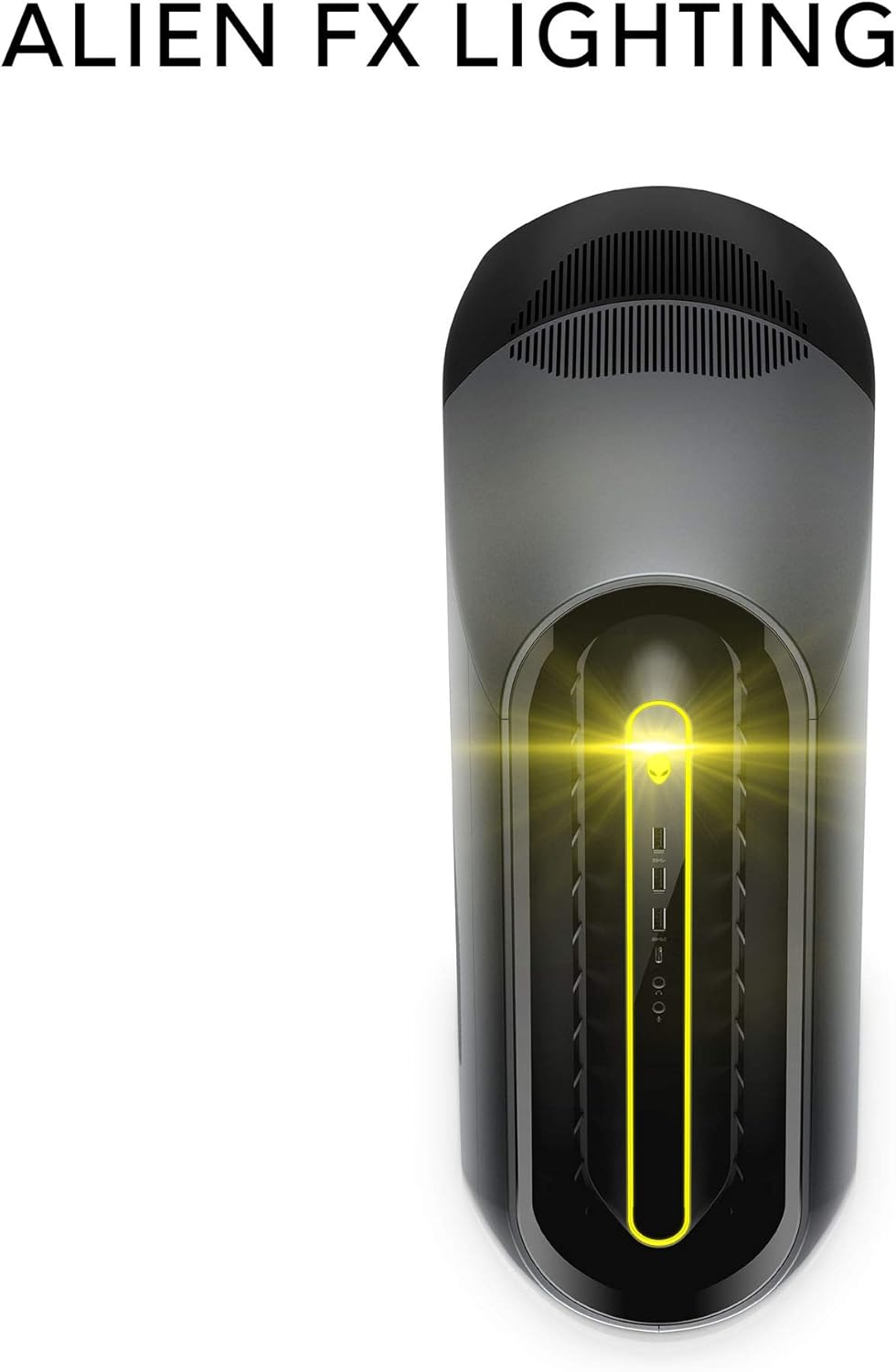
Figure 3: The AlienFX lighting system on the front of the desktop, offering personalized illumination.
3.3 Našumo optimizavimas
The Alienware Command Center also provides tools for performance monitoring and optimization, including fan speed control and overclocking options for advanced users. Refer to the software's built-in help for detailed instructions on these features.
1 vaizdo įrašas: Oficialus vaizdo įrašo demonstravimasasing the features and design of the Alienware Aurora R10 Gaming Desktop.
4. Pagrindinės savybės
The Alienware Aurora R10 is designed with several key features to enhance your computing and gaming experience:
- Galingas procesorius: Equipped with an AMD Ryzen 7 3700X (8-Core, 32MB L3 Cache, max boost clock of 4.4GHz) processor, providing robust performance for multitasking and demanding applications.
- Išplėstinė grafika: Features an AMD Radeon RX 5700 XT 8GB GDDR6 graphics card, delivering high frame rates and immersive visuals for modern games.
- PCI-Express 4.0 Technology: The first Alienware machine to feature PCI-Express 4.0, doubling the bandwidth available to graphics cards and other components for enhanced overall performance.
- Optimizuotas oro srautas: The Legend Industrial Design incorporates an improved airflow pattern, efficiently reducing CPU temperatures and allowing for more stable performance and higher overclocking potential.
- Hybrid Storage Solution: A combination of a 512GB M.2 PCIe NVMe SSD for fast boot times and application loading, paired with a 1TB 7200 RPM SATA 6 Gb/s HDD for ample saugojimo talpa.
- Tool-Less Entry: Designed for easy access to internal components, simplifying upgrades and maintenance.
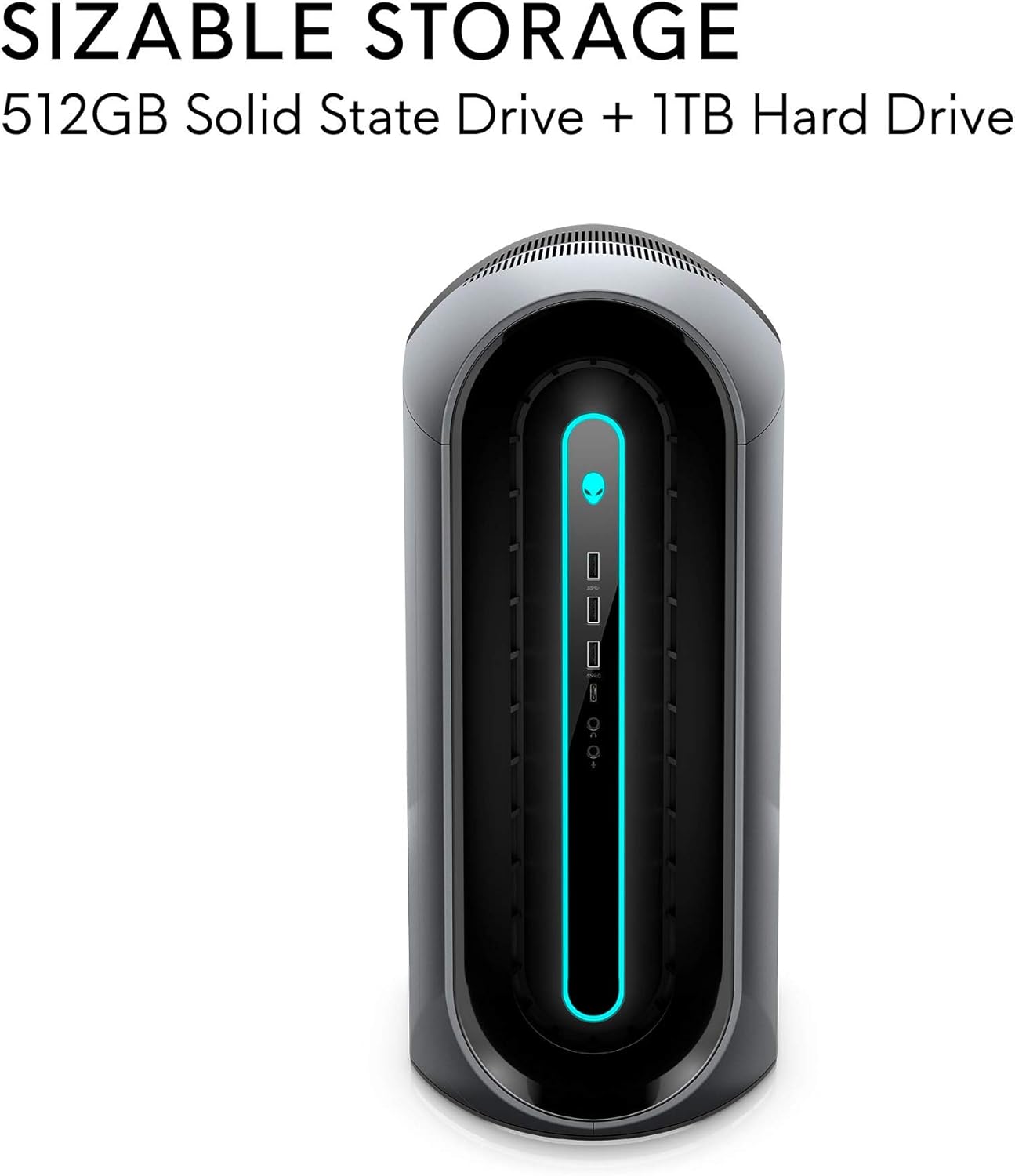
Figure 4: Illustration of the sizable storage configuration, combining SSD and HDD for speed and capacity.

Figure 5: The tool-less entry design of the desktop, allowing for convenient internal access.

Figure 6: Visual representation of the optimized airflow within the Aurora R10 chassis.

Figure 7: The AMD Radeon RX 5700 XT graphics card, a core component for high-performance gaming.
5. Priežiūra
Regular maintenance helps ensure the longevity and optimal performance of your Alienware Aurora R10.
- Dulkių šalinimas: Periodically clean the exterior and ventilation grilles with a soft, dry cloth. For internal components, use compressed air to gently remove dust from fans and heatsinks. Ensure the system is powered off and unplugged before cleaning.
- Programinės įrangos atnaujinimai: Regularly check for and install updates for Windows 10, graphics drivers (AMD Radeon Software), and Alienware Command Center. These updates often include performance improvements, security patches, and bug fixes.
- Kabelių valdymas: Ensure all cables are neatly organized and not obstructing airflow.
- Sistemos diagnostika: Utilize the diagnostic tools available through Alienware Command Center or Dell SupportAssist to check for hardware issues.

8 pav.: šonas view of the desktop, highlighting the large ventilation grilles crucial for maintaining optimal temperatures.
6. Problemų sprendimas
This section provides basic troubleshooting steps for common issues. For more complex problems, refer to the Alienware support websvetainėje arba susisiekite su technine pagalba.
- Nėra galios:
- Įsitikinkite, kad maitinimo laidas yra tvirtai prijungtas tiek prie stalinio kompiuterio, tiek prie elektros lizdo.
- Patikrinkite, ar maitinimo lizdas veikia, prijungdami prie jo kitą įrenginį.
- Check the power supply unit (PSU) for any indicator lights or unusual noises.
- Nėra ekrano:
- Confirm the monitor is powered on and connected to the correct display port on the graphics card.
- Jei įmanoma, išbandykite kitą ekrano kabelį arba monitorių.
- Ensure the graphics card is properly seated in its slot (requires opening the chassis).
- Sistemos sulėtėjimo / našumo problemos:
- Uždarykite nereikalingas fonines programas.
- Check for and install all available Windows updates and driver updates.
- Monitor system temperatures using Alienware Command Center to ensure components are not overheating.
- Run a full system scan for malware or viruses.
- Neįprasti garsai:
- Loud fan noise may indicate dust buildup or high temperatures. Clean the fans and ensure proper airflow.
- Clicking or grinding noises from the hard drive may indicate a failing drive. Back up your data immediately and contact support.
7. Specifikacijos
| Funkcija | Specifikacija |
|---|---|
| Prekės ženklas | Alienware |
| Serija | „Aurora R10“ |
| Prekės modelio numeris | AWAUR10-A886BLK-PUS |
| Procesorius | AMD Ryzen 7 3700X (8-Core, 4.4 GHz Max Boost) |
| RAM | 16 GB 2933MHz DDR4 XMP dual channel HyperX Fury |
| Kietasis diskas | 512 GB M.2 PCIe NVMe SSD Boot + 1 TB 7200 RPM SATA 6 Gb/s Storage |
| Grafikos koprocesorius | AMD Radeon RX 5700 XT 8GB GDDR6 |
| Operacinė sistema | Windows 10 Home |
| Aparatinės įrangos platforma | Windows |
| Prekės svoris | 38.5 svaro |
| Spalva | Dark Side Of The Moon |
| USB 2.0 prievadų skaičius | 6 |
| USB 3.0 prievadų skaičius | 1 |
| Galimi atminties lizdai | 4 |
8. Kas yra dėžutėje
Your Alienware Aurora R10 Gaming Desktop package includes:
- Alienware Aurora R10 žaidimų darbalaukis
- Klaviatūra
- Pelė
- Maitinimo kabelis
9. Garantija ir palaikymas
Your Alienware Aurora R10 Gaming Desktop comes with a standard manufacturer's warranty. For detailed warranty information, technical support, and service requests, please visit the official Alienware support website or Dell's customer service portal.
Daugiau informacijos ir pagalbos išteklių galite rasti apsilankę Alienware Store on Amazon.