
1. Įvadas
The Waveshare 4.3-inch HDMI LCD (B) is a compact, high-resolution display featuring an 800x480 IPS panel with capacitive touch functionality. It is designed for use with various mini-PCs, including Raspberry Pi, Jetson Nano, BB Black, and Banana Pi, as well as general desktop computers. This manual provides detailed instructions for setup, operation, and troubleshooting to ensure optimal performance.

Image 1.1: Waveshare 4.3-inch HDMI LCD (B) display. This image shows the front view of the display, highlighting its compact size and clear screen.
2. Pakuotės turinys
Patikrinkite, ar pakuotėje yra visi toliau išvardyti daiktai:
- 4.3inch HDMI LCD (B) x1
- HDMI kabelis x1
- USB type A plug to micro B plug cable x1
- HDMI adapter (B) x1
- USB adapter (B) x1
- HDMI to Micro HDMI adapter (C) x1
- USB adapter (C) x1
- Varžtų pakuotė x1
Note: Raspberry Pi boards and external speakers (8Ω 5W) are NOT included with this product.
3. Sąranka
3.1. Jungtys
To connect the display to your host device:
- Connect the HDMI cable from your device (e.g., Raspberry Pi, PC) to the HDMI port on the LCD.
- Connect the USB cable from your device to the USB touch port on the LCD. This connection provides power to the display and enables touch functionality.
- For Raspberry Pi Zero/Zero W/Zero WH, use the provided Mini HDMI Converter Adapter and USB Converter Adapter for proper connection.
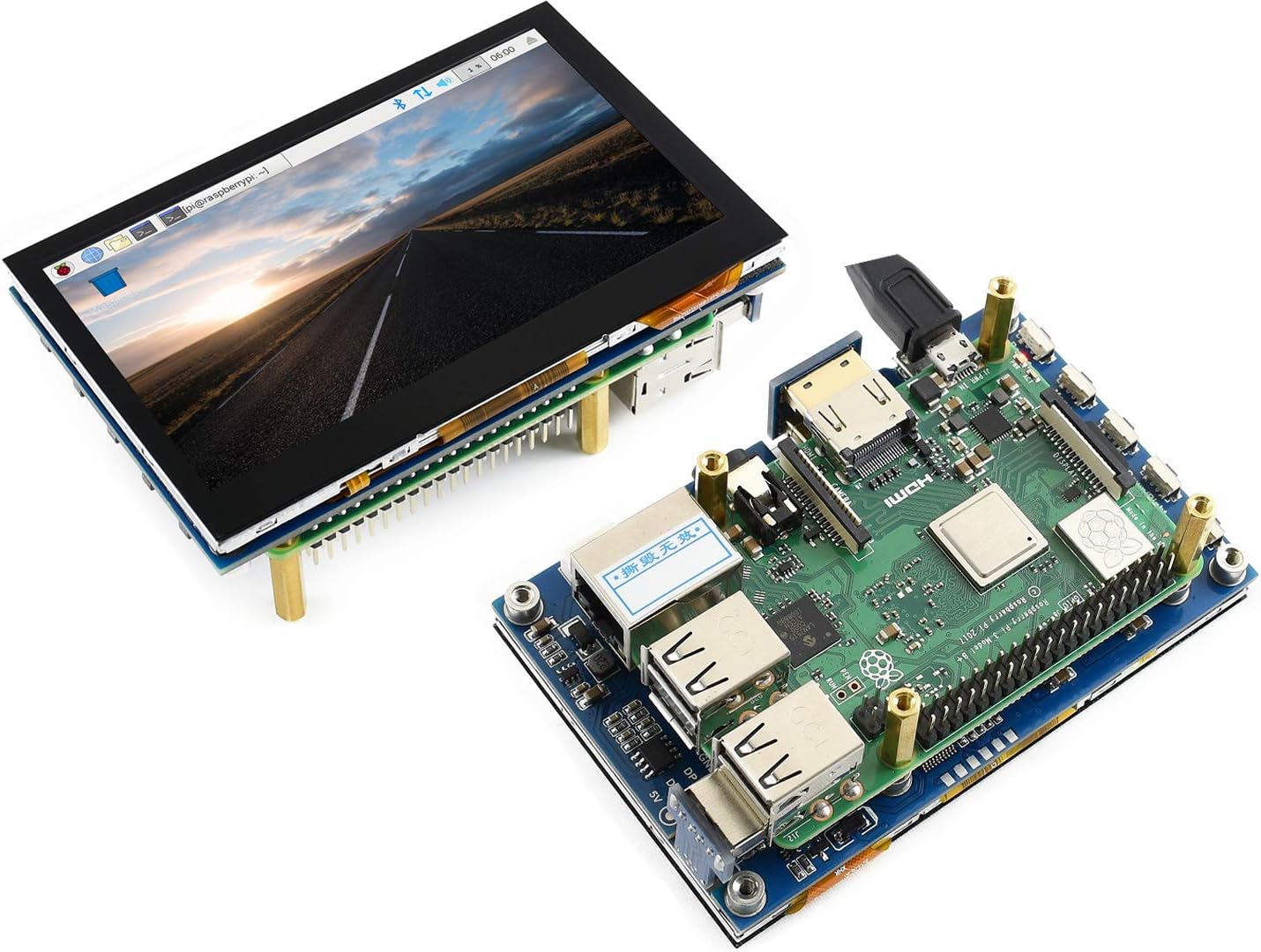
Image 3.1: The 4.3-inch HDMI LCD (B) connected to a Raspberry Pi. This image illustrates the physical connection of the display to a Raspberry Pi board using standoffs.

Image 3.2: Connection diagrams for various mini-PCs. This image displays how to connect the LCD to a Mini PC, Raspberry Pi 4, and Raspberry Pi Zero W, showing HDMI and USB cable routing.
3.2. Maitinimo šaltinis
The display is powered via the USB connection from your host device. Ensure your host device provides sufficient power (typically 5V) to the USB port to operate the display reliably.
3.3. Operating System Configuration
Raspberry Pi: When used with Raspberry Pi, the display supports Raspbian, Ubuntu, Kali, Retropie, and WIN10 IOT operating systems. It is generally driver-free for these systems. For optimal display resolution and touch calibration, specific configuration steps may be required depending on the OS version. Refer to the Waveshare wiki or official Raspberry Pi documentation for detailed OS-specific setup instructions.
„Windows“: When functioning as a computer monitor with Windows 10/8.1/8/7, the display supports five-point touch functionality and is driver-free. No additional software installation is typically required for basic operation.
4. Naudojimo instrukcijos
4.1. Palieskite funkcionalumą
The display features a capacitive touch screen supporting five-point touch input. This allows for intuitive interaction with compatible operating systems and applications. Ensure the USB touch cable is securely connected to enable this feature.
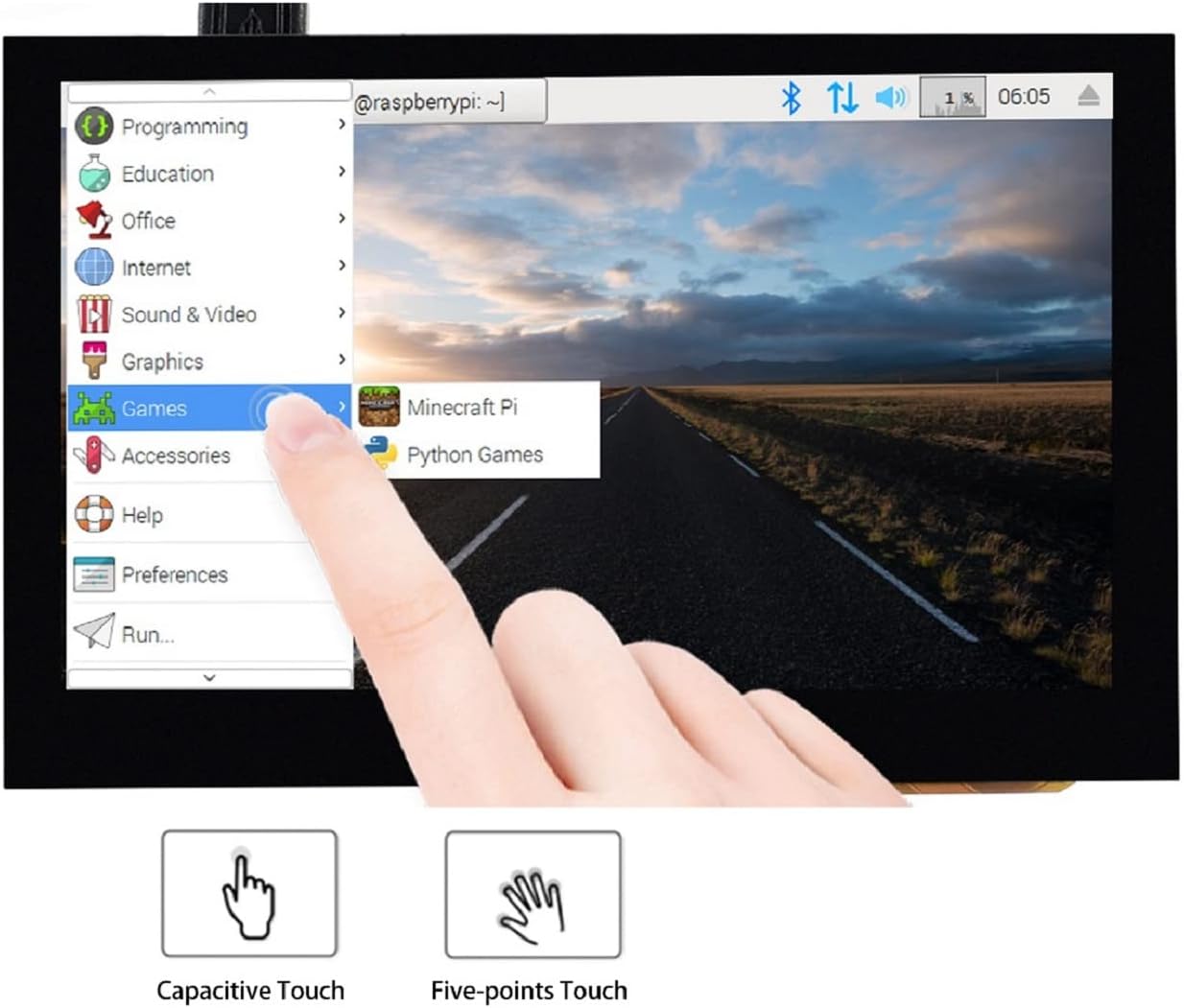
Image 4.1: Touch interaction with the display. This image shows a finger touching the screen, demonstrating the capacitive touch capability.
4.2. OSD meniu
The On-Screen Display (OSD) menu allows you to adjust various display settings. Access the OSD menu using the physical buttons located on the display's side or back. Options typically include:
- Galios valdymas: Control display power states.
- Ryškumas / kontrastas: Adjust screen luminance and contrast levels.
- Spalvų nustatymai: Fine-tune color temperature and saturation.
- Kraštinių santykis: Pasirinkite ekrano kraštinių santykį.
- Kalba: Choose OSD menu language.
4.3. Garso išvestis
The display supports HDMI audio output from the connected device. It includes a 3.5mm audio jack for connecting headphones or external speakers, and a dedicated speaker connector for direct speaker integration.
5. Suderinamumas
The Waveshare 4.3-inch HDMI LCD (B) is compatible with a wide range of devices:
- Aviečių Pi: All versions, including 4B, 3B+, 3B, 2B, Zero, Zero W, and Zero WH.
- Mini kompiuteriai: Jetson Nano, BB Black, Banana Pi.
- Staliniai kompiuteriai: Supports Windows 10, 8.1, 8, and 7.
- Žaidimų konsolės: Compatible with popular game consoles like Microsoft XBOX360. Note: Due to operating system limitations of game consoles, the touch function is generally unavailable.
6. Specifikacijos
| Funkcija | Specifikacija |
|---|---|
| Ekrano dydis | 4.3 colių |
| Aparatinės įrangos raiška | 800x480 |
| Software Configurable Resolution | Iki 1920x1080 |
| Ekrano tipas | IPS LCD |
| Palieskite Tipas | Capacitive, 5-points |
| Viewing kampas | 178 laipsnių |
| Ryškumas | 250 nitų |
| Ryšys | HDMI, USB (for touch) |
| Garso išvestis | 3.5mm audio jack, speaker connector |
| Modelio numeris | 4.3inch Capacitive IPS HDMI LCD (B) |
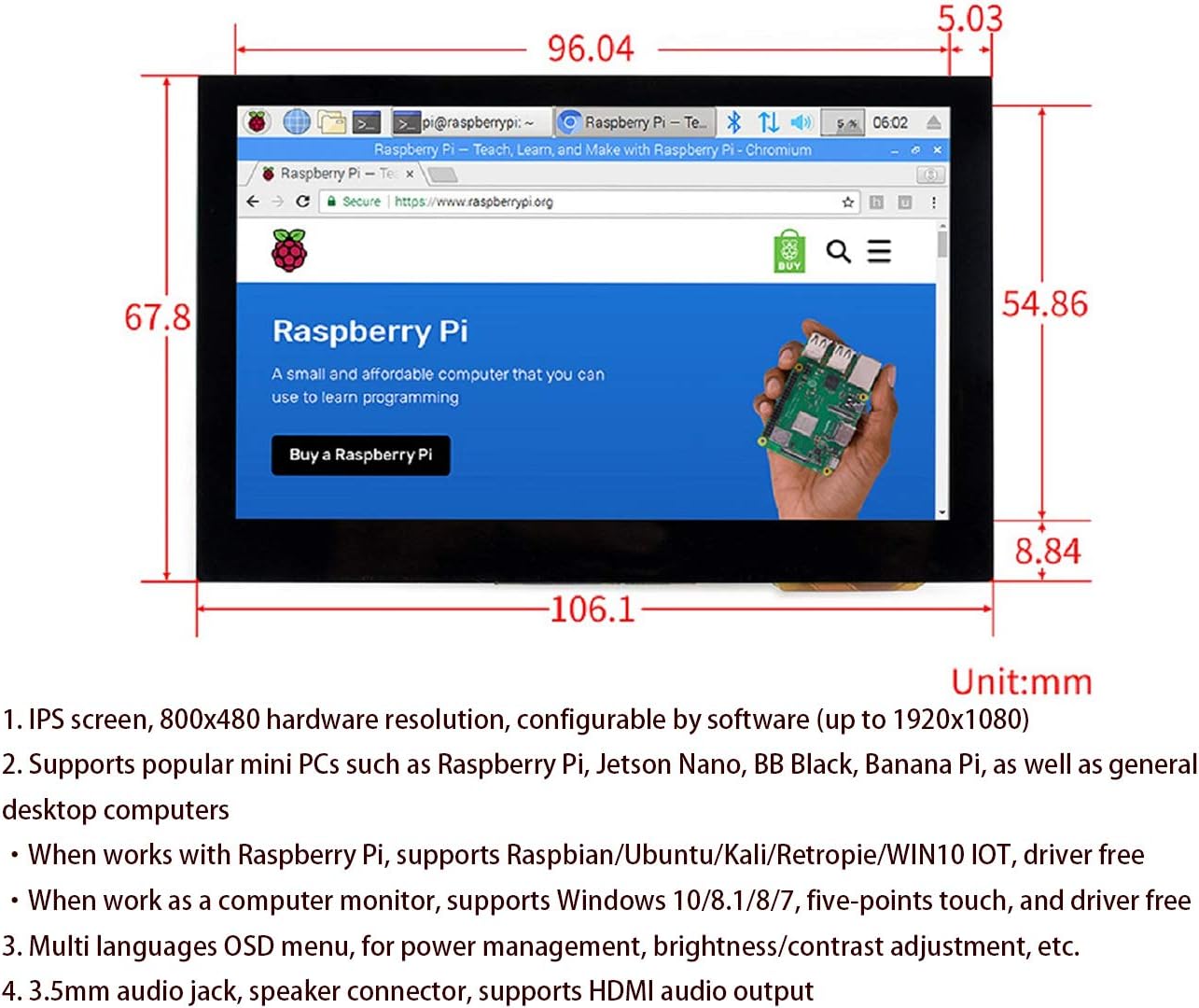
Image 6.1: Display dimensions. This image provides a technical drawing with measurements in millimeters for the 4.3-inch HDMI LCD (B).
7. Problemų sprendimas
Jei kyla problemų dėl ekrano, žr. toliau pateiktas dažniausiai pasitaikančias problemas ir sprendimus:
- Nėra ekrano:
- Ensure the HDMI cable is securely connected to both the display and the host device.
- Verify that the host device is powered on and outputting a video signal.
- Check the USB connection for power. Try a different USB port or power source if available.
- Adjust the display settings on your host device to ensure it is configured to output to the HDMI port.
- Nėra atsako į prisilietimą:
- Confirm the USB touch cable is firmly connected to both the display and the host device.
- Ensure your operating system supports touch input and that the necessary drivers (if any, though typically driver-free for supported OS) are recognized.
- Paleiskite pagrindinį įrenginį iš naujo.
- Neteisinga raiška arba kraštinių santykis:
- Access the OSD menu on the display to check and adjust aspect ratio settings.
- Adjust the display resolution settings within your host device's operating system. The hardware resolution is 800x480, but software can scale up to 1920x1080.
- Mirgantis ekranas:
- Ensure a stable and sufficient power supply to the display via the USB connection.
- Patikrinkite, ar nėra atsilaisvinusių kabelių jungčių.
8. Priežiūra
To ensure the longevity and optimal performance of your Waveshare 4.3-inch HDMI LCD (B), follow these maintenance guidelines:
- Valymas: Švelniai nuvalykite ekraną minkštu, nepūkuotu audiniu. Jei dėmės sunkiai įveikiamos, šiek tiek pamirkykite.ampen the cloth with water or a screen-safe cleaner. Avoid using abrasive cleaners, alcohol, or solvents, as these can damage the screen surface.
- Aplinka: Do not expose the device to extreme temperatures, high humidity, or direct sunlight for extended periods. Operate within recommended environmental conditions.
- Tvarkymas: Handle the display with care to prevent physical damage to the screen, connectors, or internal components. Avoid dropping or applying excessive pressure to the screen.
- Saugykla: When not in use, store the display in a clean, dry place, preferably in its original packaging or a protective case.
9. Garantija ir palaikymas
For technical assistance, product support, or warranty inquiries, please contact Waveshare customer service directly. You can typically find contact information on the official Waveshare website or through your point of purchase. Please have your product model number and purchase details ready when contacting support.