
1. Įvadas
Thank you for choosing the iClever GK08 Wireless Keyboard and Mouse Combo. This full-size keyboard with a numeric keypad and a silent mouse offers a stable 2.4 GHz connection, USB-C recharging, and dual-layout compatibility for Mac and Windows systems. This manual provides detailed instructions to help you set up, operate, and maintain your new device.
2. Saugos informacija
- Laikykite prietaisą atokiau nuo vandens, ugnies ir aukštos temperatūros.
- Nebandykite ardyti ar modifikuoti įrenginio.
- Įkrovimui naudokite tik pridedamą USB-C laidą.
- Stenkitės, kad prietaisas nenumestų ar nepatirtų stipraus smūgio.
- Atsakingai utilizuokite baterijas ir elektroninius komponentus pagal vietinius reikalavimus.
3. Sąrankos vadovas
3.1 Pakuotės turinys
- iClever GK08 Wireless Keyboard
- iClever Wireless Mouse
- USB-A Nano Receiver (stored inside the mouse)
- USB-C įkrovimo laidas
- Washable Dust Cover
- Vartotojo vadovas
3.2 Pradinis įkrovimas
Before first use, ensure both the keyboard and mouse are fully charged.
- Connect the provided USB-C charging cable to the keyboard's USB-C port (located on the top edge).
- Kitą laido galą prijunkite prie USB maitinimo šaltinio (pvz., kompiuterio USB prievado, USB sieninio adapterio).
- The charging indicator light on the keyboard will illuminate during charging and turn off when fully charged.
- For the mouse, connect the USB-C cable to its charging port. The mouse also has an indicator light.
- A full charge takes approximately 2 hours and provides up to 45 days of use for the keyboard.
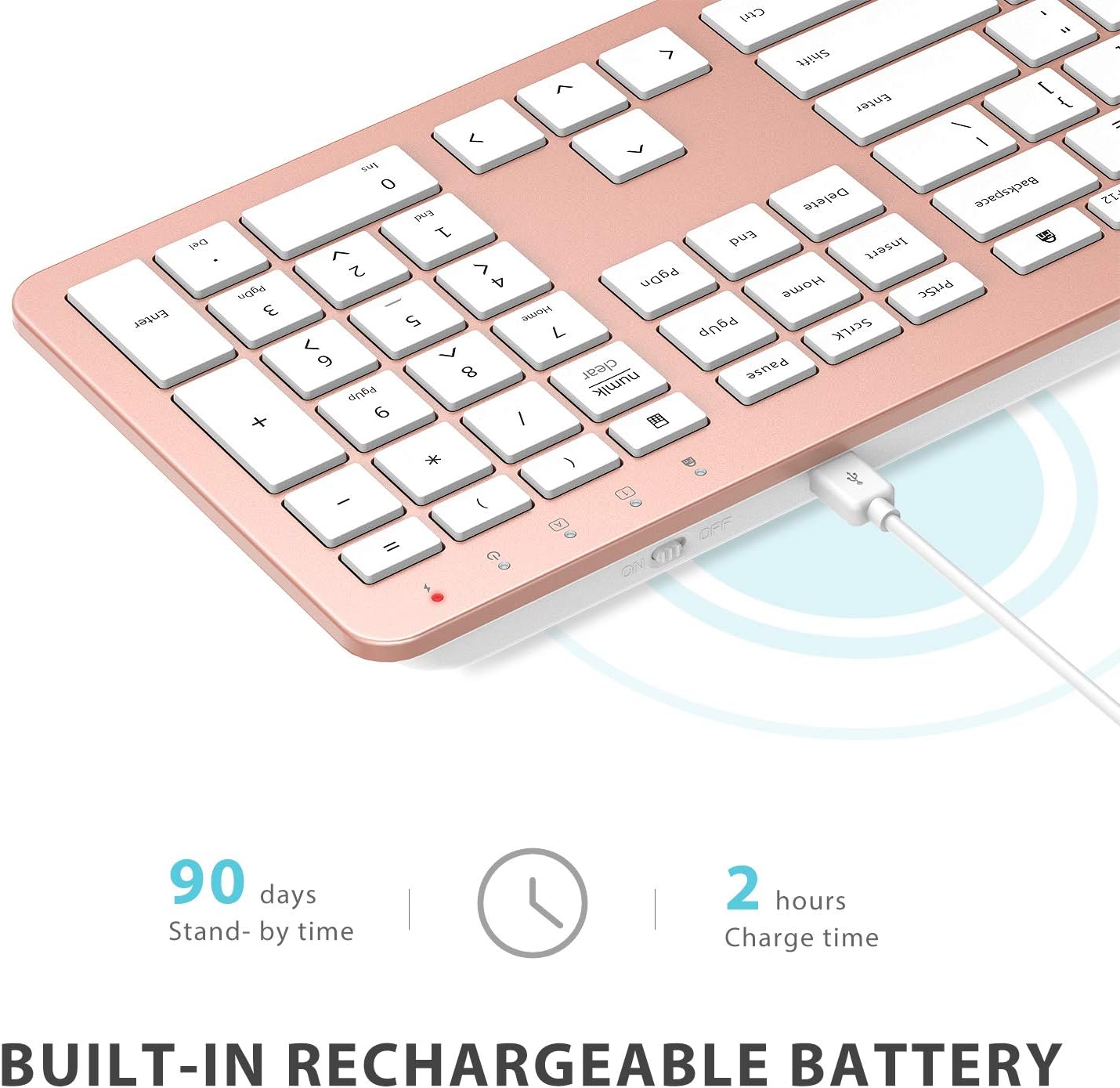
Image: The iClever GK08 keyboard connected to a USB-C charging cable, illustrating the charging process and battery life indicators.
3.3 Connecting to Your Computer (2.4 GHz Wireless)
The keyboard and mouse connect via a single 2.4 GHz USB-A nano receiver.
- Locate the USB-A nano receiver. It is typically stored in a compartment on the underside of the mouse.
- Plug the nano receiver into an available USB-A port on your computer.
- Turn on the keyboard using the ON/OFF switch (usually on the top edge).
- Turn on the mouse using the ON/OFF switch (located on the underside).
- Your computer should automatically detect and install the necessary drivers. The devices are ready for use once recognized.
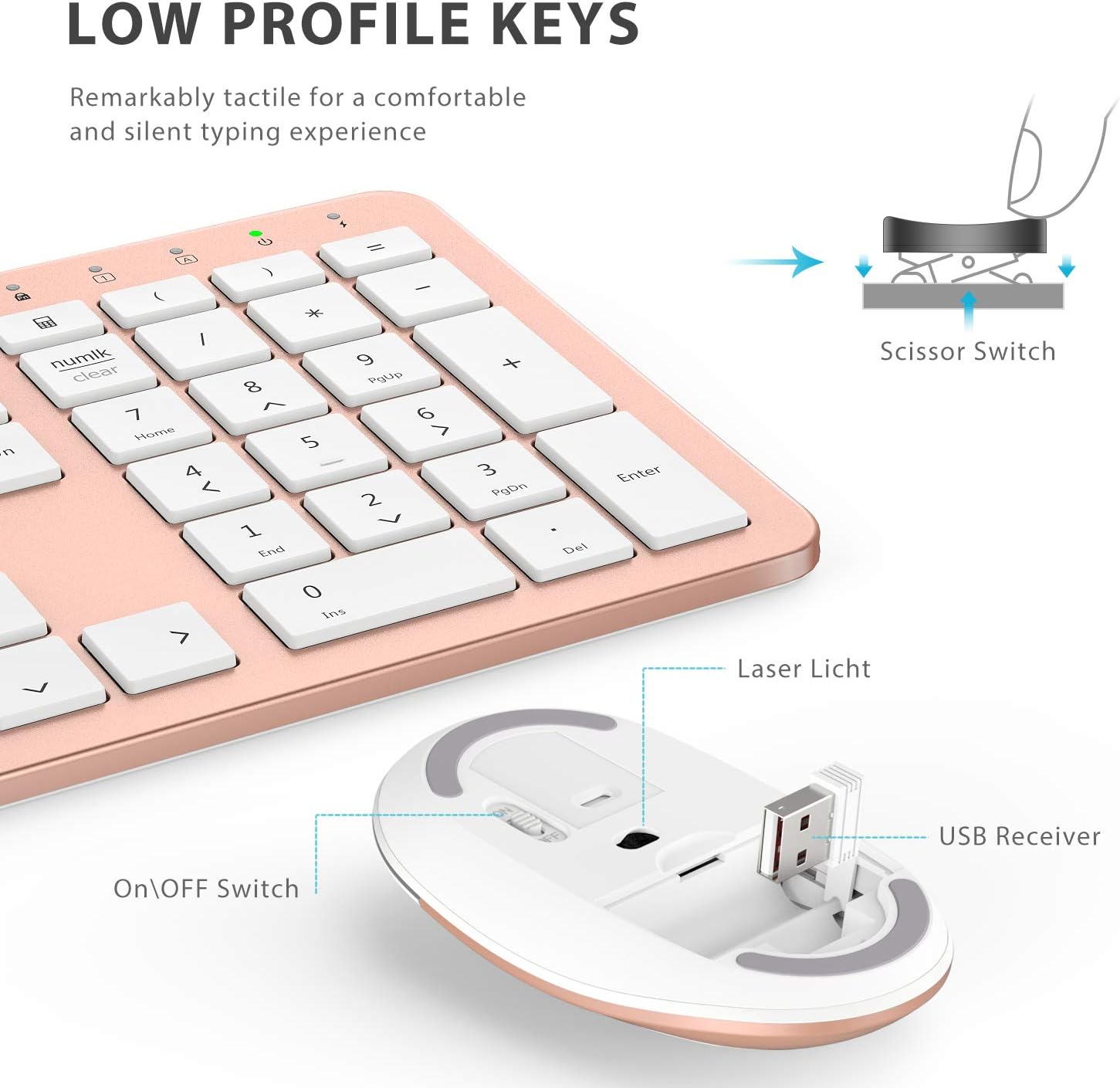
Vaizdas: Stambus planas view of the iClever mouse, highlighting the compartment where the USB nano receiver is stored for convenience.
3.4 Suderinamumo patikrinimas
This combo requires an available USB-A port for the nano receiver. For newer Macs with only USB-C ports, a USB-C to USB-A adapter (not included) is required. It is compatible with:
- Windows 10/11 PC & laptop
- macOS desktops / notebooks with USB-A port (e.g., iMac Retina 4K/5K, MacBook Air/Pro ≤ 2017)
- „Chrome“ OS

Image: A visual representation emphasizing the requirement of a USB-A port for the 2.4G wireless receiver, with a note about USB-C adapters for newer devices.
4. Naudojimo instrukcijos
4.1 Klaviatūros funkcijos
- Viso dydžio išdėstymas: The keyboard features a 110-key layout with a dedicated numeric keypad for efficient data entry.
- Quiet Scissor-Switch Keys: Enjoy a comfortable and quiet typing experience with low-profile keys that produce less than 50 dB of sound.
- Media Shortcuts: Access common media functions directly from the keyboard.
- Dual-Layout Compatibility: The keyboard has clearly printed Mac and PC legends.
Switching Between Mac and Windows Layouts:
- Už Windows: Paspauskite Fn + W to activate Win, Alt, NumLK functions.
- Už Mac OS: Paspauskite Fn + Q to activate Alt (Option), Cmd, Clear functions.

Image: The iClever GK08 keyboard displaying the dual Mac and Windows key legends, with instructions for switching between operating system layouts using the Fn key combinations.
4.2 Pelės funkcijos
- Tylus paspaudimas: The mouse is designed for quiet operation, minimizing distractions.
- Reguliuojamas DPI: The mouse features 3 adjustable DPI levels (800/1200/1600) to customize cursor sensitivity. Press the DPI button (usually located near the scroll wheel) to cycle through the settings.

Image: A visual demonstrating the quiet operation of the iClever mouse and the three adjustable DPI settings (800, 1200, 1600) for varied precision needs.
4.3 Automatinio miego funkcija
To conserve battery life, both the keyboard and mouse will enter an auto-sleep mode after 10 minutes of inactivity. To wake them up, simply press any key on the keyboard or move the mouse.
Video: A seller-provided video demonstrating the plug-and-play functionality and long battery life of the iClever Wireless Keyboard and Mouse. This video highlights the ease of setup and extended usage between charges.
5. Priežiūra
- Valymas: Naudokite minkštą, damp cloth to clean the surfaces of the keyboard and mouse. Avoid harsh chemicals.
- Apsauga nuo dulkių: Utilize the included washable dust cover to protect the keyboard from dust and spills when not in use.
- Saugykla: When not in use for extended periods, turn off both devices to conserve battery. Store the USB receiver inside the mouse.
6. Problemų sprendimas
- Nėra ryšio:
- Ensure both keyboard and mouse are turned ON.
- Verify the USB nano receiver is securely plugged into a working USB-A port on your computer.
- Try plugging the receiver into a different USB-A port.
- Check if the devices are charged.
- Vėlavimas arba nutrūkstamas ryšys:
- Ensure the devices are within the 33 ft / 10 m operating range of the receiver.
- Avoid placing the receiver near strong interference sources (e.g., other wireless devices, large metal objects).
- Re-pair the devices by unplugging and re-plugging the receiver.
- Keyboard Not Typing Correctly (Mac/Windows):
- Ensure you have selected the correct operating system layout using Fn + W Windows arba Fn + Q skirta Mac.
- Pelės žymeklis šokinėja arba yra netikslus:
- DPI nustatymą reguliuokite naudodami pelės DPI mygtuką.
- Įsitikinkite, kad pelės jutiklis yra švarus ir be jokių kliūčių.
- Use the mouse on a suitable surface (not highly reflective or transparent).
7. Specifikacijos
| Funkcija | Detalė |
|---|---|
| Prekės ženklas | „iClever“ |
| Modelio numeris | 08 GK |
| Spalva | Rožinis auksas |
| Ryšio technologija | 2.4 GHz wireless (USB-A nano receiver) |
| belaidis diapazonas | Iki 33 pėdų / 10 m |
| Klaviatūros išdėstymas | QWERTY, Full-size 110-key with Numpad |
| Rakto tipas | Scissor Switch (Quiet typing < 50 dB) |
| Maitinimo šaltinis | Rechargeable Lithium Ion Battery (Keyboard) |
| Įkrovimo prievadas | USB-C |
| Įkrovimo laikas | apytiksliai 2 valandas |
| Baterijos veikimo laikas (klaviatūra) | Iki 45 dienų (įprastas naudojimas) |
| Pelės DPI nustatymai | 800/1200/1600 DPI |
| Suderinamos operacinės sistemos | Windows 8/10/11, macOS, Chrome OS |
| Ypatingos savybės | Dual Mac/Windows layout, 10-min auto-sleep, Washable dust cover |
8. Garantija ir palaikymas
iClever products typically come with a standard manufacturer's warranty. Please refer to the warranty card included in your product packaging or visit the official iClever websvetainėje, kurioje pateikiamos išsamios garantijos sąlygos.
For technical support, troubleshooting assistance, or any product-related inquiries, please contact iClever customer service through their official websvetainėje arba kontaktinę informaciją, pateiktą jūsų produkto dokumentuose.
Palaikymas internetu: www.iclever.com/support