
Įvadas
Thank you for choosing the iClever BK10 Bluetooth Wireless Keyboard. This manual provides detailed instructions on how to set up, operate, and maintain your keyboard to ensure optimal performance. Please read this manual carefully before use and retain it for future reference.
Pakuotės turinys
- „iCleve BK10“ belaidė „Bluetooth“ klaviatūra
- USB įkrovimo laidas
- Vartotojo vadovas
Specifikacijos
| Prekės ženklas | „iClever“ |
| Modelio numeris | BK10 |
| Ryšio technologija | Bluetooth |
| Suderinami įrenginiai | Android 9+, ChromeOS (BT 4.0+), Windows 10/11, iPadOS 13.4+, macOS 10.15+ |
| Klaviatūros išdėstymas | AZERTY |
| Raktų skaičius | 78 |
| Jungiklio tipas | Žirklinis jungiklis |
| Maitinimo šaltinis | Maitinamas baterijomis |
| Gaminio matmenys | 43L x 14W x 2.5H centimetrai |
| Vidinė medžiaga | Akrilnitrilo butadieno stirenas, nerūdijantis plienas |
Sąranka
1. Pradinis įkrovimas
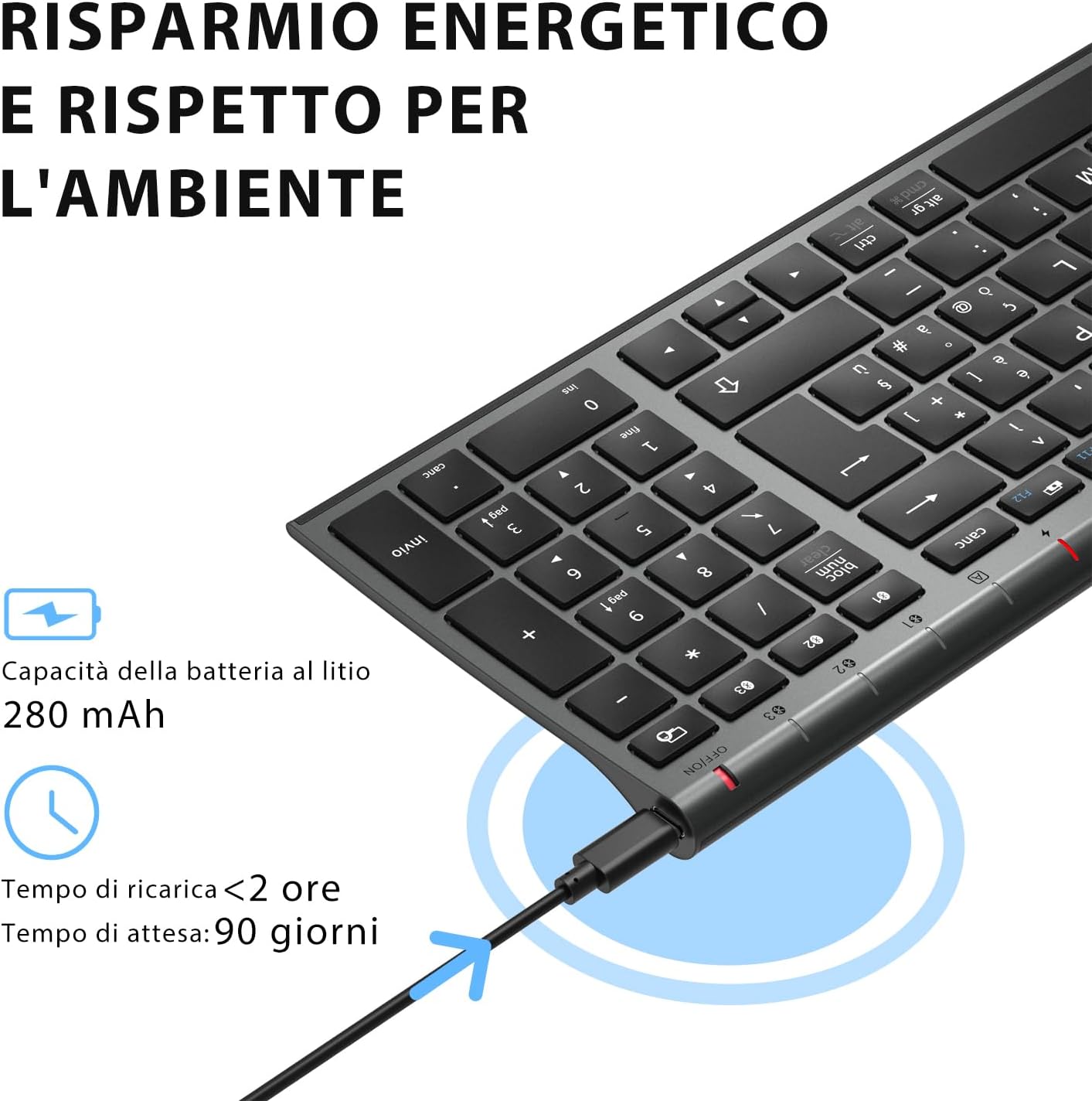
Before first use, fully charge the keyboard. Connect the provided USB charging cable to the keyboard's USB-C port and the other end to a USB power source (e.g., computer, wall adapter). The charging indicator light will show charging status and turn off when fully charged.

The iClever BK10 keyboard connected via USB-C for charging. This image details the 280 mAh lithium battery capacity, a charging time of less than 2 hours, and a standby time of 90 days.
2. Maitinimo įjungimas/išjungimas
Locate the power switch on the keyboard. Slide the switch to the 'ON' position to power on the keyboard. Slide it to the 'OFF' position when not in use to conserve battery.
3. „Bluetooth“ poravimas
The iClever BK10 keyboard supports connection to up to three devices simultaneously.
- Įjunkite klaviatūrą naudodami maitinimo jungiklį.
- Paspauskite Fn klavišą vienu metu su vienu iš „Bluetooth“ kanalo klavišų (BT1, BT2, arba BT3), kad pasirinktumėte kanalą.
- Press and hold the selected Bluetooth channel key (e.g., BT1) for 3-5 seconds until the indicator light for that channel starts blinking rapidly. This indicates the keyboard is in pairing mode.
- Savo įrenginyje (kompiuteryje, planšetiniame kompiuteryje, išmaniajame telefone) įjunkite „Bluetooth“ ir ieškokite galimų įrenginių.
- Select "iClever BK10" (or similar name) from the list of found devices.
- Follow any on-screen prompts to complete the pairing process. The indicator light will stop blinking and remain solid for a few seconds, then turn off, indicating a successful connection.

The iClever BK10 keyboard demonstrating its ability to connect to an iPad, MacBook, and iPhone via three distinct Bluetooth channels. The image also illustrates key mapping for Windows/Android (Alt/Cmd) and iPad/Mac (Alt/Cmd) operating systems.
Klaviatūros valdymas
1. Perjungimas tarp susietų įrenginių
Norėdami perjungti susietus įrenginius, tiesiog paspauskite Fn klavišą kartu su atitinkamu „Bluetooth“ kanalo klavišu (BT1, BT2, arba BT3) that your device is paired to. The keyboard will automatically connect to the selected device.
2. Funkciniai klavišai (Fn)
The keyboard features a row of function keys (F1-F12) that also serve as multimedia and shortcut keys. To use the secondary function of these keys, press and hold the Fn key while pressing the desired function key.
3. Operacinės sistemos suderinamumas
The iClever BK10 keyboard is designed to be compatible with various operating systems. Key functions may adapt slightly depending on the connected OS. For optimal performance, ensure your device's Bluetooth version is 4.0 or higher.

Close-up of the iClever BK10 keyboard with a hand typing, highlighting the low-profile keys and scissor switch mechanism designed for quiet and comfortable typing.
Priežiūra
1. Valymas
To clean your keyboard, power it off and disconnect it from any devices. Use a soft, lint-free cloth slightly dampened with water or a mild cleaning solution. Avoid using harsh chemicals, abrasives, or excessive moisture. Do not spray cleaners directly onto the keyboard.
2. Akumuliatoriaus priežiūra
Norėdami pailginti klaviatūros baterijos veikimo laiką:
- Charge the keyboard fully before its first use.
- Venkite dažnai visiškai iškrauti akumuliatorių.
- Kai klaviatūra ilgesnį laiką nenaudojama, laikykite ją vėsioje, sausoje vietoje.
- Turn off the keyboard when transporting it or when not in use to prevent accidental key presses and battery drain.
Trikčių šalinimas
1. Klaviatūra neprisijungia / nesusijungia
- Įsitikinkite, kad klaviatūra įjungta ir visiškai įkrauta.
- Įsitikinkite, kad jūsų įrenginyje įjungtas „Bluetooth“.
- Ensure the keyboard is in pairing mode (indicator light blinking).
- Pabandykite atjungti ir iš naujo susieti klaviatūrą įrenginio „Bluetooth“ nustatymuose.
- Iš naujo paleiskite klaviatūrą ir įrenginį.
- Ensure your device's Bluetooth version is compatible (BT 4.0+ recommended).
2. Klavišai nereaguoja
- Check if the keyboard is connected to the correct device.
- Ensure the battery is not low. Charge the keyboard if necessary.
- Iš naujo paleiskite klaviatūrą ir prijungtą įrenginį.
- Nuvalykite visas šiukšles aplink klavišus.
3. Connection Drops Frequently
- Ensure there are no strong interference sources (e.g., Wi-Fi routers, other Bluetooth devices) nearby.
- Keep the keyboard within the recommended operating range of your device.
- Įsitikinkite, kad klaviatūra yra visiškai įkrauta.
Garantija ir palaikymas
iClever products come with a standard warranty. For detailed warranty information, technical support, or customer service, please refer to the warranty card included with your product or visit the official iClever website. Please have your product model number (BK10) and purchase information ready when contacting support.
Produktas baigtasview Vaizdai

Iš viršaus į apačią view of the iClever BK10 Bluetooth Wireless Keyboard, showcasing visą jo išdėstymą, įskaitant skaitmeninę klaviatūrą ir funkcinius klavišus.
A pusė view of the iClever BK10 keyboard, illustrating its ultra-thin profile with a thickness ranging from 0.16 inches to 0.45 inches.

The iClever BK10 keyboard positioned on a desk in an office environment, alongside a computer monitor, laptop, tablet, and smartphone, illustrating its versatile use in various professional and personal setups.