
1. Įvadas
This manual provides instructions for the Arducam 16MP Autofocus USB Camera, Model B0290. This camera module features a 16-megapixel IMX298 sensor, offering sharp images and accurate color reproduction. It is designed for various applications including home surveillance, 3D printer monitoring, object recognition, and machine vision.

Figure 1: Arducam 16MP Autofocus USB Camera Module (Model B0290).
2. Pagrindinės savybės
- High Quality Imaging: Adopts a 16MP IMX298 sensor for sharp images and accurate color reproduction. Maximum still picture resolution: 4656 x 3496.
- Automatinis fokusavimas: Automatically adjusts focus for objects at various distances without manual lens adjustment.
- Kadrų dažnis: Supports MJPG 10fps@4656x3496/4160x3120/3264x2448/2592x1944; 30fps@2320x1744/1080P/720; YUY2 10fps@1024x768/800x600/640x480.
- Plug & Play: UVC-compliant, requiring no additional drivers for installation on compatible operating systems.
- Programos: Suitable for home surveillance, 3D printer monitoring, object recognition, tracking, and other machine vision tasks requiring high resolution.
3. Kas yra dėžutėje
- USB kabelis
4. Sąrankos instrukcijos
The Arducam 16MP Autofocus USB Camera is UVC-compliant, allowing for plug-and-play functionality on most compatible operating systems without the need for additional driver installations.
4.1 Connecting to a Computer (Windows, Linux, Mac OS)
- Kompiuteryje raskite laisvą USB prievadą.
- Connect the provided USB cable to the camera module.
- Prijunkite kitą USB kabelio galą prie kompiuterio USB prievado.
- Operacinė sistema turėtų automatiškai aptikti ir įdiegti reikiamus tvarkykles.
- Open a camera application (e.g., Camera app on Windows, Guvcview on Linux, Photo Booth on Mac) to verify the camera's functionality.

Figure 2: Connecting the camera to a laptop via USB.
4.2 Connecting to a Raspberry Pi
- Įsitikinkite, kad jūsų „Raspberry Pi“ yra išjungtas.
- Connect the provided USB cable to the camera module.
- Plug the other end of the USB cable into an available USB port on your Raspberry Pi.
- Power on your Raspberry Pi. The camera should be recognized as a standard UVC device.
- Use appropriate software (e.g., `fswebcam`, `motion`, or custom Python scripts) to access the camera feed.

Figure 3: Connecting the camera to a Raspberry Pi.
4.3 Prijungimas prie „Android“ įrenginio
For Android devices, a USB-C to USB-A adapter (not included) may be required if your device uses a USB-C port. Ensure your Android device supports USB OTG (On-The-Go) functionality.
- Connect the provided USB cable to the camera module.
- If necessary, connect the USB-A end of the cable to a USB-C to USB-A adapter.
- Plug the adapter (or USB-A end directly) into your Android device's USB port.
- Install a compatible USB camera application from the Google Play Store (e.g., 'USB Camera' by ShenYao).
- Open the application and select the Arducam camera as the input source.
4.4 Produktas baigtasview Vaizdo įrašas
1 vaizdo įrašas: metimas per sekundęview demonstrating the Arducam 16MP IMX298 Autofocus USB Camera (Model B0290) connected to various devices and showcasing its autofocus capabilities.
5. Naudojimo instrukcijos
Once connected, the Arducam 16MP Autofocus USB Camera operates as a standard webcam or camera module, depending on the host device and software used.
5.1 Autofocus Functionality
The camera features automatic autofocus. Simply point the camera at your desired subject, and the lens will adjust to achieve a clear image. This eliminates the need for manual focus adjustments, making it suitable for dynamic environments or varying object distances.
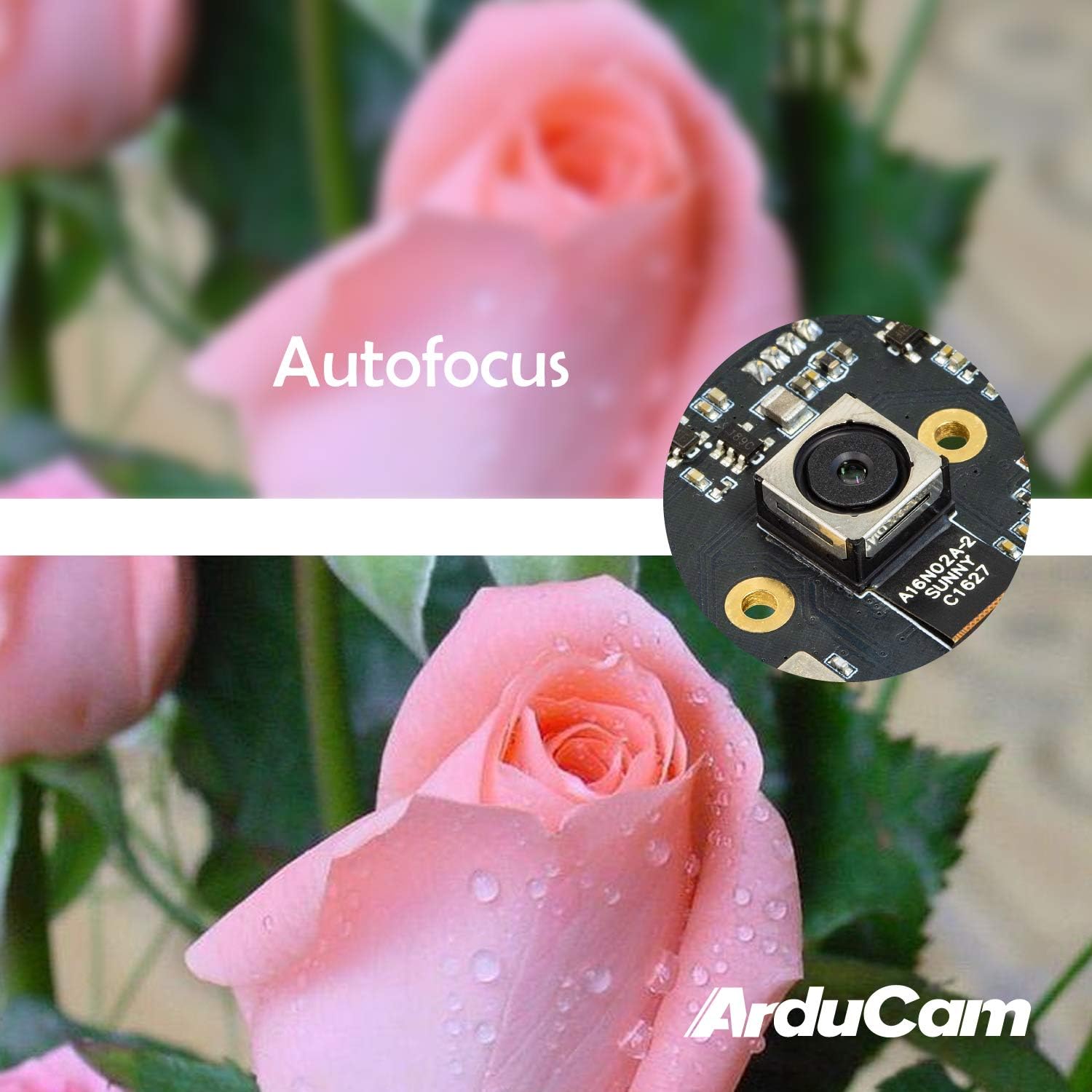
Figure 4: Demonstration of the camera's autofocus capability.
5.2 Programinės įrangos suderinamumas
The camera is compatible with standard UVC (USB Video Class) software. On Windows, you can use the built-in Camera app or third-party webcam software. On Linux, applications like Guvcview or Cheese can be used. For Mac OS, Photo Booth or QuickTime Player can access the camera. For advanced applications, programming libraries such as OpenCV can be utilized.
6. Specifikacijos
| Funkcija | Detalė |
|---|---|
| Prekės ženklas | Arducam |
| Modelio numeris | B0290 |
| Nuotraukų jutiklių technologija | CMOS |
| Veiksminga nejudančioji raiška | 16 MP |
| Vaizdo įrašymo raiška | 1080p |
| Maksimalus židinio nuotolis | 100 milimetrų |
| Minimalus židinio nuotolis | 100 milimetrų |
| Fokusavimo tipas | Automatinis fokusavimas |
| Ryšio technologija | USB |
| Operacinės sistemos suderinamumas | Linux, Mac, Windows |
| Prekės svoris | 0.07 kilogramo |
| Nuotraukų jutiklio dydis | 1/2.8 colių |
| Palaikomas vaizdo formatas | MJPG/YUY2 |
| Palaikomas garso formatas | AAC, MP3, or PCM |
| Savybės | Silpnas apšvietimas |

5 pav. Viršuje ir apačioje views of the camera module with dimensions.
7. Priežiūra
To ensure the longevity and optimal performance of your Arducam 16MP Autofocus USB Camera, follow these maintenance guidelines:
- Valymas: Use a soft, dry, lint-free cloth to gently wipe the camera lens and module surface. Avoid using liquid cleaners or abrasive materials, as they can damage the lens or electronic components.
- Saugykla: When not in use, store the camera in a cool, dry place away from direct sunlight, extreme temperatures, and high humidity. Keep it protected from dust and physical impact.
- Tvarkymas: Handle the camera module by its edges to avoid touching the lens or sensitive electronic components.
8. Problemų sprendimas
If you encounter issues with your Arducam 16MP Autofocus USB Camera, consider the following troubleshooting steps:
- Kamera neaptikta:
- Ensure the USB cable is securely connected to both the camera and the host device.
- Try connecting the camera to a different USB port on your device.
- Test the camera on another computer or compatible device to rule out a device-specific issue.
- Paleiskite kompiuterį arba pagrindinį įrenginį iš naujo.
- No Image or Black Screen:
- Verify that the correct camera is selected in your camera application settings.
- Close and reopen the camera application.
- Check if any other application is currently using the camera, as some systems only allow one application to access it at a time.
- Poor Image Quality / Focus Issues:
- Įsitikinkite, kad fotoaparato objektyvas yra švarus ir be dulkių ar dėmių.
- Provide adequate lighting for your subject.
- For autofocus, ensure there is sufficient contrast in the scene for the camera to lock focus.
- Suderinamumo problemos:
- Confirm that your operating system and software are compatible with UVC devices.
- For Android, ensure USB OTG is supported and enabled.
9. Garantija ir palaikymas
For warranty information and technical support, please refer to the official Arducam websvetainėje arba susisiekite tiesiogiai su pardavėju. Išsaugokite pirkimo kvitą garantiniams reikalavimams.
Galite aplankyti Arducam Store papildomos informacijos apie gaminį ir išteklių.