
Įvadas
This manual provides essential instructions for setting up, operating, maintaining, and troubleshooting your Surfans K7 Kids Tablet. Please read this guide thoroughly to ensure proper use and to maximize the tablet's features for a safe and engaging experience for children.
Produktas baigtasview
Pagrindinės savybės
- „Android 10.0“ operacinė sistema: Provides a secure and fast user experience.
- 7-inch IPS FHD Display: Features a 1920 x 1200 resolution eye-care touchscreen with a 178-degree wide viewing kampas.
- Keturių branduolių procesorius: Ensures smooth performance for apps and games.
- 2GB RAM, 32GB ROM: Sufficient memory for multitasking and storage, expandable via MicroSD card.
- Dvi kameros: Equipped with 2MP front and 5MP rear cameras for photos and video calls.
- Ryšys: Includes Wi-Fi and Bluetooth for wireless connections.
- Pre-installed iWAWA App: Offers updated educational content including games, videos, e-books, drawing, puzzles, and creative arts.
- Prieiga prie „Google Play“ parduotuvės: Allows downloading additional applications like YouTube Kids, Netflix, and Hulu.
- Parental Control Mode: Enables parents to manage content, set time limits, and customize child profiles.
- Durable Kid-Proof Case: Comes with a colorful, soft, and high-quality silicone case with an integrated 360-degree adjustable stand, suitable for children aged 2 to 10 years.

Image: The Surfans K7 Kids Tablet showcasing its GMS Certified Android 10.0 operating system and access to various applications via Google Play Store.

Image: The Surfans K7 Kids Tablet in use, illustrating its key features including quad-core processor, Android 10.0, 2GB RAM, 32GB ROM, WiFi, and Parent Mode.
Planšetinio kompiuterio komponentai
Familiarize yourself with the physical components of your tablet:
- Maitinimo mygtukas: Typically located on the side, used to turn the tablet on/off or put it to sleep/wake it up.
- Garsumo mygtukai: Sureguliuokite garso išvesties lygį.
- USB-C prievadas: For charging the tablet and connecting to a computer for data transfer.
- 3.5 mm garso lizdas: Skirta ausinėms arba išoriniams garsiakalbiams prijungti.
- MicroSD kortelės lizdas: Allows for memory expansion using a compatible MicroSD card.
- Priekinė kamera: Used for video calls and taking selfies.
- Galinė kamera: Nuotraukų ir vaizdo įrašų fotografavimui.
- Pranešėjas: Provides audio output for media and notifications.
Sąranka
1. Planšetinio kompiuterio įkrovimas
Before first use, fully charge the tablet. Connect the provided USB cable to the tablet's USB-C port and the other end to the power adapter. Plug the adapter into a wall outlet. The battery indicator on the screen will show the charging status.
2. Įjungimas/išjungimas
- Norėdami įjungti: Press and hold the Power Button until the screen lights up and the Surfans logo appears.
- Norėdami išjungti: Press and hold the Power Button until a menu appears on the screen. Select "Power off" and confirm.
- Miegui / pabudimui: Trumpai paspauskite maitinimo mygtuką, kad planšetinį kompiuterį užmigdytumėte arba pažadintumėte.
3. Pradinė sąranka
Upon first power-on, follow the on-screen prompts to configure basic settings:
- Pasirinkite norimą kalbą.
- Connect to a Wi-Fi network (see next step).
- Set up your Google account or create a new one. This is necessary for downloading apps from the Google Play Store.
- Review ir sutikite su sąlygomis ir nuostatomis.
4. Prisijungimas prie Wi-Fi
To connect your tablet to the internet:
- Eikite į Nustatymai.
- Bakstelėkite Tinklas ir internetas.
- Pasirinkite Wi-Fi ir įjunkite.
- The tablet will scan for available networks. Select your desired network from the list.
- Jei būsite paraginti, įveskite „Wi-Fi“ slaptažodį ir palieskite Prisijunkite.
Naudojimo instrukcijos
1. Pagrindinė navigacija
The Surfans K7 tablet uses a touchscreen for interaction:
- Bakstelėkite: Norėdami pasirinkti elementą, atidaryti programėlę arba paspausti mygtuką, vieną kartą palieskite ekraną.
- Perbraukimas: Drag your finger across the screen to scroll through pages, lists, or switch between home screens.
- Žiupsnelis, norint priartinti: Place two fingers on the screen and move them apart or together to zoom in or out.
- Pranešimai ir greitieji nustatymai: Braukite žemyn nuo ekrano viršaus, kad pasiektumėte pranešimus ir greitųjų nustatymų perjungiklius („Wi-Fi“, „Bluetooth“ ir kt.).
2. Downloading Apps from Google Play Store
With a Google account set up, you can download a wide variety of applications:
- Bakstelėkite Play parduotuvė piktogramą pagrindiniame ekrane arba programėlių stalčiuje.
- Browse or search for apps, games, movies, and books.
- Select an item and tap Įdiegti norėdami jį atsisiųsti ir įdiegti.
3. Using Pre-installed iWAWA App
The iWAWA app provides a safe and engaging environment for children:
- Suraskite ir palieskite iWAWA piktogramą.
- Explore the various categories such as games, videos, e-books, and creative activities.
- Content within iWAWA is curated to be age-appropriate and educational.
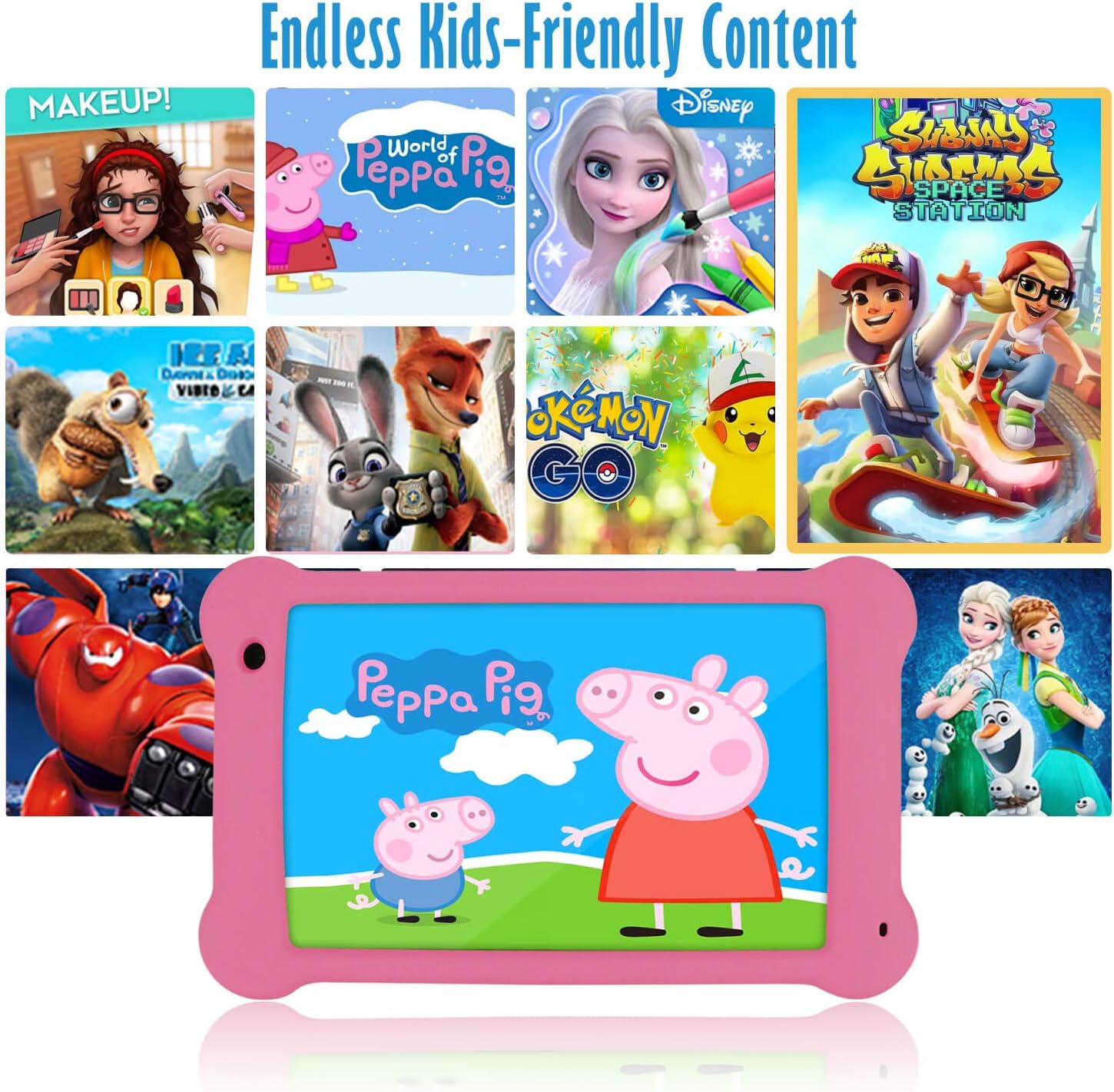
Image: The Surfans K7 Kids Tablet showcasing a variety of popular kid-friendly content, accessible through pre-installed apps and Google Play Store.
Tėvų kontrolės režimas
The Surfans K7 tablet includes a dedicated Parental Control Mode to manage your child's usage and ensure a safe digital environment.
1. Accessing Parental Mode
To access and configure parental controls:
- Raskite ir atidarykite Tėvų režimas or iWAWA Parent programa planšetiniame kompiuteryje.
- You will be prompted to set up a password or PIN for secure access. Remember this password.
2. Setting Time Limits
Manage how long your child can use the tablet:
- Configure daily usage limits for the tablet.
- Set specific time blocks during which the tablet can or cannot be used (e.g., bedtime restrictions).
3. Content Filtering
Ensure your child accesses only appropriate content:
- Select and approve specific applications, websites, and media content that your child is allowed to access.
- Block inappropriate content categories or specific websvetaines.
4. Managing Child Profiles
Create personalized experiences for each child:
- Sukurkite individualų profesionaląfiles for multiple children.
- Customize settings, content access, and time limits for each profile based on age and preferences.

Image: A parent and child using the Surfans K7 Kids Tablet, demonstrating the ease of setting up and managing parental controls for time limits, child lock, and content filtering.
Priežiūra
1. Planšetinio kompiuterio valymas
To keep your tablet clean and functional:
- Use a soft, lint-free cloth (e.g., microfiber cloth) to gently wipe the screen and tablet body.
- Įsisenėjusioms dėmėms šiek tiek pamirkykiteampen the cloth with water. Avoid using harsh chemicals, abrasive cleaners, or excessive moisture, as these can damage the screen or internal components.
- Prieš valydami įsitikinkite, kad planšetinis kompiuteris yra išjungtas ir atjungtas nuo elektros tinklo.
2. Akumuliatoriaus priežiūra
Proper battery care extends the tablet's lifespan:
- Avoid fully discharging the tablet frequently. Charge the tablet when the battery level is low (e.g., below 20%).
- Do not expose the tablet to extreme temperatures (hot or cold), as this can degrade battery performance.
- Naudokite tik pateiktą įkroviklį arba sertifikuotą suderinamą įkroviklį.
3. Programinės įrangos atnaujinimai
Keep your tablet's software up-to-date for optimal performance and security:
- Periodically check for system updates by going to Nustatymai > Sistema > Sistemos naujinimas.
- Ensure your tablet is connected to Wi-Fi and has sufficient battery charge before starting an update.
4. Protective Case Care
The included kid-proof silicone case offers protection:
- Išvalykite dėklą su skelbimuamp šluostę, jei ji susitepa.
- Ensure the case is properly fitted around the tablet to provide maximum protection against drops and bumps.

Paveikslėlis: detalus view of the Surfans K7 Kids Tablet's durable kid-proof case, highlighting its soft silicone material and anti-drop corner design for enhanced protection.
Trikčių šalinimas
This section addresses common issues you might encounter with your Surfans K7 Kids Tablet.
Planšetinis kompiuteris neįsijungia
- Patikrinkite akumuliatorių: Ensure the tablet is charged. Connect it to the charger for at least 30 minutes, then try powering it on again.
- Priverstinis paleidimas iš naujo: Press and hold the Power Button for about 10-15 seconds until the tablet restarts.
Screen is Black but Audio is Playing
This can sometimes occur:
- Briefly press the Power Button to put the screen to sleep, then press it again to wake it up.
- If the issue persists, perform a force restart by pressing and holding the Power Button for 10-15 seconds.
„Wi-Fi“ ryšio problemos
- Įgalinti „Wi-Fi“: Eikite į Nustatymai > Tinklas ir internetas > „Wi-Fi“ and ensure Wi-Fi is turned on.
- Iš naujo paleiskite maršrutizatorių: Iš naujo paleiskite „Wi-Fi“ maršrutizatorių ir modemą.
- Pamirškite tinklą: Go to Wi-Fi settings, tap on your network, and select "Forget network." Then, reconnect to the network and re-enter the password.
- Signalo stiprumas: If the signal is weak, move closer to your Wi-Fi router.
Apps Are Slow or Crashing
- Uždaryti nenaudojamas programas: Braukite aukštyn nuo ekrano apačios (arba palieskite kvadratinį naršymo mygtuką), kad view recent apps, then swipe them away to close.
- Paleiskite planšetinį kompiuterį iš naujo: A simple restart can often resolve performance issues.
- Išvalyti programos talpyklą: Eikite į Nustatymai > Programos > [Programos pavadinimas] > Atmintis ir talpykla > Išvalyti talpyklą.
Tablet is Unresponsive
If the tablet freezes and does not respond to touch:
- Perform a force restart by pressing and holding the Power Button for approximately 10-15 seconds until the device powers off and restarts.
Gamyklinių parametrų atkūrimas (paskutinė priemonė)
If all other troubleshooting steps fail, a factory reset may be necessary. Warning: This will erase all data on the tablet, including apps, photos, and user settings. Back up any important data before proceeding.
- Eikite į Nustatymai > Sistema > Atstatymo parinktys.
- Bakstelėkite Ištrinti visus duomenis (atkurti gamyklinius).
- Patvirtinkite savo sprendimą ir vykdykite ekrane pateikiamus nurodymus.
Specifikacijos

Image: Visual comparison highlighting the superior clarity of the 1920x1200 FHD IPS display with a 178-degree wide viewing angle on the Surfans K7 Kids Tablet.
| Funkcija | Specifikacija |
|---|---|
| Prekės ženklas | Surfans |
| Modelio pavadinimas | K7 |
| Operacinė sistema | Android 10.0 |
| Ekrano dydis | 7 colių |
| Maksimali ekrano skiriamoji geba | 1920 x 1200 pikselių |
| Procesoriaus prekės ženklas | ARM (Quad-core 1.6GHz) |
| Installed RAM Memory | 2 GB |
| Atminties talpa | 32 GB |
| Išplečiama saugykla | „MicroSD“ kortelių lizdas |
| Front Photo Sensor Resolution | 2 MP |
| Maks Webcam Vaizdo raiška | 5 MP |
| Vaizdo įrašymo raiška | FHD 1080p |
| Ryšio technologija | „Bluetooth“, USB, „Wi-Fi“ |
| Belaidis suderinamumas | 802.11a/b/g/n |
| Aparatinės įrangos ryšys | 3.5 mm Audio Jack, USB-C Port |
| Baterijos tipas | Ličio polimeras |
| Baterijos talpa | 3000 mAh |
| Vidutinis baterijos veikimo laikas | 8 valandų |
| Prekės svoris | 450 gramų |
| Spalva | Rožinė |
| Amžiaus diapazono aprašymas | Baby, Children (2-10 years) |
Garantija ir palaikymas
The Surfans K7 Kids Tablet comes with a standard manufacturer's warranty. For specific warranty terms, conditions, and duration, please refer to the warranty card included in the product packaging or contact Surfans customer support.
For technical assistance, troubleshooting beyond this manual, or further inquiries, please visit the official Surfans website or contact their customer service department through the contact information provided with your purchase or on their websvetainę.