
1. Įvadas
The D-Link AC1750 WiFi Range Extender (DAP-1720) is designed to expand the coverage of your existing wireless network, providing a stronger and more reliable Wi-Fi signal throughout your home or office. This device supports dual-band connectivity (2.4 GHz and 5 GHz) with combined speeds up to 1750 Mbps, making it ideal for high-bandwidth activities like 4K streaming and online gaming across multiple devices. Its smart signal indicator assists in finding the optimal placement for maximum coverage.
2. Produktas baigtasview
The DAP-1720 features a compact, plug-in design with external antennas for enhanced signal strength. It includes a Gigabit Ethernet port for wired connections and a smart signal indicator for easy setup.
2.1 Pagrindinės savybės
- Extends Wi-Fi coverage and eliminates dead spots with Dual Band connectivity.
- Supports both 2.4 GHz and 5 GHz bands for combined speeds up to 1750 Mbps.
- Smart Signal Indicator helps identify the best location for optimal Wi-Fi coverage.
- Features a 3x3 antenna configuration for improved data rates and reliability.
- Includes a 10/100/1000 Gigabit Ethernet Port for wired device connectivity.
2.2 Įrenginio išdėstymas

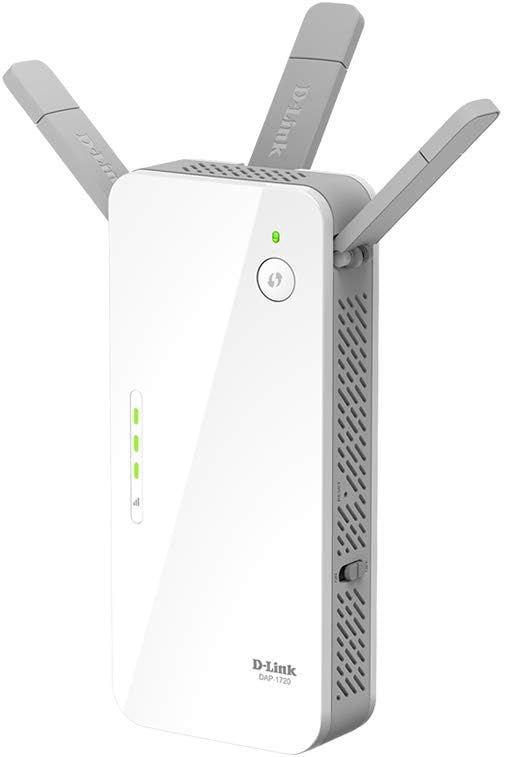
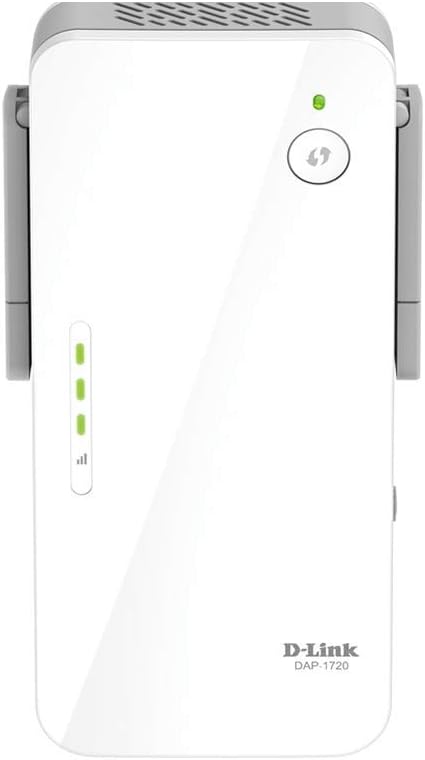

3. Sąrankos instrukcijos
There are two primary methods to set up your D-Link DAP-1720 Range Extender: using Wi-Fi Protected Setup (WPS) or manual configuration via a web naršyklė.
3.1 WPS Setup (Recommended)
- Maitinimas: Plug the DAP-1720 into a power outlet near your existing wireless router. Wait for the power LED to turn solid green.
- Įjunkite WPS maršrutizatoriuje: Press the WPS button on your wireless router. Refer to your router's manual for the exact location of this button.
- Įjunkite WPS plėtiklį: Within two minutes, press the WPS button on the DAP-1720 (often indicated by a circular arrow icon).
- Monitoriaus būsena: The signal indicator LEDs on the DAP-1720 will flash during the connection process. Once connected, the LEDs will turn solid green, indicating a successful connection.
- Optimali vieta: Unplug the DAP-1720 and move it to a location halfway between your router and the Wi-Fi dead zone. Plug it into a power outlet. The Smart Signal Indicator LEDs will help you find the best spot. Aim for at least two solid green bars for good signal strength.
Note: If the signal indicator shows red or only one bar, move the extender closer to your router.
3.2 Rankinis nustatymas (Web Naršyklė)
- Maitinimas: Plug the DAP-1720 into a power outlet near your existing wireless router.
- Prijunkite prie ilgintuvo: On your computer or mobile device, connect to the D-Link extender's default Wi-Fi network (e.g., "dlink-XXXX"). The default Wi-Fi name and password are usually found on a label on the device or in the Quick Installation Guide (QIG).
- Prieigos sąrankos vedlys: Atidarykite a web naršyklę ir įveskite http://dlinkap.local arba numatytąjį IP adresą (pvz., 192.168.0.50) į adreso juostą.
- Vykdykite ekrane pateikiamus nurodymus: The setup wizard will guide you through selecting your existing Wi-Fi network(s) and configuring the extender's settings, including its new Wi-Fi name and password.
- Optimali vieta: After configuration, unplug the DAP-1720 and move it to a suitable location as described in step 5 of the WPS setup.
4. Operating Your Range Extender
4.1 Įrenginių prijungimas
- Belaidžiai įrenginiai: Once the extender is set up, search for the new extended Wi-Fi network name (SSID) on your devices (e.g., "YourNetworkName_EXT" or "YourNetworkName_5G_EXT") and connect using the password you configured.
- Laidiniai įrenginiai: For devices like smart TVs, gaming consoles, or desktop computers that benefit from a stable wired connection, use an Ethernet cable to connect them to the Gigabit Ethernet port on the DAP-1720.
4.2 Dviejų dažnių juostos funkcionalumas
The DAP-1720 operates on both 2.4 GHz and 5 GHz frequency bands. The 2.4 GHz band offers wider coverage and better penetration through walls, while the 5 GHz band provides faster speeds over shorter distances with less interference. Your devices will automatically connect to the optimal band, or you can manually select the preferred band if separate SSIDs were configured during setup.
5. Priežiūra
- Firmware atnaujinimai: Reguliariai tikrinkite „D-Link“ palaikymo tarnybą website for firmware updates. Keeping your device's firmware up-to-date ensures optimal performance, security, and access to new features.
- Valymas: Ensure the device's ventilation slots are clear of dust to prevent overheating. Use a soft, dry cloth for cleaning. Do not use liquid cleaners.
- Įrenginio nustatymas iš naujo: If you encounter persistent issues or wish to reconfigure the extender from scratch, you can perform a factory reset. Locate the reset button (usually a small pinhole) on the device, and while the device is powered on, press and hold it for about 10 seconds using a paperclip until the LEDs flash.
6. Problemų sprendimas
6.1 Prisijungus prie plėtinio, nėra interneto prieigos
- Patikrinkite maršrutizatoriaus ryšį: Įsitikinkite, kad jūsų pagrindinis maršrutizatorius veikia tinkamai ir turi prieigą prie interneto.
- Ilgintuvo išdėstymas: Verify the DAP-1720 is placed within range of your main router. The Smart Signal Indicator should show at least two green bars. Relocate if necessary.
- Re-run Setup: Try re-running the WPS or manual setup process to ensure the extender is properly connected to your main Wi-Fi network.
- IP adreso konfliktas: If you manually configured the extender, ensure its IP address does not conflict with other devices on your network.
6.2 Silpnas signalas arba mažas greitis
- Perkelkite plėstuvą: Move the extender closer to your main router. The ideal location is halfway between the router and the area needing coverage.
- Sumažinti trukdžius: Keep the extender away from large metal objects, concrete walls, and devices that emit radio frequency interference (e.g., microwaves, cordless phones).
- Check Router Performance: Ensure your main router is providing adequate signal strength and speed.
- Programinės aparatinės įrangos atnaujinimas: Ensure the extender's firmware is up-to-date.
6.3 Nepavyksta pasiekti Web-Based Setup Page
- Patikrinkite ryšį: Ensure your device is connected to the extender's Wi-Fi network (e.g., "dlink-XXXX") or directly via Ethernet.
- Teisingas adresas: Dar kartą patikrinkite, ar rašote teisingai http://dlinkap.local or the correct IP address into your browser's address bar.
- Išvalyti naršyklės talpyklą: Pabandykite išvalyti naršyklės talpyklą ir slapukus arba naudokite kitą naršyklę.
- Temporarily Disable Firewall/Antivirus: Your computer's security software might be blocking access.
- Gamykliniai nustatymai: If all else fails, perform a factory reset and attempt the manual setup again.
7. Specifikacijos
| Funkcija | Detalė |
|---|---|
| Modelio numeris | DAP-1720/RE |
| bevielio ryšio standartas | 802.11ac, 802.11n |
| Duomenų perdavimo sparta | Iki 1750 Mbps (450 Mbps esant 2.4 GHz dažniui, 1300 Mbps esant 5 GHz dažniui) |
| Dažnių juostos klasė | Dviejų juostų |
| Ethernet prievadas | 1 x 10/100/1000 Gigabit Ethernet Port |
| Antenos konfigūracija | 3x3 Internal Antennas |
| Gaminio matmenys | 6.5 x 2.5 x 1.5 colio |
| Prekės svoris | 8 uncijos |
| Įtraukti komponentai | DAP-1720 device, Quick Installation Guide (QIG) |
8. Garantija ir palaikymas
For detailed warranty information, technical support, and additional resources, please visit the official D-Link support websvetainėje. Čia galite rasti DUK, atnaujintus tvarkykles ir klientų aptarnavimo kontaktinę informaciją.
D-Link palaikymas Websvetainė: www.dlink.com/support