
1. Įvadas
Welcome to the user manual for your new Q Link Wireless Serrano 3 Smartphone. This guide provides essential information on setting up, operating, maintaining, and troubleshooting your device. Please read this manual thoroughly to ensure optimal performance and longevity of your smartphone.

1 pav.: Priekinė ir galinė dalys view of the Serrano 3 Smartphone.
2. Kas yra dėžutėje
Upon unboxing your Serrano 3 Smartphone, please verify that all the following items are included:
- Serrano 3 Smartphone
- Ekrano apsauga
- Įkrovimo laidas (USB)
- Maitinimo adapteris
- Greitos pradžios vadovas

Figure 2: Serrano 3 Smartphone and accessories within its packaging.
3. Sąranka
3.1. Įrenginio įkrovimas
Before first use, fully charge your Serrano 3 Smartphone. Connect the charging cable to the phone's charging port and the power adapter to a wall outlet. The battery indicator on the screen will show charging progress.
3.2. SIM ir SD kortelių įdėjimas
To insert your SIM card (for cellular service) and an optional microSD card (for expanded storage):
- Raskite SIM / SD kortelės dėklą telefono šone.
- Norėdami atidaryti dėklą, naudokite pateiktą SIM kortelės išstūmimo įrankį.
- Place your SIM card(s) and microSD card into their respective slots, ensuring correct orientation.
- Švelniai stumkite dėklą atgal į telefoną, kol jis spragtelėdamas užsifiksuos.
3.3. Įjungimas/išjungimas
- Norėdami įjungti: Press and hold the Power button (usually on the right side) until the Q Link Wireless logo appears.
- Norėdami išjungti: Paspauskite ir palaikykite maitinimo mygtuką, kol pasirodys maitinimo parinkčių meniu. Pasirinkite „Išjungti“ ir patvirtinkite.
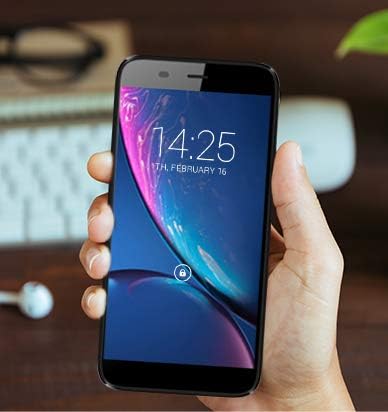
Figure 3: The Serrano 3 Smartphone being held, demonstrating its size and display.
4. Prietaiso valdymas
4.1. Navigacija
The Serrano 3 features a responsive touchscreen for all interactions. Use gestures such as tapping, swiping, pinching, and spreading to navigate menus, open applications, and control content.
4.2. Skambinimas ir žinučių siuntimas
Access the Phone app to make calls by dialing numbers or selecting contacts. Use the Messages app to send and receive SMS/MMS messages. Ensure your SIM card is properly inserted and activated for cellular services.
4.3. Prisijungimas prie Wi-Fi
Norėdami prisijungti prie „Wi-Fi“ tinklo:
- Eikite į Nustatymai > Tinklas ir internetas > Wi-Fi.
- Įjunkite „Wi-Fi“.
- Iš sąrašo pasirinkite norimą tinklą ir, jei būsite paraginti, įveskite slaptažodį.
4.4. Kameros naudojimas
The Serrano 3 is equipped with a 2MP front camera and a 5MP rear camera. Open the Camera app to capture photos and videos. Tap the screen to focus and press the shutter button to take a picture.
5. Priežiūra
Proper care will extend the life of your Serrano 3 Smartphone:
- Valymas: Ekraną ir korpusą valykite minkštu, nepūkuotu audiniu. Venkite abrazyvinių medžiagų ar stiprių cheminių medžiagų.
- Atsparumas vandeniui: Šis prietaisas nėra atsparus vandeniui. Venkite sąlyčio su skysčiais.
- Temperatūra: Nelaikykite prietaiso ekstremaliose temperatūrose (karštyje ar šaltyje).
- Akumuliatoriaus priežiūra: Avoid fully discharging the battery frequently. Charge the device regularly.
- Programinės įrangos atnaujinimai: Nuolat atnaujinkite savo įrenginio programinę įrangą, kad užtikrintumėte optimalų našumą ir saugumą.
6. Problemų sprendimas
If you encounter issues with your Serrano 3 Smartphone, refer to the table below for common problems and their solutions.
| Problema | Galimas sprendimas |
|---|---|
| Įrenginys neįsijungia. | Įsitikinkite, kad akumuliatorius įkrautas. Prijunkite prie įkroviklio ir palaukite kelias minutes, prieš bandydami vėl įjungti. |
| Ekranas nereaguoja. | Restart the device by holding the Power button. If unresponsive, force restart by holding Power button for 10-15 seconds. |
| Nepavyksta prisijungti prie „Wi-Fi“. | Check Wi-Fi settings, ensure Wi-Fi is enabled, and re-enter the password. Restart your Wi-Fi router. |
| Prasta skambučio kokybė arba nėra signalo. | Patikrinkite SIM kortelės įdėjimą. Persikelkite į vietą, kurioje geresnis tinklo ryšys. Susisiekite su savo paslaugų teikėju. |
| Device is stuck in a boot loop or shows "corrupt" message. | This indicates a potential software or hardware issue. Try a factory reset (consult online resources for your specific model's reset procedure, as it may vary). If the issue persists, contact customer support for further assistance. |
7. Specifikacijos
Key technical specifications for the Q Link Wireless Serrano 3 Smartphone:
| Funkcija | Detalė |
|---|---|
| Modelio pavadinimas | Q Link Wireless Connecting America Serrano 3 |
| Prekės modelio numeris | Serrano H6 |
| Operacinė sistema | Android Go |
| Ekrano dydis | 5.5 colių |
| Rezoliucija | 566 x 319 |
| RAM | 2 GB |
| Atminties talpa | 16 GB |
| Galinė kamera | 5 MP |
| Priekinė kamera | 2 MP |
| Baterijos talpa | 2200 milijonųampprieš valandą (mAh) |
| Įkrovimo laikas | 2 valandų |
| Gaminio matmenys | 6 x 2.48 x 0.42 colio |
| Prekės svoris | 3.53 uncijos (100 gramų) |
| Spalva | Juoda |
| Belaidžio ryšio technologijos | Mobilusis ryšys (4G LTE) |
| Ryšio technologijos | „Wi-Fi“, GPS |
| Garso lizdas | 3.5 mm |
8. Garantija ir palaikymas
Q Link Wireless provides support for its products. For specific warranty details, please refer to the documentation included with your purchase or visit the official Q Link Wireless websvetainę.
Grąžinimo politika: This product typically has a 30-day return policy for refund or replacement, subject to the retailer's terms and conditions.
For technical assistance or further inquiries, please contact Q Link Wireless customer support through their official channels.