
Q LINK WIRELESS Scepter 8
Q LINK WIRELESS Scepter 8 User Manual
Model: Scepter 8
Įvadas
Welcome to the user manual for your Q LINK WIRELESS Scepter 8 tablet. This guide provides essential information on setting up, operating, maintaining, and troubleshooting your device. The Scepter 8 is an 8-inch Android 11 tablet designed for everyday use, featuring 1GB RAM and 16GB ROM.
Produktas baigtasview
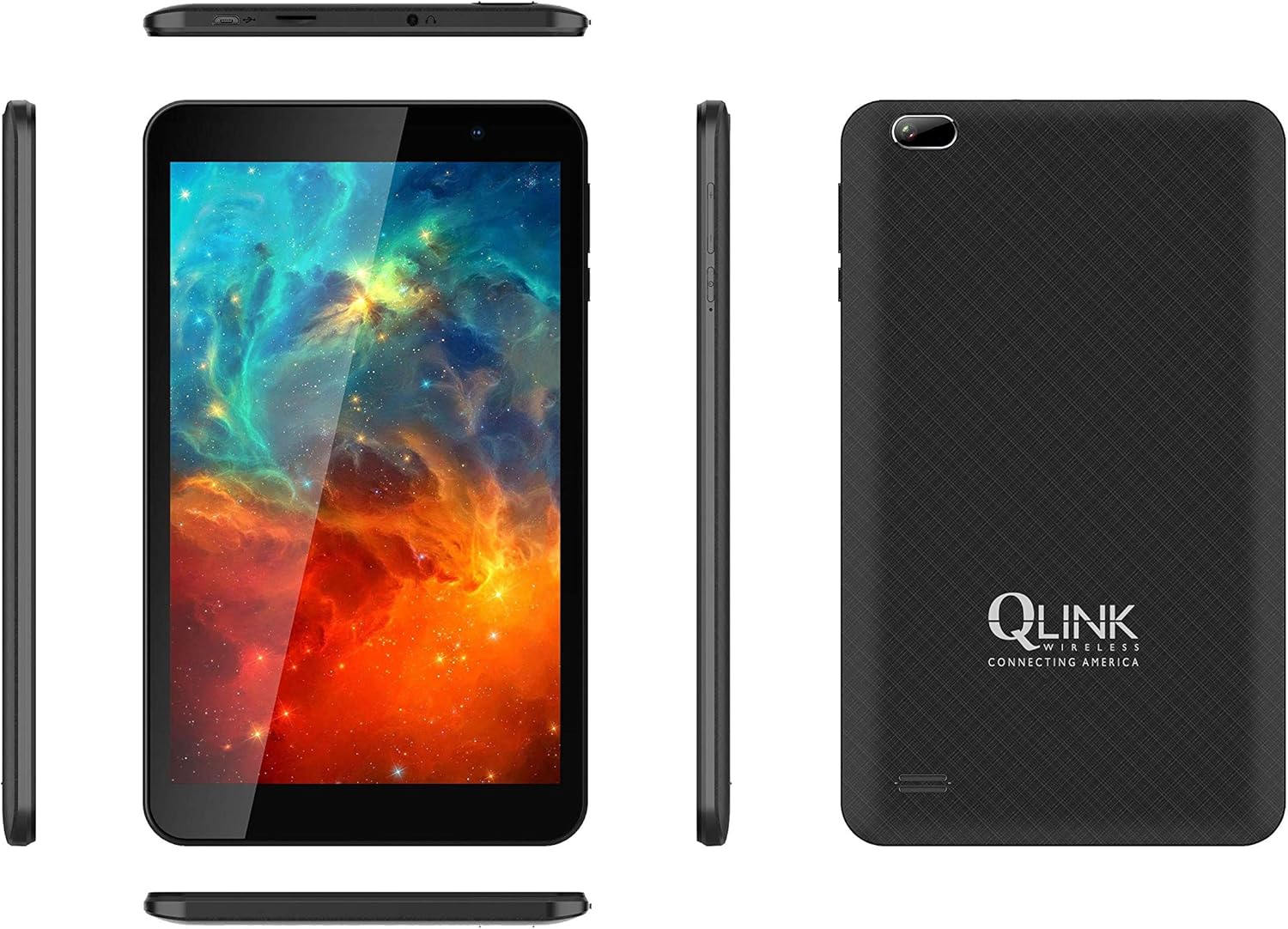
This image displays multiple views of the Q LINK WIRELESS Scepter 8 tablet, including the front with its display, the textured back panel featuring the Q LINK WIRELESS logo, and the slim side profiles showing button and port placements.

Aiškus frontas view of the Q LINK WIRELESS Scepter 8 tablet, highlighting its 8-inch IPS display. The screen shows a vibrant, colorful abstract image.

Nugara view of the Q LINK WIRELESS Scepter 8 tablet, showcasing its textured finish and the Q LINK WIRELESS logo. The rear camera is visible in the upper left corner.
Sąranka
1. Pradinis įkrovimas
Before first use, fully charge your Scepter 8 tablet. Connect the included charger to the tablet's charging port and plug it into a power outlet. The battery indicator on the screen will show charging progress.
2. Įjungimas/išjungimas
- To power on: Press and hold the Power button until the Q LINK WIRELESS logo appears.
- Norėdami išjungti: paspauskite ir palaikykite maitinimo mygtuką, tada iš parinkčių pasirinkite „Išjungti“.
3. Pradinės sąrankos vedlys
Pirmą kartą įjungus planšetinį kompiuterį, bus atliekami pradiniai nustatymai. Tai apima kalbos pasirinkimą, prisijungimą prie „Wi-Fi“ tinklo, „Google“ paskyros nustatymą ir pagrindinių įrenginio nustatymų konfigūravimą.
4. „MicroSD“ kortelės įdėjimas (pasirinktinai)
To expand storage, locate the MicroSD card slot (usually on the side or top edge). Gently insert a compatible MicroSD card until it clicks into place. Ensure the tablet is powered off before inserting or removing the card.
Planšetinio kompiuterio valdymas
Navigacijos pagrindai
- Lietimo gestai: Palieskite, kad pasirinktumėte, braukite, kad slinktumėte, suspauskite, kad priartintumėte.
- Pagrindinis ekranas: Pasiekite programas, valdiklius ir pranešimus.
- Pranešimų skydelis: Braukite žemyn nuo ekrano viršaus iki view pranešimai ir greitieji nustatymai.
- Programėlių stalčius: Braukite aukštyn nuo ekrano apačios, kad pasiektumėte visas įdiegtas programas.
Prisijungiama prie „Wi-Fi“.
- Eikite į Nustatymai > Tinklas ir internetas > Wi-Fi.
- Perjungti „Wi-Fi“ On.
- Iš sąrašo pasirinkite norimą tinklą ir, jei būsite paraginti, įveskite slaptažodį.
Programų valdymas
- Programų diegimas: Atsisiųskite programėlių iš „Google Play“ parduotuvės.
- Programėlių pašalinimas: Press and hold an app icon on the home screen or in the app drawer, then drag it to "Uninstall" or select "App info" and choose "Uninstall".
- Programėlių uždarymas: Braukite aukštyn nuo ekrano apačios ir palaikykite, kad view recent apps, then swipe up on an app to close it.
Kameros naudojimas
The Scepter 8 features a 5 MP rear camera. Open the Camera app from your home screen or app drawer. Tap the shutter button to take photos. You can switch between front and rear cameras using the icon on the screen.
Priežiūra
- Valymas: Ekraną ir korpusą valykite minkštu, nepūkuotu audiniu. Venkite abrazyvinių valiklių ar tirpiklių.
- Akumuliatoriaus priežiūra: To prolong battery life, avoid extreme temperatures. Do not let the battery fully drain frequently.
- Programinės įrangos atnaujinimai: Periodiškai tikrinkite, ar yra sistemos atnaujinimų, Nustatymai > Sistema > Sistemos atnaujinimas siekiant užtikrinti optimalų našumą ir saugumą.
- Saugyklos valdymas: Reguliariai valykite nereikalingus fileir pašalinkite nenaudojamas programas, kad atlaisvintumėte vietos saugykloje. Eikite į Nustatymai > Sandėliavimas valdyti.
Trikčių šalinimas
| Problema | Sprendimas |
|---|---|
| Planšetinis kompiuteris veikia lėtai arba nereaguoja. |
|
| Nepavyksta prisijungti prie „Wi-Fi“. |
|
| Baterija greitai išsikrauna. |
|
| Apps crashing frequently. |
|
Specifikacijos
| Funkcija | Detalė |
|---|---|
| Prekės ženklas | Q LINK WIRELESS |
| Modelio pavadinimas | 8 metų skeptras |
| Operacinė sistema | Android 11 |
| Ekrano dydis | 8 colių |
| Ekrano raiška | 1280 x 800 pikselių |
| RAM | 1 GB |
| Flash atminties dydis | 16 GB |
| Procesoriaus prekės ženklas | Qualcomm |
| Galinis Webkumštelio raiška | 5 MP |
| Belaidis tipas | 802.11ac |
| Vidutinis baterijos veikimo laikas | 12 valandų |
| Prekės svoris | 1.06 svaro |
| Gaminio matmenys | 8.2 x 4.9 x 0.36 colio |
Garantija ir palaikymas
For warranty information and technical support, please refer to the documentation included with your purchase or visit the official Q LINK WIRELESS websvetainėje. Išsaugokite pirkimo įrodymą garantiniams reikalavimams.
Internetiniai ištekliai: For additional support, FAQs, and software downloads, please visit the Q LINK WIRELESS support page.
Ask a question about this manual
Ask about setup, troubleshooting, compatibility, parts, safety, or missing instructions. Manuals+ will review the question and use this page’s manual context to help answer it.