
Lectrus ES-KTLA133
LECTRUS Android 10 Tablet User Manual
Model: ES-KTLA133
Įvadas
This manual provides comprehensive instructions for the setup, operation, maintenance, and troubleshooting of your LECTRUS Android 10 Tablet. Please read this manual carefully before using your device to ensure optimal performance and longevity.

Figure 1: LECTRUS Android 10 Tablet (Front and Rear View)
This image displays the sleek black design of the LECTRUS Android 10 Tablet, showcasing both its front display and the rear panel with the LECTRUS branding and camera module.
Sąrankos vadovas
1. Pradinis įkrovimas
Before first use, fully charge your tablet. Connect the provided USB cable to the tablet's charging port and the other end to a compatible USB power adapter (not always included) or a computer's USB port. The battery indicator on the screen will show charging progress.
The tablet is equipped with a 6000 mAh polymer lithium-ion battery, providing up to 7 hours of usage time on a full charge.
2. Maitinimo įjungimas/išjungimas
- Maitinimas: Press and hold the Power button located on the side of the tablet until the LECTRUS logo appears on the screen.
- Išjungti: Paspauskite ir palaikykite maitinimo mygtuką, kol pasirodys maitinimo parinkčių meniu. Pasirinkite „Išjungti“ ir patvirtinkite.
- Paleisti iš naujo: From the power options menu, select "Restart" to reboot the device.
3. Pradinės sąrankos vedlys
Pirmą kartą įjungus planšetinį kompiuterį, bus atliekami pradiniai nustatymai. Vykdykite ekrane pateikiamus nurodymus:
- Pasirinkite savo kalbą.
- Prisijunkite prie „Wi-Fi“ tinklo.
- Prisijunkite naudodami „Google“ paskyrą arba sukurkite naują. Tai būtina norint pasiekti „Google Play“ parduotuvę ir kitas „Google“ paslaugas.
- Nustatykite ekrano užraktą (PIN kodą, šabloną, slaptažodį).
- Review ir sutikite su sąlygomis ir nuostatomis.
4. „MicroSD“ kortelės įdėjimas (pasirinktinai)
The tablet supports expandable memory up to 128GB via a microSD card. To insert:
- Planšetinio kompiuterio šone raskite „microSD“ kortelės lizdą.
- Gently insert the microSD card into the slot with the gold contacts facing down until it clicks into place.
- Norėdami išimti, švelniai stumkite kortelę į vidų, kol ji iššoks.

Figure 2: Tablet with App Icons and Storage Information
This image illustrates the tablet's capability to support numerous applications, highlighting its 32GB internal storage and expandability for massive app support.
Naudojimo instrukcijos
1. Naršymas „Android 10“ sąsajoje
Your LECTRUS tablet runs on the Android 10.0 operating system, offering an intuitive and user-friendly experience.
- Pagrindinis ekranas: Pagrindinis ekranas, kuriame galite pasiekti programas, valdiklius ir sparčiuosius klavišus.
- Pranešimų skydelis: Swipe down from the top of the screen to access notifications and quick settings (Wi-Fi, Bluetooth, Brightness, etc.).
- Programėlių stalčius: Braukite aukštyn iš ekrano apačios į view visos įdiegtos programos.
- Naršymo juosta: Typically located at the bottom of the screen, it includes Back, Home, and Recent Apps buttons.

3 pav.: „Android 10.0“ operacinės sistemos sąsaja
This image shows the tablet's display with the "Android 10.0 OS" branding, indicating the operating system version.
2. Wi-Fi ryšys
Norėdami prisijungti prie „Wi-Fi“ tinklo:
- Eikite į Nustatymai > Tinklas ir internetas > Wi-Fi.
- Įjungti „Wi-Fi“.
- Iš sąrašo pasirinkite norimą tinklą.
- Jei būsite paraginti, įveskite slaptažodį ir palieskite Prisijunkite.
3. Fotoaparatų naudojimas
Planšetinis kompiuteris turi 5 MP galinę kamerą ir 2 MP priekinę kamerą nuotraukoms ir vaizdo skambučiams.
- Atidarykite Fotoaparatas taikymas.
- Norėdami perjungti priekinę ir galinę kameras, palieskite kameros perjungimo piktogramą.
- Palieskite užrakto mygtuką, kad nufotografuotumėte arba pradėtumėte / sustabdytumėte vaizdo įrašymą.

Figure 4: Capturing Moments with the Tablet Camera
This image demonstrates the tablet's camera in use, capturing a precious moment, emphasizing its ability to record memories.
4. Multimedia and Applications
The 10.1-inch high-definition screen supports 1080p video playback, providing a clear and realistic viewing experience. You can download and use various applications from the Google Play Store, including:
- Pramogos: YouTube, Netflix, games.
- Bendravimas: Email, Facebook, Twitter, InstagRAM.
- Navigacija: GPS applications.
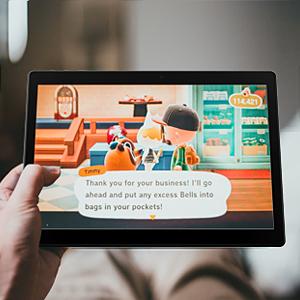
Figure 5: Tablet for Gaming
This image shows the tablet displaying a game, illustrating its use for entertainment.

Figure 6: Tablet for Navigation
This image depicts the tablet displaying a map with a route, highlighting its utility for navigation and GPS functions.
Priežiūra
1. Planšetinio kompiuterio valymas
- Planšetinio kompiuterio ekraną ir korpusą valykite minkštu, nepūkuotu audiniu.
- Įsisenėjusioms dėmėms šiek tiek pamirkykiteampNuvalykite šluostę vandeniu arba elektronikos ekranams skirtu valikliu.
- Venkite naudoti stiprias chemines medžiagas, abrazyvines medžiagas ar aerozolinius purškalus tiesiai ant planšetinio kompiuterio.
2. Akumuliatoriaus priežiūra
- Venkite ekstremalių temperatūrų, nes jos gali pabloginti akumuliatoriaus veikimo laiką.
- Do not leave the tablet charging for excessively long periods after it's fully charged.
- Jei planšetinį kompiuterį ilgesnį laiką laikysite, prieš išjungdami jį įkraukite iki maždaug 50 %.
3. Programinės įrangos atnaujinimai
Reguliariai tikrinkite, ar yra programinės įrangos atnaujinimų, ir juos įdiekite, kad planšetiniame kompiuteryje būtų įdiegtos naujausios funkcijos, saugos pataisymai ir našumo patobulinimai.
- Eikite į Nustatymai > Sistema > Sistemos atnaujinimas.
- Vykdykite ekrane pateikiamus nurodymus, kad atsisiųstumėte ir įdiegtumėte visus galimus naujinimus.
4. Duomenų atsarginė kopija
It is recommended to regularly back up your important data (photos, videos, documents) to a cloud service (e.g., Google Drive) or an external storage device to prevent data loss.
Trikčių šalinimas
Bendros problemos ir sprendimai
| Problema | Galima priežastis | Sprendimas |
|---|---|---|
| Planšetinis kompiuteris neįsijungia. | Žema akumuliatoriaus įkrova; sistemos gedimas. | Kraukite planšetinį kompiuterį bent 30 minučių. Paspauskite ir palaikykite maitinimo mygtuką 10–15 sekundžių, kad priverstumėte jį paleisti iš naujo. |
| „Wi-Fi“ ryšio problemos. | Neteisingas slaptažodis; maršrutizatoriaus problema; planšetinio kompiuterio „Wi-Fi“ išjungtas. | Ensure correct password. Restart your Wi-Fi router. Toggle Wi-Fi off and on in tablet settings. |
| Applications crashing or freezing. | Insufficient RAM; app bug; outdated app. | Close background apps. Clear app cache (Settings > Apps > [App Name] > Storage > Clear cache). Update the app from Google Play Store. |
| Lėtas veikimas. | Per daug veikiančių programų; mažai vietos saugykloje; pasenusi programinė įranga. | Close unused apps. Free up storage by deleting unnecessary files. Check for system updates. |
| Ekranas nereaguoja. | Laikinas programinės įrangos triktis. | Force restart the tablet by holding the Power button for 10-15 seconds. |
Jei problema išlieka ir išbandžius šiuos sprendimus, susisiekite su klientų aptarnavimo tarnyba.
Gaminio specifikacijos
| Funkcija | Detalė |
|---|---|
| Prekės ženklas | Lectrus |
| Modelio numeris | ES-KTLA133 |
| Spalva | Juoda |
| Operacinė sistema | Android 10 |
| Procesoriaus prekės ženklas | Allwinner |
| Procesoriaus aprašymas | Keturių branduolių (1.6 GHz) |
| RAM | 2 GB |
| Vidinė atmintis (ROM) | 32 GB |
| Išplečiama atmintis | Up to 128 GB (via Micro SD) |
| Ekrano dydis | 10.1 colių |
| Ekrano raiška | 1280 x 800 pikselių |
| Galinė kamera | 5 MP |
| Priekinė kamera | 2 MP |
| Ryšio tipas | „Wi-Fi“ (802.11n) |
| Techninės įrangos sąsaja | „Bluetooth“, USB, „Micro SD“ |
| Baterijos talpa | 6000 mAh |
| Baterijos veikimo laikas | Iki 7 valandų |
| Prekės matmenys (I x P x A) | 23.8 x 1 x 16.7 cm |
| Produkto svoris | 900 gramų |
Garantija ir palaikymas
Informacija apie garantiją
Specific warranty details for your LECTRUS tablet may vary by region and retailer. Please refer to the warranty card included with your product or contact your point of purchase for detailed information regarding warranty coverage and duration.
Note: Information regarding spare parts availability and guaranteed software updates is not available at this time.
Pagalba klientams
For technical assistance, troubleshooting beyond this manual, or warranty claims, please contact LECTRUS customer support through their official website or the contact information provided with your purchase. When contacting support, please have your model number (ES-KTLA133) and purchase details ready.
Ask a question about this manual
Ask about setup, troubleshooting, compatibility, parts, safety, or missing instructions. Manuals+ will review the question and use this page’s manual context to help answer it.