
Įvadas
This manual provides essential information for setting up, operating, maintaining, and troubleshooting your CyberpowerPC Gamer Xtreme Gaming PC. This system is designed for high-performance gaming and multitasking, featuring an AMD Ryzen 7 3700X processor, NVIDIA GeForce RTX 3060 graphics, 16GB DDR4 RAM, and a combination of SSD and HDD storage, running on Windows 10 Home 64-Bit.
1. Sąranka
1.1 Išpakavimas
Carefully remove the PC from its packaging. Ensure all accessories, including the power cable, keyboard, and mouse, are present. Retain the original packaging for future transport or service needs.

1 pav.: priekis view of the CyberpowerPC Gamer Xtreme, highlighting its design and RGB lighting.
1.2 Išorinių įrenginių prijungimas
Connect your monitor, keyboard, mouse, and other peripherals to the appropriate ports on the rear and top of the PC. Ensure all connections are secure.
- Monitorius: Connect your monitor to the graphics card's HDMI or DisplayPort output.
- Klaviatūra ir pelė: Connect to any available USB ports (USB 2.0 or USB 3.0).
- Galia: Connect the power cable to the PC's power supply unit (PSU) and then to a grounded electrical outlet.
- Tinklas: Laidiniam internetui prijunkite Ethernet kabelį prie LAN prievado. Belaidžiam ryšiui įsitikinkite, kad prijungta „Wi-Fi“ antena (jei pridėta).

2 pav.: Kampinis view of the CyberpowerPC Gamer Xtreme, highlighting the front panel design and side ventilation.

3 paveikslas: viršuje view of the PC, illustrating the accessible front I/O ports and top ventilation.
1.3 Pradinis įjungimas ir „Windows“ sąranka
Press the power button located on the top panel of the PC. The system will boot up. Follow the on-screen instructions to complete the Windows 10 Home setup, including language selection, network connection, and user account creation.
2. Naudojimo instrukcijos
2.1 Maitinimo įjungimas/išjungimas
- Norėdami įjungti: Paspauskite maitinimo mygtuką viršutiniame skydelyje.
- Norėdami išjungti: „Windows“ sistemoje spustelėkite mygtuką „Pradėti“, tada pasirinkite „Maitinimas“ > „Išjungti“.
- Norėdami paleisti iš naujo: Spustelėkite mygtuką Pradėti, tada pasirinkite Maitinimas > Paleisti iš naujo.
- Miegoti: Spustelėkite mygtuką „Pradėti“, tada pasirinkite „Maitinimas“ > „Miego režimas“.
2.2 Prisijungimas prie tinklo
Your PC supports both wired (Ethernet) and wireless (Wi-Fi) network connections.
- Laidinis: Connect an Ethernet cable from your router/modem to the LAN port on the rear of the PC.
- Belaidis ryšys: In Windows, click the network icon in the taskbar, select your Wi-Fi network, enter the password, and click Connect.
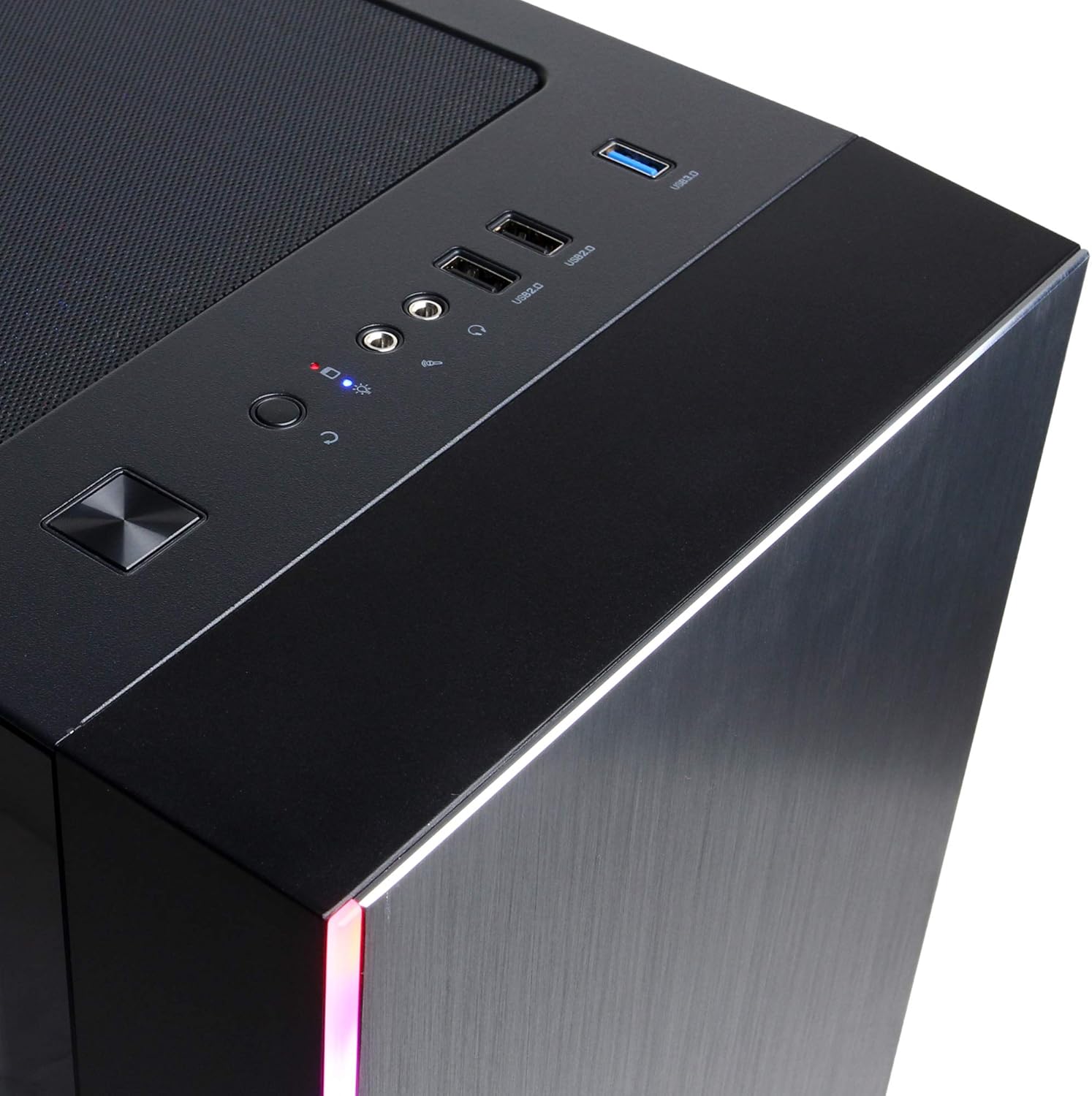
Figure 4: Detail of the top I/O panel, providing easy access to USB and audio connections.
3. Priežiūra
3.1 Valymas
Reguliarus valymas padeda palaikyti optimalų kompiuterio našumą ir pailgina jo tarnavimo laiką.
- Išorė: Naudokite minkštą, damp šluoste valyti išorę. Venkite stiprių cheminių medžiagų.
- Dulkės: Periodically use compressed air to clear dust from ventilation grilles and internal components. Ensure the PC is powered off and unplugged before cleaning.
3.2 Programinės įrangos naujiniai
Keep your operating system, drivers, and applications updated to ensure security, stability, and performance.
- „Windows“ naujiniai: Eikite į Nustatymai > Atnaujinimas ir sauga > Windows naujinimas.
- Grafikos tvarkyklės: Download the latest drivers directly from NVIDIA's official websvetainę.
4. Problemų sprendimas
4.1 Nėra galios
- Įsitikinkite, kad maitinimo laidas yra tvirtai prijungtas tiek prie kompiuterio, tiek prie sieninio lizdo.
- Patikrinkite, ar sieninis lizdas veikia, prijungdami prie jo kitą įrenginį.
- Check the power switch on the PSU (if present) is in the 'On' position.
4.2 Nėra ekrano
- Confirm the monitor is powered on and connected to the graphics card's output, not the motherboard's integrated graphics ports (if applicable).
- Jei įmanoma, išbandykite kitą ekrano kabelį arba monitorių.
- Įsitikinkite, kad monitoriaus įvesties šaltinis yra tinkamai pasirinktas.
4.3 Sistemos sulėtėjimas arba užšalimas
- Patikrinkite užduočių tvarkytuvę (Ctrl+Shift+Esc), ar konkrečios programos nenaudoja daug procesoriaus, RAM ar disko.
- Įsitikinkite, kad „Windows“ ir tvarkyklės yra atnaujintos.
- Paleiskite virusų ir kenkėjiškų programų nuskaitymą.
- Ensure adequate ventilation and check for excessive dust buildup.
5. Specifikacijos
| Funkcija | Detalė |
|---|---|
| Prekės ženklas | CyberpowerPC |
| Modelio pavadinimas | Gamer Xtreme |
| Operacinė sistema | Windows 10 Home |
| CPU modelis | AMD Ryzen 7 3700X |
| CPU greitis | 3.6 GHz (bazinis) |
| Grafikos koprocesorius | NVIDIA GeForce RTX 3060 |
| Graphics Card RAM | 12 GB GDDR6 |
| Įdiegta RAM atmintis | 16 GB DDR4 |
| Sandėliavimas | 240 GB SSD, 1 TB HDD |
| Ryšys | HDMI, Wi-Fi (802.11ab), USB 2.0, USB 3.0 |
| Prekės matmenys (IxPxH) | 18.6 x 17.4 x 8.9 colio |
| Aušinimo būdas | Oras |
| UPC | 811842073769 |
6. Informacija apie garantiją
Your CyberpowerPC Gamer Xtreme Gaming PC is covered by a manufacturer's limited warranty. Specific terms and conditions, including warranty duration and coverage details, are typically provided with your purchase documentation or can be found on the official CyberpowerPC websvetainėje. Prašome išsaugoti pirkimo įrodymą garantiniams reikalavimams.
7. Parama
For technical assistance, troubleshooting, or further inquiries, please visit the official CyberpowerPC support website or contact their customer service. You may need your product model number (GMA3088W) and serial number for support.
- Oficialus Websvetainė: www.cyberpowerpc.com
- Support Section: Look for a "Support" or "Contact Us" link on their websvetainę.