
1. Įvadas
Welcome to your new HAOVM 10-inch Android 11 Tablet. This manual provides essential information to help you set up, operate, maintain, and troubleshoot your device. Please read it carefully to ensure optimal performance and longevity of your tablet.

Image: The HAOVM 10-inch Android 11 Tablet, showcasindėl savo elegantiško dizaino ir ekrano.
2. Darbo pradžia (sąranka)
2.1 Planšetinio kompiuterio įkrovimas
Before first use, ensure your tablet is fully charged.
- Prijunkite USB C tipo laidą prie planšetinio kompiuterio įkrovimo prievado.
- Prijunkite kitą laido galą prie suderinamo maitinimo adapterio ir įjunkite jį į sieninį lizdą.
- The battery icon on the screen will indicate the charging status.
2.2 Maitinimo įjungimas/išjungimas
- Norėdami įjungti: Press and hold the Power Button (located on the side) until the HAOVM logo appears on the screen.
- Norėdami išjungti: Press and hold the Power Button until a power options menu appears. Select "Power off" and confirm.
2.3 Pradinė sąranka
Pirmą kartą įjungus įrenginį, būsite vedami pradinio nustatymo proceso:
- Pasirinkite norimą kalbą.
- Prisijunkite prie „Wi-Fi“ tinklo, kad pasiektumėte internetą.
- Prisijunkite naudodami „Google“ paskyrą arba sukurkite naują.
- Follow the remaining prompts to complete the setup.

Image: Close-up of the tablet's USB Type-C port, highlighting its modern connectivity.
3. Planšetinio kompiuterio valdymas
3.1 Ekranas ir navigacija
The HAOVM tablet features a vibrant 10.1-inch IPS FHD display with a resolution of 1920x1200 pixels, providing clear and crisp visuals. The capacitive touchscreen allows for smooth and responsive navigation.
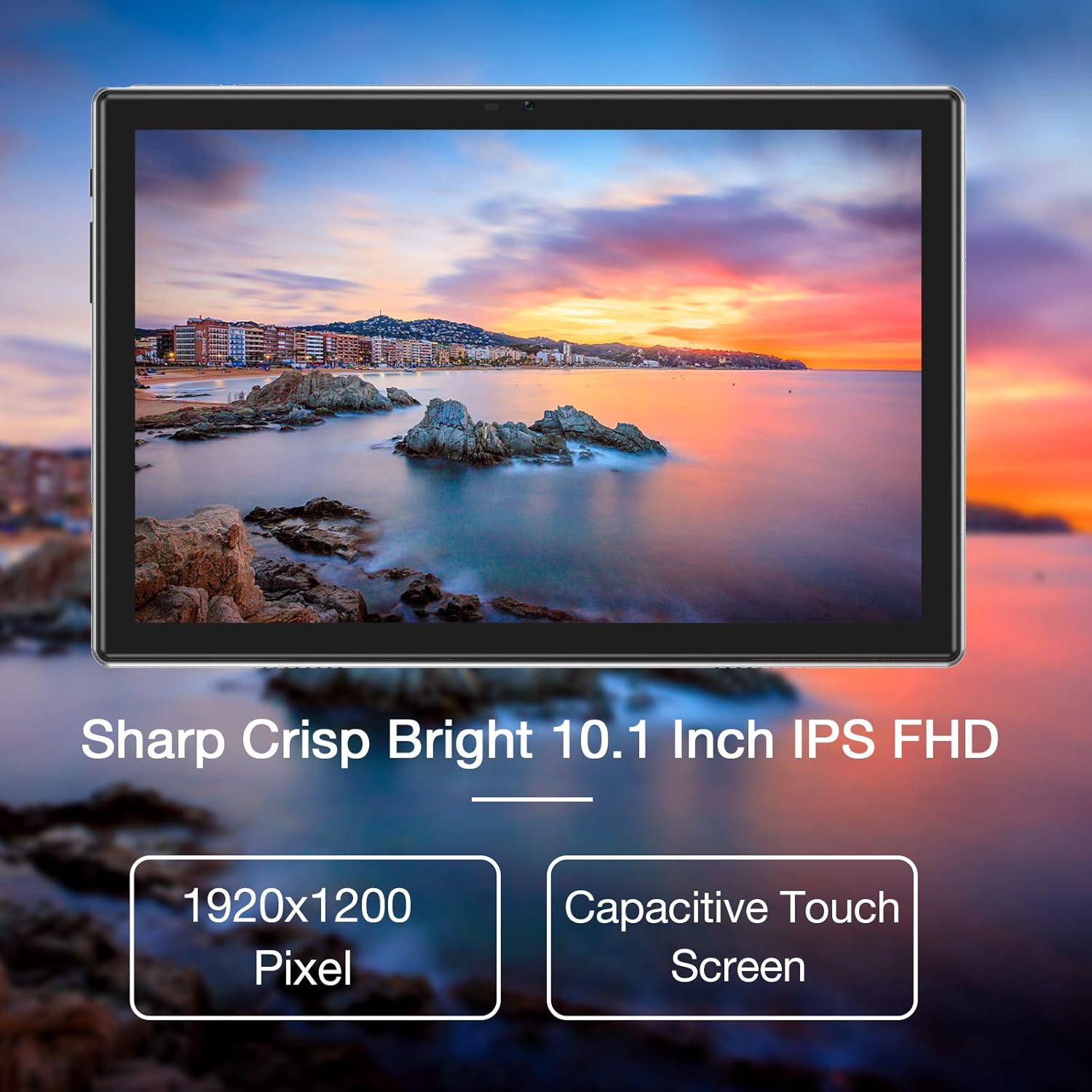
Image: The tablet's 10.1-inch IPS FHD display showcasing its sharp and bright visual quality.
3.2 Ryšys
Your tablet offers robust connectivity options:
- „Wi-Fi“: Supports 5G WiFi (802.11ac) for high-speed internet access. To connect, go to Nustatymai > Tinklas ir internetas > „Wi-Fi“, pasirinkite savo tinklą ir įveskite slaptažodį.
- Bluetooth: Equipped with Bluetooth 5.0 for connecting to wireless headphones, speakers, and other compatible devices. Enable it via Nustatymai> Prijungti įrenginiai> Ryšio nuostatos> „Bluetooth“.
3.3 fotoaparatai
Capture moments and make video calls with the tablet's dual cameras:
- Priekinė kamera: 5 Megapixels, ideal for video conferencing and selfies.
- Galinė kamera: 13 Megapixels, suitable for taking photos and recording videos.

Image: Illustration showing the tablet's 5.0MP front camera and 13.0MP back camera capabilities.
3.4 Saugojimas ir našumas
The tablet is designed for efficient multitasking and ampsaugykla:
- RAM: 3GB of RAM ensures smooth operation and efficient multitasking.
- Vidinė saugykla: 64GB of internal storage for your apps, photos, and files.
- Išplečiama saugykla: Storage can be expanded up to 128GB using a microSD card (not included).
- Procesorius: Powered by a 1.6 GHz Octa-Core processor, providing fast and fluid performance for various applications.

Image: Diagram illustrating the tablet's powerful internal configuration, including the Octa-Core CPU, 3GB RAM, and 64GB storage.
3.5 GPS funkcionalumas
The integrated GPS system allows for accurate navigation and location-based services, making it a useful tool for travel and exploration.

Image: The tablet being used for navigation, demonstrating its GPS capabilities and long-lasting 6000mAh battery.
4. Priežiūra
4.1 Valymas
- Minkštu, nepūkuotu skudurėliu švelniai nuvalykite planšetinio kompiuterio ekraną ir korpusą.
- Avoid using abrasive cleaners, alcohol, or chemical solvents, as they may damage the surface.
4.2 Akumuliatoriaus priežiūra
- Norėdami pailginti baterijos veikimo laiką, venkite planšetinio kompiuterio laikymo ekstremaliose temperatūrose (karštyje arba šaltyje).
- Neleiskite akumuliatoriui dažnai visiškai išsikrauti iki 0 %.
- Jei planšetinį kompiuterį ilgesnį laiką laikysite, prieš išjungdami jį įkraukite iki maždaug 50 %.
4.3 Programinės įrangos naujiniai
- Regularly check for system updates to ensure your tablet has the latest features, performance improvements, and security patches.
- You can usually find update options in Nustatymai > Sistema > Sistemos naujinimas.
5. Problemų sprendimas
5.1 Bendrosios problemos ir sprendimai
| Problema | Sprendimas |
|---|---|
| Planšetinis kompiuteris neįsijungia | Ensure the battery is charged. Connect to a power source for at least 30 minutes. Press and hold the power button for 10-15 seconds to force a restart. |
| Wi-Fi ryšio problemos | Restart the tablet and your Wi-Fi router. Go to Wi-Fi settings, forget the network, and then reconnect. Ensure you are within range of the Wi-Fi signal. |
| Programėlės stringa arba užstringa | Uždarykite programėlę ir vėl ją atidarykite. Išvalykite programėlės talpyklą ir duomenis Nustatymai > Programos > [Programos pavadinimas] > Atmintis > Išvalyti talpyklą / Išvalyti duomenis. Ensure sufficient storage space is available. |
| Lėtas veikimas | Close unused background apps. Clear system cache (if option available). Uninstall unnecessary apps. If issues persist, consider a factory reset (backup all data first). |
| Ekranas nereaguoja | Restart the tablet by holding the power button. If unresponsive, let the battery drain completely and then recharge and power on. |
6. Specifikacijos
6.1 Techninės specifikacijos
| Funkcija | Detalė |
|---|---|
| Prekės ženklas | HAOVM |
| Modelio numeris | Tablet (HP20) |
| Operacinė sistema | Android 11 |
| Procesorius | Aštuonių branduolių 1.6 GHz procesorius |
| RAM | 3 GB |
| Vidinė saugykla | 64 GB |
| Išplečiama saugykla | Iki 128 GB („MicroSD“) |
| Ekrano dydis | 10.1 colių |
| Ekrano raiška | 1920 x 1200 pikselių (Full HD IPS) |
| Priekinė kamera | 5 MP |
| Galinė kamera | 13 MP |
| Ryšys | Wi-Fi (802.11ac), Bluetooth 5.0, GPS |
| Sąsaja | C tipo USB |
| Baterija | 6000 mAh |
| Matmenys (I x P x A) | 27.2 x 18 x 6.1 cm |
| Svoris | 5 gramų |
7. Garantija ir palaikymas
7.1 Informacija apie garantiją
Your HAOVM tablet comes with a limited warranty. Please refer to the warranty card or documentation included in the product packaging for specific terms, conditions, and duration of the warranty. Keep your proof of purchase for warranty claims.
7.2 Pagalba klientams
For technical assistance, troubleshooting beyond this manual, or service inquiries, please contact HAOVM customer support. You can typically find contact information on the official HAOVM websvetainėje arba per pardavėją, iš kurio įsigijote produktą.