
1. Produktas baigtasview
The UNITOPSCI UT-CP501 is a versatile single DIN car stereo featuring a 7-inch HD retractable touch screen. It integrates modern connectivity options such as Apple CarPlay, Android Auto, Bluetooth, FM Radio, Mirror Link, and supports various multimedia inputs. This manual provides essential information for installation, operation, and maintenance.

1.1 vaizdas: priekis view of the UNITOPSCI UT-CP501 Single Din Car Stereo with its 7-inch retractable screen extended, displaying a smartphone-like interface. The main unit features a volume knob, buttons for various functions, and USB/AUX inputs.
2. Pakuotės turinys
Prieš tęsdami montavimą, patikrinkite, ar pakuotėje yra visi reikalingi daiktai:
- UNITOPSCI UT-CP501 Car Stereo Unit
- Maitinimo kabelio jungtis
- Nuotolinio valdymo pultas
- Vairo valdiklis
- Galinis View Fotoaparatas
- Montavimo laikikliai
- Vartotojo vadovas (šis dokumentas)

Image 2.1: A visual representation of the UNITOPSCI UT-CP501 package contents, including the main stereo unit, power cable, remote control, mounting brackets, steering wheel controller, user manual, and rear camera.
3. Sąranka ir diegimas
Proper installation is crucial for optimal performance and safety. If you are unfamiliar with car audio wiring, professional installation is recommended.
3.1. Laidų schema
Refer to the detailed wiring diagram provided with your unit's physical manual for specific connections. Key connections typically include:
- Galia: Nuolatinė 12 V įtampa (geltona), papildoma 12 V įtampa (raudona), įžeminimas (juoda).
- Garsiakalbiai: Connect to appropriate positive and negative speaker wires.
- Antena: Connect to the vehicle's radio antenna.
- Galinis View Kamera: Connect video input and power to the reverse light circuit.
- Vairo valdymas (SWC): Connect to the vehicle's SWC wires (may require an adapter for some vehicles).
- AUX IN: Išoriniams garso šaltiniams.
- USB/TF kortelė: Multimedijos atkūrimui.
3.1 pav.: Išsamus view of the UNITOPSCI UT-CP501's rear interface, showing various input/output ports such as ANT, OUT-L, OUT-R, V-OUT1, V-IN, CAM-IN, and the Power cable connector. Dimensions of the unit are also indicated.
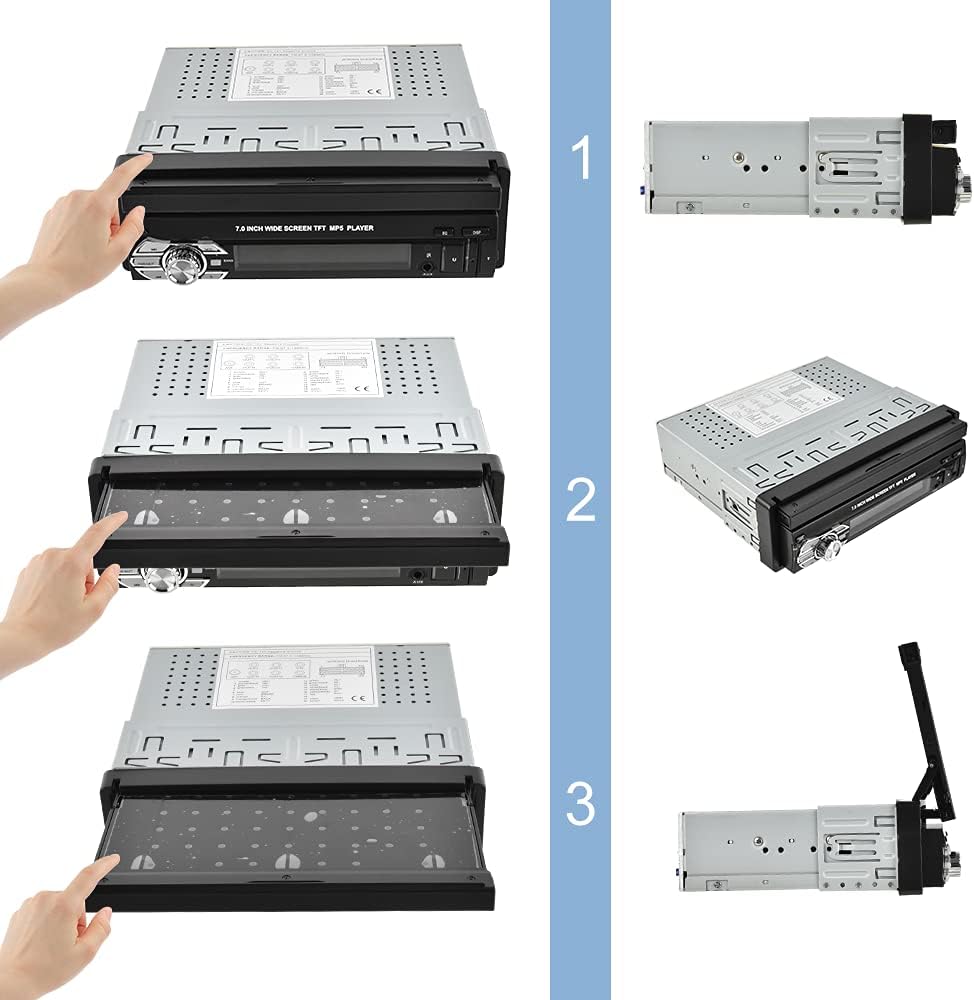
3.2. Screen Retraction and Extension
The 7-inch screen is retractable. To extend or retract the screen, gently pull or push the screen until it locks into position. Ensure no obstructions are present during movement.

Image 3.2: A sequence of three images demonstrating the manual retraction and extension of the 7-inch screen on the UNITOPSCI UT-CP501 car stereo. The screen can be folded down into the unit or pulled up for use.
3.3. Pradinis įjungimas
After installation, turn on your vehicle's ignition. The stereo should power on automatically. If not, press the power button on the unit. Adjust basic settings like language, time, and radio region as prompted.
Video 3.1: This video demonstrates the UNITOPSCI Single Din 7 Inch Flip Out Car Stereo in operation, showcasing its retractable screen mechanism, USB/TF card input, and the user interface for CarPlay and Android Auto. It highlights the seamless integration and functionality within a car's dashboard.
4. Naudojimo instrukcijos
4.1. „Apple CarPlay“ ir „Android Auto“
Connect your compatible iPhone or Android smartphone via a USB cable to enable CarPlay or Android Auto. This allows access to navigation, music, calls, and messages directly from the stereo's touch screen.
- Navigacija: Use maps applications like Apple Maps, Google Maps, or Waze.
- Bendravimas: Skambinkite, siųskite žinutes ir pasiekite kontaktus.
- Žiniasklaida: Play music, podcasts, and audiobooks.
- Valdymas balsu: Norėdami valdyti be rankų, naudokite „Siri“ arba „Google Assistant“.

Image 4.1: The car stereo screen displaying the Apple CarPlay interface, showing icons for Phone, Music, Maps, Messages, and other applications. A user is shown interacting with voice commands like 'Hi, Siri' and 'Call John'.

Image 4.2: A comparison showing the interfaces for Wired CarPlay (supporting iOS), Android Auto (supporting Android System), and Mirror Link (for both iOS/Android) on the car stereo screen, demonstrating the wired connectivity options.
4.2. Veidrodinis saitas
Mirror Link allows you to display your smartphone's screen directly onto the car stereo. This feature is compatible with both iOS and Android devices. Connect your phone via USB and follow the on-screen prompts to activate Mirror Link.

Image 4.3: The car stereo screen displaying a mirrored smartphone interface, showing various apps. The image also highlights multimedia input options including USB, TF card, and AUX-in.
4.3. Bluetooth ryšys
Pair your smartphone with the stereo via Bluetooth for hands-free calling and audio streaming.
- Įjunkite „Bluetooth“ savo išmaniajame telefone.
- Stereo sistemoje eikite į „Bluetooth“ meniu.
- Ieškokite available devices on your phone and select 'UNITOPSCI' (or similar device name).
- Jei būsite paraginti, patvirtinkite susiejimo kodą.

Image 4.4: The car stereo screen showing the Bluetooth interface for making calls, with a smartphone displaying an incoming call. This illustrates the hands-free calling capability.
4.4. FM radijas
Access the FM radio tuner to listen to local radio stations. Use the touch screen or physical buttons to scan for stations, save presets, and adjust settings.

Image 4.5: The car stereo screen displaying the FM radio interface, showing the current frequency (107.90 MHz) and options for scanning and saving presets.
4.5. Multimedijos atkūrimas
The unit supports multimedia playback from USB drives, TF cards, and AUX-in connections. Insert the storage device or connect an external audio player to the respective ports.

Image 4.6: The car stereo screen showing multimedia options like Radio, USB, Card, BT Music, and BT Phone. Below, icons represent a 3.5mm jack (AUX), a USB drive, and a TF card, indicating various input methods.
4.6. Galinė View Fotoaparatas
When the vehicle is shifted into reverse, the stereo automatically displays the feed from the connected rear view camera, assisting with parking and maneuvering.

Image 4.7: The car stereo screen displaying a clear view from a rear camera, showing parking guidelines and a vehicle in a parking lot. Features like HD 1080, 170° wide angle, night vision, and waterproof design are highlighted.
4.7. Vairo valdymas (SWC)
Program the stereo to respond to your vehicle's existing steering wheel controls for convenient operation without taking your hands off the wheel. Refer to the SWC setup section in the full manual for detailed programming steps.

Image 4.8: The car stereo screen showing the Steering Wheel Control setup interface, with various function icons. A separate steering wheel controller is also depicted, indicating compatibility with external controllers.
4.8. Valdymas balsu
Utilize voice commands through CarPlay or Android Auto for hands-free control of navigation, music, and calls, enhancing driving safety.

Image 4.9: The car stereo screen displaying a voice assistant interface, with text bubbles indicating voice commands like 'Hey, Siri' and 'Play popular music'.
4.9. User Interface and Settings
The stereo features a customizable user interface with various settings for audio, display, and system preferences. Explore the settings menu to personalize your experience.

Image 4.10: A collage of multiple screen captures from the car stereo's user interface, showing various settings menus including FM radio, date/time, Bluetooth, equalizer, language selection, and display adjustments (brightness, contrast, hue).
4.10. 7-Color Backlight
The unit features a customizable 7-color backlight for the physical buttons, allowing you to match it with your vehicle's interior lighting or personal preference.

Image 4.11: The car stereo unit with its screen extended, showcasing the 7-color backlight options for the control buttons, displayed as a row of colored circles below the unit.
5. Priežiūra
Reguliarus techninis aptarnavimas padeda užtikrinti automobilio garso sistemos ilgaamžiškumą ir optimalų veikimą.
- Ekrano valymas: Use a soft, lint-free cloth to gently wipe the touch screen. Avoid abrasive cleaners or harsh chemicals.
- Įrenginio valymas: Use a dry, soft cloth to clean the main unit. Do not spray liquids directly onto the device.
- Programinės įrangos atnaujinimai: Periodiškai tikrinkite gamintojo website for any available firmware updates to improve performance and add new features. Follow the provided instructions carefully for any update procedures.
6. Problemų sprendimas
If you encounter issues with your UNITOPSCI UT-CP501 car stereo, refer to the following common problems and solutions:
| Problema | Galima priežastis | Sprendimas |
|---|---|---|
| Nėra galios | Neteisingas laidų prijungimas; perdegęs saugiklis; išjungtas automobilio uždegimas | Check power connections (Yellow, Red, Black wires). Inspect vehicle fuses. Ensure ignition is on. |
| Nėra garso | Atjungti garsiakalbio laidai; per mažas garsumas; įjungtas nutildymas | Patikrinkite garsiakalbių jungtis. Padidinkite garsumą. Patikrinkite, ar įjungta nutildymo funkcija. |
| Ekranas užstringa arba nereaguoja | Software glitch; Temporary system error | Restart the unit by turning the vehicle ignition off and on. If persistent, perform a factory reset (refer to the full manual for instructions). |
| Bluetooth neprisijungia | „Bluetooth“ išjungtas telefone / stereo sistemoje; įrenginys neporavimo režime; trukdžiai | Ensure Bluetooth is enabled on both devices. Put stereo in pairing mode. Try pairing in a different location to avoid interference. |
| Radio not receiving stations | Antenna disconnected; Poor signal area; Incorrect region settings | Check antenna connection. Move to an area with better signal. Verify radio region settings in the system menu. |
| „CarPlay“ / „Android Auto“ nepaleidžiama | Faulty USB cable; Incompatible phone; Software issue | Use a high-quality, original USB cable. Ensure your phone's OS is updated and compatible. Restart both phone and stereo. |
Jei problema išlieka ir išbandžius šiuos sprendimus, susisiekite su klientų aptarnavimo tarnyba.
7. Specifikacijos
| Funkcija | Specifikacija |
|---|---|
| Gaminio matmenys | 6.77 x 5.39 x 2.24 colio |
| Prekės svoris | 3.58 svaro |
| Prekės modelio numeris | UT-CP501 |
| Ryšio technologija | Pagalbinis, „Bluetooth“, USB |
| Valdiklio tipas | Android, iOS |
| Ypatingos savybės | Built-In Bluetooth, Touchscreen |
| Suderinami įrenginiai | Pranešėjas |
| Iš viso HDMI prievadų | 1 |
| Jungties tipas | 3.5 mm lizdas |
| Garso išvesties režimas | AUX, Stereo |
| Erdvinio garso kanalo konfigūracija | 4.0 |
8. Informacija apie garantiją
This product is covered by a manufacturer's warranty. Please refer to the warranty card included in your product packaging or visit the official UNITOPSCI webIšsamias garantijos sąlygas ir nuostatas rasite svetainėje. Išsaugokite pirkimo kvitą kaip pirkimo įrodymą bet kokiems garantiniams prašymams.
9. Pagalba klientams
For further assistance, technical support, or inquiries regarding your UNITOPSCI UT-CP501 car stereo, please contact UNITOPSCI customer service through their official websvetainėje arba kontaktinę informaciją, pateiktą jūsų produkto dokumentuose.