
Įvadas
This manual provides detailed instructions for the BINIZE Portable Carplay Screen Navigation system. It covers setup, operation, and maintenance to ensure optimal performance and user experience.
Saugos informacija
- Įsitikinkite, kad įrenginys yra tvirtai pritvirtintas ir netrukdo view arba trukdyti automobilio valdymui.
- Connect the power cord only to a 12V cigarette lighter port.
- Nebandykite ardyti ar modifikuoti įrenginio.
- Visada teikite pirmenybę saugiam vairavimui. Nenaudokite įrenginio taip, kad atitrauktumėte dėmesį nuo kelio.
Pakuotės turinys
Patikrinkite, ar pakuotėje yra visi reikalingi daiktai:
- BINIZE Portable Carplay Screen Navigation Unit
- Cigarečių degiklio maitinimo laidas
- USB prailginimo kabelis
- Garso išvesties kabelis (RCA)
- Mounting Bracket with 3M Adhesive
- Nuotolinio valdymo pultas
- Vartotojo vadovas (šis dokumentas)
Sąranka
1. Prietaiso montavimas
Choose a suitable location on your dashboard that does not obstruct your view arba transporto priemonės valdymo įtaisus.

The base of the mounting bracket comes with 3M adhesive. Clean the dashboard surface thoroughly before attaching the base. Securely attach the unit to the bracket.

Adjust the screen angle for optimal viewing.
2. Maitinimo prijungimas
Connect the cigarette lighter power cable to the device and insert it into your vehicle's 12V cigarette lighter port. The device will power on automatically.

Ensure the vehicle's voltage yra nuo 12 iki 14 V.
This video demonstrates the initial power-up sequence of the BINIZE Portable Carplay Screen Navigation unit by connecting it to a cigarette lighter port. It shows the "welcome" screen appearing upon successful power-on.
Naudojimo instrukcijos
1. Initial Setup and Language Selection
Upon first power-on, the device will display the home screen. Navigate to the "Settings" menu to select your preferred language.

2. Garso išvesties parinktys
The monitor itself does not have internal speakers. Sound is routed through your original car audio system.
FM siųstuvas
To use the FM transmitter, set the device's FM frequency to match an unused FM channel on your car's stereo.

Ensure both the device and your car stereo are tuned to the same FM frequency for audio output.
RCA garso išvestis
For additional audio requirements, such as connecting to a subwoofer or amplifier, use the two RCA ports (White: Audio Out Left, Red: Audio Out Right).
3. Apple CarPlay Connection
To use Apple CarPlay, connect your iPhone to the device using an original Apple data cable via the USB port on the right side of the player.
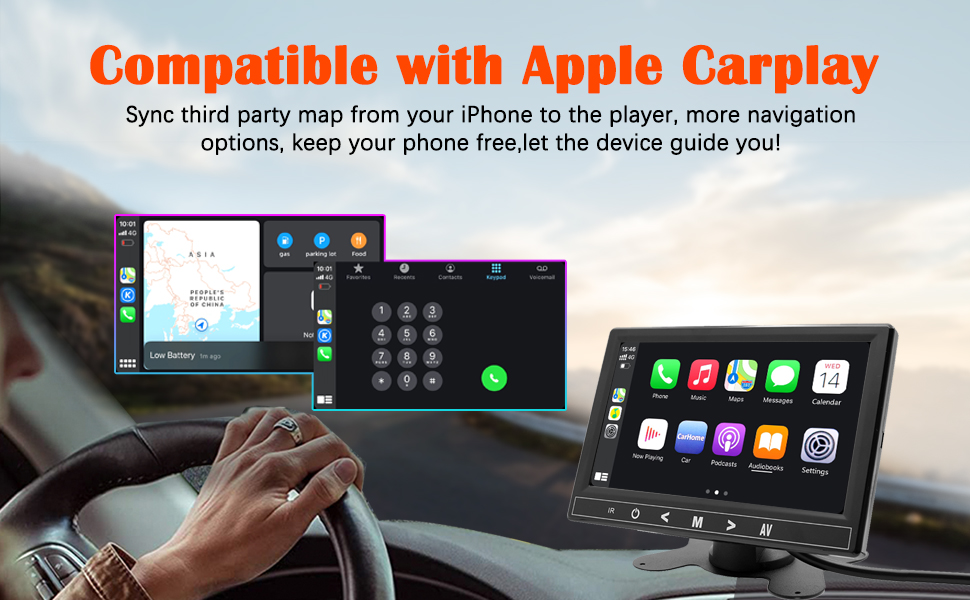
Select "i-Play" in the device settings. Grant any necessary permissions on your iPhone.
This video demonstrates how to connect an iPhone to the BINIZE Portable Carplay Screen Navigation for Apple CarPlay functionality. It shows the steps to select "i-Play" in settings and connect the original data cable.
4. Android Auto Connection
To use Android Auto, connect your Android phone to the device using an original data cable via the USB port on the right side of the player.

Select "A-Auto" in the device settings. Grant any necessary permissions on your Android phone.
This video illustrates the process of connecting an Android phone to the BINIZE Portable Carplay Screen Navigation for Android Auto. It guides the user to select "A-Auto" in settings and connect the data cable.
5. MirrorLink (iPhone)
To mirror your iPhone screen, connect your iPhone to the device using an original Apple data cable via the USB port on the right side of the player.
Select "i-Mirror" in the device settings. Grant permissions on your iPhone. The iPhone screen will be projected onto the player's screen.
This video demonstrates the MirrorLink function for iPhone, showing how to connect the device and mirror the phone's display.
6. MirrorLink (Android Phone)
To mirror your Android phone screen, connect your Android phone to the device using an original data cable via the USB port on the right side of the player.
Select "A-Link" in the device settings. Grant permissions on your Android phone. The Android phone screen will be projected onto the player's screen.
This video demonstrates the MirrorLink function for Android phones, showing how to connect the device and mirror the phone's display.
7. USB Flash Drive Reading
Insert a USB flash drive into the USB extension cable to play music or videos. The device supports various media formats.
8. Telefono įkrovimas
The USB extension cable can also be used to charge your mobile phone.
Priežiūra
- Ekraną valykite minkštu, sausu skudurėliu. Venkite abrazyvinių valiklių.
- Įsitikinkite, kad visos kabelių jungtys yra saugios.
- Stenkitės ilgą laiką nelaikyti prietaiso ekstremaliose temperatūrose arba tiesioginiuose saulės spinduliuose.
Trikčių šalinimas
| Problema | Galima priežastis | Sprendimas |
|---|---|---|
| Įrenginys neįsijungia. | No power from cigarette lighter. | Check vehicle's 12V port. Ensure power cable is securely connected. |
| Nėra garso išvesties. | FM frequency not synchronized or incorrect RCA connection. | Match FM frequency on device and car stereo. Verify RCA cable connections. |
| „CarPlay“ / „Android Auto“ neprisijungia. | Non-original data cable, incorrect settings, or phone permissions. | Use original data cable. Check "i-Play" or "A-Auto" settings. Grant all necessary phone permissions. |
| MirrorLink not working. | Incorrect settings or phone permissions. | Check "i-Mirror" or "A-Link" settings. Grant all necessary phone permissions. |
| Ekranas užstringa arba nereaguoja. | Laikinas programinės įrangos triktis. | Restart the device by unplugging and re-plugging the power cable. |
For further assistance, please contact BINIZE customer support.
Specifikacijos
| Funkcija | Detalė |
|---|---|
| Prekės ženklas | BINIZE |
| Modelio numeris | B09DSMJ59X |
| Ryšio technologija | „Bluetooth“, RCA, USB |
| Valdiklio tipas | Android, Google Assistant |
| Ypatinga funkcija | Jutiklinis ekranas |
| Suderinami įrenginiai | Išmanusis telefonas |
| Garso išvesties režimas | Stereo |
| Kanalų skaičius | 4 |
| Vaizdo įrašų kodavimas | H.264, H.265/HEVC |
| Kontrolės metodas | Palieskite |
| Belaidė technologija | Bluetooth |
| Maitinimo įvestis | 12V (via cigarette lighter) |
Pastaba: specifikacijos gali būti keičiamos be išankstinio įspėjimo.
Garantija ir palaikymas
BINIZE products come with a standard manufacturer's warranty. Please refer to the warranty card included in your package for specific terms and conditions.
For technical support, warranty claims, or any other inquiries, please visit the official BINIZE websvetainėje arba susisiekite su klientų aptarnavimo komanda.