
1. Įvadas
This manual provides detailed instructions for the installation, operation, and maintenance of your VEIKK VK1560 Pro Drawing Monitor. Please read this manual thoroughly before using the device to ensure proper functionality and to maximize your creative experience. The VK1560 Pro is a 15.6-inch full-laminated pen display designed for digital artists, designers, and educators, offering a high-definition display and precise pen input.
2. Pakuotės turinys
Patikrinkite, ar jūsų pakuotėje yra visi toliau išvardyti daiktai:
- VEIKK VK1560 Pro Drawing Monitor
- Battery-Free Stylus (Digital Pen)
- Reguliuojamas stovas
- Detachable Pen Holder
- USB-C to USB-C Cable (for Android device connection)
- Maitinimo adapteris
- HDMI kabelis
- USB kabelis
- Pen Nibs and Nib Remover
- Valymo šluostė
- Greitos pradžios vadovas

Image: Contents of the VEIKK VK1560 Pro package, including the monitor, stylus, stand, and various cables.
3. Sąrankos vadovas
3.1 Connecting the Monitor to Your Computer
Follow these steps to connect your VK1560 Pro to your computer:
- Prijunkite maitinimą: Plug the power adapter into the monitor's power port and then into a wall outlet.
- Prijungti vaizdo įrašą: Connect one end of the HDMI cable to the monitor's HDMI port and the other end to your computer's HDMI port. If your computer does not have an HDMI port, you may need an adapter (not included).
- Prijunkite USB: Connect one end of the USB cable to the monitor's USB port and the other end to an available USB port on your computer. This connection enables pen input and data transfer.
- Maitinimas: Press the power button on the side of the monitor to turn it on.
- Įdiegti tvarkyklę: Visit the official VEIKK website to download and install the latest driver for your operating system (Windows or macOS). Ensure any previous tablet drivers are uninstalled before installing the VEIKK driver.
- Konfigūruoti ekrano nustatymus: After driver installation, configure your display settings (e.g., extend or duplicate display) and pen calibration through your operating system's display settings and the VEIKK driver software.

Image: Diagram illustrating how to connect the VEIKK VK1560 Pro to a computer using HDMI, USB, and power cables.
3.2 Prisijungimas prie „Android“ įrenginių
The VK1560 Pro can be connected to compatible Android devices using the included full-featured USB-C to USB-C cable. Ensure your Android device supports display output via USB-C.
- Connect one end of the USB-C to USB-C cable to the monitor's USB-C port.
- Connect the other end of the USB-C to USB-C cable to your Android device's USB-C port.
- The monitor should automatically detect and display content from your Android device.
3.3 Adjustable Stand Installation
Attach the adjustable stand to the back of the VK1560 Pro for comfortable viewing and drawing angles. The stand allows for various tilt adjustments.
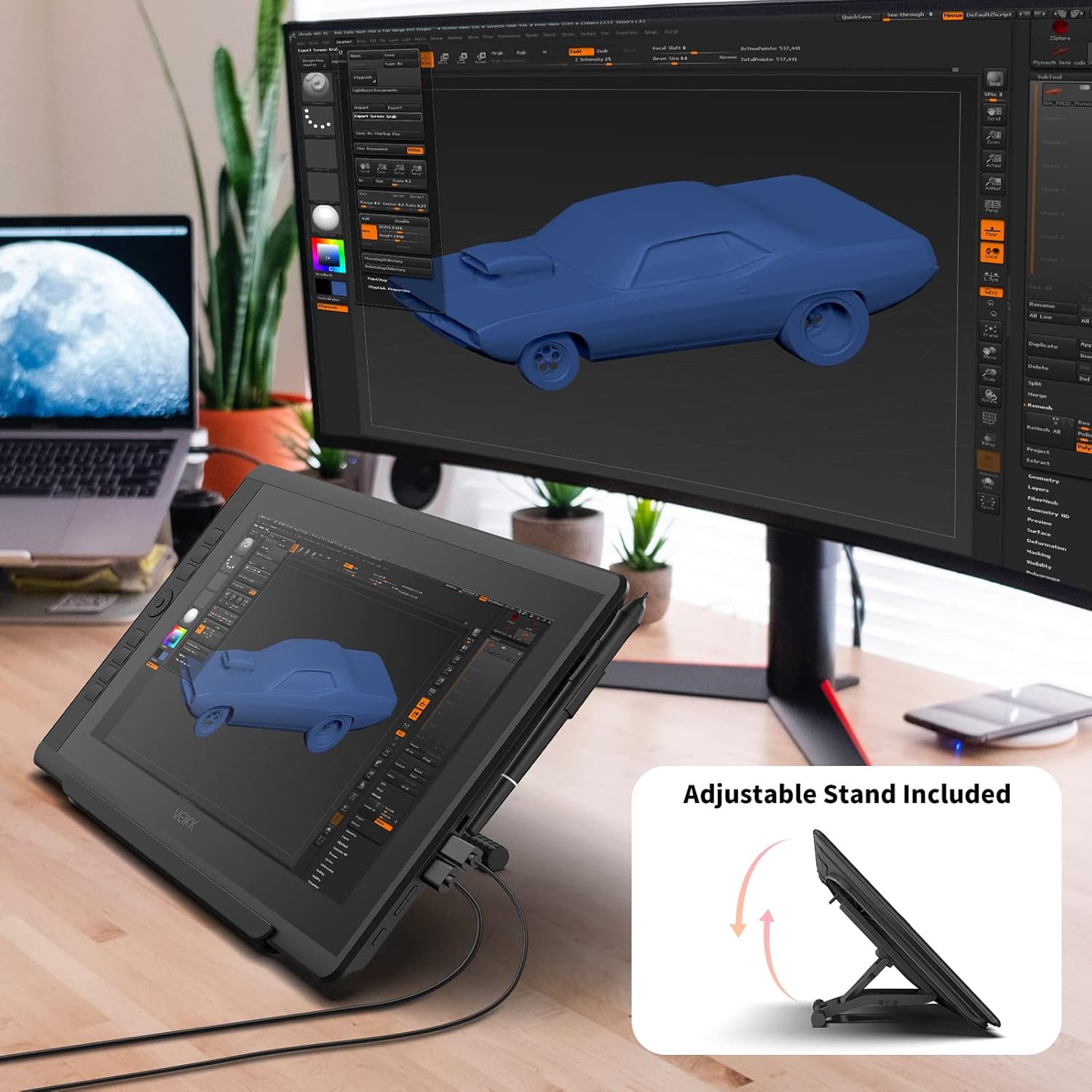
Image: The VEIKK VK1560 Pro drawing monitor shown with its adjustable stand, demonstrating various viewkampų.
4. Operacija
4.1 Using the Battery-Free Stylus
The VK1560 Pro comes with a battery-free stylus that offers 8192 levels of pressure sensitivity and tilt support for a natural drawing experience.
- Brėžinys: Use the stylus directly on the monitor's screen to draw, paint, and edit.
- Mygtukai: The stylus features programmable buttons. Customize their functions (e.g., right-click, eraser) through the VEIKK driver software.
- Rašiklio laikiklis: Store the stylus in the detachable pen holder when not in use to prevent loss or damage.
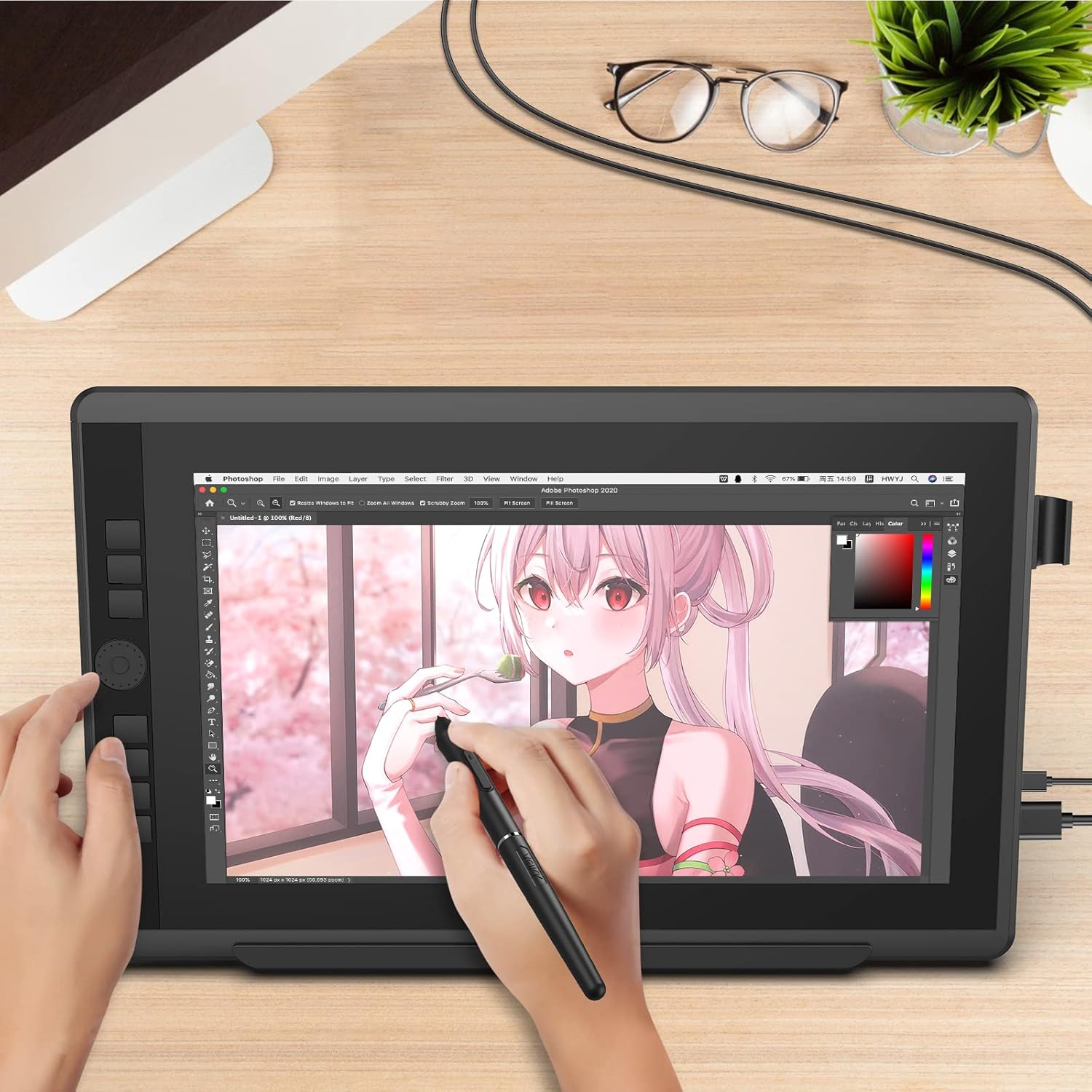
Image: A user actively drawing on the VEIKK VK1560 Pro screen using the battery-free stylus, demonstrating its use in creative applications.
4.2 Using the Quick Dial and Shortcut Keys
The VK1560 Pro features an upgraded Quick Dial and customizable shortcut keys for efficient workflow.
- Tinkinimas: Access the VEIKK driver software to assign specific functions (e.g., zoom, brush size, undo) to the Quick Dial and shortcut keys.
- Efektyvumas: Utilize these features to quickly access frequently used tools and commands, reducing reliance on keyboard shortcuts.

Vaizdas: Stambus planas view of the VEIKK VK1560 Pro's Quick Dial and programmable shortcut keys, highlighting their ergonomic placement for workflow customization.
4.3 Ekrano funkcijos
The 15.6-inch Full HD IPS display offers a vibrant visual experience:
- Rezoliucija: 1920x1080 Full HD for clear and detailed visuals.
- Spalvos tikslumas: Supports 16.7 million display colors and 92% NTSC color gamut for accurate color reproduction.
- Anti-glare: The anti-glare film reduces reflections and provides a paper-like drawing surface.
- Viewpakreipimo kampas: Plotis 178° viewfotografavimo kampai užtikrina vienodą vaizdo kokybę iš įvairių perspektyvų.

Image: The VEIKK VK1560 Pro screen showcasing its 1920x1080 FHD IPS display, 92% NTSC color gamut, and 16.7 million colors.
5. Priežiūra
5.1 Monitoriaus valymas
- Prieš valydami visada išjunkite monitorių ir atjunkite jį nuo elektros tinklo.
- Use a soft, lint-free cloth (preferably the included cleaning cloth) to gently wipe the screen and body.
- Įstrigusiems dėmėms lengvai nuvalykiteampNuvalykite šluostę vandeniu arba ekranui saugiu valymo tirpalu. Nepurkškite skysčio tiesiai ant ekrano.
- Avoid using harsh chemicals, abrasive cleaners, or alcohol-based solutions, as these can damage the screen surface.
5.2 Rašiklio antgalio keitimas
Over time, the stylus nib may wear down. Replace it when it becomes too short or feels rough.
- Use the nib remover tool to gently pull out the old nib from the stylus.
- Insert a new nib firmly into the stylus until it clicks into place.
5.3 Saugykla
- Laikykite monitorių vėsioje, sausoje vietoje, apsaugotoje nuo tiesioginių saulės spindulių ir ekstremalių temperatūrų.
- Protect the screen from scratches by using a soft cover or returning it to its original packaging when transporting.
6. Problemų sprendimas
| Problema | Galima priežastis | Sprendimas |
|---|---|---|
| Monitoriuje nėra vaizdo |
|
|
| Pen not working or no pressure sensitivity |
|
|
| Cursor offset or inaccurate |
|
|
| Quick Dial or shortcut keys not responding |
|
|
7. Specifikacijos
| Funkcija | Detalė |
|---|---|
| Prekės ženklas | VEIKK |
| Modelio numeris | VK1560 Pro |
| Ekrano dydis | 15.6 colių |
| Gimtoji raiška | 1920 x 1080 (viskas viename) |
| Ekrano tipas | IPS LCD with Anti-Glare Film |
| Spalvų palaikymas | 16.7 Million Colors, 92% NTSC Color Gamut |
| Rašiklio technologija | Battery-Free Stylus |
| Pen Pressure Levels | 8192 |
| Pakreipimo palaikymas | Taip |
| Ryšys | USB, HDMI, USB-C |
| Operacinės sistemos suderinamumas | Windows 7 or later, MacOS 10.12 or later, Android (via USB-C) |
| Integruota laikmena | Digital Pen, Stand, Stylus |
| Spalva | Juoda |
| Specifiniai naudojimo būdai | Designing, Drawing, Online Education |
8. Produktas baigtasview Vaizdo įrašas
Vaizdo įrašas: pareigūnas viršview of the VEIKK VK1560 Pro drawing tablet, showcasing its features, design, and functionality. This video demonstrates the product's components, setup, and usage in various creative tasks.
9. Garantija ir palaikymas
The VEIKK VK1560 Pro Drawing Monitor comes with a 1 metų garantija from the date of purchase. VEIKK also provides visą gyvenimą trunkanti techninė pagalba šiam produktui.
For technical assistance, driver downloads, or warranty claims, please visit the official VEIKK websvetainėje arba susisiekite tiesiogiai su jų klientų aptarnavimo tarnyba. Išsaugokite pirkimo kvitą kaip pirkimo įrodymą, jei jums reikės garantinio aptarnavimo.
Official VEIKK Websvetainė: www.veikk.com