
Avision AD340G

Avision AD340G Compact High Speed Duplex Document Scanner User Manual
Model: AD340G
Įvadas
This manual provides comprehensive instructions for the setup, operation, maintenance, and troubleshooting of your Avision AD340G Compact High Speed Duplex Document Scanner. Please read this manual thoroughly before using the scanner to ensure proper and safe operation.
Saugos informacija
Kad išvengtumėte sužalojimų ir skaitytuvo pažeidimo, laikykitės šių saugos priemonių:
- Naudokite tik su skaitytuvu pateiktą maitinimo adapterį.
- Saugokite skaitytuvą nuo vandens ar per didelės drėgmės.
- Padėkite skaitytuvą ant stabilaus, lygaus paviršiaus.
- Skaitytuvą laikykite atokiau nuo tiesioginių saulės spindulių ir šilumos šaltinių.
- Unplug the scanner before cleaning or if it will not be used for an extended period.
Pakuotės turinys
Patikrinkite, ar pakuotėje yra visi reikalingi daiktai:
- Avision AD340G Document Scanner
- Maitinimo adapteris
- USB kabelis
- Greitos pradžios vadovas
- Programinės įrangos kompaktinis diskas (arba atsisiuntimo instrukcijos)
Produktas baigtasview
Familiarize yourself with the main components of the Avision AD340G scanner.
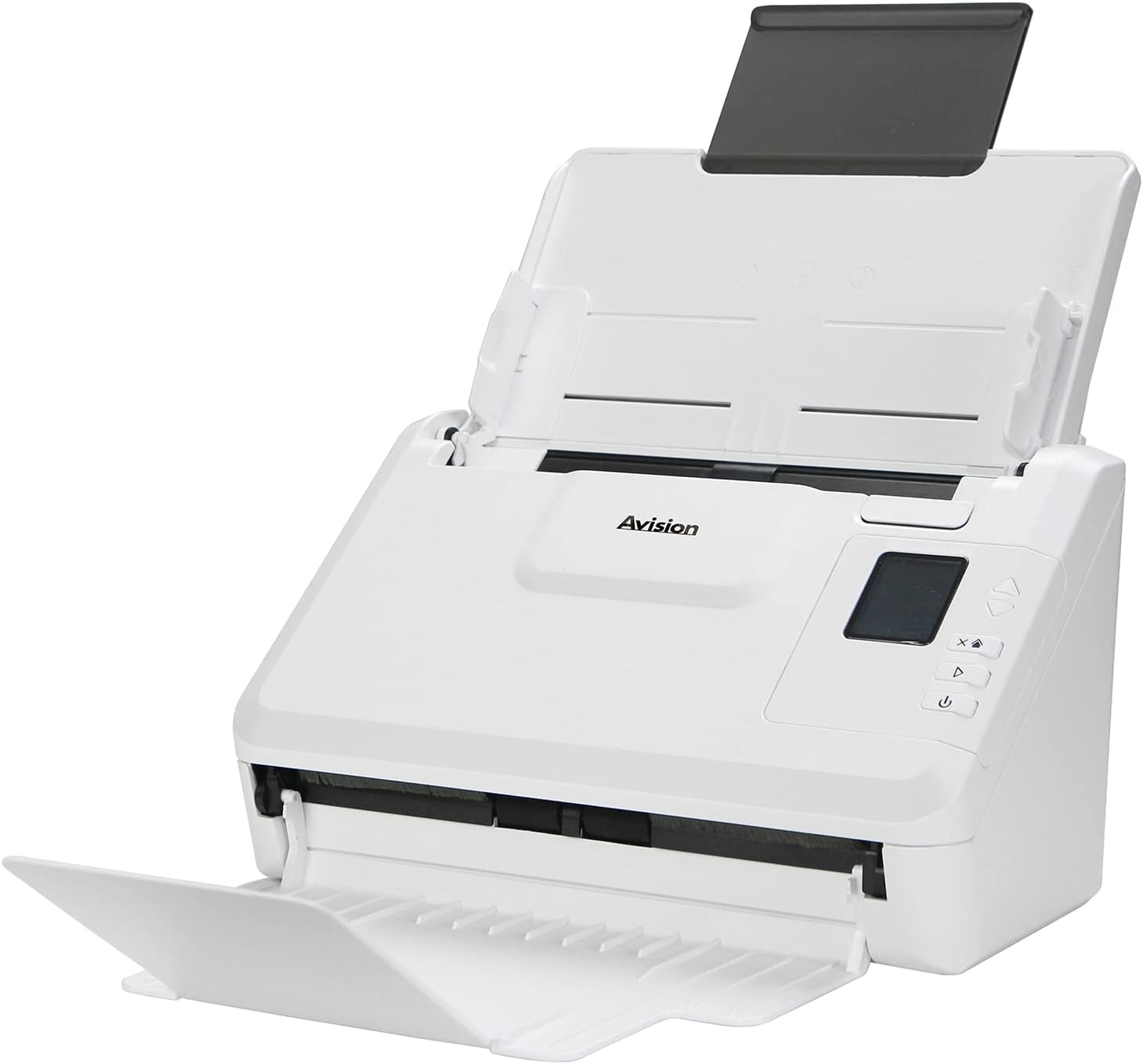
Vaizdas: The Avision AD340G scanner shown with its input and output trays extended, ready for document feeding. This view highlights the compact design and accessible paper path.
- Document Feeder Tray: Kur dokumentai įkeliami nuskaitymui.
- Išvesties dėklas: Kur išstumiami nuskaityti dokumentai.
- Valdymo skydelis: Buttons and display for scanner operation.
- USB prievadas: Prijungimui prie kompiuterio.
- Maitinimo prievadas: Maitinimo adapterio prijungimui.
Sąranka
1. Fizinė konfigūracija
- Išpakuokite skaitytuvą: Atsargiai išimkite skaitytuvą ir visus priedus iš pakuotės.
- Padėkite skaitytuvą: Position the scanner on a flat, stable surface with adequate space for the input and output trays.
- Prijunkite maitinimą:
- Connect the power adapter to the scanner's power port.
- Įjunkite maitinimo adapterį į elektros lizdą.
- Prisijunkite prie kompiuterio:
- Connect one end of the USB cable to the scanner's USB port.
- Kitą USB kabelio galą prijunkite prie laisvo kompiuterio USB prievado.
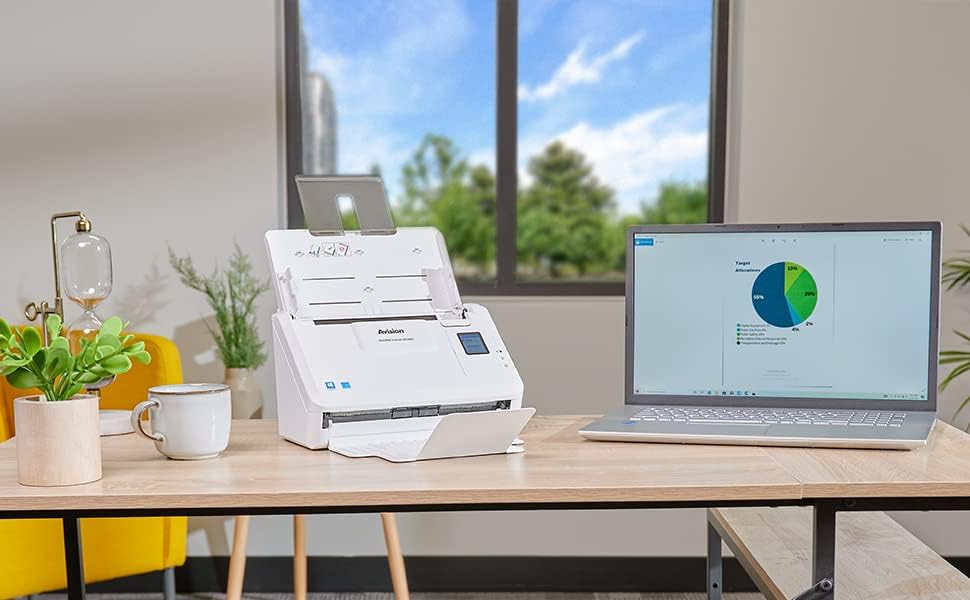
Vaizdas: The Avision AD340G scanner set up on a desk next to a laptop, illustrating a typical connected environment. This shows the scanner's compact footprint when in use.
2. Programinės įrangos diegimas
Install the necessary drivers and scanning software from the provided CD or by downloading them from the official Avision websvetainę.
- Insert the software CD into your computer's CD/DVD drive, or navigate to the Avision support website to download the latest drivers and utilities for the AD340G model.
- Follow the on-screen instructions to complete the installation. This typically includes installing the TWAIN/ISIS drivers and the Avision scanning utility software.
- Iš naujo paleiskite kompiuterį, jei būsite paraginti.
Skaitytuvo valdymas
1. Dokumentų įkėlimas
- Open the document feeder tray and extend the output tray.
- Sureguliuokite popieriaus kreipiklius, kad jie atitiktų jūsų dokumentų plotį.
- Place the documents face-down in the input tray, ensuring they are neatly stacked and aligned. The scanner supports up to 50 sheets.

Vaizdas: A hand carefully placing a stack of documents into the input tray of the Avision AD340G scanner, demonstrating the correct loading procedure.
2. Skenavimo procedūra
- Įjunkite skaitytuvą paspausdami maitinimo mygtuką.
- Launch the Avision scanning software on your computer.
- Pasirinkite norimą nuskaitymo profesionaląfile (e.g., color, grayscale, black & white, resolution). The AD340G supports duplex scanning (both sides simultaneously).
- Click the "Scan" button in the software or press the scan button on the scanner's control panel.
- The scanner will feed and process the documents. Once scanning is complete, the images will appear in the software.
- Review the scanned images, make any necessary adjustments (e.g., rotate, crop), and save them to your desired location and format (e.g., PDF, JPEG, TIFF).
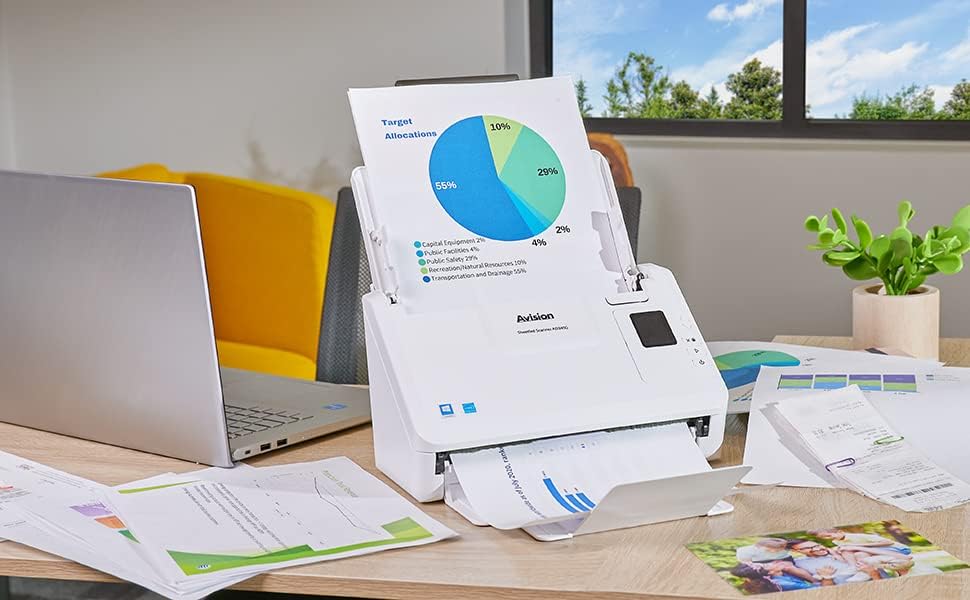
Vaizdas: The Avision AD340G scanner in operation, feeding a document with a pie chart. This illustrates the scanner's ability to handle various document types efficiently.
Priežiūra
Skaitytuvo valymas
Regular cleaning ensures optimal performance and extends the life of your scanner.
- Išjunkite ir atjunkite: Always turn off the scanner and disconnect the power adapter and USB cable before cleaning.
- Švarus išorė: Wipe the exterior of the scanner with a soft, lint-free cloth lightly dampnuplaukite vandeniu arba švelniu, neabrazyviniu valikliu.
- Clean Interior (Rollers and Glass):
- Open the scanner cover to access the rollers and glass scanning surfaces.
- Gently wipe the feed rollers with a clean, lint-free cloth. If necessary, use a small amount of isopropyl alcohol on the cloth for stubborn residue.
- Clean the glass scanning strips with a soft cloth and glass cleaner (non-ammonia based).
- Prieš uždarydami dangtį ir vėl prijungdami maitinimą, leiskite visiems komponentams visiškai išdžiūti.
Trikčių šalinimas
| Problema | Galima priežastis | Sprendimas |
|---|---|---|
| Skaitytuvas neįsijungia. | Maitinimo laidas neprijungtas; problema su maitinimo lizdu. | Įsitikinkite, kad maitinimo laidas yra tvirtai prijungtas. Išbandykite kitą maitinimo lizdą. |
| Documents jam frequently. | Misaligned paper guides; worn rollers; dirty rollers. | Adjust paper guides. Clean the feed rollers. If problem persists, rollers may need replacement. |
| Nuskaityti vaizdai yra neryškūs arba juose yra linijų. | Dirty scanning glass; incorrect resolution settings. | Clean the scanning glass. Adjust scanning resolution in the software. |
| Kompiuteris neaptiko skaitytuvo. | USB cable disconnected; driver not installed or corrupted. | Check USB cable connection. Reinstall scanner drivers. Try a different USB port. |
Specifikacijos
Key technical specifications for the Avision AD340G Document Scanner:
- Modelis: AD340G
- Skaitytuvo tipas: ADF Duplex Document Scanner
- Ryšys: USB
- Rezoliucija: 600 dpi (optinė)
- Nuskaitymo greitis: 40 ppm (pages per minute) / 80 ipm (images per minute)
- Spalvos gylis: 48 bits input / 24 bits output
- Standartinė lapo talpa: 50 XNUMX lapų
- Optinio jutiklio technologija: NVS (kontaktinis vaizdo jutiklis)
- Gaminio matmenys: 11 x 6.1 x 6.5 colio
- Prekės svoris: 8 svaro
- Minimalūs sistemos reikalavimai: Windows XP/7/8/10
Garantija ir palaikymas
For warranty information, technical support, or service inquiries, please refer to the warranty card included with your product or visit the official Avision websvetainėje. Klientų aptarnavimo kontaktinę informaciją paprastai galima rasti gamintojo svetainėje websvetainę.
Avision Official Websvetainė: www.avision.com
Ask a question about this manual
Ask about setup, troubleshooting, compatibility, parts, safety, or missing instructions. Manuals+ will review the question and use this page’s manual context to help answer it.