
1. Sąranka
1.1 Pakuotės turinys
Patikrinkite, ar jūsų pakuotėje yra šie daiktai:
- Microsoft Xbox Wireless Controller - Project Scorpio Edition
- AA Batteries (may be included depending on retailer)
1.2 Baterijų įdėjimas
To power your controller:
- Open the battery compartment cover on the back of the controller.
- Įdėkite dvi AA tipo baterijas, užtikrindami teisingą poliškumą (+ ir -).
- Saugiai uždarykite akumuliatoriaus skyriaus dangtelį.
1.3 Connecting to Xbox One
To connect your controller wirelessly to an Xbox One console:
- Įjunkite „Xbox One“ konsolę.
- Paspauskite ir palaikykite Xbox mygtukas
 on your controller to turn it on. The Xbox button will flash.
 - Paspauskite Suporavimo mygtukas on your Xbox One console (located on the front or side, depending on the model).
- Per 20 sekundžių paspauskite ir palaikykite Suporavimo mygtukas
 on the top edge of your controller (next to the USB port). The Xbox button on the controller will flash more rapidly.
 - Once the Xbox button on the controller glows solid, it is connected.
1.4 Connecting to Windows 10 PC via Bluetooth
To connect your controller to a Windows 10 PC using Bluetooth:
- Ensure your Windows 10 PC has Bluetooth enabled.
- Paspauskite ir palaikykite Xbox mygtukas on your controller to turn it on.
- Paspauskite ir palaikykite Suporavimo mygtukas on the top edge of your controller for three seconds. The Xbox button will flash rapidly.
- Kompiuteryje eikite į Nustatymai > Prietaisai > Bluetooth ir kiti įrenginiai.
- Pasirinkite Pridėkite Bluetooth ar kitą įrenginį > Bluetooth.
- Pasirinkite „Xbox“ belaidis valdiklis iš sąrašo.
- Once the Xbox button on the controller glows solid, it is connected.
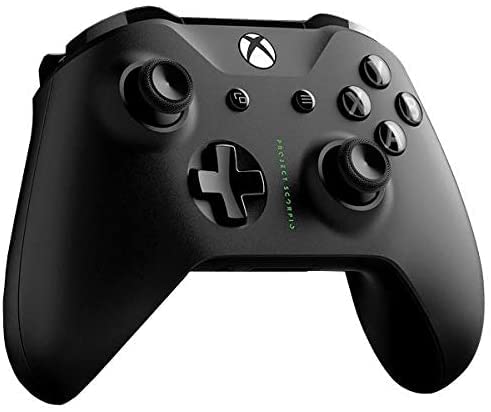
A black Xbox Wireless Controller, featuring the Project Scorpio Special Edition details, with textured grips and the Xbox logo button at the top center. This image illustrates the overall design of the controller.
2. Operating Your Controller
2.1 Controller Layout and Functions
The Xbox Wireless Controller features a standard layout for intuitive gameplay:
- Xbox mygtukas: Powers on the controller/console, opens the Guide, and indicates connection status.
- View mygtuką: Changes views or displays more information in games and apps.
- Meniu mygtukas: Accesses game or app menus, such as Settings or Options.
- A, B, X, Y mygtukai: Action buttons for in-game commands.
- D-pad: Directional pad for precise input.
- Kairysis ir dešinysis nykščių valdikliai: For movement and camera control. Pressing them down acts as a button.
- Kairysis ir dešinysis bamperiai (LB, RB): Located on the top edge, typically used for quick actions.
- Kairysis ir dešinysis paleidikliai (LT, RT): Analog triggers for variable input, such as acceleration or firing.
- 3.5 mm stereo ausinių lizdas: For connecting compatible headsets.
2.2 Using the 3.5mm Headset Jack
To use a headset with your controller:
- Plug any compatible 3.5mm stereo headset directly into the jack located at the bottom of the controller.
- Audio settings can be adjusted via the Xbox Guide or Windows sound settings.
3. Priežiūra
3.1 Cleaning Your Controller
Norėdami išlaikyti valdiklio išvaizdą ir funkcionalumą:
- Use a soft, dry, lint-free cloth to wipe the surface of the controller.
- Įsisenėjusiam purvui šiek tiek pamirkykiteampNusausinkite šluostę vandeniu. Venkite per didelės drėgmės.
- Do not use harsh chemicals, abrasive cleaners, or solvents, as these can damage the controller's finish.
3.2 Saugykla
When not in use, store your controller in a cool, dry place away from direct sunlight and extreme temperatures. Remove batteries if storing for extended periods to prevent leakage.
4. Problemų sprendimas
4.1 Controller Not Turning On
- Patikrinkite baterijas: Ensure batteries are correctly inserted and have sufficient charge. Replace with fresh AA batteries if necessary.
- Maitinimo ciklas: Remove and reinsert the batteries, then try turning the controller on again.
4.2 Ryšio problemos
- Valdiklio susiejimas iš naujo: Follow the connection steps in Section 1.3 or 1.4 to re-pair the controller with your Xbox One or Windows 10 PC.
- Trikdžiai: Ensure there are no obstructions or other wireless devices causing interference between the controller and the console/PC.
- Atnaujinti programinę-aparatinę įrangą: Connect the controller to your Xbox One or PC via a USB cable and check for controller firmware updates.
- Bluetooth Driver (PC): Ensure your PC's Bluetooth drivers are up to date.
4.3 Button or Stick Malfunction
- Švarus valdiklis: Ensure no debris is lodged around buttons or sticks. Refer to Section 3.1.
- Test in Different Games/Apps: Determine if the issue is specific to one application or system-wide.
- Valdiklio atstatymas: In some cases, removing batteries for a few minutes can reset internal components.
5. Specifikacijos
| Funkcija | Detalė |
|---|---|
| Prekės ženklo pavadinimas | Microsoft |
| Modelio pavadinimas | Project Scorpio |
| Suderinami įrenginiai | Xbox One, Windows 10 PCs and tablets |
| Valdiklio tipas | Žaidimų pultelis |
| Ryšio technologija | „Bluetooth“, belaidis |
| Aparatinės įrangos platforma | Xbox One |
| Maitinimo šaltinis | Maitinamas baterijomis (AA) |
| Spalva | Green (Project Scorpio Edition) |
6. Garantija ir palaikymas
This product is a Certified Refurbished item. Certified Refurbished products are tested and certified to look and work like new, with limited to no wear, by a third-party refurbisher. The refurbishing process includes functionality testing, cosmetic inspection, and repackaging.
The product is backed by a minimum 90-day warranty from the date of purchase. For specific warranty details and claims, please refer to the documentation provided by the refurbisher or contact the seller directly.
For further technical assistance or support, please visit the official Microsoft Xbox support websvetainėje arba susisiekite su jų klientų aptarnavimo tarnyba.