
Įvadas
The Microware EZCap 273 is a portable, standalone HDMI video capture device designed to record 1080P at 60 frames per second (fps) video directly to a Micro SD card. This device eliminates the need for a PC during recording, offering convenience for capturing content from various HDMI sources such as gaming consoles, set-top boxes, and camcorders. It features a built-in screen for preview and playback, a microphone input for commentary, and schedule recording capabilities.
Produkto savybės
- 1080P@60fps Video Recording: Captures and records Full HD 1080p HDMI videos at 60 frames per second from devices with HDMI output. Compatible with gaming consoles (Nintendo Switch, PS4, Xbox One, Wii U), PCs, DV, Live TV, DVR, VHS VCR, Camcorders, and DSLRs. Note: Does not support live streaming.
- Mikrofono įvestis: Allows for recording gameplay with simultaneous microphone narration.
- Įrašymo tvarkaraštis: Program recording tasks by setting a schedule, target channel, and duration.
- PC & PC-Free Modes: Records directly to a Micro SD card without a PC. Can also connect to a PC to download recorded videos. Supports exFAT and FAT32 file sistemos.
- Offline Learning Support: Facilitates recording online classes for later review, addressing time conflicts and enabling playback for study.
- Integruotas ekranas: Features a 3.5-inch screen for video preview ir atkūrimas.
- Nuotolinio valdymo pultas: Komplekte yra nuotolinio valdymo pultas patogiam valdymui.
Pakuotės turinys
Patikrinkite, ar pakuotėje yra visi reikalingi daiktai:
- Microware EZCap 273 Video Capture Device
- AV adapteris
- TF kortelių skaitytuvas
- Nuotolinio valdymo pultas
- Power Adapter (if included, not explicitly listed but implied for standalone operation)
- Vartotojo vadovas
Įrenginio išdėstymas ir jungtys
Familiarize yourself with the device's ports and controls.

Vaizdas: Priekinė ir šoninė view of the EZCap 273, showing the 3.5-inch display, operation buttons, DC/USB port, Micro SD card slot, HDMI In, HDMI Out, Microphone input, Earphone output, and the Power On/Off/Transfer switch.
- DC/USB Port: For power supply and PC connection.
- „Micro SD“ kortelės lizdas: Insert your Micro SD card for recording storage.
- HDMI IN: Connect your video source (e.g., game console, set-top box).
- HDMI OUT: Connect to a display (e.g., TV, monitor) for pass-through viewing.
- Microphone Input (3.5mm TRS): Connect an external microphone for audio commentary.
- Earphone Output (3.5mm TRRS): Prijunkite ausines, kad galėtumėte stebėti garsą.
- Maitinimo jungiklis: Controls power and switches between Record and Transfer modes.
- Veikimo mygtukai: For menu navigation, recording, playback, and other functions.
Sąrankos instrukcijos
- Įdėkite Micro SD kortelę: Ensure a formatted Micro SD card (exFAT or FAT32) is inserted into the Micro SD card slot.
- Prijunkite maitinimą: Connect the power adapter to the DC/USB port and plug it into a power outlet.
- HDMI Input Connection: Connect an HDMI cable from your video source (e.g., gaming console, set-top box) to the HDMI-IN port on the EZCap 273.
- HDMI Output Connection (Optional): Prijunkite kitą HDMI kabelį nuo HDMI OUT port on the EZCap 273 to your TV or monitor for real-time viewing.
- Microphone/Headphone Connection (Optional): If desired, connect a 3.5mm TRS microphone to the Microphone input and 3.5mm TRRS headphones to the Earphone output.
- Maitinimas: Slide the power switch to the "ON" position. The device's screen should activate.

Image: The EZCap 273 device shown alongside its remote control, illustrating the primary components for setup and operation.
Naudojimo instrukcijos
Vaizdo įrašo įrašymas
- Ensure the device is powered on and connected as described in the Setup section.
- Verify the video source is active and displaying on the EZCap 273's screen (and external display, if connected).
- Paspauskite Rec/Stop button on the device or remote control to begin recording. A recording indicator will appear on the screen.
- Norėdami sustabdyti įrašymą, paspauskite Rec/Stop button again. The recorded video will be saved to the Micro SD card.
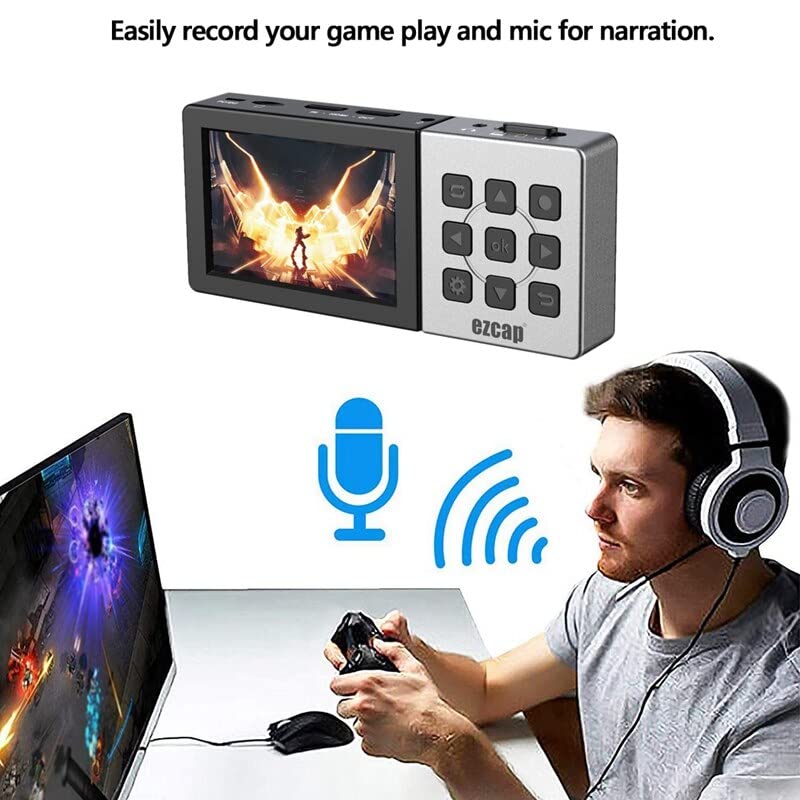
Image: A user engaged in gaming, with the EZCap 273 connected and a microphone symbol indicating active audio input for narration.
Using Microphone Input
- Connect a 3.5mm TRS microphone to the Microphone input port.
- The device will automatically mix the microphone audio with the HDMI audio during recording.
- Adjust microphone volume through the device's menu settings if available.
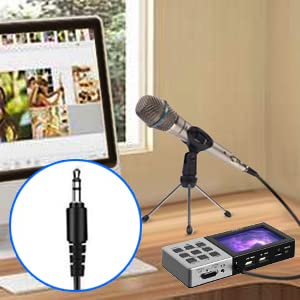
Image: A visual representation of connecting a 3.5mm microphone jack to the EZCap 273 device for audio input.
Suplanuokite įrašymą
- Access the device's menu using the Meniu button on the device or remote.
- Navigate to the "Schedule Recording" option.
- Set the desired recording mode (e.g., once, daily), start time (YY/MM/DD), and duration (e.g., 10 min, 30 min, 60 min).
- Confirm the settings to activate the scheduled recording.

Image: The EZCap 273 device with graphical elements representing a clock and calendar, indicating its schedule recording functionality.
Įrašytų vaizdo įrašų atkūrimas
- From the main interface, navigate to the playback menu.
- Pasirinkite norimą vaizdo įrašą file from the list on the Micro SD card.
- Use the navigation buttons (Play, Rewind, Fast Forward) on the device or remote to control playback.

Image: The EZCap 273 device showcasing its 3.5-inch display, actively playing back recorded video content.
PC Connection (Transfer Mode)
- Įsitikinkite, kad įrenginys išjungtas.
- Connect the EZCap 273 to your PC using a USB cable via the DC/USB port.
- Slide the power switch to the "Transfer" position. The device will be recognized as a mass storage device by your computer.
- You can now access the Micro SD card content and transfer recorded videos to your PC.

Image: The EZCap 273 device connected to a laptop via a USB cable, demonstrating its PC connection capability for file perkėlimas.
Priežiūra
- Valymas: Įrenginį valykite minkšta, sausa šluoste. Venkite skystų valiklių ar abrazyvinių medžiagų.
- Saugykla: Laikykite prietaisą vėsioje, sausoje vietoje, apsaugotoje nuo tiesioginių saulės spindulių ir ekstremalių temperatūrų.
- „Micro SD“ kortelės priežiūra: Regularly back up your recordings. Format the Micro SD card periodically to maintain optimal performance.
- Baterija: The device has a built-in rechargeable battery. For optimal battery life, avoid fully discharging the battery frequently.
Trikčių šalinimas
| Problema | Galima priežastis | Sprendimas |
|---|---|---|
| No video displayed on screen/TV. | Incorrect HDMI connection, power issue, incompatible resolution. |
|
| Recording fails or stops unexpectedly. | Micro SD card full, incorrect format, card error, power interruption. |
|
| No microphone audio in recordings. | Mikrofonas neprijungtas, mikrofonas sugedęs, neteisingi nustatymai. |
|
| Device not recognized by PC in Transfer Mode. | Incorrect switch position, faulty USB cable, driver issue. |
|
Specifikacijos
| Funkcija | Detalė |
|---|---|
| Prekės ženklas | MIKRORANKA |
| Modelio pavadinimas | EZCap 273 |
| Techninės įrangos sąsaja | USB 2.0 |
| Vaizdo įrašymo raiška | 1080p |
| Operacinės sistemos suderinamumas | Windows, macOS (for PC connection) |
| Rekomenduojamas naudojimas | Vaizdo įrašymas |
| Ypatingos savybės | Portable, Standalone Recording, Built-in Display, Microphone Input, Schedule Recording |
| Platformos suderinamumas | PlayStation, Xbox, Nintendo Switch, PC, DV, Live TV, DVR, VHS VCR, Camcorder, DSLR |
| AV Output Format | MPEG-4 |
| Prekės matmenys | 10x3x8 cm |
| Input / Pass-through Resolution | 720x480 (60p), 720x576 (50p), 1280x720p (60p), 1920x1080 (50i/60i/50p/60p) |
| Užfiksavimo raiška | 720x480 (60p), 720x576 (50p), 1280x720p (60p), 1920x1080 (50p/60p) |
| Įrašo formatas | Video / MP4, Audio / AAC Stereo |
| Įrašo kokybė | Max 22Mbps@1080P 60fps |
| Įrašas File Dydis | Max 4GB vienam file |
| Mikrofono įvestis | 3.5mm TRS standard |
| Ausinių išvestis | 3.5mm TRRS standard |
Garantija ir palaikymas
This Microware EZCap 273 device comes with a 3 Months replacement warranty on manufacturing defects only.
For technical support or warranty claims, please contact Microware Multimedia Private Limited:
- Klientų pagalbos linija: +91 9867245665
- Gamintojo kontaktai: 022 - 28729725
- Adresas: Shop No. 2, Ground Floor, Sayeed Ebrahim Mansion, Dr Bhadkamkar Road, Near Minerva Cinema, Grant road(E), Mumbai - 400007
Taip pat galite apsilankyti oficialiame MICROWARE Store on Amazon Norėdami gauti daugiau informacijos.