
1. Įvadas
This manual provides essential information for the proper use and maintenance of your Headwolf FPad 1 Android Tablet. Please read this guide thoroughly before operating the device to ensure optimal performance and longevity. The Headwolf FPad 1 is an 8-inch tablet designed for everyday use, featuring a responsive display and the Android 12 operating system.
2. Pakuotės turinys
Upon unboxing your Headwolf FPad 1 tablet, please verify that all the following items are included:
- Headwolf FPad 1 Tablet
- Vartotojo vadovas (šis dokumentas)
- Power Adapter (USB-A wall charger)
- USB-A į USB-C įkrovimo laidas
Note: The tablet may come with a pre-applied screen protector for immediate use.
3. Device Layout and Overview
Familiarize yourself with the physical components and ports of your Headwolf FPad 1 tablet.

3.1 pav.: Priekinė ir galinė dalys view of the Headwolf FPad 1 Tablet.
3.1. Galinis skydelis
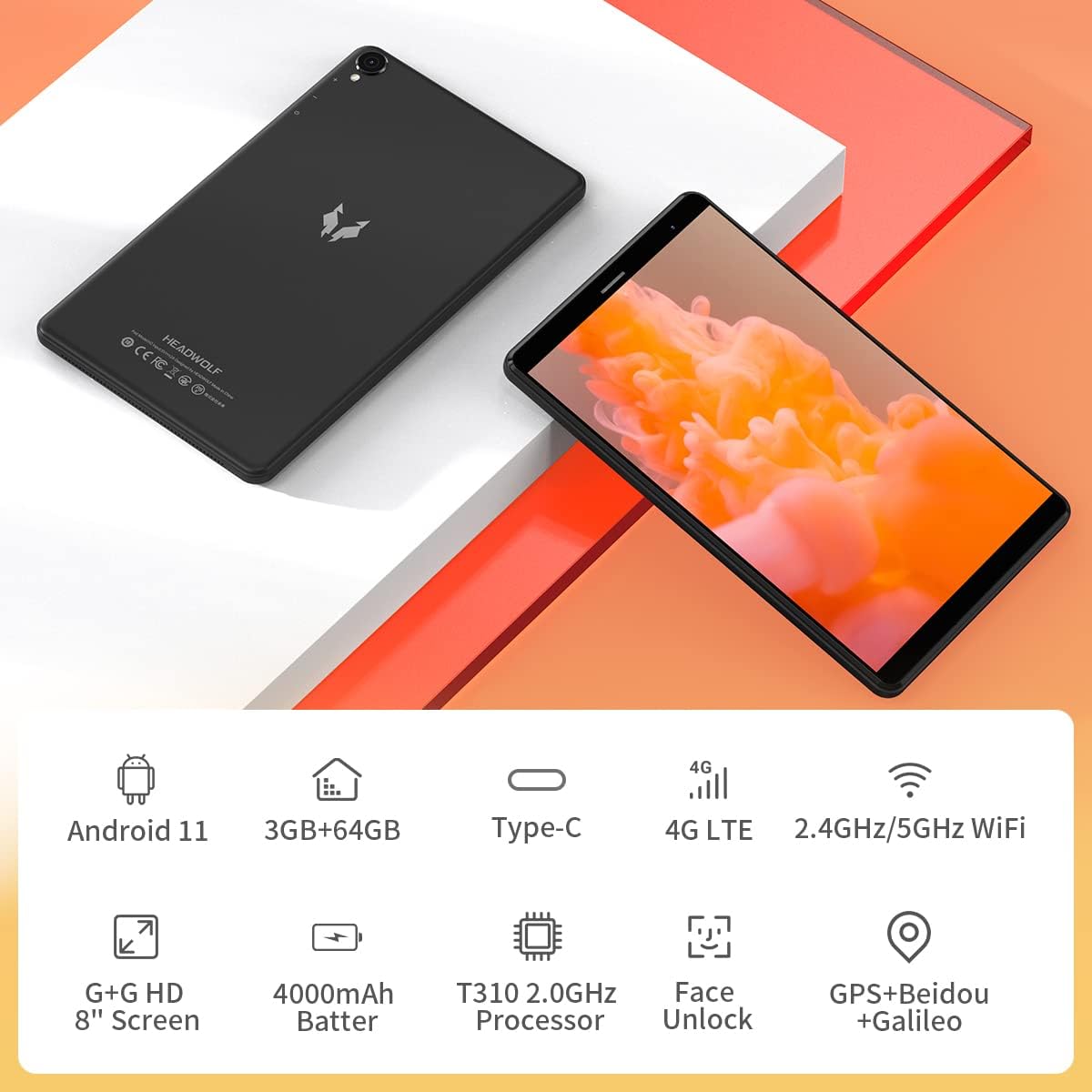
Figure 3.2: The back panel features the Headwolf logo, regulatory markings, and the rear camera module.
3.2. Priekinis skydelis

Figure 3.3: The front of the tablet displays the 8-inch screen, the front-facing camera, and an earpiece for calls.
3.3. Šonas Views ir Uostai

Figure 3.4: The side of the tablet includes the power button, volume rocker, 3.5mm headphone jack, SIM card slot, MicroSD card slot, and USB-C charging port.
- Maitinimo mygtukas: Esantis dešinėje pusėje, naudojamas įrenginiui įjungti / išjungti arba pažadinti / užmigdyti.
- Garsumo svirtis: Adjacent to the power button, controls audio volume.
- Galinė kamera: 5MP camera with LED flash, located on the back panel.
- Priekinė kamera: 5MP camera, located on the front bezel above the screen.
- USB-C prievadas: Įkrovimui ir duomenų perdavimui, esantis viršutiniame krašte.
- 3.5 mm ausinių lizdas: For connecting wired headphones, located on the top edge.
- SIM kortelės lizdas: Supports 4G LTE connectivity (check regional compatibility), located on the top edge.
- MicroSD kortelės lizdas: For expandable storage, located on the top edge.
- Garsiakalbiai: Located on the bottom edge.
4. Sąranka
4.1. Pradinis įjungimas
- Press and hold the Power Button on the right side of the tablet until the Headwolf logo appears on the screen.
- The tablet will boot up, displaying the Android welcome screen.
4.2. Language and Region Selection
Follow the on-screen prompts to select your preferred language and region. This will configure the tablet's default settings.
4.3. Tinklo ryšys
Connect your tablet to a Wi-Fi network to access the internet and complete the setup process. You may also insert a 4G LTE SIM card for mobile data connectivity (if supported in your region).
4.4. „Google“ paskyros sąranka
Prisijunkite naudodami „Google“ paskyrą arba sukurkite naują. Tai būtina norint atsisiųsti programėles iš „Google Play“ parduotuvės ir pasiekti „Google“ paslaugas.
5. Naudojimo instrukcijos
5.1. Pagrindinė navigacija
- Jutiklinio ekrano gestai: Palieskite, kad pasirinktumėte, braukite, kad slinktumėte, suspauskite, kad priartintumėte.
- Pagrindinis ekranas: Pasiekite savo programas ir valdiklius. Braukite kairėn arba dešinėn, kad naršytumėte tarp ekranų.
- Pranešimų skydelis: Braukite žemyn nuo ekrano viršaus, kad pasiektumėte pranešimus ir greituosius nustatymus.
5.2. Ryšys
- „Wi-Fi“: Go to Settings > Network & Internet > Wi-Fi to connect to available networks. The tablet supports 2.4GHz and 5GHz Wi-Fi.
- Bluetooth: Go to Settings > Connected devices > Bluetooth to pair with Bluetooth accessories (e.g., headphones, speakers). The tablet supports Bluetooth 5.0.
- 4G LTE: If a compatible SIM card is inserted, mobile data can be enabled via Settings > Network & Internet > Mobile network.
- GPS: The tablet has built-in GPS for navigation and location services.
5.3. Fotoaparatai
The Headwolf FPad 1 features 5MP front and rear cameras.

Figure 5.1: The tablet is equipped with dual 5MP cameras and supports face unlock.
- Fotografuoti: Open the Camera app, select photo mode, and tap the shutter button.
- Vaizdo įrašai: In the Camera app, switch to video mode and tap the record button. Video recording is supported up to 1080p.
- Kameros nustatymai: Adjust settings like filters, white balance, and composition lines within the Camera app.
5.4. Žiniasklaidos vartojimas
Enjoy videos, music, and e-books on your tablet's HD display.

Figure 5.2: The 8-inch HD IPS display provides a clear viewpatirties įvairiose žiniasklaidos priemonėse.
- Vaizdo įrašo atkūrimas: Use pre-installed apps like YouTube or download others from the Play Store.
- Garsas: The tablet features stereo speakers. For a more immersive experience, connect headphones via the 3.5mm jack or Bluetooth.
5.5. Žaidimas
The UNISOC T310 Quad-Core processor allows for smooth performance in most casual games. For graphically intensive games, performance may vary, and lower settings might be required for optimal gameplay.

Figure 5.3: The tablet's processor is capable of handling various gaming applications.
6. Priežiūra
- Valymas: Ekraną ir korpusą valykite minkštu, nepūkuotu audiniu. Venkite stiprių cheminių medžiagų.
- Akumuliatoriaus priežiūra: Norėdami pailginti akumuliatoriaus veikimo laiką, venkite ekstremalių temperatūrų ir dažnai jį visiškai iškraukite.
- Programinės įrangos atnaujinimai: Reguliariai tikrinkite, ar yra sistemos naujinimų, ir įdiekite juos, kad užtikrintumėte optimalų našumą ir saugumą.
- Saugyklos valdymas: Periodiškai valykite nereikalingus files and apps to free up internal storage. Consider using a MicroSD card for additional storage.
7. Problemų sprendimas
This section addresses common issues you might encounter with your Headwolf FPad 1 tablet.
7.1. Įrenginys neįsijungia
- Ensure the battery is charged. Connect the tablet to the power adapter and wait a few minutes before attempting to power it on again.
- Press and hold the Power Button for at least 10-15 seconds to perform a forced restart.
7.2. Slow Performance/Freezing
- Uždarykite nenaudojamas programas, veikiančias fone.
- Išvalykite talpyklos duomenis iš programų ir sistemos.
- Iš naujo paleiskite planšetinį kompiuterį.
- Užtikrinkite pakankamai laisvos vietos saugykloje.
7.3. „Wi-Fi“ ryšio problemos
- Toggle Wi-Fi off and on in Quick Settings or Settings.
- Paleiskite iš naujo „Wi-Fi“ maršrutizatorių.
- Pamirškite tinklą ir vėl prijunkite.
7.4. Camera Quality
The 5MP cameras are designed for basic photography and video calls. For optimal results, ensure good lighting conditions. Camera performance may not be comparable to high-end smartphone cameras.
8. Specifikacijos
| Funkcija | Specifikacija |
|---|---|
| Prekės ženklas | Galvos vilkas |
| Modelio pavadinimas / serija | FPad 1 / F1 |
| Prekės modelio numeris | F2 |
| Operacinė sistema | Android 12 (some marketing may refer to Android 11) |
| Ekrano dydis | 8 colių |
| Ekrano raiška | 1280x800 HD IPS ekranas |
| Procesorius | UNISOC T310 Quad-Core A75 (2 GHz) |
| RAM | 3 GB |
| Vidinė saugykla | 64 GB |
| Išplečiama saugykla | MicroSD up to 512GB (some sources indicate up to 2TB) |
| Galinė kamera | 5 MP |
| Priekinė kamera | 5 MP |
| Baterijos talpa | 4000mAh (up to 7-8 hours usage) |
| Įkrovimo prievadas | C tipo USB |
| Belaidis ryšys | 5G WiFi, Bluetooth 5.0, 4G LTE |
| Navigacija | GPS, Beidou, Galileo |
| Matmenys (IxPxH) | 8.31 x 0.38 x 4.97 colio |
| Prekės svoris | 11.4 uncijos (apie 320 g) |
| Spalva | Purple (as listed in specifications, though product images show black/grey) |
9. Garantija ir palaikymas
For warranty information and technical support, please refer to the documentation included with your purchase or visit the official Headwolf websvetainėje. Išsaugokite pirkimo įrodymą, jei prireiktų pateikti garantinį ieškinį.